The Connections feature in infoodle allows you to set up links or relationships between two separate contacts. These connections can also be configured in bulk using the Connections option for importing data.
The Connections import is a very specific function, and can only be used to create connections between contacts that are already in the database.
Preparing a Connection Import
Before carrying out a Connections import, you will need to do some initial configurations with your database. You will also need to set up the import data file to match the specific requirements of this import type.
Connection Lookups
You will need to ensure that the Connection lookup data field that you will be using has been created in infoodle. Only existing Connection lookups can be imported, you cannot create these during the import itself.
See the help page on Custom Fields: Connections for more information.
Contact Unique ID Data
The Connections import requires using the infoodle Unique ID data to identify each contact that is having a connection created. For this reason, only existing contacts in the database can be included in a Connections import.
You will need to download the Unique ID for the relevant contacts by creating a Report via the Reports section of infoodle, including the Unique ID field, and then downloading the list to a CSV file.
Setting up the Data File
The Connections import only allows four data fields to be used, and these must be contained as columns within your import data file. For example:
- Person 1 ID - The infoodle Unique ID of the First Person
- Person 1 Relationship Label - The Connection Relationship of this person to person 2
- Person 2 ID - The infoodle Unique ID of the Second Person
- Person 2 Relationship Label - The Connection Relationship of this person to person 1
You can include other data in your file, such as the names of the people, to help you manage the data. However, only the above fields will be needed during the actual import.
In the below example, Person 1 (ID 42) will be configured as the Husband and connected to Person 2 (ID 21) who is configured as the Wife.

Because connections are a two-way relationship, each specific Connection between contacts only needs to be included once.
Looking at the below example:
Row 3 is not needed as this is the same connection as Row 2, only reversed in the data file. infoodle would import and create the same connection for each row, so including both would mean that a duplicate of the connection is created.

Running a Connection import
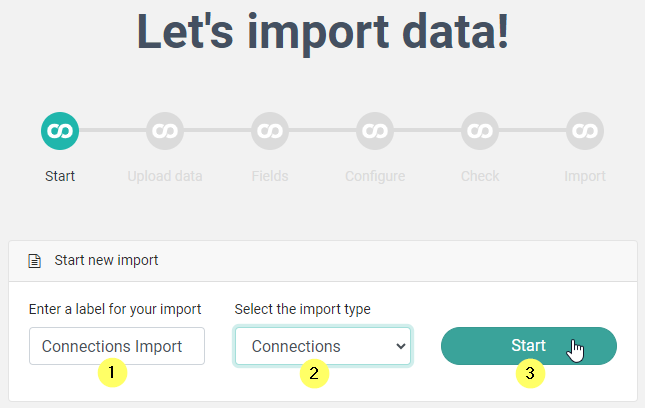
To run your import, go to Administration > Data Import and enter an Import Label, then select Connections as the import type and click Start.
Then upload your CSV file and continue.
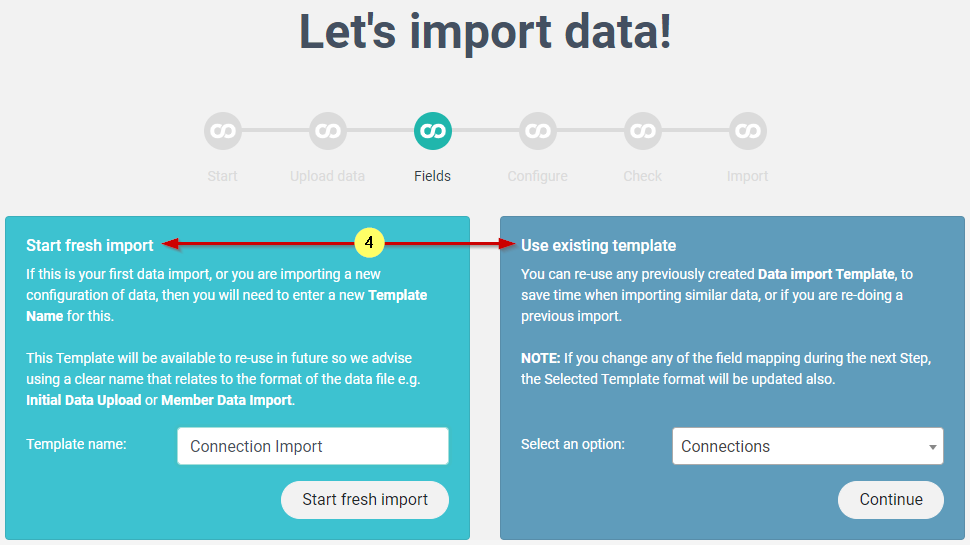
On the Fields screen select one of the two options:
- Enter a label and click Start fresh import to create a new import template, OR
- Select an existing template (if available) and click Continue
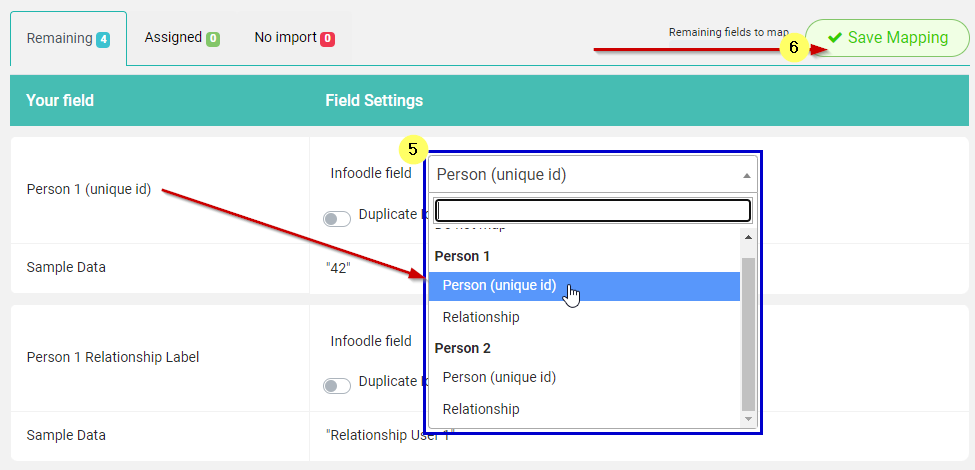
When Mapping the Data file columns there are only four fields available, the Unique ID for each Person, and the Relationship for each person. Map these to the appropriate Columns of data, Click Save Mapping and then click Continue.
From here proceed to Duplicate Match Setting page:
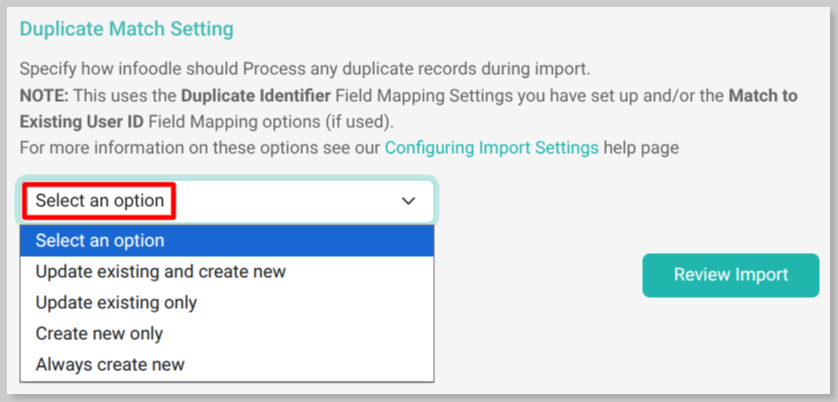
Select the required duplicate match setting and select Review Import:
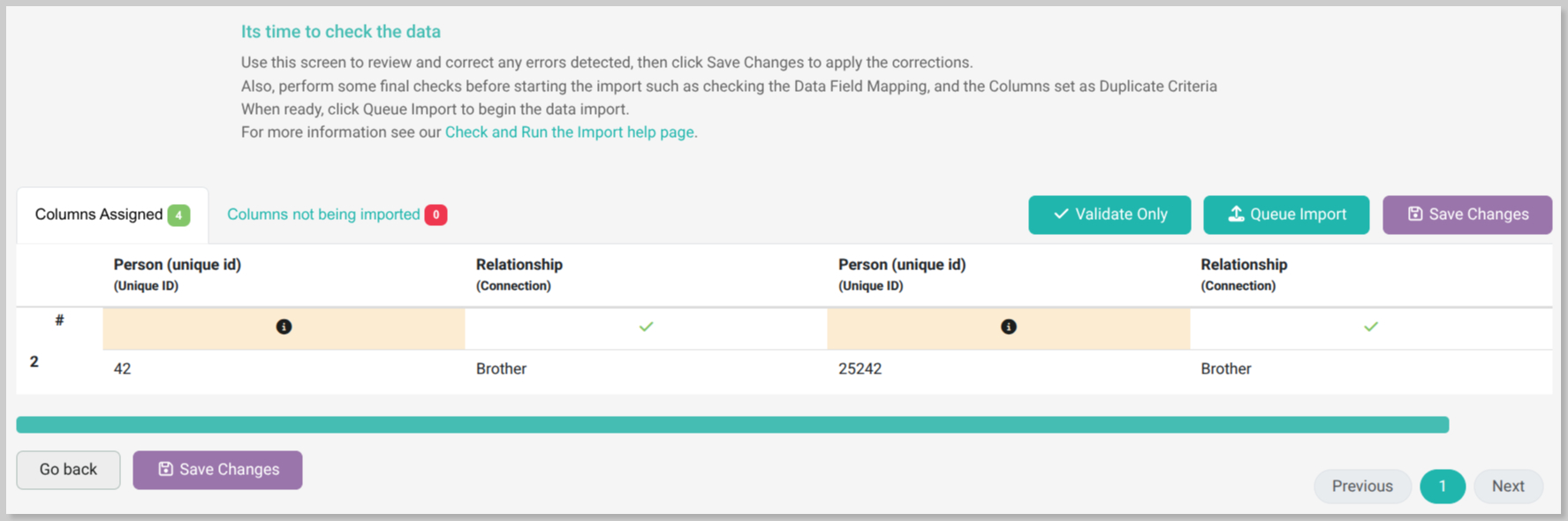
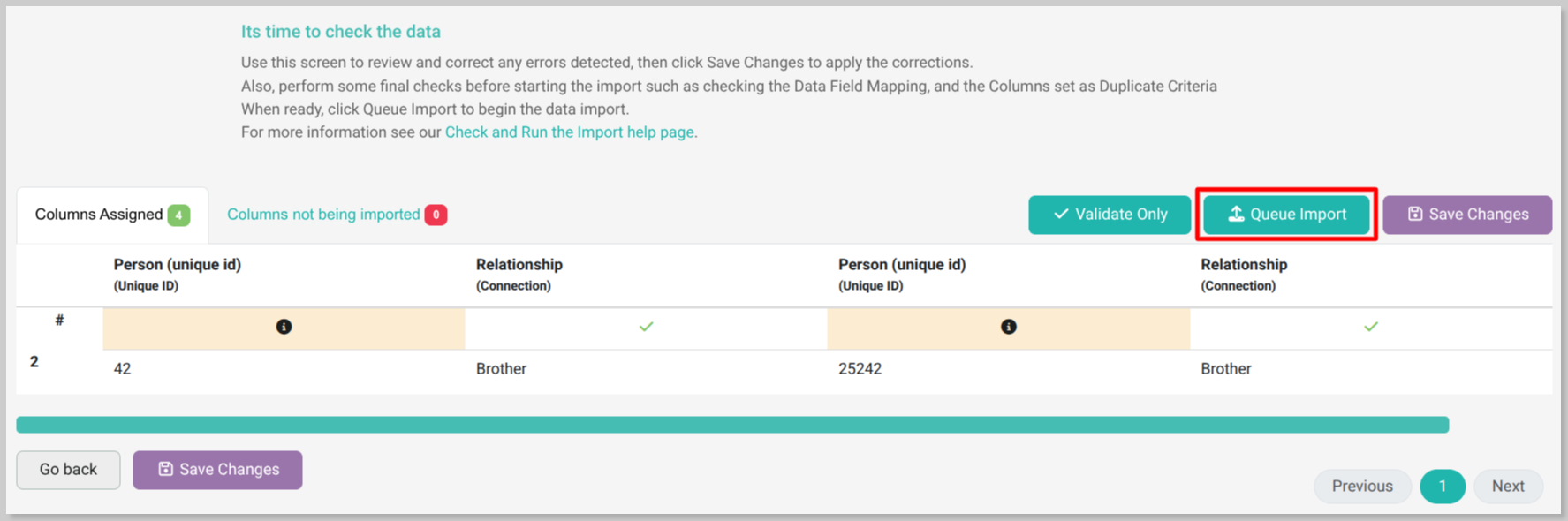
Once review is clear of errors select Queue Report to begin the import.