If your report returns no results — or far fewer than you expected — one of the following causes is usually responsible. Work through them in order.
1. Your criteria use AND when they should use OR
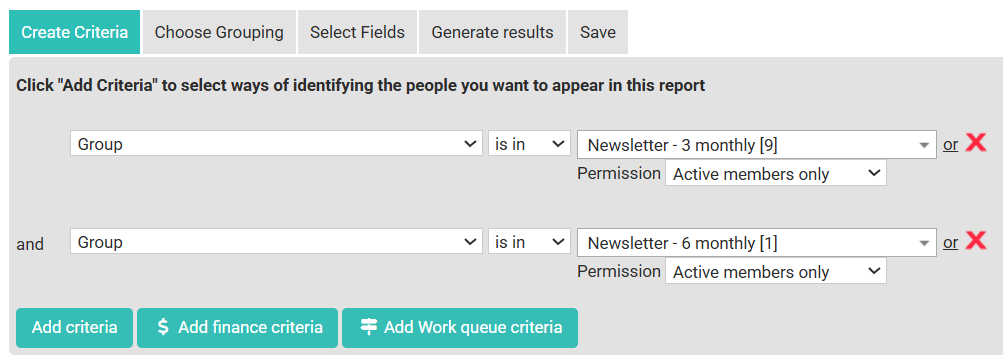
This is the most common cause. When you add more than one criteria row in Reports > Create Criteria, infoodle defaults to AND logic — meaning a contact must match every condition to appear in the results. If those conditions are mutually exclusive, nobody will match.
Example:
Criteria row 1: "Newsletter - 3 monthly"
AND
Criteria row 2: "Newsletter - 6 monthly"
This returns nobody, because no contact is in both groups at the same time.
Fix:
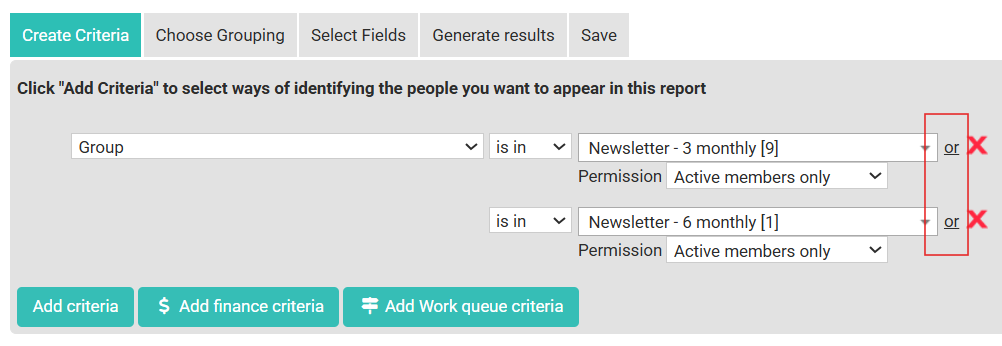
Change AND to OR by clicking the "or" link on the second criteria row.
How to use AND and OR in a report
- Go to Reports.
- Either open an existing report or create a new one in the Create Criteria tab.
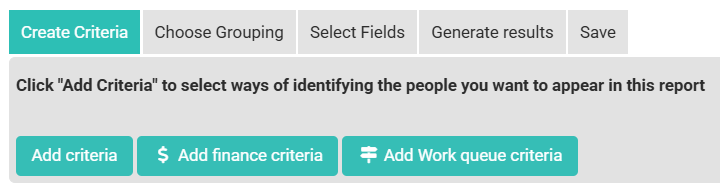
- Add your first criteria row by clicking Add Criteria and selecting the filter you want.
- Add a second criteria row by clicking Add Criteria again. It will default to "and".
- Look at the second criteria row — you'll see the word "or" as a clickable link to the right of the field options.
- Click that "or" link to change the logic between the two criteria rows.
- Your criteria should now read "Newsletter - 3 monthly or Newsletter - 6 monthly" and will return everyone in either group.
Tip: If you're ever unsure whether AND or OR is causing the problem, try running each criteria row on its own. If each row alone returns results but combined they return nothing, the logic between them is the issue.
2. A fixed date range has passed
If your report uses a specific date (e.g. "Date joined equals 01/01/2023") rather than a relative preset, the criteria may no longer match any records now that time has moved on.
Example:
Specific date may have passed

Fix:
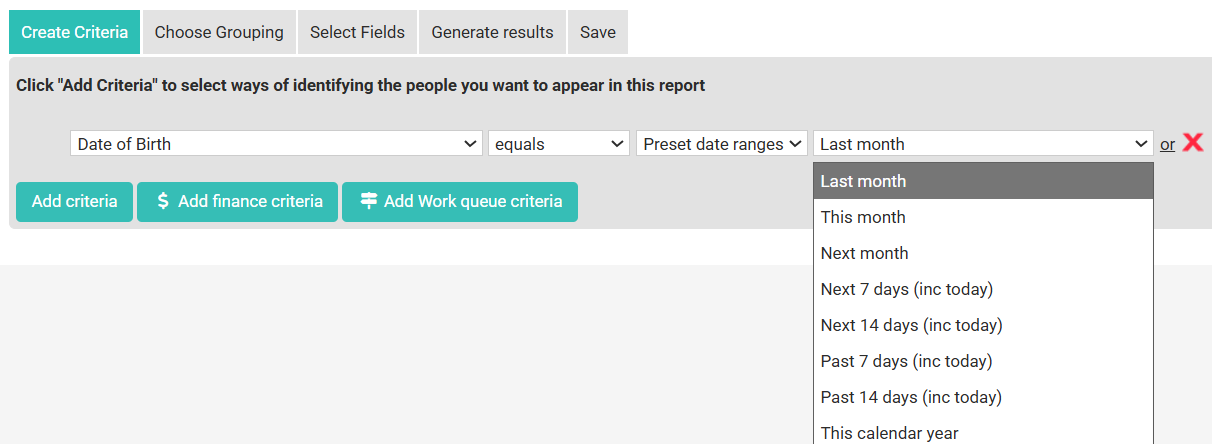
Replace fixed dates with a Preset date range option such as This year, Last month, or Last 12 months. These stay accurate every time you run the report.
How to change a date criteria
- Click the Create Criteria tab
- Choose a date criteria
- Change the comparison from a fixed date to equals and Preset date range.
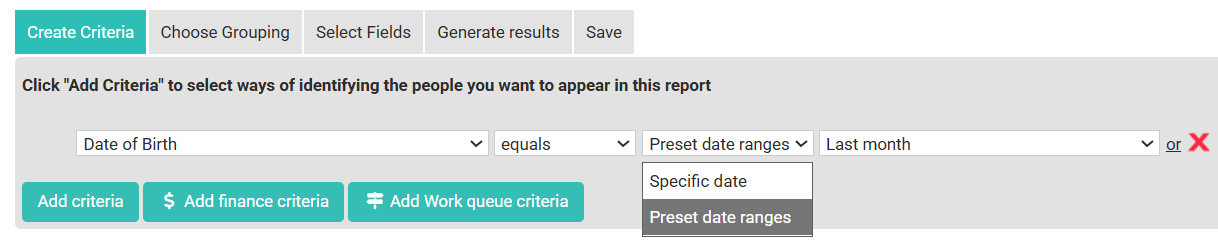
- Choose the appropriate preset from the dropdown.
- Save the report.
3. Your role restricts which contacts you can see
If your user role includes cluster permissions or Online Directory restrictions, the report will only show contacts within your permitted scope — even if the criteria itself is correct. A cluster-restricted user who is not an Administrator of any groups may get zero results across the entire system.
Fix:
Contact your infoodle administrator to review your role settings. The relevant permissions to check are:
- Is a member of a cluster — limits visibility to contacts in groups where you are an Administrator
- Online Directory — limits contact visibility to directory-visible data only
If you believe your role has been changed or set up incorrectly, ask your administrator to compare it against other users who can run the same report successfully.
4. The criteria is more restrictive than expected
Sometimes a combination of criteria that each return results individually can return very few results when combined — this is expected behaviour, not a bug. Each additional AND condition narrows the result set further.
How to expand report criteria
- Remove all but one criteria row and run the report. Note how many results it returns.
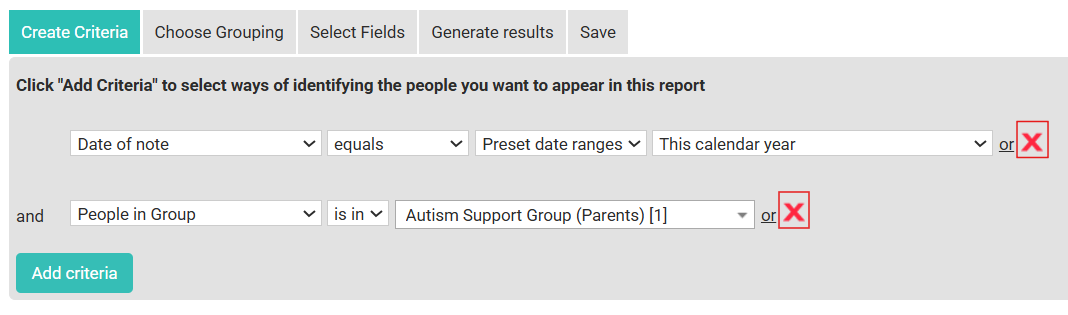
- Add the next criteria row back and run again. See how much the count drops.
- Continue until you identify which criteria is reducing results unexpectedly.
This approach helps you pinpoint whether a criteria is correct, misconfigured, or simply more selective than you anticipated.
5. The report area doesn't match your data
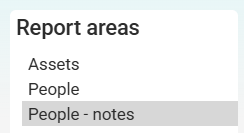
Each report is built against a specific Report Area (People, Assets, People Notes, Attendance, etc.). If you've selected the wrong area, the fields and records available won't match what you're looking for.
Example:
A report built under the People – Notes area will only return contacts who have matching notes. If you run it expecting a general people list, most contacts will be excluded.
Fix:
Check the Report Area shown at the top of the report builder. If it's wrong, you'll need to start a new report under the correct area — you can't change the area of an existing report.
Still getting no results?
If none of the above resolves the issue:
- Try running the report with no criteria at all (just select an output column and run). If this returns results, the criteria is the problem. If it still returns nothing, your role permissions are likely the cause.
- Contact infoodle support with the name of your saved report and a description of what you expected to see.