Create Criteria
The Create Criteria tab is the starting point for selecting the data you want to display.
-
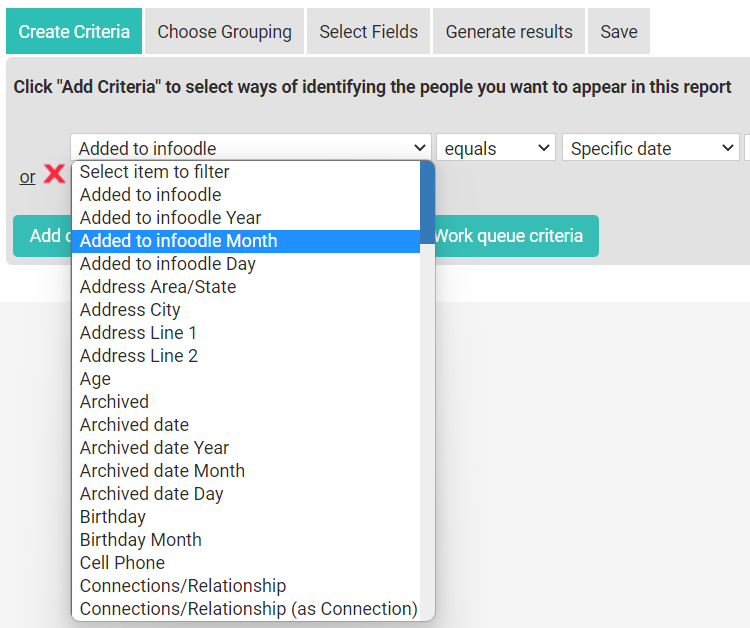
Select the drop-down and begin by choosing the criteria you want to add, or exclude from the report.
-
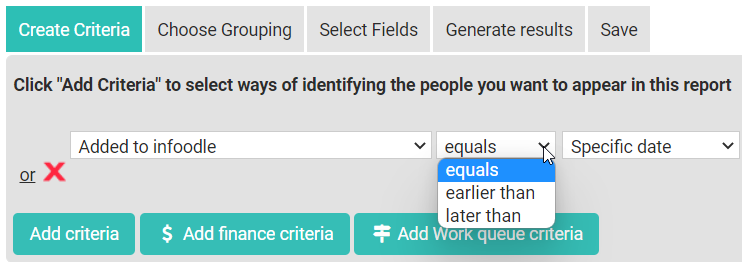
Once a criteria is selected a second drop-down specifies range filters relative to the selected criteria.
In the example below, the options specify an exact date, all dates before, and all dates after the specified date.
Other criteria ranges may filter results with:
- starts with, ends with, contains (Address)
- starting or ending numbers (of phone numbers),
- equals or does not equal (Groups)
-
The third field will be either a drop-down box for the selection from a list of related filters (specific age year when the Criteria is Age), or a text box for text you want to search for (a road name when the Criteria is Address).
Depending on the initial Criteria, additional fields may be displayed.
-
Continue adding Criteria using the Add Criteria button. This will provides the option of adding additional criteria with the AND function. When using the AND function the resulting list of contacts is generated based on all criteria being true. For example, if the criteria consists of:
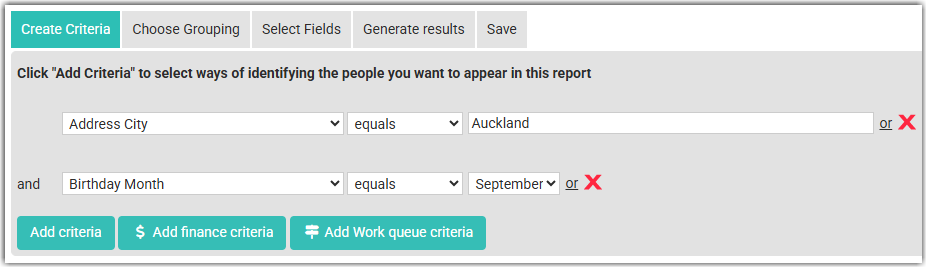
the result will include only those that: live in Auckland and their birth month is September.
Another example:
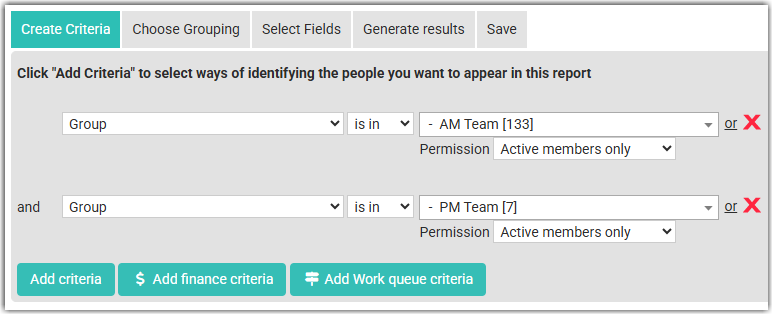
The result will only include contacts that are in both groups.
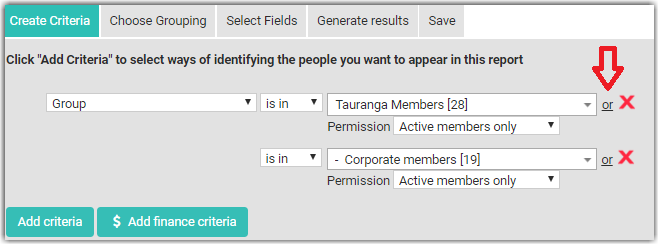
- If you are looking for people in one or more groups, for example,then make sure that you use the OR function (as in the screenshot below). To select the OR function add one criteria and then click on the or button to the left of the delete 'X' icon, to add another criteria.
Financial Criteria
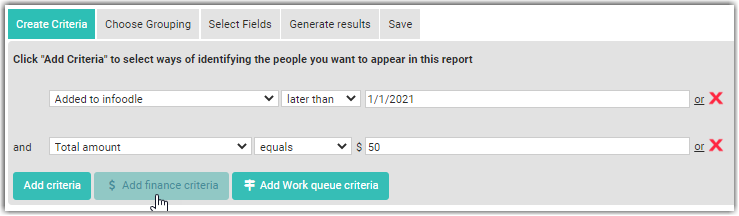
For Finance information, set a criteria to select the contacts of interest (or no criteria to select all contacts in your infoodle), then select Add financial criteria and select the required financial option or options to to refine the initial criteria.
For example, the criteria below selects all contacts add to infoodle later than 1/1/2021 and their transaction total is $60:
Date Criteria - Date Ranges
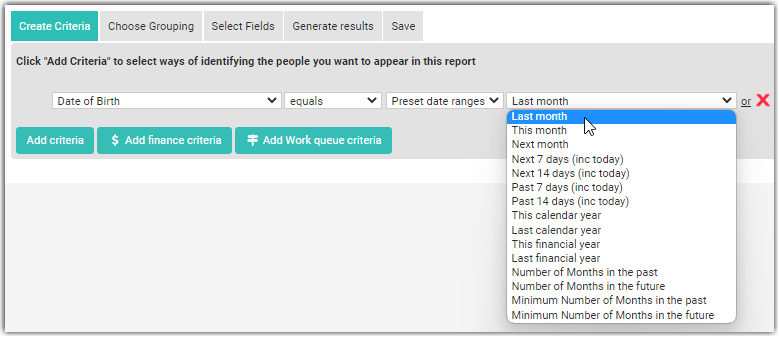
When you choose a date field, for example, Date of Birth, and you select equals, you are presented with a choice of how to set the date - either a Specific date or a list of Preset date ranges.
When selecting the operators Earlier or Later or Less than or Greater than, keep in mind this is exactly what is meant - not 'equal to' and 'Earlier', 'Later', 'Less than' or 'Greater than'.
For example, in the Financial Criteria example above, 'Added to infoodle later than 1/1/2021' would result in:
- all contacts added on or after 2/1/2021 - but not those added on 1/1/2021.