An email signature is the sign-off that goes at the bottom of the emails you send from infoodle. A signature usually holds your closing regards, your contact details and the organisation you represent. Signatures are personal to you: each user builds and keeps their own, and they are not shared with other users on your infoodle. You can save more than one signature, for example a full one for external emails and a short one for quick replies, and pick which one to use each time you email.
Before you start
Role Permissions
- Contact people: gives you access to the Contact area, where email is composed.
- Contact people by email: lets you compose and send email, which is where signatures are created and used.
For an explanation of what each role permission means and how they are assigned, see About Permission Roles.
Signatures are saved against your own login, so you do not need any administrator permission to create or change them. Anyone who can send email can manage their own signatures.
Create an email signature
You build and save signatures on the Signatures page inside the Contact email area.
Step 1: Open the Signatures page
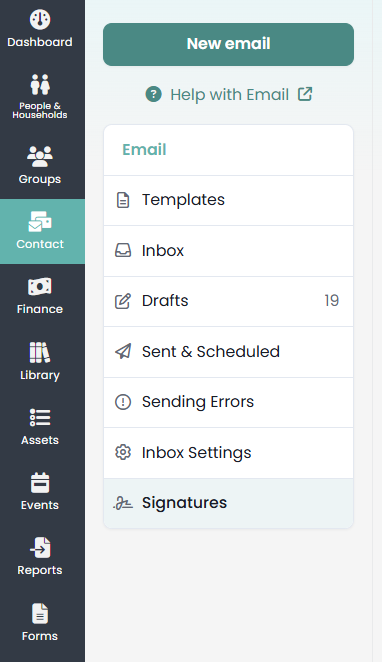
Click or hover on Contact on the main menu bar on the left, then click Email. In the Email menu on the left, click Signatures.
Step 2: Start a new signature
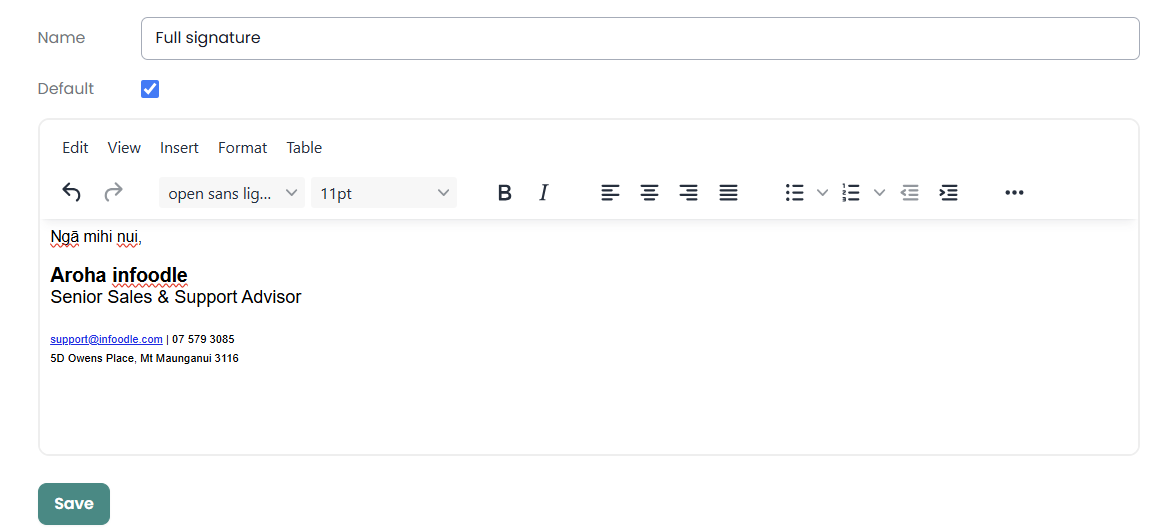
Click Add to start a new signature. Enter a Name so you can recognise it later, such as Full signature or Short reply. The name is for your own reference and is not shown to the people you email.
Step 3: Build the signature content
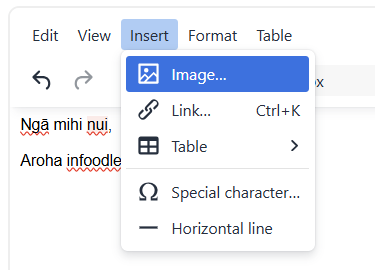
Type your sign-off into the editor and format it the way you want it to appear. The editor works like the email body: you can set the font and colours, make text bold, add links, and insert an image such as a logo.
Step 4: Set it as your default (optional)
Tick Default if you want this signature added to your emails automatically. You can have one default signature at a time, so ticking Default here clears it from any other signature. You can still switch to a different signature, or to no signature, on any individual email.
Step 5: Save
Click Save. Your signature is added to the list on the left. If you opened the Signatures page while composing an email, click Back to email to return to your message.
Add, edit, copy or delete signatures
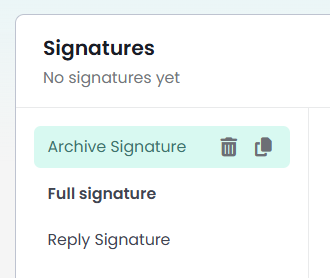
All of your saved signatures appear in the list on the Signatures page, and you manage them from there.
- Add: click Add to start another signature. There is no set limit, so you can keep separate signatures for different purposes.
- Edit: click a signature in the list to open it, make your changes, then click Save.
- Copy: use the Copy icon to duplicate an existing signature. infoodle creates a copy you can rename and adjust, which is quicker than building a similar signature from scratch.
- Delete: use the Delete icon to remove a signature you no longer need.
Add your signature to an email
How your signature appears in a new email depends on which editor you are using.
Basic email
When you compose with the Basic editor, infoodle adds your signature for you: your default signature is placed in the email, and the same happens when you reply to or forward a message from your inbox. The signature you have chosen is shown beneath the email content so you can see what will be sent. If you want to place the signature in a specific spot, you can insert the signature merge tag yourself from the Merge Tags panel.
Email designer
When you build an email in the Designer, you add the signature yourself. In a text content block, click Merge Tags on the toolbar, open Email Settings, then click signature. The signature merge tag is added to the block, and infoodle fills in your chosen signature when the email sends.
The signature is placed wherever the signature merge tag sits in your email. In a Basic email with no merge tag, infoodle adds your signature to the bottom of the message. A Designer email works differently: if you have not added the merge tag, no signature is added, so remember to insert it where you want it. If you send an email with no signature selected, the merge tag resolves to an empty string, so nothing is inserted in its place.
Choose which signature to use
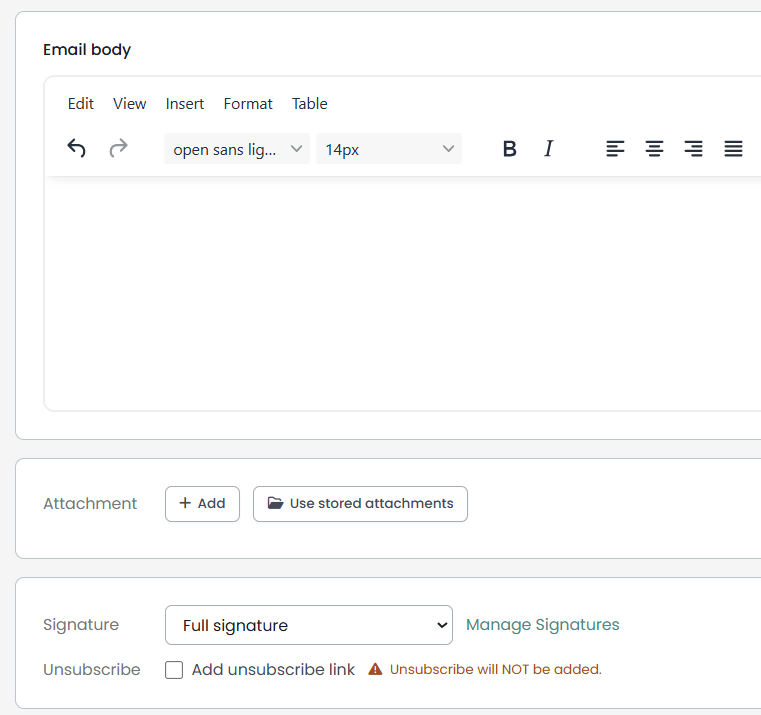
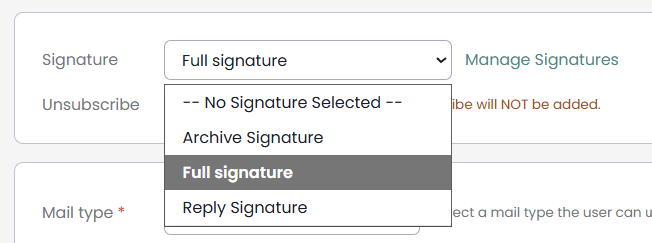
The signature for the current email is shown in the additional email settings, below the email content or design window.
- Click the name of the current signature.
- Choose another signature from the list, or choose No Signature to send without one.
- Click Save.
If you do not have a signature selected, you will see No Signature in place of a signature name.
Common questions
Can I have more than one signature?
Yes. You can save as many signatures as you like and give each one a name. One of them can be your default, and you choose which to use on each email.
Are my signatures shared with other users?
No. Signatures are saved against your own login. Each user creates and manages their own, and they are not visible to anyone else. There is no shared or organisation-wide signature, and you cannot create a signature on behalf of another user: each person sets up their own.
Why is my signature not appearing on a designer email?
The Designer does not add a signature automatically. Add the signature merge tag to a text content block from Merge Tags, then Email Settings, then signature.
Can I put a logo or image in my signature?
Yes. The signature editor lets you insert an image, so you can add a logo or a photo along with your text and links.
Is there a limit on signature size?
Very large signatures can be rejected, for example if you paste a large block of HTML or embed a large image. If a signature is too big to save, infoodle shows the message "Signature Content is too large - please reduce and try again". Reduce the content, such as by using a smaller image, and save again.
Next steps
Merge tags let you personalise the rest of your email in the same way your signature is filled in. See Email Merge Tags for the tags you can add and where to use them.
Related articles