Donor statements tell a contact what they gave over a period and where each of their pledges stands. Finance > Donor Statements is where you choose who gets a statement, which transactions and pledges are counted, and which statement template is used, then produce the statements as a PDF to print or as individual emails. They can be sent as often as required by your processes.
Before you start
Role Permissions
- Manage, Read and report on transactions
For what each of the finance role permissions covers, see Finance Permissions.
You will also need at least one statement template. If your site has none, this screen offers a link to create one. See Donor Statement Templates.
Generating a statement
- Go to Finance > Donor Statements.
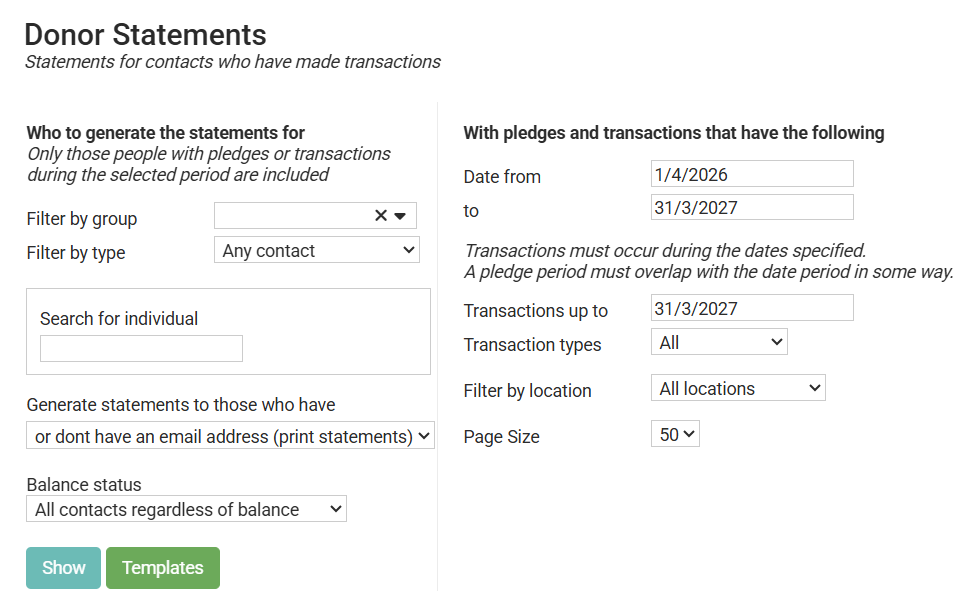
- Use the filters on the left to choose who to generate statements for: a group, a contact type, or one individual. Use Generate statements to those who have to pick between contacts with an email address, contacts without one, or both. You can also set Balance status to narrow the run to contacts whose pledges are fully paid, not fully paid, or overpaid.
- Use the filters on the right to choose what is counted: the date range, the Transactions up to cutoff, transaction types and codes, campaign, location and pledge drives. For help deciding which of these to set, see Who Needs Statements?.
- Click Show. The list underneath refreshes with the matching contacts and their Pledge totals, Transaction totals and Balance for the period.
- Choose the Statement Template to use.
- Click Print this page of people or Email to all filtered people .... The Email button is not offered when you have set Generate statements to those who have to no active email address (print statements).

- Print this page of people: generates a single PDF containing everyone on the current page of the list, ready to print. A Download button appears once the statements are ready. The list shows one page at a time, set by the Page Size filter, so a long run takes one click per page.
- Email to all filtered people ...: This will place your request for emailing the statements to everyone listed in all of the pages. Therefore you only need to click this once, and everyone in your search results will be processed.
- Process Sensitive Word List: sits between the Statement Template picker and the buttons, and starts out ticked. It swaps each word on your site's sensitive word list for that word's replacement as the statements are produced, and removes any email address containing one. It appears only if your site has a sensitive word list.
To test a statement before generating statements go to a profile page of any contact that has transactions, click Finance and then click STATEMENT.
On a person's finance tab, a statement can be generated. This includes the ability to filter by account code and (if you use them - pledge drive) for those that need to be specific about the transactions that appear on the statement.
There can be benefits for your administration processes to have different names of files than the infoodle defaults. To change the format, refer to this document.
Choosing which transactions are included
The date range
Date from and to set the statement period, and both start out set to your current financial year. As the screen notes, transactions must occur during the dates specified, and a pledge period must overlap with the date period in some way.
Transactions up to
Transactions up to sets a cutoff for payment information. It sits between the date range and Transaction types, and it defaults to the end of your current financial year, so a run already has a date in it before you touch anything. This is very useful when you have reviewed the transactions up to a specific date which is in the past e.g. the end of last month, so selecting that as the Transactions up to date means that Transactions for this month will not be included.
The field keeps whatever date it was given, so it does not follow the period to date when you change that. If you run a statement over a period ending later than the current financial year, set this field to match your new period end or clear it. Left on the earlier date it holds back every payment in the gap, and the pledge figures then report the donor as owing more than they do.
What it does to the list of contacts
Transaction totals counts only transactions dated on or before the cutoff. Contacts who gave after it stay in the list, with a smaller total or $0.00. They are not filtered out. Balance is Transaction totals less Pledge totals, so it moves by the same amount, and Pledge totals stays as it is.
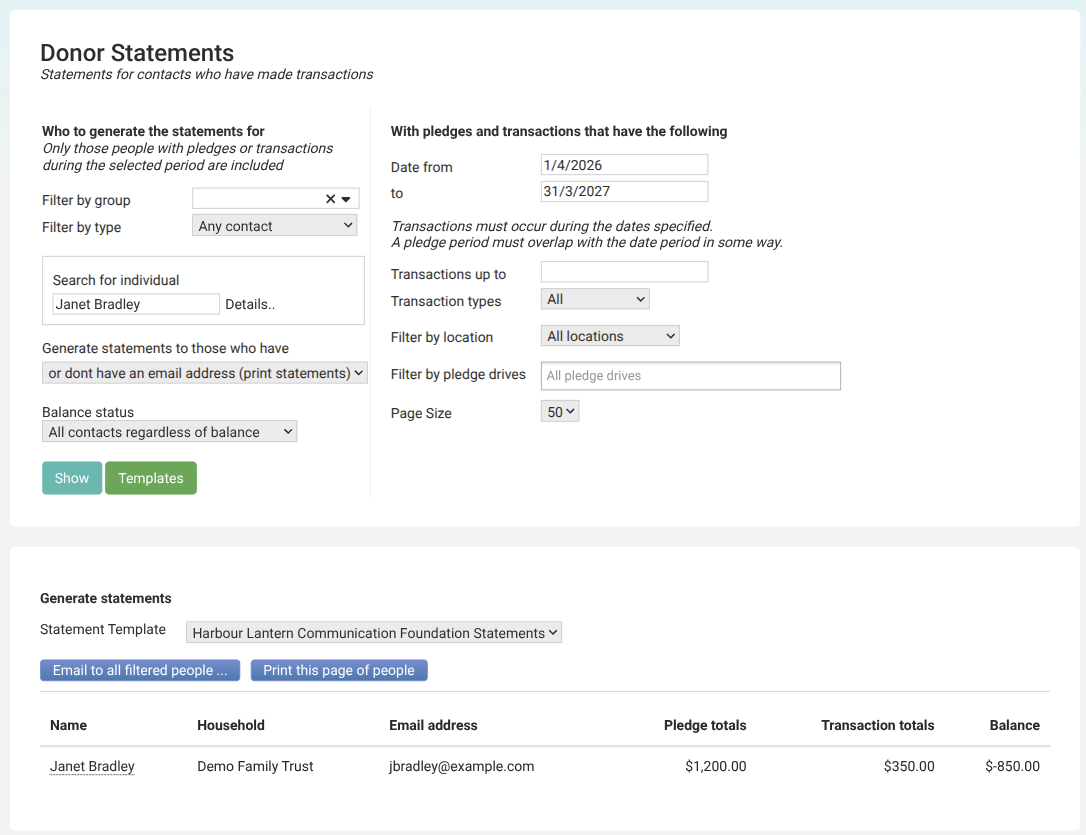
Janet Bradley has five transactions in the year to 31 March 2027: 150.00 on 1 April, then 50.00 on each of 15 April, 15 May, 15 June and 15 July. With Transactions up to on the period end her Transaction totals reads 350.00 and her Balance reads -850.00.
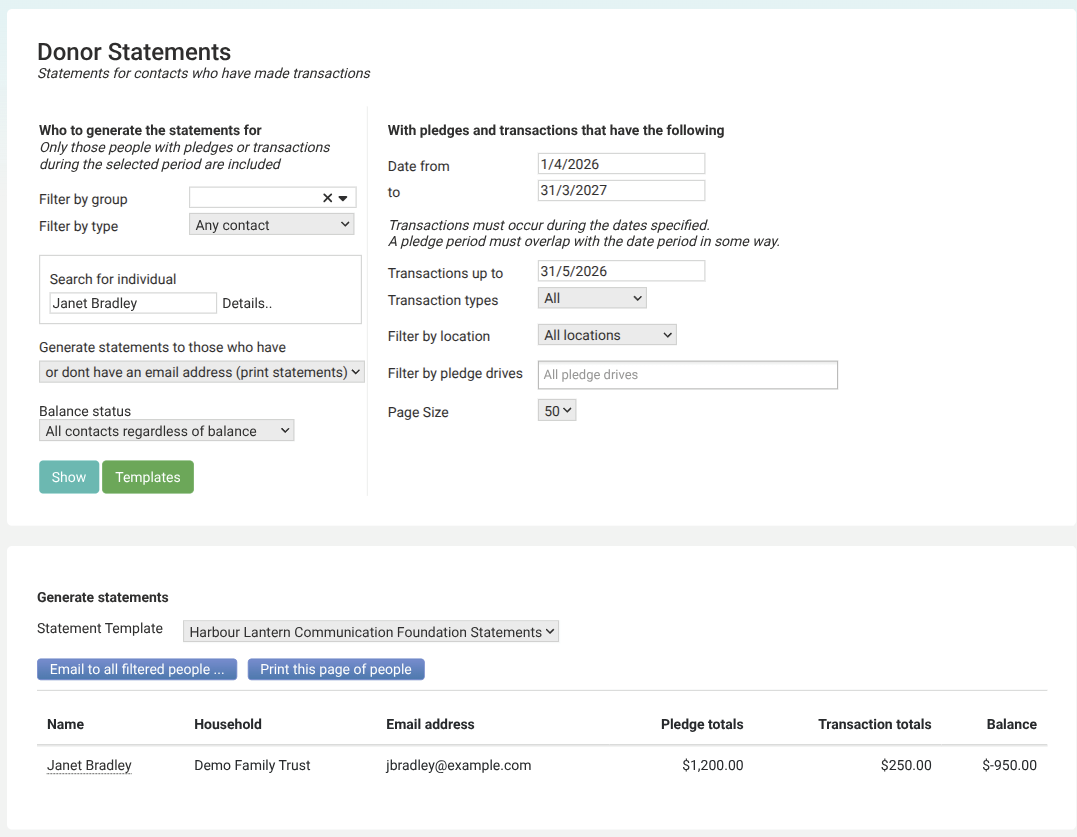
Set it to 31 May 2026 and the same row reads 250.00 and -950.00, with Pledge totals unchanged at 1,200.00.
Balance status and Transactions up to act on the same balance figure, so they affect each other.
The balance is Transaction totals less Pledge totals, and the cutoff lowers Transaction totals, so bringing the cutoff back moves contacts between the Balance status groups even though nothing about their giving changed. A contact whose pledges are fully paid stops matching All pledges paid (Zero Balance) and starts matching Pledges have not been fully paid, and a contact who has given more than they pledged can stop matching More has been received than pledged.
That works in both directions, and it governs the run rather than the list. A contact who stops matching is left out of the generated statements as well as out of the list, so no statement is produced for them. A contact who starts matching is included, and their statement reports Amount Left To Pay as more than they owe.
Leave Balance status on All contacts regardless of balance unless you have a reason to narrow the run, and when you do narrow it, check that Transactions up to reads the date you want first.
What it does to the statement
On the statement, the cutoff holds back payment information without removing any pledge. Every pledge payment inside the statement period is still listed. Rows whose payment falls after the cutoff are shown with Payment Status, Paid Date and Paid Amount empty. A donor on a twelve month pledge with a cutoff halfway through still gets all twelve rows, and the later ones simply have nothing in the paid columns.
The pledge figures move with it, so they are what was true on that date rather than a relabelling. Janet's 50.00 monthly pledge reports Total Paid 200.00 and Amount Left To Pay 400.00 with the cutoff on the period end. At 31 May 2026 the same pledge reports 100.00 and 500.00, and the 15 June and 15 July rows are blank even though both payments were received. The words printed around these figures come from your statement template, so your own statements may label them differently.
Where a template uses the Amount Left To Pay column of a pledge summary or pledge detail table, that column heading carries the cutoff date, for example Amount Left To Pay at 31 May 2026. Because the field starts out filled in, a heading carrying the prefilled date is what you will normally see.
The cutoff works on pledge payment information. It does not change the list of transactions printed on the statement, or the statement total. Janet's statement lists all five transactions and totals 350.00 under either cutoff, while her pledge pages report 100.00 paid. To shorten the transaction list itself, move the to date of the period instead.
Filter by pledge drives
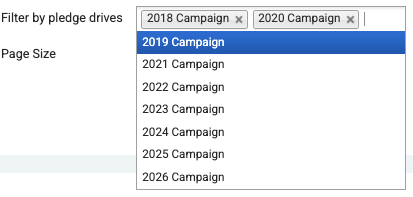
Filter by pledge drives limits the run to the transactions and pledges to just the drives you choose, and it allows more than one to be selected, so a single run can cover several drives at once. Click the box, then click each drive you want. Each one you pick is added to the box as a tag with a small x on it to take it off again.
Leave the box empty and every pledge drive is included. While nothing is selected it reads All pledge drives, which is what is happening. A filter saved with a single drive still loads with that drive selected.
This filter appears only once your site has at least one pledge drive.
Common questions
Do I have to fill in Transactions up to?
Check it before every run. It arrives filled in with the end of your current financial year and keeps that date when you change the statement period, so on a run over any other period it can sit earlier than your period end without your having chosen that. While it sits on or after the period end it holds nothing back, and clearing it does the same. Clearing it also takes the date off the Amount Left To Pay heading. While it sits earlier, payments after it drop out of the pledge figures: Total Paid and Paid $ come down, Amount Left To Pay goes up by the same amount, and the statement reports the donor as owing more than they do.
Why is a contact in the list with a transaction total of $0.00?
All of their transactions in the period fall after the Transactions up to date. They still qualify for a statement, so they stay in the list. Move the cutoff forward or clear it to count those transactions.
A pledge page has rows with nothing in the paid columns. Why?
Those payments fall after the Transactions up to date, so their status, date and amount are held back. The pledge row itself is still there with its pledge date and amount. Rows for payments that are not yet due are also blank, because there is nothing to report on them yet, and that is independent of the cutoff. A row whose date has passed without a payment is not blank: it reads Requested, Missed, Cancelled or Failed.
Can I choose more than one pledge drive?
Yes. Filter by pledge drives takes any number of drives, and the run covers all of them. Choosing none covers them all.
Why can I not see Filter by pledge drives?
Your site has no pledge drives set up yet. The filter appears once there is at least one.
I moved the period end date. Why are the pledge figures still stopping at the old date?
Transactions up to keeps the date it was filled in with when you opened the screen, so it does not move when you change the period to date. Set it to your new period end, or clear it, and click Show again.
Next steps
The statement template decides what each statement actually shows, including whether it carries a pledge summary table or a separate page per pledge. See Donor Statement Templates to set one up.