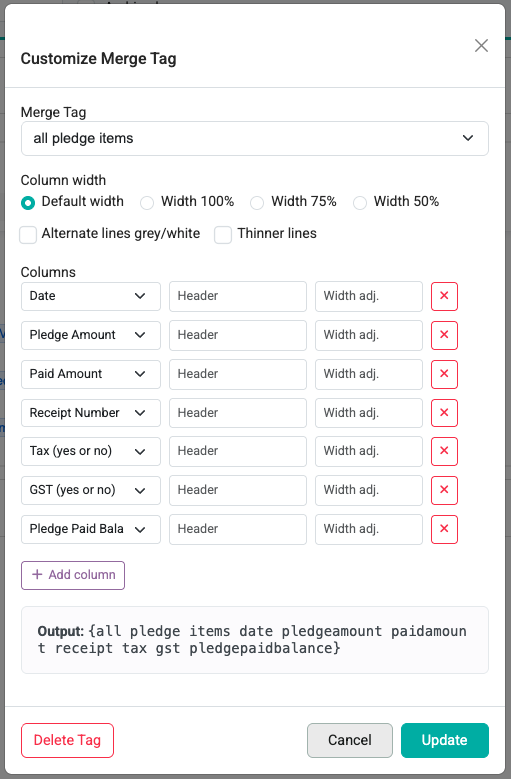
infoodle provides a large number of merge tags that you can include in your communications. These can be used when sending Emails, Statements and Receipts.
Typing in a merge tag
You can use the keyboard to type in the merge tag or help you select it.
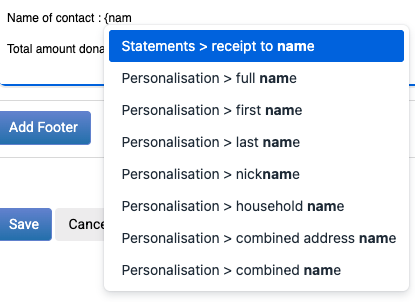
First type a { then start typing any letter of the merge tag to show the list that you can click.
e.g. :
Selecting from available tags
You can use the list of tags when the list is shown on the screen:
- Place the cursor in the edit window where you want to insert the text
- Click on the relevant merge tag and it will be placed in the edit text where your cursor was
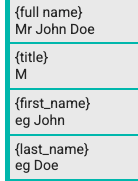

Designer Emails
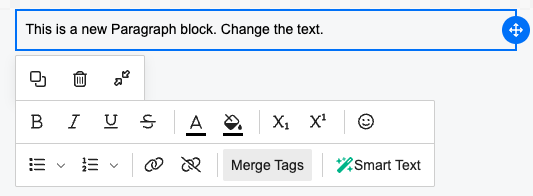
For text elements, the available merge tags can be found by either typing the { as above, or clicking the 'Merge tags' button
Merge Tag Editor
For all editors, you can click the highlighted merge tag in your content to reveal an editor e.g. for the all pledge items merge tag there are a number of options you can use