Microsoft Outlook on the Windows desktop renders HTML email differently from Gmail, Apple Mail, the Outlook web app, and almost every other modern email client. Emails you build in infoodle's Email Designer that look perfect everywhere else can land in an Outlook inbox with shifted columns, dropped backgrounds, or a different font. That is a property of Outlook, not of your design.
Before you start
Role Permissions
- Contact people by email
For a description of every role permission and how to assign them, see the Role Permissions glossary.
You will also need:
- Access to Microsoft Outlook on Windows desktop, either on your own machine or via a colleague who can open your test email and report back.
- Comfort with the Email Designer interface. If you are new to it, start with Using Email Designer.
Note, the Outlook web app at outlook.office.com and Outlook on Mac use modern rendering engines and will not reveal the issues this article is about.
Why Outlook renders differently
Outlook on Windows desktop displays HTML email in a way that strips or reinterprets many modern styles. Build your email with that in mind, lean on the Designer's built-in blocks, and send a test before you send to your full list.
Build and test an email for Outlook
Work through these steps in order. They cover opening the Designer, building the email, previewing it, and sending a test that lets you see what Outlook recipients will see before you send to your full list.
- Open the Email Designer. You can find this by going to Contact on the main menu bar on the left, then Email. Click New email and choose Designer as the editor.
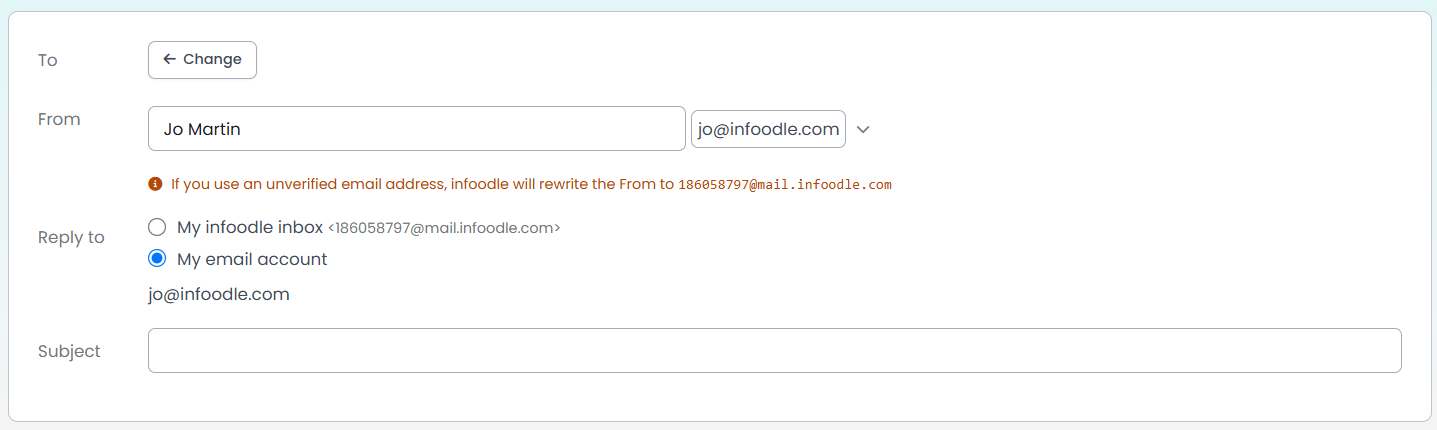
- Add a subject. Fill in the Subject field at the top of the composer. Test sends require a subject.
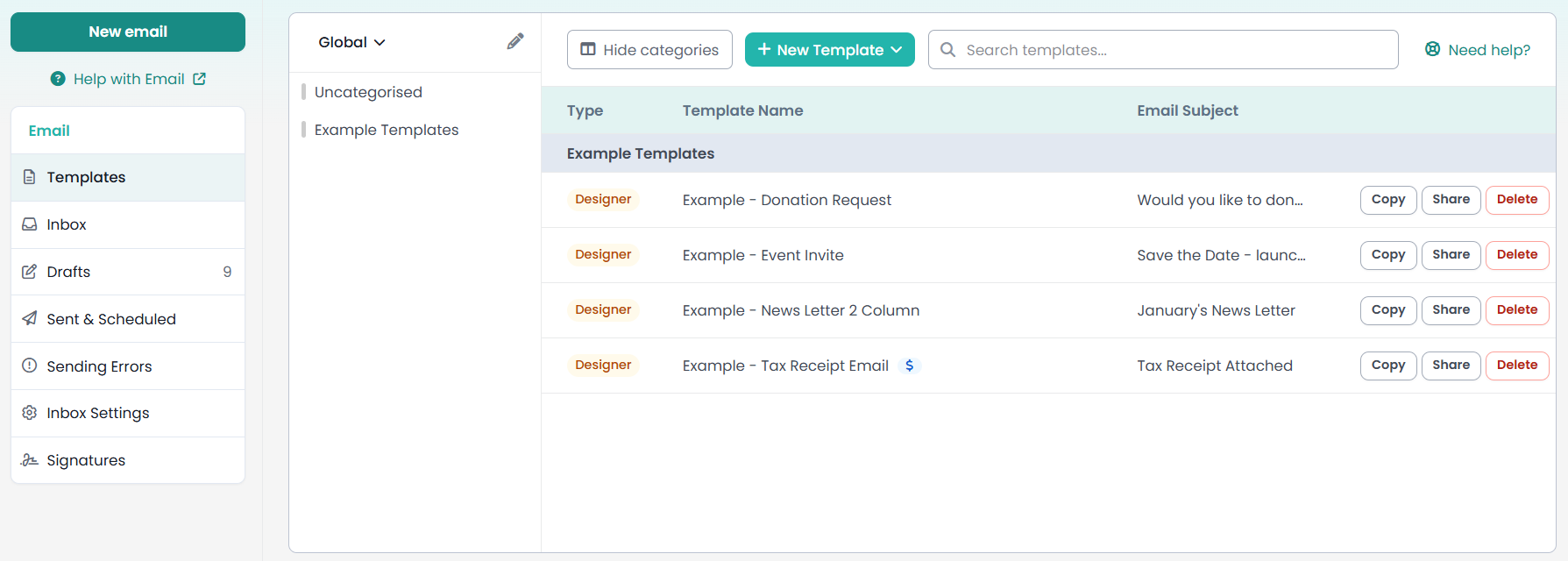
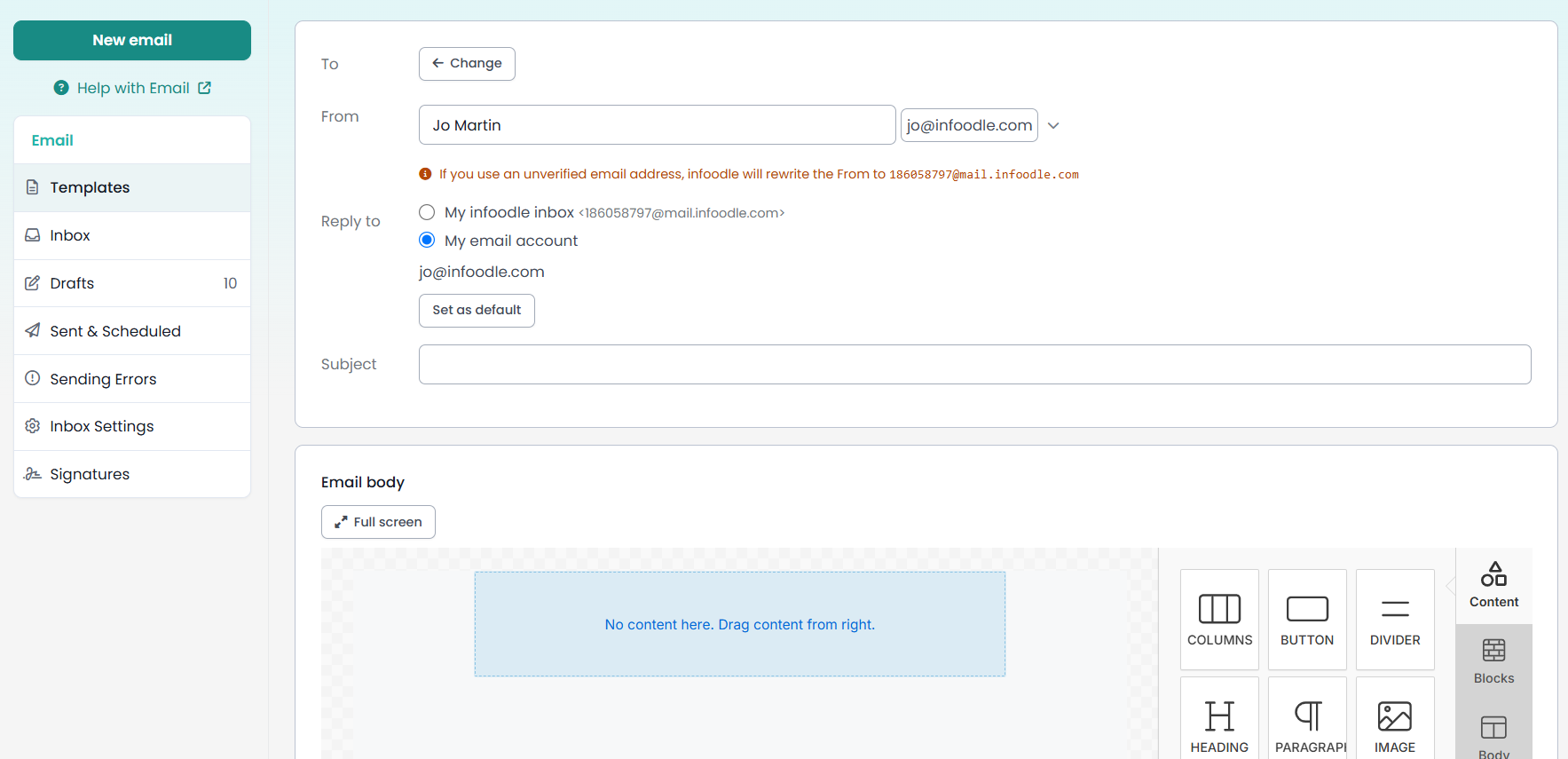
- Pick a layout or template. Start from a saved template or a blank layout. Templates already use Outlook-friendly structure, so they are the safer starting point if you are new to the Designer.
- Build the header. Drag in a single-column row at the top for the masthead. Keep the header simple: a single image or a text block with your organisation's name and a clear subject line. Avoid multi-column headers because Outlook can shift the columns at narrow widths.
- Build the body. Use single-column rows for the most important content (the lead message and the call-to-action). Where you need multiple columns, keep them to two and keep the content in each column short. Use the Button block for any call-to-action so the Designer wraps it in the markup Outlook needs to render it as a solid coloured rectangle.
- Build the footer. Add your sign-off, contact details, and the unsubscribe link at the bottom. Keep the footer text plain. Outlook handles text well but can mishandle dense styled footers.
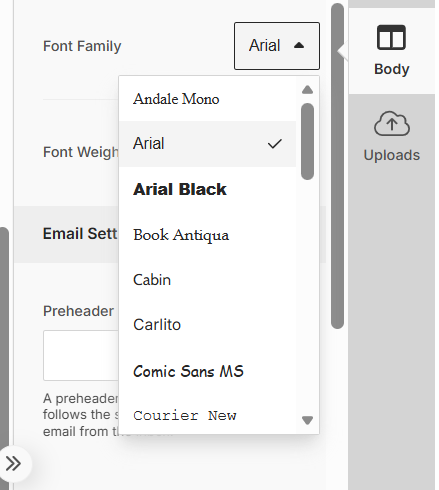
- Check colours, fonts, and images. Pick a Windows-default font (Arial, Calibri, Georgia, Tahoma, Times New Roman, Trebuchet MS, or Verdana) for guaranteed rendering. Add descriptive alt text on every image because Outlook hides images by default. Avoid relying on background colours or background images for brand identity, since Outlook ignores many of them.
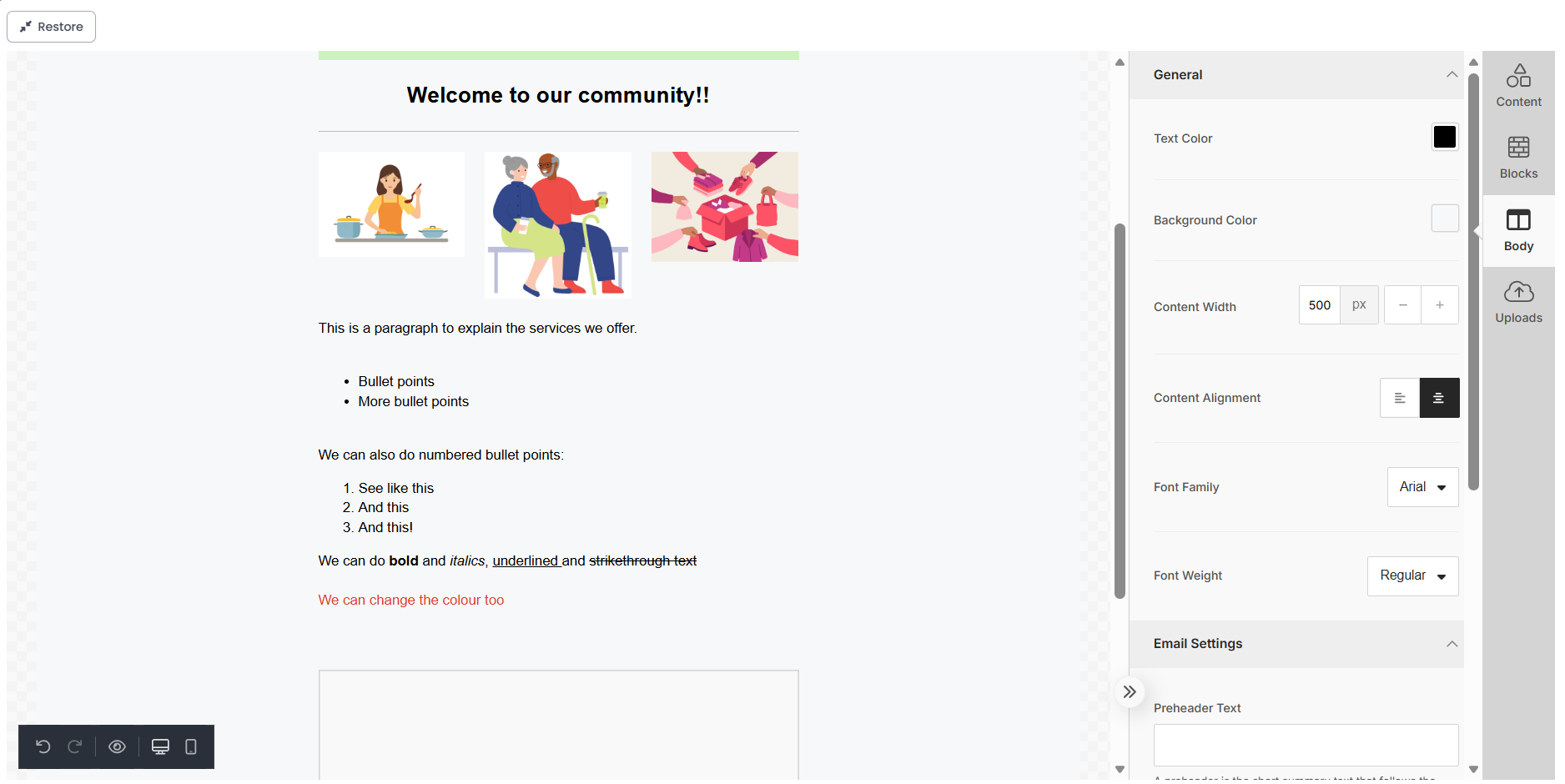
- Preview the email. Use the Designer's preview to check the layout in desktop and mobile views. The preview is a reasonable proxy for modern clients but does not reproduce Outlook on Windows, so you still need a test send.
- Eye icon - preview
- Computer screen icon - desktop version
- Phone icon - phone version
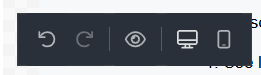
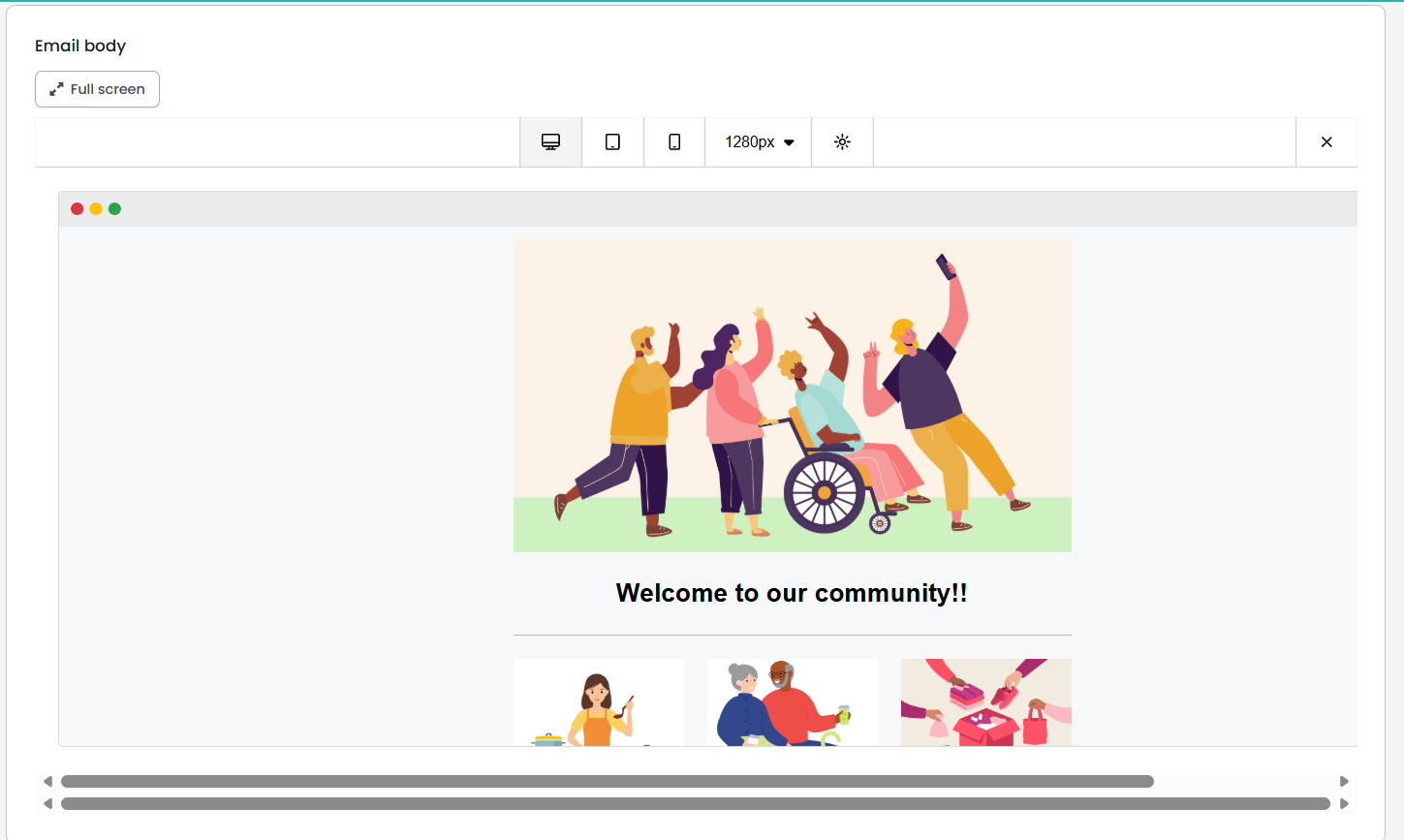
- Send a test email. In the action bar at the bottom of the composer, click Send Test Email. infoodle sends a copy of the email to your own inbox, with merge tags filled from your own person record. The test send does not touch the recipient list on the email.

- Open the test in Outlook on Windows desktop. Check the columns, the buttons, the images, the spacing, the colours, and the fonts. This is where the Outlook-specific rendering shows up.
- Adjust and re-test. Go back to the Designer, save the draft, change anything that did not render the way you wanted, and send another test. Repeat until you are happy.
- Send to your recipients. When the test looks right in Outlook, return to the Designer, set the recipient list as normal, and send.
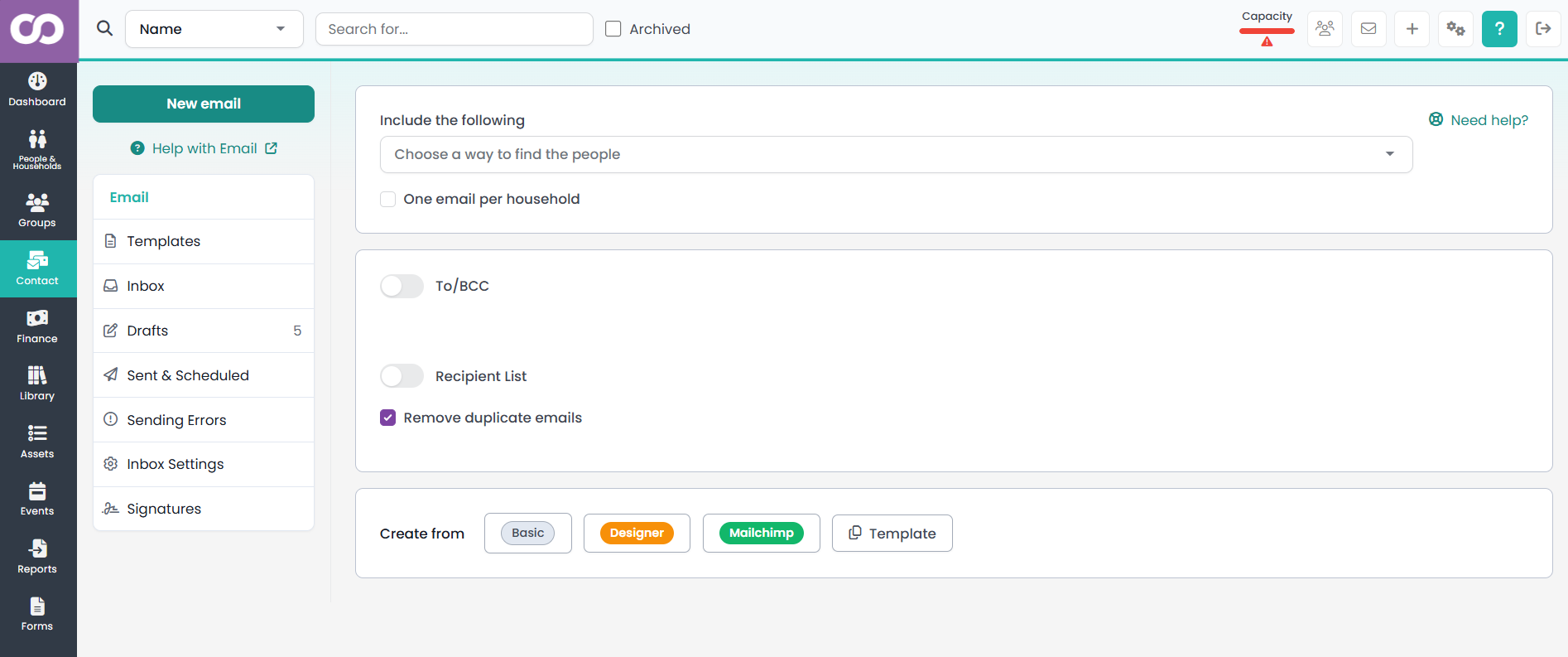
Template:
Blank layout:
Where to focus your design
The full Designer interface is described in Using Email Designer. The notes below call out the choices that have the biggest effect on Outlook rendering.
Multi-column layouts
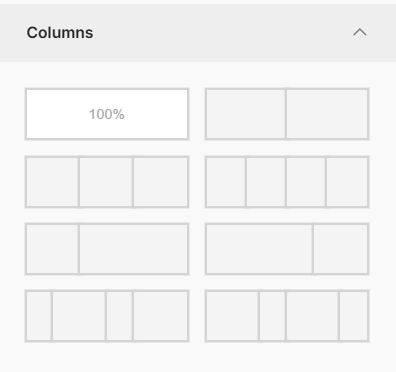
- Lead with single columns: use single-column rows for the lead message, the call-to-action, and the headline.
- Keep multi-column rows simple: if you use multi-column rows, keep them to two columns and keep the column contents short.
- Avoid mismatched heights: do not mix wildly different content sizes across columns without testing what Outlook does with the height.
- Test multi-column designs: always send a test and open it in Outlook before you ship a multi-column design.
Background colours and background images
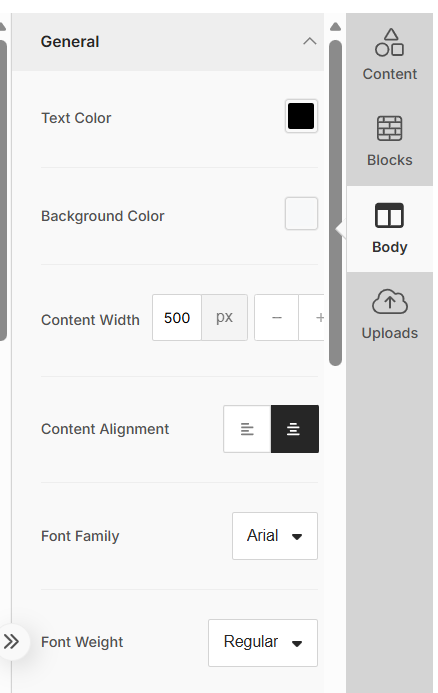
- Do not rely on backgrounds for brand identity: if Outlook strips the background, the email still needs to read well.
- Use foreground colours for brand cues: text colour, button colour, and image borders carry the brand for the elements that have to look branded.
- Build coloured bands as content rows: if you want a coloured band across the email, put it inside a row as a coloured block of content, not as a CSS background on the container.
Buttons
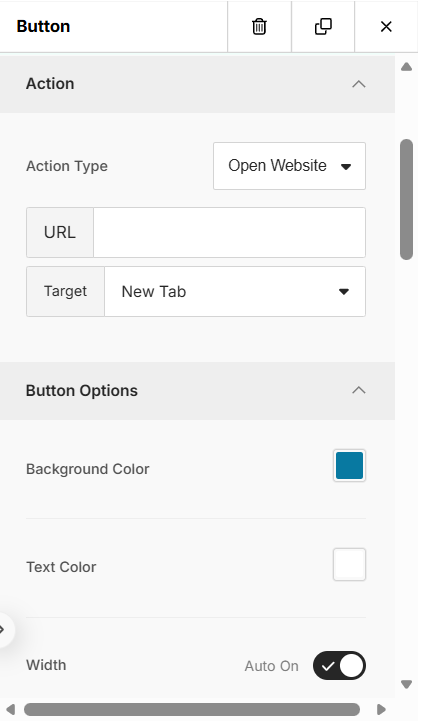
- Use the Button block: use it for any clickable call-to-action. Do not fake a button by styling a text link.
- Confirm the button in Outlook: test the button to confirm the colour, padding, and rounded corners survive. The rectangle and label always survive. Outlook may render rounded corners as square, and a square-cornered button is still a usable button.
Web fonts
- Pick a Windows-default font for guaranteed rendering: Arial, Calibri, Georgia, Tahoma, Times New Roman, Trebuchet MS, and Verdana all render correctly in Outlook.
- Choose a sympathetic fallback: if your brand depends on a specific web font, make sure the fallback font in the stack is still on-brand.
- Check the test email's font: open the test in Outlook. If the fallback looks generic, pick a font with a better fallback in the stack.
Images
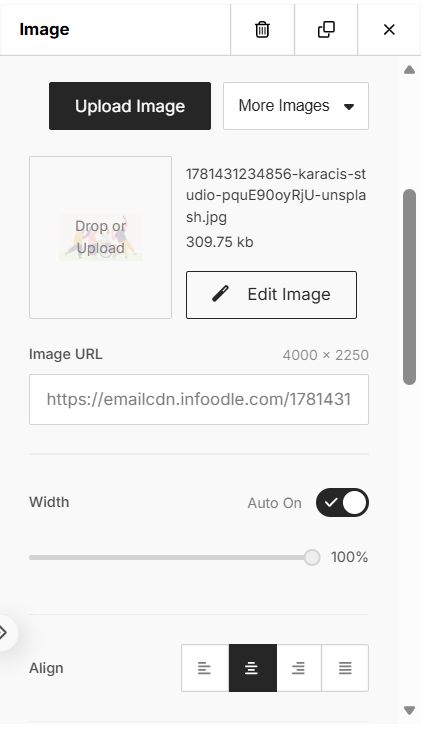
- Write descriptive alt text on every image: when Outlook hides the image, the alt text is what the recipient sees. "Photo of last month's community working bee at the centre" is good. "Cover photo" is poor.
- Keep important content in text: the headline, the call-to-action, and the date and time of the event belong in text blocks, not in image overlays.
- Keep image file sizes reasonable: Outlook is slower than most clients to download large images, especially on corporate networks with image scanning in the pipeline.
Padding and spacing
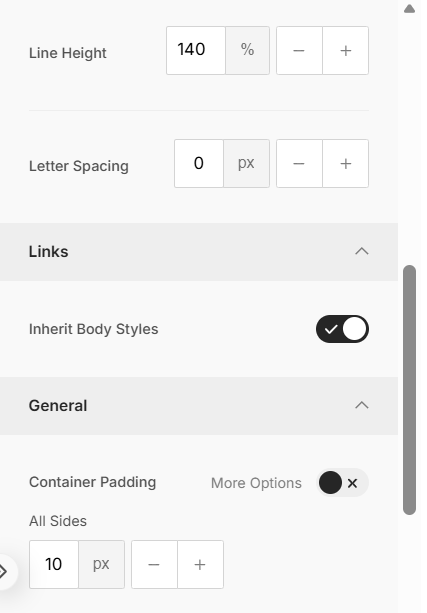
- Avoid 0 px padding on adjacent blocks: Outlook can introduce a small gap of a few pixels. Plan the design so a small gap is not disruptive.
- Use the Designer's spacing controls: use them rather than inline HTML to add margin or padding. The Designer adds the table-cell-friendly markup that Outlook needs.
What Outlook's limitations mean for your design
Some design effects are not available in Outlook on Windows desktop, no matter how the email is built. Animated GIFs may show only the first frame. Embedded video falls back to a thumbnail with a link. CSS hover states do nothing in a static email render. Custom corner radii, drop shadows, and gradients are limited.
Design for the lowest common denominator on the parts of the email that have to work everywhere (the call-to-action, the date and time of the event, the critical message), and use richer effects as enhancements for clients that support them. If the rich effect is missing in Outlook, the email should still do its job.
Common questions
My recipients on Outlook see a totally different layout from my recipients on Gmail. Is something broken?
No, this is the rendering-engine difference. The same email HTML is delivered to both, but Outlook on Windows reinterprets the layout. Adjust the design so both engines produce something acceptable, then send a test to confirm.
Which font should I pick if I want consistency?
Any of the Windows-default fonts, such as Arial, Calibri, Verdana, or Georgia, renders consistently everywhere. If you want a more modern look, pick a web font with one of these as the fallback in the stack and test that the fallback is acceptable.
My button has rounded corners in the preview but square corners in Outlook. How do I fix that?
This is Outlook's button rendering. Corner radius is not supported. Accept the square corners on Outlook. Every other client will still show the rounded ones.
Images are not showing up in Outlook at all. What can I do?
Outlook is blocking remote images. The recipient can unblock them by clicking the warning bar above the email. Until they do, write your alt text so the message still works without the image.
The colour bar at the top of my email is gone in Outlook. Where did it go?
That is a CSS background that Outlook has not rendered. Rebuild the colour bar as a coloured row in the Designer rather than a background on the email container.
A test email looks fine, but a real send to a colleague who uses Outlook still came through broken. What changed?
Two things to check. The test sender (you) and the real sender might have different signatures appended, and the merge tags for a real recipient might produce text of a different length than your test data. Save the email as a template, send another test to yourself, then send a real send to a small group (for example internal staff) before you do the big send.