Here's the steps to obtain a PDF version of your Designer emails :
Outline of process:
- ensure a View in browser link (or similar text) is included in the email (see below for how to achieve this)
- when the email is finalised select the Send Test Email button. This sends a copy of the email to the email address associated with the current user
- open the received test email
- click on the View in browser link - this results in the email being displayed on a new browser tab
- use the browser's Print function to 'print' or save the displayed tab as a PDF file.
Complete the save and you now have a copy of the email that you can use for additional purposes.
'View in browser' link in Designer emails
(refer to the example template 'Example - New Letter 2 Column' if your infoodle site still has this)
-
when you open the template you will see that there is a View in browser link in the upper right
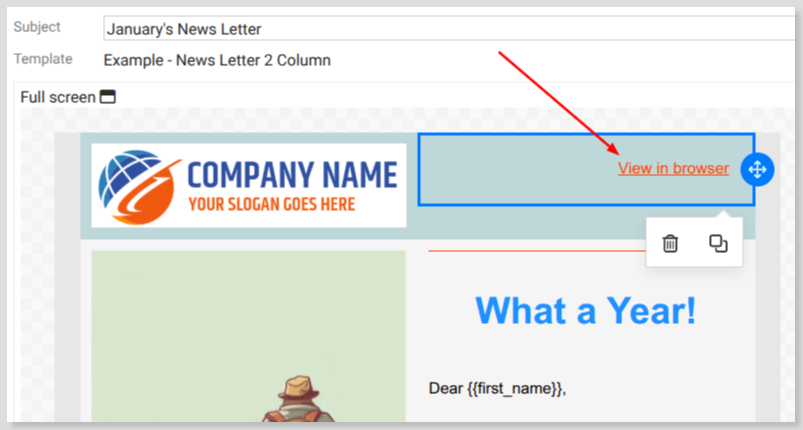
-
when you click the link, a toolbar will be displayed with the Insert/Edit link icon highlighted - select this icon
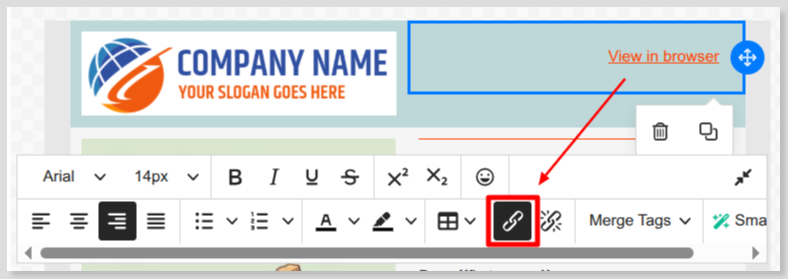
-
note the settings in the dialogue below
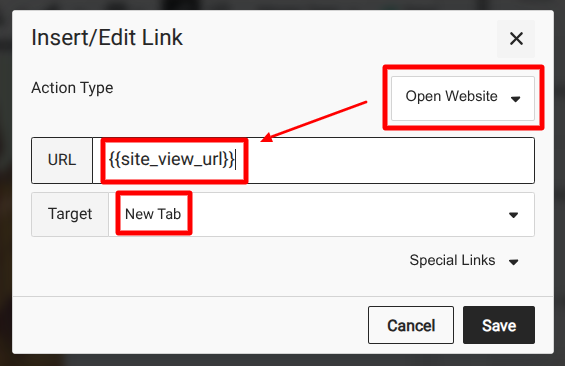
These are the settings you need to apply to the link that you will use to display the email in a new web browser page, one that is outside of your email client, or infoodle.