Using Designer to produce documents for printing
One purpose you could use Designer for is to create newsletters or documents that you may want to print out as a physical document. You have a lot of control content and layout.
Designer could be used as a substitute for other page layout tools you may have.
One function that Designer doesn't have is a built-in page-break option. Designer 'assumes' that your email is going to be displayed on a screen and consequently there's no need for page breaks.
The work around would be to place HTML content on a Designer page so that when the email is viewed in a browser window, and then printed through the browser Print dialogue (as a PDF), the content is split and displayed on separate pages.
How to achieve this
This requires two additions to be added to a Designer email:
- a link on the page that when selected displays the email in its own browser window (outside of infoodle, Gmail or Outlook365)
- this is documented here: Designer emails - saving for use elsewhere
- this is documented here: Designer emails - saving for use elsewhere
- a Page-break element that results in the browser Print function, splitting the webpage into separate pages. This is documented below.
Example
A simple example of how an email incorporating these can be created in Designer, is as follows:
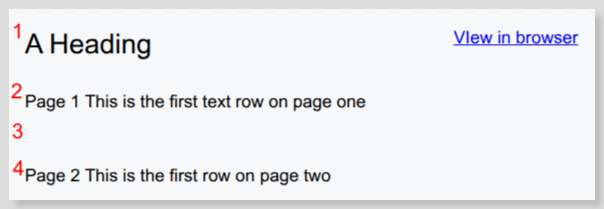
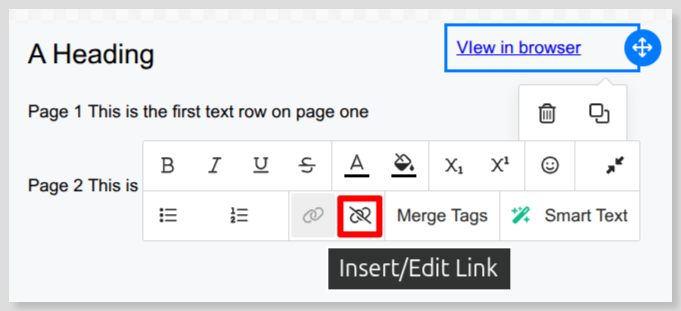
- row1 - a row that includes text that's associated with a URL link. For example View in browser. The text is associated with a link that consists of:
{{site_view_url}}
-
row 2 - example text 'Page 1' - this will be included with the header on page 1 of the print document
-
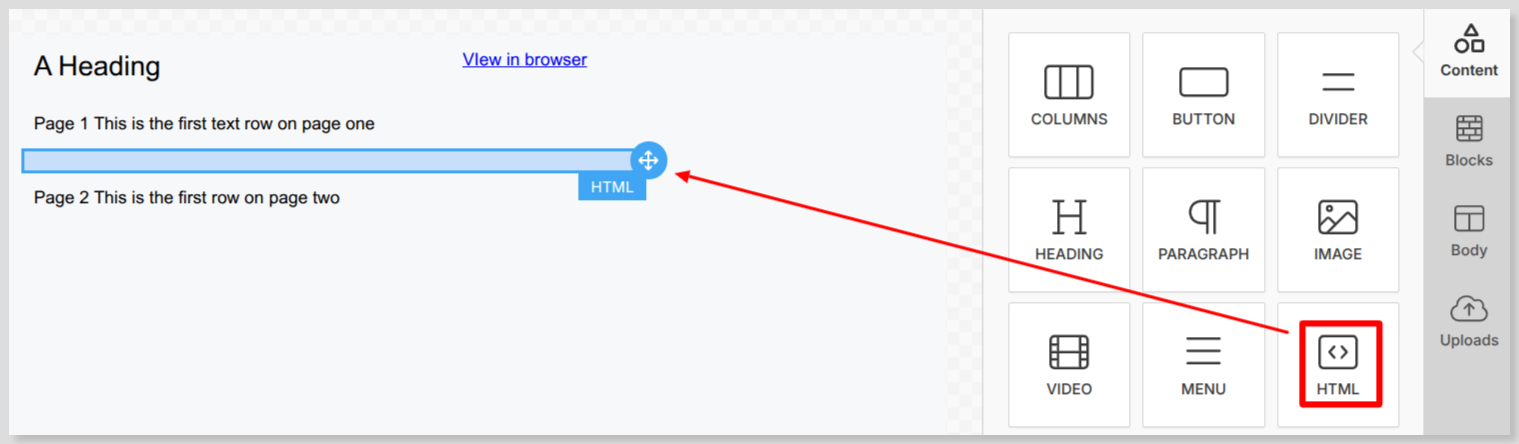
row 3 - this appears to be empty but actually is a row containing the Designer HTML element. This contains the HTML that produces the page break.
-
Enter the following code into the HTML element:
<div style="break-after:page"></div>

- row 4 - example text 'Page 2' - this represents the details to be displayed on page 2 of the document.
Save 'Page-break' for later reuse
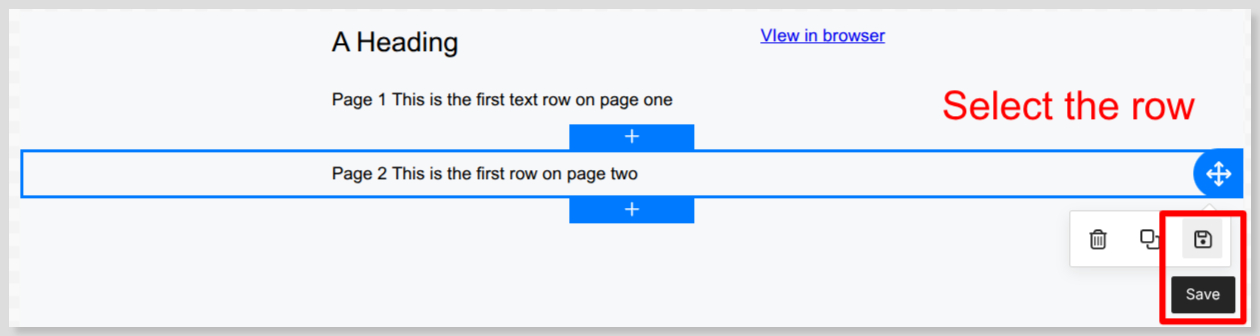
For convenience you could save row three, Page-break, as a reusable Block so that you could reuse it from one email to another.
To do so, open the email template and:
-
select the row containing the Page-break HTML element
-
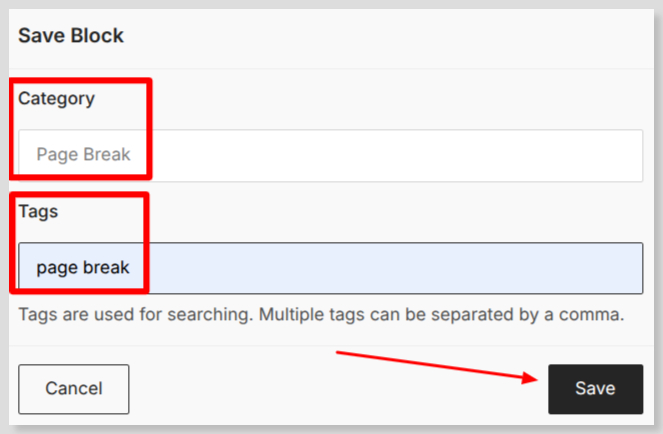
provide an appropriate Category and Tag names, then Save
-
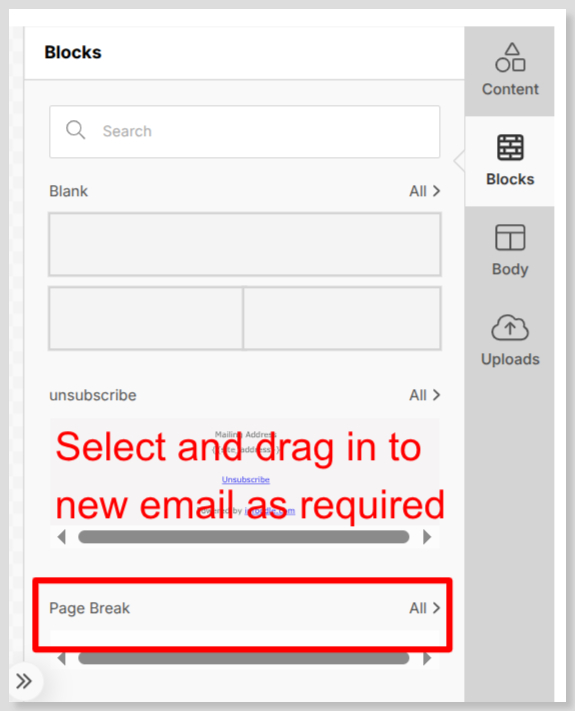
when required, select and drag into the current email at the row position required
How to use the Page-break
View in browser - with this text and associated URL added to the email you can test its behaviour by sending the email or template to yourself through the Send Test Email button at the bottom of the Designer page. This will send a copy of the email to your active infoodle email address/es.
When you receive the test email and open it on the screen, select the View in browser link. This will result in the email being displayed in a new browser window - outside of infoodle or the application you use to receive emails.
From here you can print the email through the web browser's Print function as a PDF document. This could in turn be printed as a physical document, or made available on your organisation's website, for example.
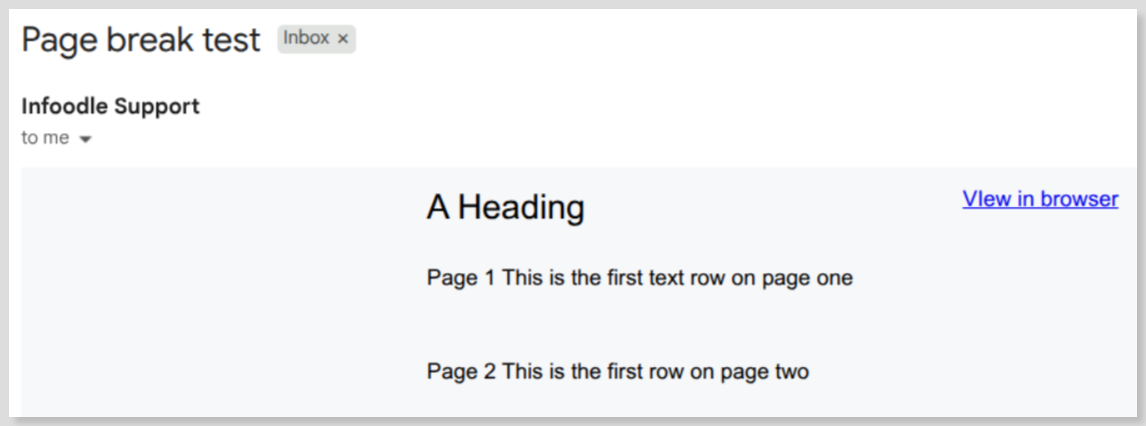
Page Break - when viewing the email in an email application on your computer or mobile device it will have no effect and the email will appear as a single web page.
However, when you use your web browser to print the document as a PDF, the page breaks take effect and the email will be broken up into separate pages.
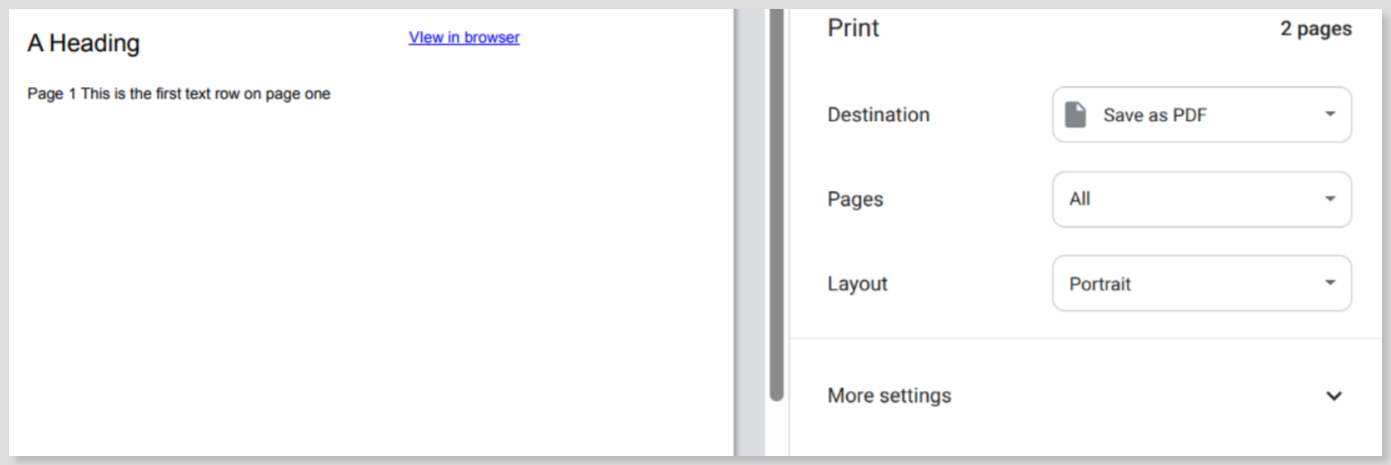
This was tested using Google Chrome web browser. You will need to confirm that this works with the browser you're using.
Similar to an inserted page-break in a word processor like MS-Word, the Designer HTML page-break inserts a break in your document at the point that you insert the page-break.
However, if the content prior to the inserted page-break is longer than what would fit on a page, the content will flow onto another page, and your inserted page break will apply after the automatically applied page-break.
If you want to avoid the automatic page-break, which may not be where you want, revise the page and insert the HTML page break at a suitable place in your document.