Members with access to the Portal can take out a membership themselves, without asking an administrator or completing a generic online form to set it up. The Portal lists the memberships you or your organisation has available to join, works out the price of the membership, and finishes by collecting the first payment or recording how you intend to pay.
Before you start
Role Permissions
- Portal access: the permission that lets a person access the Portal
For more information on roles and specific portal access roles, see the following pages:
About Permission Roles
What the Portal is and how members get access
You will also need the following in place:
- Your organisation must have the Membership, and the Portal extensions, switched on. See What the Portal is and how members get access
- At least one membership product must carry at least one rate row. A product with no rate rows cannot be priced, and therefore cannot be joined. See Rate rules and pricing structure
Your organisation can rename the Portal's membership pages and its labels. This article uses the standard names, Memberships and Join a Membership.
Step 1: Open the list of memberships you can join
There are three ways to reach the same page:
-
Open Memberships from the Portal menu, then choose Join a Membership (if enabled by configuration).

-
On the Memberships page, when you hold no memberships yet, choose Join a Membership in the empty panel that reads "No memberships yet".
-
On the Portal dashboard, choose Join a Membership under Quick Actions (if enabled by configuration).

When your organisation has nothing open for joining, the page says "Nothing to join right now" instead.
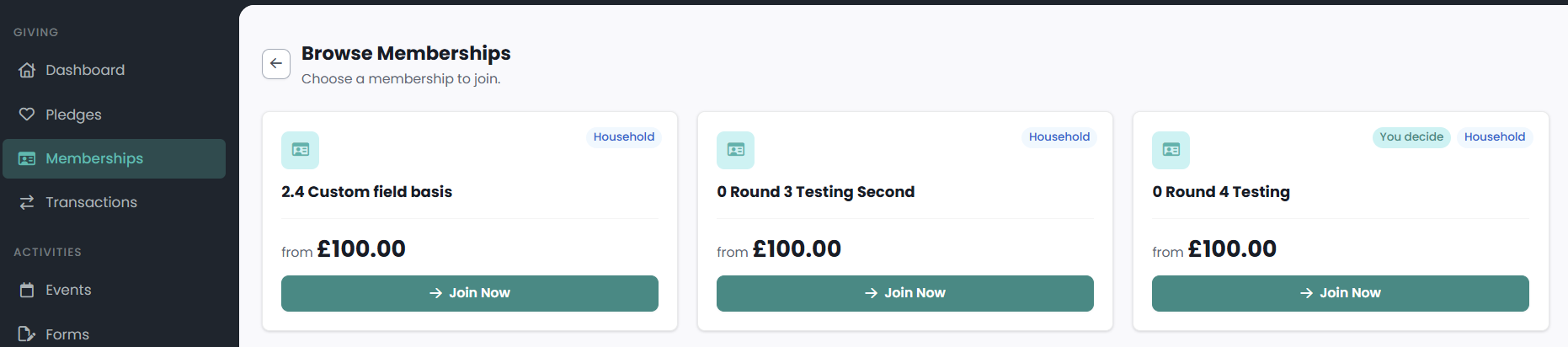
Step 2: Read the membership card
Each membership is a card. What it shows tells you most of what you need before you open it.
| On the card | What it means |
|---|---|
| Title and description | The membership's name, and the short description your organisation wrote for it. |
| Coverage badge | Who the membership can cover: Individual, Household, Adults only, Children only or Organisation. |
| You decide badge | You may set your own amount instead of taking the calculated one. |
| "from" price | The lowest rate on the membership. What you actually pay depends on who it covers and which add-ons you choose. |
| "you choose the amount" | Shown in place of a price on a membership that takes your own amount and has no rate to quote from. |
| Join Now | Opens the join screen for that membership. |
Memberships are still shown if you cannot join them. They will give a reason as to why.
A membership your organisation has created but not yet priced reads "Not yet priced". You will need to contact your organisation in this instance.
Step 3: Choose who the membership covers
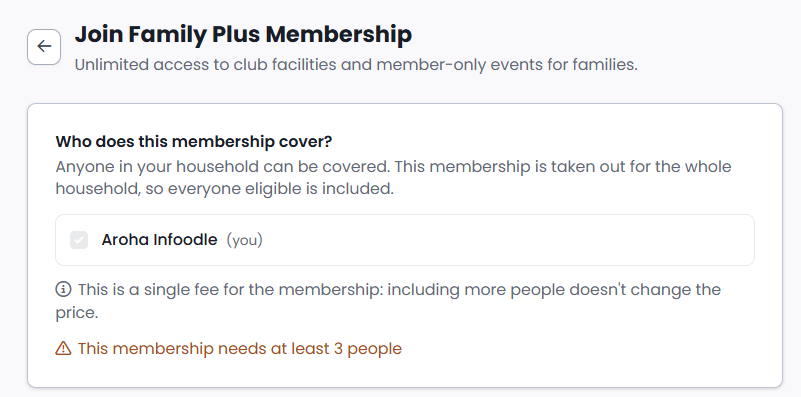
The first card on the join screen is headed Who does this membership cover?. It lists you and the other people in your household.
- On an Individual membership the screen says "Just you", your own row is ticked, and there is nothing to choose.
- On an Adults only or Children only membership, only the people in your household of that age are listed. Age is worked out for today. Someone whose date of birth is not recorded, or is recorded without a year, counts as an adult.
- On an Organisation membership the organisation is the member, and the membership covers the organisation on its own. Your organisation's people are listed on the screen, but they cannot be added to it: tick any of them and the whole join is refused, with the message "This membership can be taken out for just yourself."
Where a membership can cover more than one person, your organisation also sets which structure of sign-up it accepts, and that decides whether the list is a choice at all:
- The whole household only: every eligible row is ticked and locked, and the screen says so.
- Just you only: nobody else is listed.
- Any household member: tick whichever people the membership is for. You do not have to be one of them, so you can hold a membership that covers other people in your household.
Where the membership sets a minimum or maximum number of members, the screen tells you the range before you choose.
Someone who does not meet the membership's conditions are listed with the reason underneath their name, unticked and unselectable. Once a price comes back, anyone the rate rules could not price shows why underneath their name.
Where the membership is priced per person, each selected person also shows their own share of the fee once that price comes back. On a membership charged as one fee whatever its size, the rows carry no amounts at all. The card says "This is a single fee for the membership" instead, and adds that including more people does not change the price.
If the rate rules cannot price one of the people you have selected, the whole join is refused, not just that person's line. Untick that person, or ask your organisation about the rate that would cover them.
Step 4: Choose your add-ons
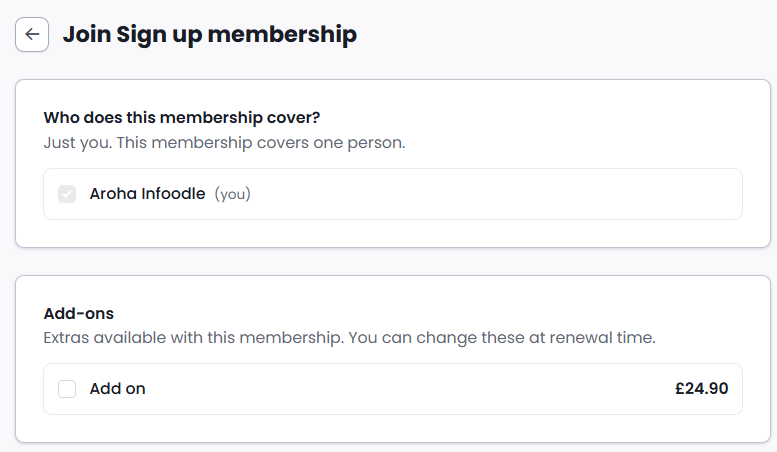
Where the membership offers extras, they appear under Add-ons, with the line "Extras available with this membership. You can change these at renewal time."
- Optional add-ons: tick the ones you want. The price updates as you tick.
- Included add-ons: marked "(included)", already ticked, and cannot be removed.
- Automatic add-ons: marked "(added automatically)". Your record decides these, not you, so the box cannot be ticked or unticked. Once a price comes back, the screen says whether the add-on was included and who earned it.
An add-on priced per person shows its unit price with the words "per person". Where the add-on only applies to people on one particular rate, those words name that rate as well, so the figure you see is per person on that rate rather than per person on the whole membership.
For how your organisation sets these up, see Discounts and add-ons.
Step 5: Choose your own amount, where the membership offers it
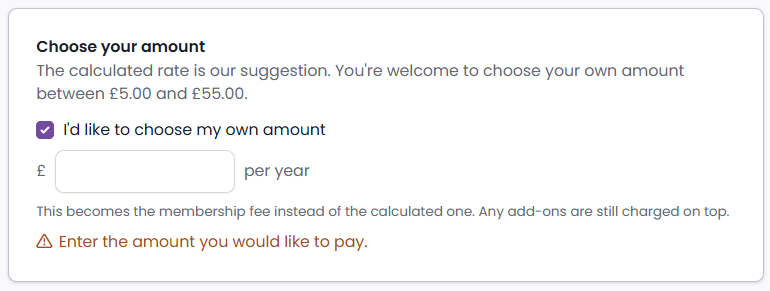
A membership with the You decide badge carries a card headed Choose your amount. Tick I'd like to choose my own amount, then type the figure. Where your organisation has set a range, the card names it.
Two things are worth knowing before you type a figure:
- Your amount replaces the calculated membership fee. It does not replace your add-ons, which are still charged on top.
- The card also limits your amount to what the payment method you have chosen can take, so switching payment method can change the range.
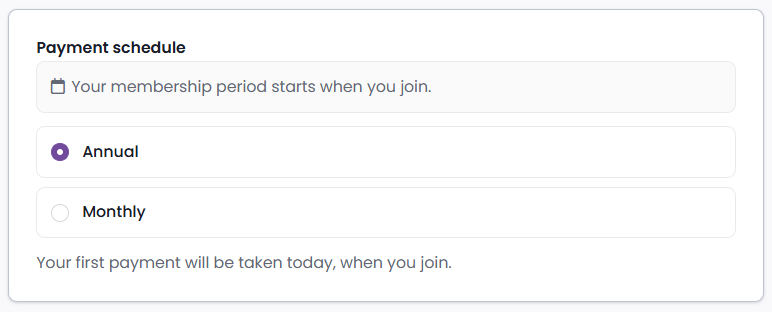
Step 6: Choose the payment schedule
The Payment schedule card opens with a sentence describing how the membership's period works, for example "Your membership period starts when you join." or, on a membership that runs on a shared cycle, a sentence explaining that joining partway through pro-rates your first period.
Underneath, choose how often you want to pay. Only the frequencies your organisation allows on that membership are listed, and each one is named against the membership's own period, so "Monthly" means monthly across that period.
Where the membership asks you to pick a Start date, a date box appears. You can choose any date from today up to one membership period ahead.
Where you are paying by card or Direct Debit, your first payment is taken when you complete the join, whichever start date you choose. A later start date sets the period that first payment buys and anchors the payments that follow it. It does not delay the payment. Where you are paying by a manual method, such as a cheque or a bank transfer, nothing is taken at that point: see Step 7.
Step 7: Choose how to pay
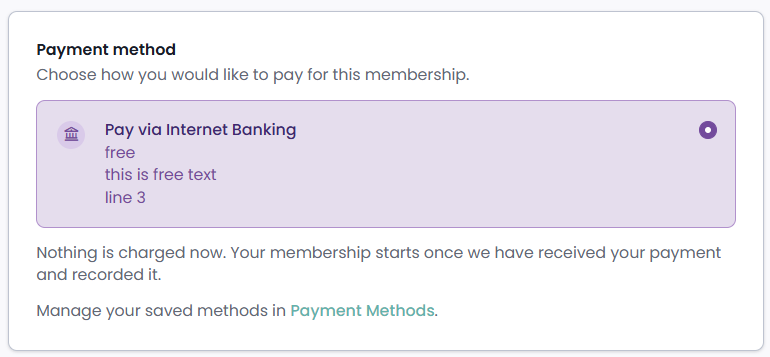
The Payment method card lists every payment method saved on your account, under the line "Choose how you would like to pay for this membership."
- A saved method a membership cannot be collected on is still listed, shown with the reason in place of its expiry date, and cannot be chosen.
- A manual method, such as a cheque or a bank transfer, is listed with your organisation's own instructions underneath it, so the account details are in front of you.
- Choosing a manual method adds the line "Nothing is charged now", followed by a note that your membership starts once your organisation has received the payment and recorded it.
- Where you have no method that can pay for a membership, the card explains why and offers a button to add one, labelled Add a payment method, or Add a card where the methods you have saved cannot be used for this membership. The card also carries a Payment Methods link for managing your saved methods.
- A membership that prices to nothing has nothing to charge, so the whole card is hidden.
For more information on Payment Methods, statements, and receipts in the Portal page
Step 8: Gift Aid, where it applies
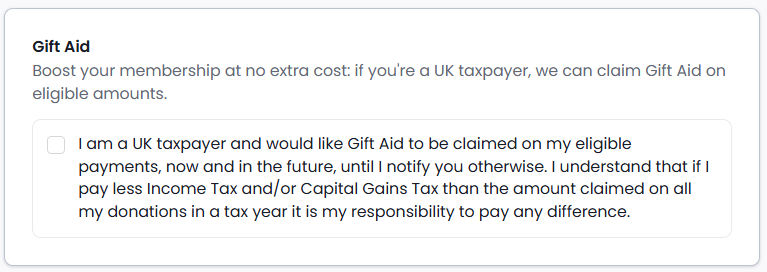
A Gift Aid card appears when your organisation runs Gift Aid, the membership is set up for it, and you have no declaration already on file. It opens with "Boost your membership at no extra cost", then explains that Gift Aid can be claimed on eligible amounts if you are a UK taxpayer.
Tick the box to make the declaration. The wording beside the box is the declaration itself, and it is recorded against your record only when you tick it.
The declaration is recorded against you, not against this membership, and it is the one your organisation uses when it claims Gift Aid on your giving. It stays in place until your organisation changes it, so ask them if it needs changing.
Where you already have a declaration on file, the card says so instead and confirms that it covers this membership too, so there is nothing to sign again.
Step 9: Check the price and join
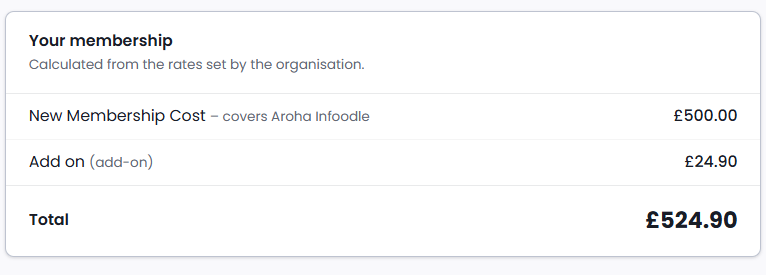
The last card, Your membership, carries the line "Calculated from the rates set by the organisation." and the priced breakdown. It updates every time you change a choice, and the Join button stays unavailable while a new price is on its way.
The breakdown names each line:
- Fee lines: one per priced person, with their name. On a membership charged as one fee whatever its size, a single line names the people it covers instead.
- Add-on lines: marked "(add-on)", or "(add-on, added automatically)", and followed by the names of the people they are charged for.
- Discount lines: shown as a negative amount. A discount that takes the whole fee off appears as the full fee and a matching discount line rather than as a zero, so the breakdown still shows what the membership is worth.
- Your own amount: the fee it replaces is struck through and marked "(replaced by your chosen amount)", and your figure is marked "(replaces the calculated fee)".
Total is what you are agreeing to for the period. Where you have chosen to spread the cost, a second line names the frequency and the number of payments, and shows Due today beside the amount that leaves your account now.
Automatic Renewals
Where the membership renews automatically, joining commits you to the period after this one as well. Your organisation decides, on the membership itself, whether it renews automatically or asks you first. Where it renews automatically, the next period is opened and charged when it falls due without asking you again, and the payment method you choose here is the one that is charged for it.
The membership page names the renewal amount and the date it will be taken, and you can change the payment method or cancel before then.
Renewal after confirmation
Where it asks you first, nothing is charged for the next period until you confirm the renewal. Once your membership is active, its own page tells you which of the two applies, on the Renews line.
When you are happy, choose the Join button at the foot of the page, which names the membership, for example Join Family Membership. Choosing Cancel takes you back to the list without joining.
What happens after you join
The Portal takes you to the membership's own page, which opens with a panel telling you your membership is set up. Which sentence follows depends on how the membership was paid:
- Paid by a saved card: "We've taken your payment and emailed you a confirmation." Where you are paying in instalments it says "first payment" and points you at the balance shown below.
- Paid by Direct Debit: the panel says your bank has been asked for the payment, that you have been emailed a confirmation, and that Direct Debits take a few working days to clear.
- Nothing to pay: "There's nothing to pay. We've recorded your membership and emailed you a confirmation."
- Paying by cheque, bank transfer or another manual method: "We've recorded your membership and emailed you a confirmation. Nothing has been charged yet." The membership waits at Pending until your organisation records your payment.
Your new membership then appears on the Memberships page in the Portal. On a household, adults only, children only or organisation membership, everyone in your household sees it in their own Portal as well. On an individual membership it is seen by you and by anyone named on it.
Common questions
Why can I see a membership I am not able to join?
Memberships you do not qualify for stay on the Browse page with the reason shown in place of the button. Hiding them would leave you wondering where a membership had gone, so the Portal shows the reason instead.
Why does one membership have no Join Now button?
Your organisation has created it but has not set a rate for it yet, so there is no price to quote. The card reads "Not yet priced" and asks you to get in touch.
When is my first payment taken?
Where you are paying by card or Direct Debit, at the moment you complete the join. If the membership asks you to choose a start date, that date decides the period your first payment buys and when the payments after it fall due. It does not hold the first payment back. Where you are paying by a manual method, such as a cheque or a bank transfer, nothing is taken at the join: the membership waits at Pending until your organisation records your payment.
Can I join a membership for other people in my household?
Where your organisation accepts it, yes. On a membership that accepts any household member, tick the people the membership is for. You hold the membership, pay for it and renew it, whether or not you are one of the people it covers.
One person in my household could not be priced. Why was the whole join refused?
A membership is priced as one thing. Opening it at a total that leaves someone out would be the wrong price rather than a cheaper one, so the join is refused until everyone selected can be priced. Untick that person, or ask your organisation which rate should cover them.
I already hold this membership. Why can I still see it on the Browse page?
The Browse page lists every membership your organisation has open for joining, whether or not you hold it. The check happens when you join: if you already hold that membership for a period that overlaps the one you are joining for, the join is refused and you are asked to check your memberships before joining again. Rejoining a membership that has lapsed or been cancelled is a different thing, and it is allowed.
Can I change my add-ons later?
The Add-ons card says so on its face: "You can change these at renewal time."
I have no card saved. Can I still join?
Yes, where your organisation accepts a manual method such as a cheque or a bank transfer. Those options appear in the Payment method card with the organisation's own instructions. You can also add a card first through Payment Methods and come back to finish joining.
Next steps
Once you hold a membership, the Portal's Memberships page is where your memberships are listed. Open one to see what you owe, pay a balance, or answer a renewal when one is due.