The Portal is the members area of your infoodle site. It runs on the same infoodle site as your database, but it is a separate space.
A member signs in with their own login and sees their own: giving, pledges, memberships, statements and receipts, keeps their own contact details up to date, and messages your office.
They can see their own records in the Portal, plus memberships that cover their household, but never the rest of infoodle.
Two things decide what a member can reach. The Portal access permission on their role is what lets them in at all. Portal Configuration then decides which features they see once they are in.
The Portal and Membership Packages are paid extensions. See Turning on the Membership and Portal packages
 {height="" width=""}
Before you start
Role Permissions
To be able to create accounts for people to access your infoodle portal, you will need the following permissions.
- List all roles
- Create accounts and roles
- Change other users' password reset email
- Create accounts and roles
- Portal access
For what each permission means, see People Permissions.
You will need the Portal package switched on for your site before any of this is visible. You will also need the Membership package if you want members to see their memberships. Without it the Memberships section stays hidden.
Everyone who needs access to the Portal will need the role permission of Portal Access. Find out how from Step 1
What a member sees when they sign in
A member signs in at your usual infoodle address, with the login name and password they set up. Because their role carries Portal access, infoodle takes them straight to the Portal rather than to the infoodle home page.
The side menu
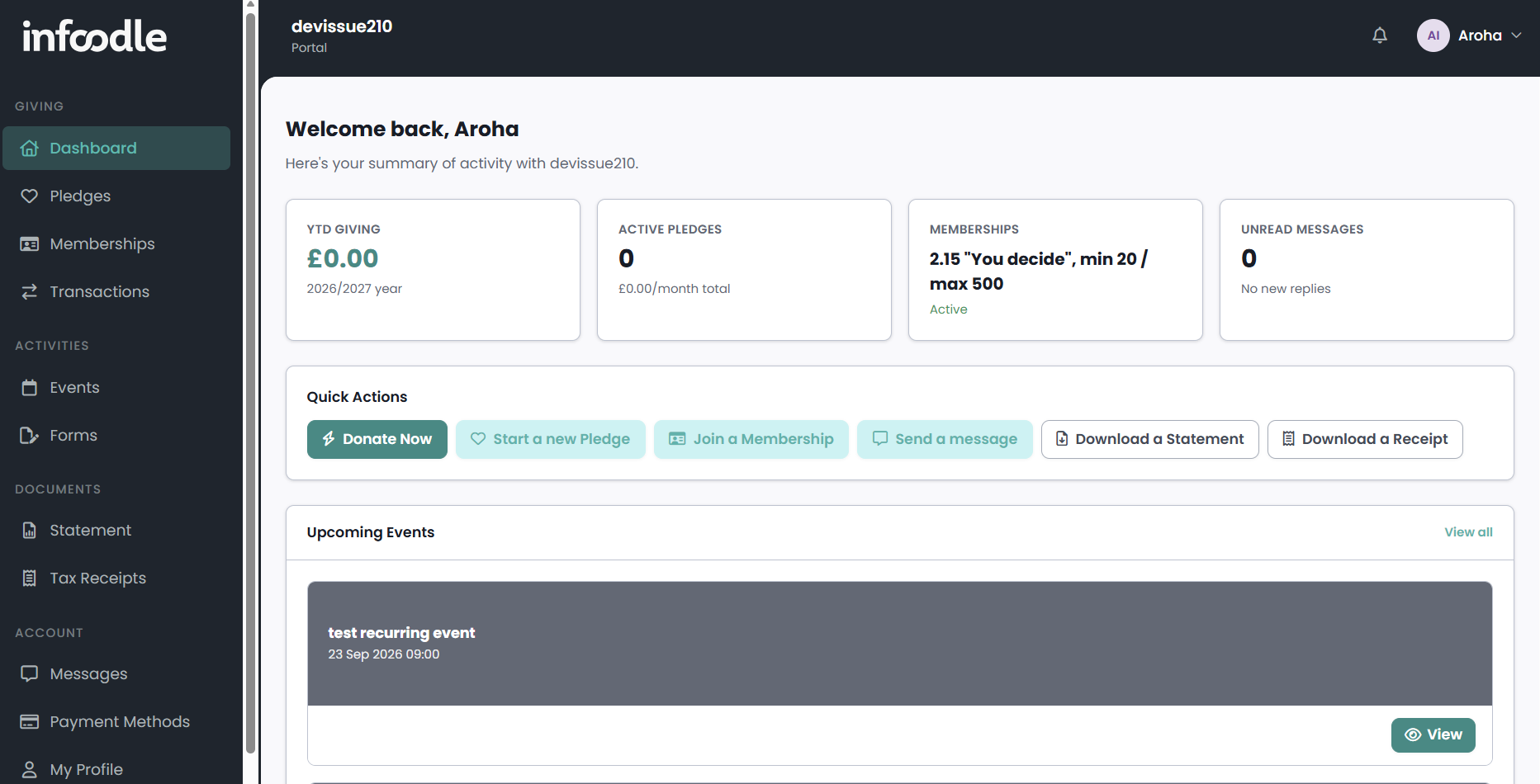
The side menu is grouped into sections: Giving, Activities, Documents and Account. Which items appear depends on the Portal Configuration, so a member on your site may see fewer than this.
- Giving: Dashboard, Pledges, Memberships and Transactions.
- Activities: Events and Forms.
- Documents: Statement and Tax Receipts.
- Account: Messages, Payment Methods, My Profile and Login & Security.
If a Portal user has the Messages feature, the bell in the top right will appear with a notification when there are new messages.
The dashboard
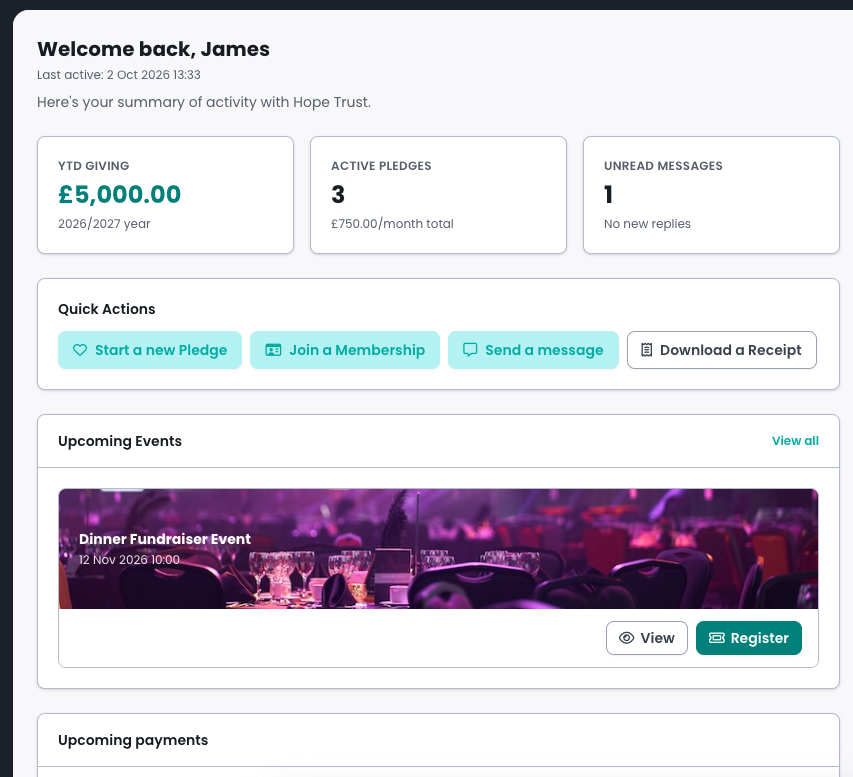
The dashboard opens with a welcome line and a short summary of the member's activity with your organisation, then these panels:
- To action: the things waiting on the member, such as a membership payment that was refused or a renewal that needs an answer. It does not appear if nothing is waiting.
- Summary cards: giving for the current financial year, active pledges, the member's membership, and unread messages. The membership card appears only once the member holds one or has one needing attention.
- Quick Actions: shortcuts to donate, start a pledge, join a membership, send a message, or download a statement or receipt.
- Upcoming Events and Upcoming payments: what is coming up next for the member.
- Recent transactions: what the member has given lately. This panel looks backwards, over a window you set in Portal Configuration.
A member who has just been given access will see the dashboard, but no data will be shown.
Giving a member access
Step 1: Create a role that carries Portal access
- Click the administration cog in the top right hand corner
- Open Roles
- Click Add
- Give the role a name, such as Portal Access
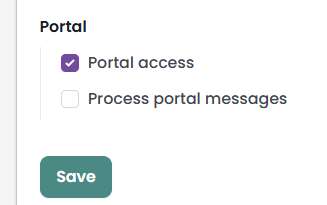
- Then at the bottom of the page under Portal tick Portal access
- Finally, click Save.
Portal Access is a separate login from someone who already uses infoodle. For more information, read why portal access goes on its own role
Step 2: Put the member on that role and switch their login on
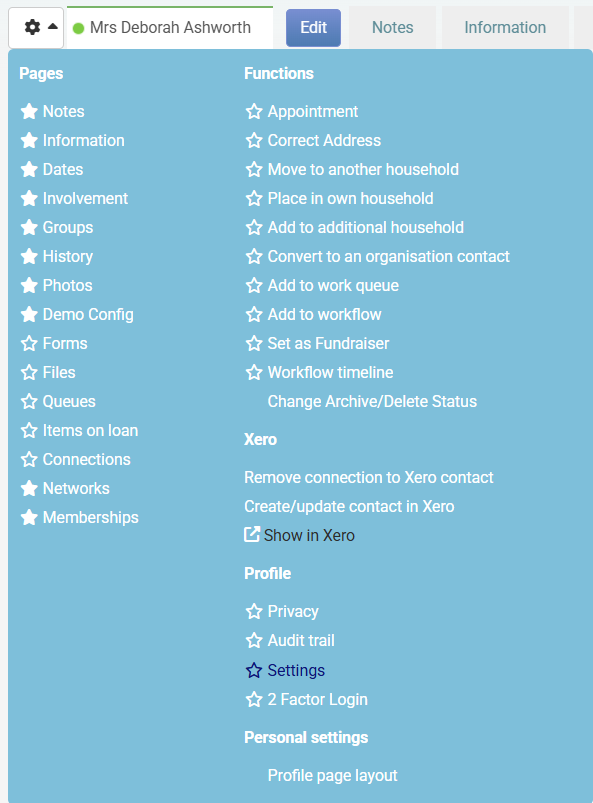
Open the person's profile, click the More profile functions cog in the top left of the profile, then click Settings.
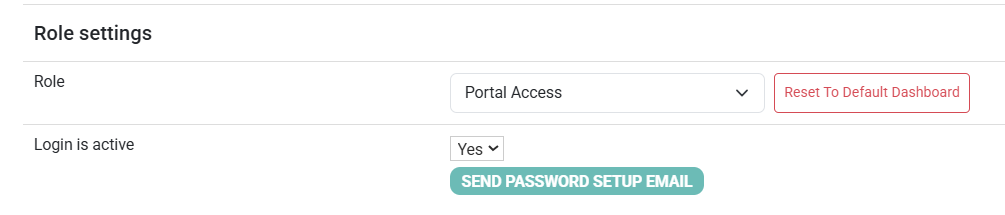
- Under Role settings, choose the portal role you just made.
- Set Login is active to Yes.

- Under Login information, check the Login name. This is what the member types to sign in, so make it something they will recognise.
- Fill in the Password Reset Email Address. It is pre-filled from the person's first contact email. This email address is required whenever the login is active.
- Click Save.
Step 3: Send the member their password
Click Send Password Setup Email. infoodle will then confirm the email has been sent. and the reset address you checked in step 2.
The member opens the link in that email and lands on a page to Set up your password, which tells them their user name and asks for a password of at least the minimum length your site sets. That minimum is 6 characters. Once the member saves a password they can sign in, and they arrive in the Portal.
If you want to change the password length option, you will find it on the Roles screen under Login Settings, as Enforce minimum password length, and leaving that box empty puts it back to 6.
Why portal access goes on its own role
While someone's role includes Portal Access, every part of infoodle outside the Portal sends them back to the Portal. Therefore, unable to reach people, groups, finance or administration.
Portal Access cannot be given to the Administrator Role
Portal users are confined to the portal, so this would lock the role’s users out of administration. Give portal access to a separate role instead.
A member of staff who needs both can have two separate logins. However, everything a member can do for themselves in the Portal, the administrator can do for them from their profile.
For example, a volunteer who is an administrator of a group will have a login to your infoodle site. If they also want to access memberships, they will need a separate login with the portal role access.
Which features a member sees
You can set what is turned on and accessible through Portal Configuration. Because the names are yours to change, what a member sees may not match the names used here.
A few items have a condition of their own on top of that setting:
- Memberships: needs the Membership add-on package as well as the Memberships feature.
- Statement: appears once the Download a Statement quick action is on and a document template has been chosen for it in Portal Configuration.
- Events: the Upcoming events panel and the Events menu item need the Events package on your site, as well as the panel being switched on.
- Donate Now: opens a donation form, and stays hidden until you choose which form in Portal Configuration. No form is chosen on a new site.
- Start a new Pledge: needs new pledges to be allowed and a new-pledge form chosen. That form is not set on a new site either.
- Send a message: needs the Messages feature switched on as well as the quick action.
Common questions
Does a member need a second login for the Portal?
No. It is one infoodle login. Somebody who already signs in to infoodle keeps the same login name and password; what changes is where it takes them, which follows the Portal access permission on their role.
Can one person use both infoodle and the Portal?
No. While their role carries Portal access they are confined to the Portal. Give portal access to a separate role, and keep staff on their own.
Which memberships does a member see?
The ones they hold, the ones they are named on as a covered member, and household memberships belonging to their household.
Who can confirm a renewal that needs confirming?
Only the person who holds the membership, and only in the Portal. Somebody else in their household can decline it on their behalf, but cannot confirm it, because the renewal is charged to the holder's saved payment method.
Why is there a Join a Membership button when we do not sell memberships?
The Join a Membership quick action appears whenever that quick action is switched on, whether or not the Memberships feature is. With Memberships switched off it returns the member to the dashboard. Switch the quick action off in Portal Configuration to take it away.
The member never got the email. What now?
Open their profile, check the Password Reset Email Address on the Settings page, and click Send Password Setup Email again. If that address is blank, fill it in and save first: the login cannot stay active without one. If the box is greyed out for you, you need the Change other users' password reset email permission, or somebody who has it.
If our site stops holding the Portal package, can members still sign in?
No. The Portal is the only place a portal role can go, so while the package is off those logins end at the sign-in page. Nothing is lost: your office still sees everything about those people in infoodle, and their access returns with the package.
Portal Articles
What the Portal is and how members get access - Roles, logins and how to invite someone in
Joining a membership through the Portal - The member's journey from browsing to paying
Managing a membership in the Portal - Paying, renewing, changing payment method and cancelling
Payment methods, statements and receipts in the Portal - Saved cards, annual statements and tax receipts
Portal messages - Two-way conversations between members and your office
Next steps
Decide which features your members see, and what they are called, in Portal Configuration.