Membership and Portal are two packages you can add to your infoodle site.
Membership
This gives you membership products, applications, renewals, eligibility rules and subscription billing.
Portal
This gives the people you work with a login of their own, where they can see their giving history, statements and receipts, and manage their saved payment methods.
Both are extension packages, which means they sit on top of a package you already have rather than replacing it:
- Portal: available on sites that have Events or Finance.
- Membership: available on sites that have Finance.
Before you start
Role Permissions
- List all roles: lets you open Administration → Packages & Views to see which packages are active on your site.
- Update System information: lets you open Administration → Billing, and both Administration → Portal Configuration and Administration → Portal Messages once Portal is on.
- Manage, Read and report on transactions, Manage finance configurations or Read and Report on Transactions: lets you see the Membership entries on the Finance menu once Membership is on.
- Process portal messages: needed alongside Update System information to open Administration → Portal Messages.
For an explanation of what each role permission does, see People Permissions and Finance Permissions.
Portal needs Events or Finance on your site, and Membership needs Finance. If the required package is not active, add it at the same time as the extension package.
Step 1: Check whether the extension package is already active
- Click the administration cog in the top right hand corner, then click Administration then open Packages & Views.
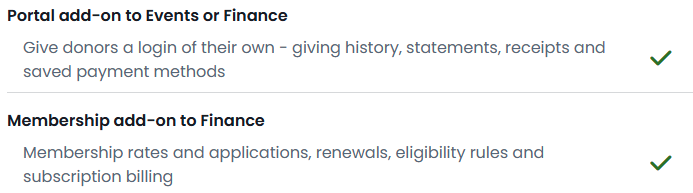
- Find the Portal and Membership headings. Each one names the package the extension is added to, "Portal add-on to Events or Finance" and "Membership add-on to Finance". The line under each heading describes what the package gives you.
- Read the status icon. A green tick means the extension package is active on your site and you can start using it. A cross means it is not on your site yet.
- Read the last column. On a package your site already has it reads Active. On one your site does not have it reads Call infoodle to make this active, which is the pointer to Step 2.
Step 2: Add the extension package to your site
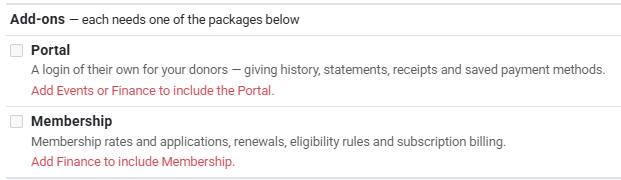
Extension packages are enabled through your infoodle account, so they are added through Administration → Billing.
- Click the administration cog in the top right hand corner, then open Billing, where your packages are managed.
- Add Portal, Membership, or both to your packages. You can also contact infoodle and discuss a trial of either of these packages.
For a walk through of the billing screens, see Billing - changing users or features and Upgrade My Plan.
Once the package is on your account, the matching row on Packages & Views shows a green tick and reads Active, and the screens described below appear in your menus.
Step 3: Confirm Membership is on
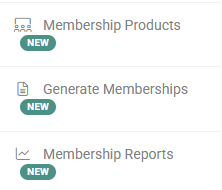
With Membership active, three entries appear on the Finance menu:
- Membership Products: the membership rates and products you offer, and the rules that go with them.
- Generate Memberships: the bulk run that creates memberships. This one also needs the Manage finance configurations permission.
- Membership Reports: reporting on members, renewals and subscription income.
Click or hover on Finance on the main menu bar on the left to see them. If your site uses its own word in place of Memberships, the Generate Memberships and Membership Reports labels follow it.
 {height="" sd=""}
Step 4: Confirm Portal is on
With Portal active, two entries appear under Administration for anyone with the Update System information permission:
- Portal Configuration: controls which portal features are turned on, what they are called, and how messages are handled.
- Portal Messages: where you read and reply to messages people send you from the portal. This one also needs the Process portal messages permission, so a role needs both before the entry appears.
Click the administration cog in the top right hand corner, then click Administration to see them.

Step 5: Give people access to the portal
Turning Portal on makes the portal available to your site. You then decide who logs in to it, through Administration → Roles.
- Click the administration cog in the top right hand corner, then open Roles.
- Create a role for your portal users, or open the one you already use for them.
- Under the Portal heading, tick Portal access.
- Save the role, then assign it to the people who should have a portal login.
Give Portal access to a role of its own, used only by portal users. People on a role with this permission are confined to the portal and do not reach the rest of infoodle. For that reason the permission is not available on the Administrator role. If it is ticked on a staff role by mistake, an administrator on the Administrator role is never confined, so they can open Administration → Roles, untick it, and the people on that role are back to normal.
If a member of your team needs to answer messages from the portal, give their own role Update System information and Process portal messages instead. Those two open Administration → Portal Messages and do not confine anyone to the portal. Make sure those who have this role are your administrative staff to ensure people in the community are not receiving private messages.
Common questions
Can I have Portal without Finance?
Yes, as long as your site has Events. Portal is available on sites with either Events or Finance. Membership is different: it is available only on sites with Finance.
Do I have to buy Membership to use the Portal?
No. The two packages are independent and you can have either one on its own. They do work together, and a site with both can let members join and renew through the portal.
Why can I see the Portal and Membership headings on Packages & Views when they are not active?
Packages & Views lists every package infoodle offers and shows which ones are active on your site, so you can see what is available to add.
Who can change which packages my site has?
Someone with the Update System information permission, through Administration → Billing, where your packages are managed. You can also ask infoodle to make the change, which is what the Call infoodle to make this active text on Packages & Views points you to.
I turned Membership on but I cannot see the Finance menu entries.
The Membership entries also depend on your finance permissions. Your role needs Manage, Read and report on transactions, Manage finance configurations, or Read and Report on Transactions before they appear.
What happens if I remove a package?
Removing Membership leaves your portal's membership settings stored as you had them, so adding Membership back brings that section of the portal back exactly as you configured it. Removing Portal ends the sessions of everyone who is signed in to the portal and returns them to the login screen, and they cannot sign in again until the add-on package is back on your account.
Next steps
With Portal active, open Administration → Portal Configuration to choose which portal features your people see and what they are called. With Membership active, open Finance → Membership Products to set up your first membership product.