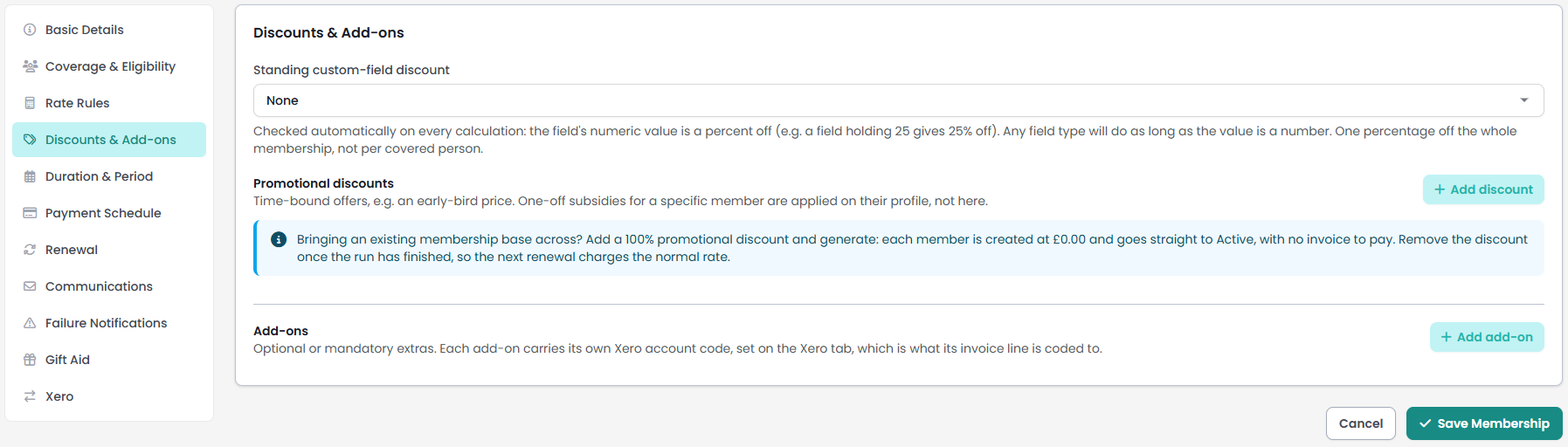
A membership product's price is not always a single number. The Discounts & Add-ons section holds the two things that move it: add-ons, which are extras charged on top of the membership fee, and discounts, which come off the total. You can find this by going to Finance → Membership Products, opening a product, and choosing Discounts & Add-ons from the list of sections.
Before you start
Role Permissions
- Manage finance configurations
For what each role permission means, see People Permissions.
This one permission covers both opening the product and saving it. There is no read-only view of the section: without the permission the edit screen is not available to you.
You will also need:
- The Membership package switched on for your site. See Turning on the Membership and Portal packages
- A membership product to work on. See Creating a membership product
- At least one rate row on the product, set up on the Rate Rules section. Without one nothing can be priced and nobody can join, including on a You decide product. See Rate rules and pricing structures
Discounts
Two kinds of discount live here. A standing custom-field discount is a percentage carried on a person's record. Promotional discounts are time-bound offers that apply to everybody who joins inside their dates.
Both come off the fee plus the add-ons. One-off subsidies for a single member are not set here: those are applied with Apply subsidy on that member's own membership record.
Standing custom-field discount
Pick a custom field in Standing custom-field discount and infoodle reads that field's value every time it prices this membership.
Unsure how to add a custom field to suit your discount - go to How to Add a Custom Field for step by step instructions
The value is a 'percent off', so a field holding 25 gives 25% off. Anything above 100 is treated as 100. The picker's own help line opens "Checked automatically on every calculation. Any field type will do as long as the value is a number. One percentage off the whole membership, not per covered person."

Only the holder's record is read. The first note says "Only the member who holds the membership is checked", meaning the person who signed up and pays, whether or not they are one of the people the membership covers. A value on anybody else covered is ignored. So a concession has to sit on the holder's own record, or on their household if the field is a household field. A parent who holds a membership covering only their children still gets their own concession, because they are the one paying.
It never applies to a public signup. The second note says "This discount is not applied to public signups." It is read from the holder's existing record, and a public applicant does not have one yet, so the discount applies to memberships created in the Portal or by an administrator, and to renewals, but never to a public application. When the product is on the public signup page the same note is shown as a warning and opens with "This membership is on the public signup page, and this discount is NOT applied there." Use a promotional discount if you need one that works on the public form.
To turn the setting off again, set the picker back to None.
For example
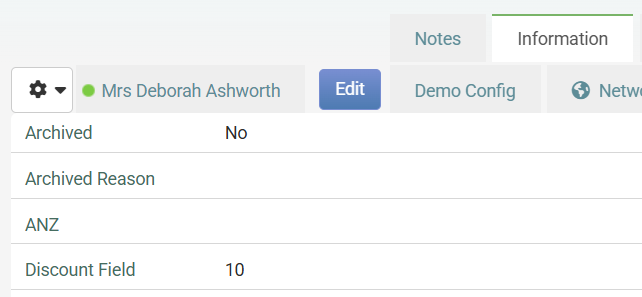
"Discount Field" has been set up as a custom field, this has then been selected as a Standing custom-field discount. Then a person has "10" entered into this field. When this membership is set up, this person will always receive a 10% discount until it is removed from their profile.
Promotional discounts
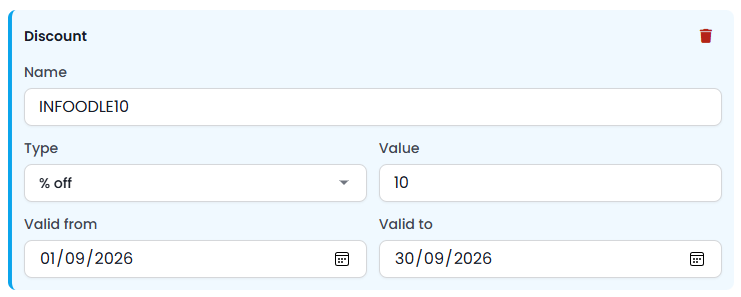
Click Add discount to create one. Each discount card has:
- Name: what the discount is called on the member's price breakdown. Name every discount you create.
- Type: a percentage off, or a flat amount off in your site's currency. The two options are labelled % off and $ off.
- Value: the percentage, or the flat amount. A flat amount comes off the membership once, however many people it covers.
- Valid from and Valid to: the window. A discount applies when the join date falls inside it. Leave a date blank for an open end.
Remove discount at the top of a card takes that discount off the product when you save.
A promotional discount needs no record behind it, so it applies to public applications as well as to the Portal, to administrator-created memberships and to renewals.
Bringing an existing membership base into infoodle? The section carries a note about this. Add a 100% promotional discount, then use Generate Memberships to bulk-load your existing members: each one is created at zero and "goes straight to Active, with no invoice to pay". Then "Remove the discount once the run has finished, so the next renewal charges the normal rate". See Generating memberships in bulk
How discounts add up
- Every discount in force is taken off the fees plus the add-ons.
- Each percentage is a cut of that original subtotal, so two 25% discounts take 50% off and not 43.75% (first the 25% and then take another 25% from the reduced total).
- If the discounts together come to more than the price, they are scaled back so the total lands on zero. A membership never costs less than nothing.
- On a You decide product, the member pays the amount they chose plus the add-ons. Discounts do not come off a price the member set themselves.
What the member sees
Add-ons appear on the join screen in their own Add-ons panel, under the heading "Extras available with this membership. You can change these at renewal time."
- An optional add-on is a tick box the member can turn on and off.
- A mandatory one is ticked and locked, marked (included).
- One switched on by a custom field is locked too, marked (added automatically), with a line saying it is added automatically when someone the membership covers qualifies for it.
A per-person add-on shows its unit price with per person underneath, and names the rate when it is scoped to one.
Discounts do not appear as a panel of their own. They show as their own lines in the price breakdown. A promotional discount carries the name you gave it, so name one 'something' the member will understand. The standing custom-field discount has no name to give it: its line is labelled with its own percentage instead, so a member on a 25% concession sees a line reading Discount (25%).
Add-ons
An add-on is a named extra with its own amount. Some are picked by the member when they join, some are included in every membership, and some are decided by what is on the person's record.
The order in which the Add-ons are presented (and appear on invoices) can be adjusted by using the arrows to move the add-on. The display order is confir
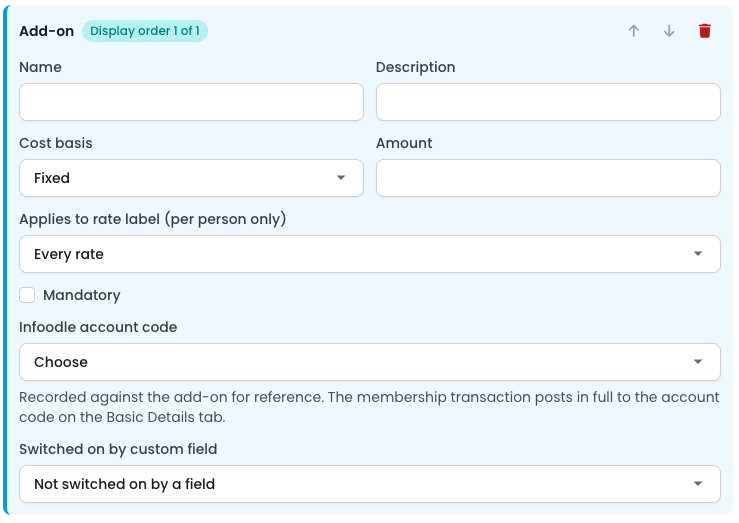
Click Add add-on to create one. Each add-on is a card with these settings:
- Name: what the member sees beside the amount. Name every add-on you create.
- Description: a line of detail shown under the name on the join screen.
- Cost basis: how the amount is multiplied. See the table below.
- Amount: the unit price.
- Applies to rate label (per person only): narrows a per-person add-on to the people priced on one rate row. Leave it on Every rate to charge for everyone the membership covers.
- Mandatory: tick this and the add-on is always charged. The member sees it but cannot remove it.
- Infoodle account code: the account code recorded against this add-on.
- Switched on by custom field: hands the decision to the member's record rather than to the member. See Add-ons decided by a custom field.
Remove add-on at the top of a card takes that add-on off the product when you save.
Where the money posts. A membership is written to infoodle as a single transaction line against the account code on the product itself, the Infoodle account code (membership fee) on the Basic Details section. The fee, the add-ons and the discounts all land on that one code.
Xero is handled separately. When Xero push is on, saving the product requires a Xero account code for every add-on, and Generate Memberships uses those codes to give each add-on its own line on the Xero invoice it creates.
Add-ons are listed to the member in the order they appear here, which is the order you added them.
Cost basis
| Cost basis | What is charged |
|---|---|
| Fixed | The amount, once for the membership, whoever it covers. |
| Per household | The amount, once for the membership. |
| Per person | The amount multiplied by the people it is charged for. |
Fixed and Per household both charge once for the whole membership, as a single line that names nobody. The terms household and organisation are determined by your configuration.
Per person is the one that counts people, and two settings narrow which people apply. Applies to rate label keeps it to the people priced on that rate row, so a camp levy on the Child rate multiplies by the children and not the adults. A custom-field condition keeps it to the people whose record carries the value. Set both and it counts the people who are on that rate and carry the value.
Rate labels only name a set of people on a product priced per person. On a flat or tiered product there is one price for the whole membership, so a rate label on an add-on can only answer yes or no for the add-on as a whole: if the label matches, a per-person add-on is then charged for everyone the membership covers.
Choose the label name carefully
If you rename a rate row, any add-on scoped to the old label stops being charged. The section tells you so as soon as it happens, in a warning that opens "These add-ons are scoped to a rate label no rate row uses, so they will not be charged at all", and then names each add-on and the label it is looking for. Point each one at a label that exists, or set it back to Every rate. The old label is still offered in the picker, marked "no longer a rate label", so renaming the rate row back restores the link.
Included add-ons
Tick Mandatory and the add-on is charged on every membership of this product. On the join screen it is ticked, locked, and labelled (included).
Add-ons decided by a custom field
Switched on by custom field turns the add-on into an entitlement the record carries rather than a choice the member makes. A burial benefit that goes with a particular class of membership, for example, or a levy that only applies to people flagged for it.
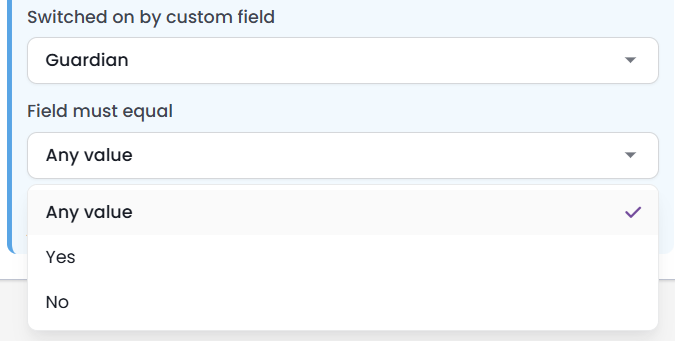
Pick the field, and a Field must equal box appears underneath. What that box looks like follows the field you picked:
- A lookup, multi-lookup or yes/no field: you get a list of that field's own values, with Any value at the top of it. Choose a value, or leave it on Any value to catch anyone who has filled the field in at all. Do not type the label, choose it, because these fields store the value behind the label rather than the label itself.
- A date field: you get a date box. Leave it empty to catch anyone who has a date in the field.
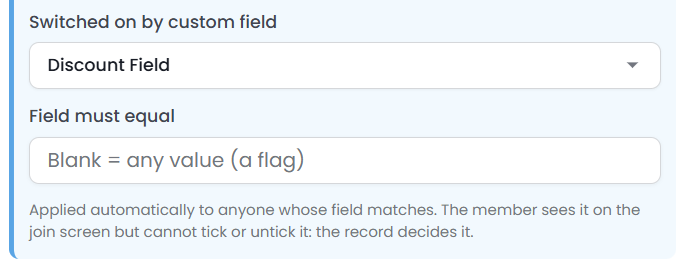
- A number or free-text field: you get a plain box. Type the value the field must hold, or leave it empty to catch anyone who has filled the field in at all. The box says so itself: its placeholder reads "Blank = any value (a flag)".
Leaving the box empty, or set to Any value, is how you use a simple flag field.
Under the box the screen says "Applied automatically to anyone whose field matches." It also says the member sees it on the join screen but cannot tick or untick it, because the record decides it. On the join screen it is labelled (added automatically).
A condition is met when any one of the people the membership covers carries the value. A household-level entitlement is usually recorded using the household custom field. If its recorded against one person in the household it requires everybody to carry it would switch the benefit off for exactly the households it was set up for.
An add-on can be both mandatory and switched on by a field, but the field wins. The member sees it as (added automatically), not (included), and it is charged only when somebody covered matches the field. If you want it on every membership, leave the field unset and tick Mandatory instead.
To switch the condition off again, set Switched on by custom field back to Not switched on by a field. The Field must equal box disappears, and the value you had in it is cleared with it.
Common questions
I have set up add-ons and a discount, and nobody can join. Why?
Nothing in this section prices a membership on its own. The product also needs at least one rate row on the Rate Rules section, including when it is priced You decide.
Why is my add-on not being charged?
Check the rate label first. An add-on scoped to a rate label that no rate row uses is never charged, and the section shows a warning when that happens. Then check the condition, if you set one: an add-on switched on by a custom field is charged only for the people whose record matches, and nothing is charged when nobody the membership covers matches it. That second case has no warning of its own, so compare the value in Field must equal against the records you expect it to catch.
Can a member add or remove an add-on later?
The join screen tells them they can change these at renewal time.
The discount field is filled in but nothing came off. Why?
The value has to be a number, and it has to be on the record of the person who holds the membership. A value on another covered person is not used. If the membership came through the public signup page, the standing discount is not applied at all, because there is no existing record to read it from.
Do two discounts stack?
Yes. Every discount in force on the join date is applied, each percentage taken off the original subtotal rather than off the discounted one, and the total is never taken below zero.
Where is an add-on's Xero account code set?
On the Xero section of the same product, which appears once your site is connected to Xero. Every add-on you create gets its own row there. If Xero push is on for the product, saving it requires a Xero account code for every add-on, and the save names the add-on that is missing one. See Gift Aid and Xero account codes
What happened to my discount after the dates passed?
Nothing: the discount row stays on the product and simply stops applying once the join date falls outside its window. Clear the dates if you want it to run indefinitely, or remove the card if you are finished with it.
Next steps
With pricing settled, set how long a membership lasts and when it is paid for on the Duration & Period and Payment Schedule sections of the same product.