The Rate Rules tab is where a membership product gets its price. It holds a rate table, one row per priced combination, and a set of switches that decide what those rows are allowed to match on. When someone joins, infoodle works down the table and charges them the first row that fits. Eligibility decides who is allowed to join; Rate Rules decides what they pay.
Every membership product needs at least one rate row, always. Without one there is no price to work out, so nobody can join and no renewal can open. "You decide" pricing does not change that: a product where the member names their own amount still needs a rate row, and a join without one is refused. In the Portal a product with no rate rows and no "You decide" pricing shows as "Not yet priced", followed by a short note asking the member to get in touch, and shows no join button. Nothing on the admin side flags an unpriced product, so it can look finished in the Membership Products list and still accept nobody. Add your rate rows before you offer a product to anyone.
Before you start
Role Permissions
- Manage finance configurations
For an explanation of what each role permission does, see People Permissions.
- You will need the Membership package switched on. See Turning on the Membership and Portal packages.
- You will need a membership product to work on. See Creating a membership product.
- You will need to have settled coverage first. Coverage decides how many people one membership covers, and that is what the per-person and size-band pricing shapes below work on. See Coverage and eligibility.
Note, the same permission covers looking and saving, so there is no read-only view of this tab.
Opening the tab
You can find this by going to Finance → Membership Products, opening the membership product you want to price, then opening Rate Rules in the section list down the left of the edit screen.
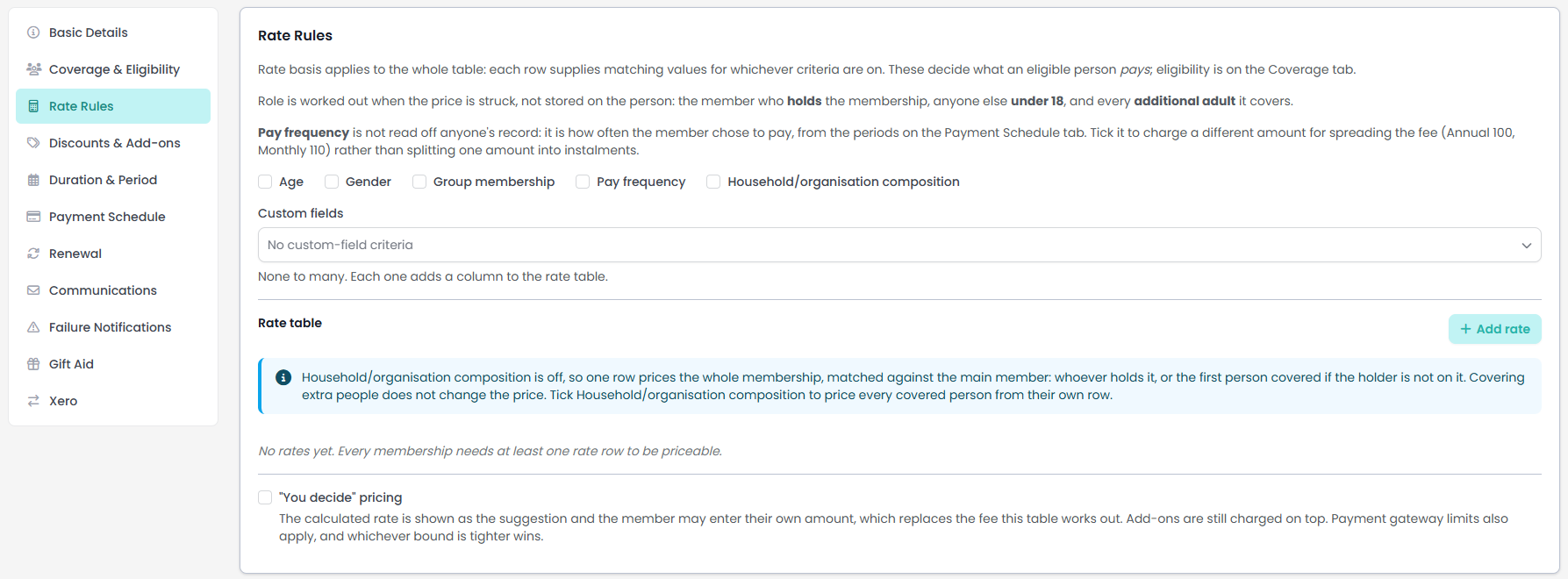
Step 1: Choose the pricing structure
The pricing structure decides how many rows are used to price one membership. It is set by the Household/organisation composition checkbox and, when that is ticked, by the panel headed Composition pricing method that appears beneath it. That panel holds two dropdowns side by side. The first one chooses the structure, and it is the one this step is about. The second one only matters on a per-person product, and it is covered under Tiered child pricing below.
| Shape | How you set it | What it charges |
|---|---|---|
| Flat | Leave Household/organisation composition unticked. | One row prices the whole membership, whoever it covers. Covering more people costs nothing extra. |
| Per-person rates (roles) | Tick Household/organisation composition, then choose Per-person rates (roles) in the first dropdown. | Every covered person is matched to their own row and gets their own charge. |
| Flat bundle by tier (size bands) | Tick Household/organisation composition, then choose Flat bundle by tier (size bands) in the first dropdown. | One row prices the whole membership, chosen by how many people it covers. |
Flat is what you get by not ticking the box, so the screen says so rather than leaving you to work it out. With composition off you will see a note that begins "Household/organisation composition is off, so one row prices the whole membership, matched against the main member". The main member is whoever holds the membership, or the first person covered when the holder is not one of them.

Choosing per-person or tiered changes which columns the rate table draws, so set the shape before you write any rows.
Step 2: Choose what the rates are allowed to match on
The checkboxes at the top of the tab are the rate basis. They apply to the whole table.
For example, tick Age and every row gains an Age min and Age max; untick it and those values stop being used. Each row then supplies the values it wants for whichever criteria are on, and a value left blank on a row means "any".

- Age: bands the row by the covered person's age. Ticking it also reveals the age reference date settings. See Step 3 for more information.
- Gender: matches the gender on the person's record. A row can ask for Male, Female, or Any.
- Group membership: matches people who are in a chosen group.
- Pay frequency: matches how often the member chose to pay, not anything on their record. Use it to charge a different amount for spreading the fee, for example 100.00 paid annually against 110.00 paid monthly. The periods offered come from the Payment Schedule tab.
- Household/organisation composition: the pricing shape, covered in Step 1.
- Custom fields: a multi-select. Each field you pick adds its own column to the rate table.
Step 3: Set the age reference date
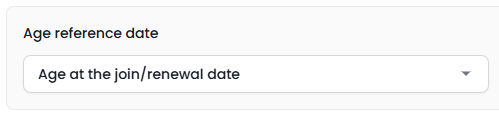
Age reference date appears as soon as you tick Age, and it has two options.
-
Age at the join/renewal date: ages are measured on the day the person joins or renews. This is the default.
-
Age at a fixed date each year: ages are measured on a day and month you choose, in the year the person joins. Clubs and schools use this so that everybody is banded against the same date, for example 1 July, rather than against their own join date.

This setting is worth understanding, because a membership product can measure age against two different dates for two different purposes.
| What is being decided | Which date the age is measured at |
|---|---|
| A rate row's Age min and Age max | The age reference date you set here |
| An age condition on the Coverage & Eligibility tab | Always today's date |
| Whether a covered person counts as a child for the Role column | Always today's date |
So, on a product using a fixed 1 July reference, a person born on 1 August 2008 who joins in August 2026 is 17 for the purposes of a rate row banded 0 to 17, and 18 for the purposes of an eligibility condition or a Role column set to Child. That is not a contradiction to work around, it is two questions being asked about two different moments. If you want one answer, band on age and leave the Role column on Any.
The fixed date sits in the year the person joins, whether that day has already passed or is still to come. Somebody joining in March on a 1 July reference is therefore aged at a date later the same year, so a rate row can band them a year older than they are on the day they join.
Step 4: Write the rate rows
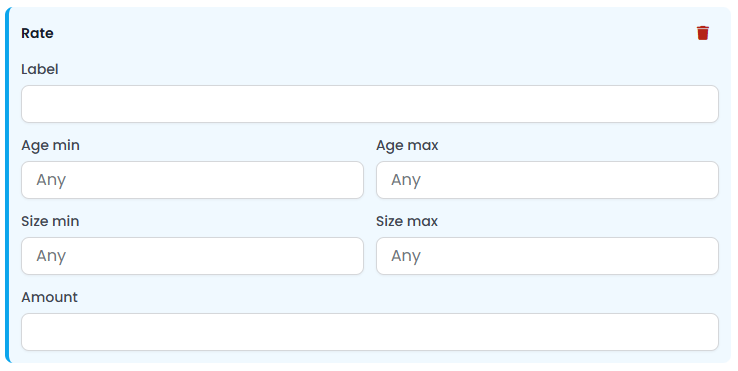
Click Add rate for each row you need. Every row has a Label at the top and an Amount at the bottom, with a cell in between for each criterion you switched on in Step 2.
- Label: what the row is called. The member sees it against their charge, so write it for them: Adult, Child, Family, Concession. It is also the name the add-on settings use when an add-on is scoped to one rate.
- Amount: what that row charges, in your site's currency.
- Criteria cells: leave a cell blank, or set it to a value, or Any, to mean any value. A row that asks for nothing matches everybody.
- Band direction: check each band reads low to high, Age min below Age max and Size min below Size max. A band typed the other way round matches nobody.
While the table is empty the screen says "No rates yet", and reminds you that every membership needs at least one rate row before it can be priced.

Order decides the winner
Rows are tried from the top down, and the first row that matches is the one charged. That makes the order meaningful: put the most specific ones first above your catch-all rows, or the catch-all will take everybody.
Where two rows could both take the same person, infoodle says so as you type. The warning opens with "These age bands overlap, and the first matching row is the one used:" and then names each pair and which one wins. It does not stop you saving, because writing a broad row underneath a narrow one is a normal way to build a table.

Per-person pricing: roles and children
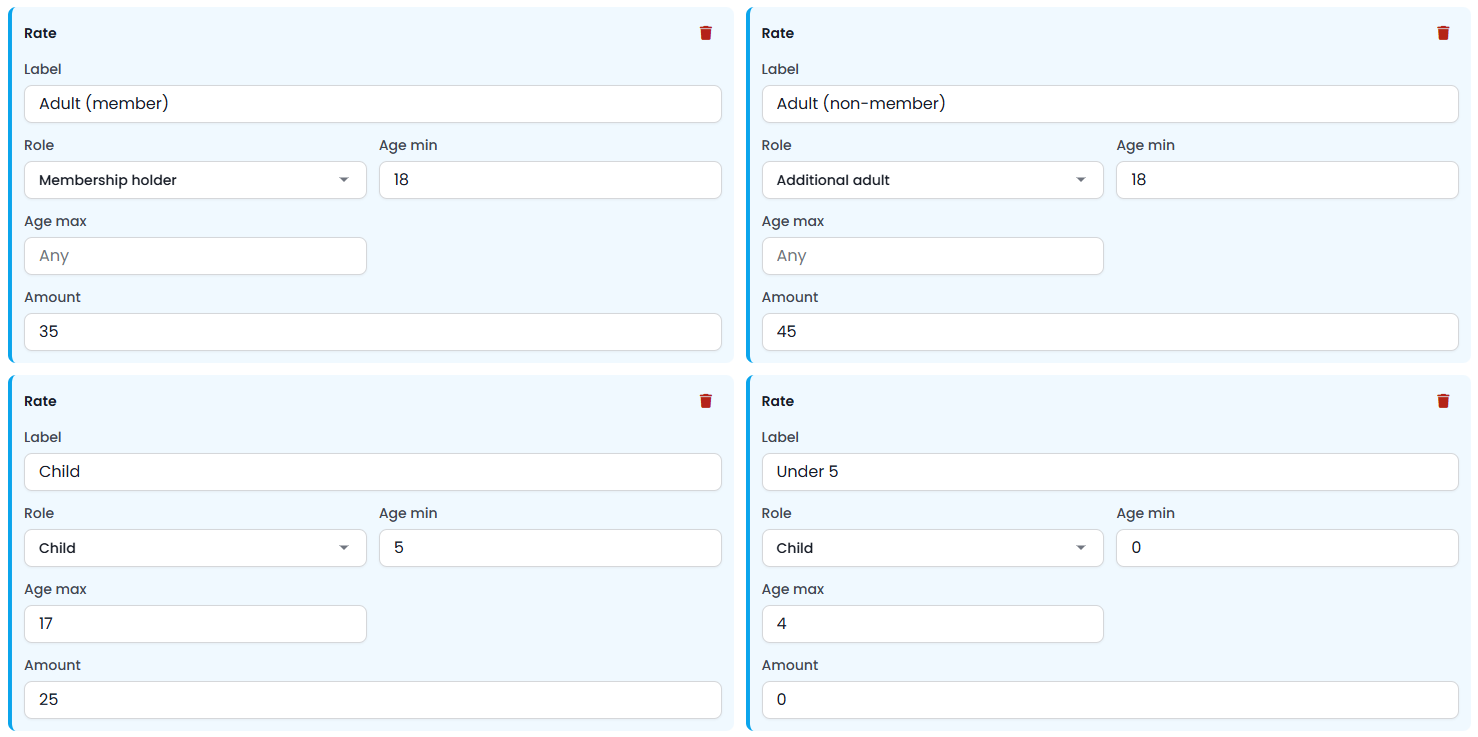
With Per-person rates (roles) chosen, the rate table gains a Role column with three values plus Any.
- Membership holder: the person who took the membership out.
- Additional adult: any other covered adult. It means exactly that, an adult on the membership who is not the holder, so an adult child still living at home counts here.
- Child: anyone covered who is under 18.
Roles are worked out when the price is struck, not stored on anybody's record, so there is nothing to set on a person to make them a holder or a child. Age wins over holding: a 15 year old who takes out their own membership is priced as a child, not as the holder. That means a table whose only row is Membership holder will refuse a young holder rather than charging them an adult price.
The Role column needs an age to work with.
Anyone whose age cannot be worked out, because their record holds no date of birth or the birth year is withheld, is treated as an adult and priced on a Membership holder or Additional adult row rather than a Child one.
The Role column always uses the person's age today, so on a product with a fixed age reference date it can disagree with your Age min and Age max by a year. If you want one answer for everybody, band on age and leave the Role column on Any.
Tiered child pricing
The second dropdown in the Composition pricing method panel decides how children are charged:
-
Every child at their matched rate: each child is charged the full amount on their row.

-
Tiered: 1st child full, then a percentage: the first child line is charged in full and every child line after it is charged at the percentage you set. The percentage box appears beside that dropdown and defaults to 50.

Only lines matched to a Child row are reduced. The holder and any additional adults are always charged in full.
For example:
| Membership holder | Additional adult | Child | Additional Child (50% discount) |
|---|---|---|---|
| $35 | $45 | $30 | $15 |
A household of two adults and two children therefore pays 35 plus 45, plus 30, plus 15 = $125.00.
The reduced line carries the percentage in its label so the member can see why it is lower.
The child charged in full is the first child line the system prices, which follows the order the covered people were added. On a table with two different child rows, say Child 5 to 10 at $50.00 and Child 11 to 17 at $100.00, that is what decides which of the two amounts is the one reduced.
Tiered pricing: size bands
With Flat bundle by tier (size bands) chosen, the rate table gains Size min and Size max columns and drops the Role column.
One row prices the whole membership, picked by the number of people covered.
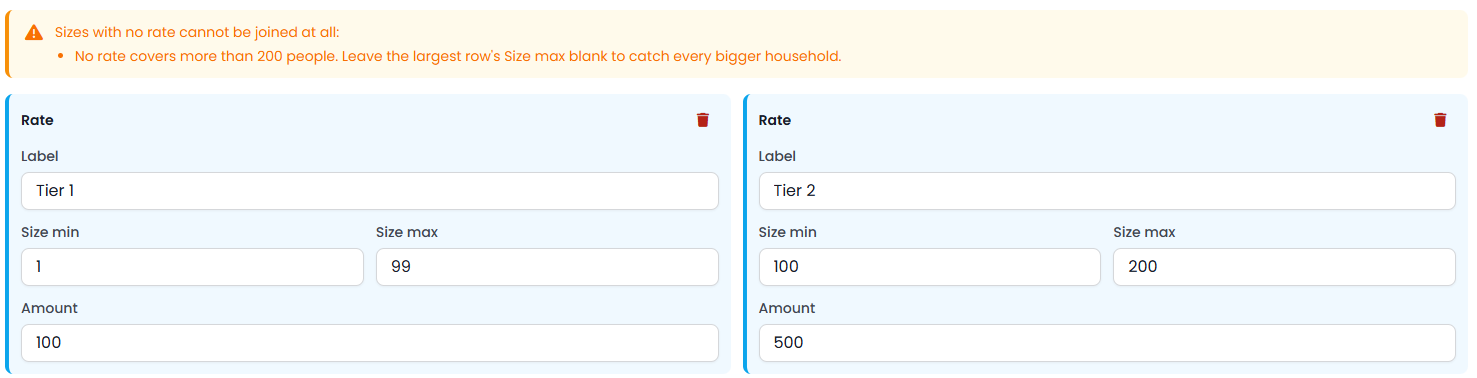
For example: a single person is $200, a couple $300, and a family $400. Leave Size max blank on your largest row so that it catches every bigger household.
The screen explains the trade-off with a note beginning "Flat bundle by tier: one row prices the whole membership. Size min/max are matched on how many people are covered".

Every other column on a tiered row, age, gender, group and custom fields, is matched against the main member alone rather than against each covered person. That is what makes the pattern often called Fair Share work: a household income bracket held as a custom field on the main member picks between two family-tier prices, while the size bands do the counting.
The size band is tested before anything else, so a household that fits no band is turned away on headcount and never gets as far as the other criteria. infoodle warns about the holes as you type, under the heading "Sizes with no rate cannot be joined at all:", listing the sizes nothing covers and telling you when nothing covers households above your largest band.
How group and pay frequency rows match
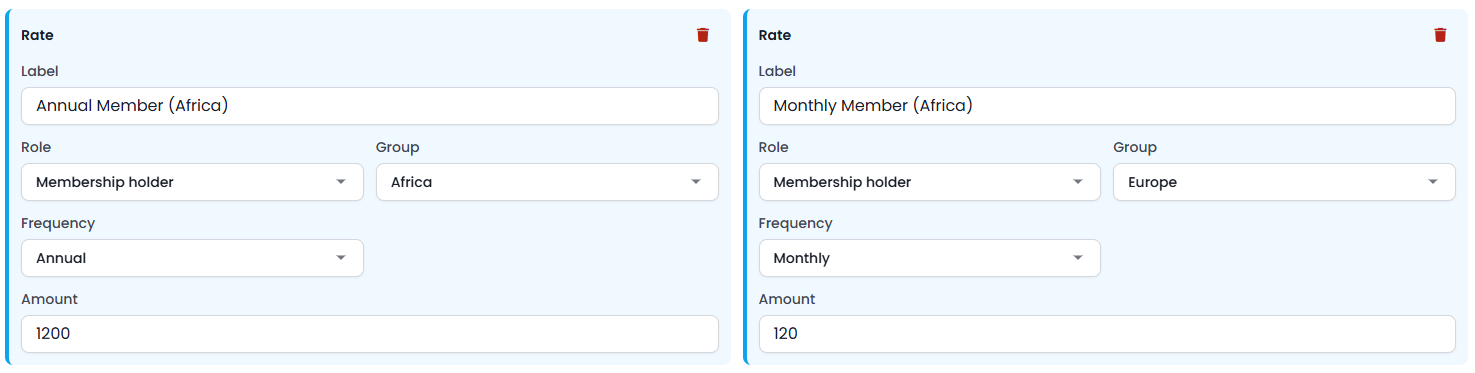
Group membership rows match on current membership of the chosen group. Someone who is a past member does not match. The same test is used for eligibility, so a person who is in a group for eligibility is in it for pricing too.
Pay frequency rows match the period the member picked when they joined. A row left on Any covers every period, which is the simplest way to make sure nobody falls through. If every row is keyed to a specific period and one of the periods you sell is left uncovered, the screen warns you, starting "Nothing prices Monthly", and explains that a member choosing it would get no price at all. It also warns when a row is keyed to a period the Payment Schedule tab no longer offers, because no member can choose it.

"You decide" pricing
Tick "You decide" pricing at the foot of the tab to let the member name their own amount. The rate table still runs and its result is shown as the suggestion, but the amount the member enters replaces the membership fee. Add-ons are still charged on top.
Two boxes appear when you tick it:
- Minimum amount: the least you will accept.
- Maximum amount: the most you will accept. Leave either blank for no limit on that side.
Your payment gateway has its own transaction limits, and both sets apply. Whichever bound is tighter is the one that holds: the effective minimum is the higher of the two minimums and the effective maximum is the lower of the two maximums. So if you set a minimum of 1 and the gateway will not take less than 20, the member pays at least 20. Keep your minimum inside what the gateway will take, because where the two bounds cross it is the minimum that is applied.
A "You decide" product still needs at least one rate row. The rate table is what the engine works out first, and a product with no rows has no price to work out, whoever is naming the amount. Turning on "You decide" is not a way to skip the table.
In the Portal the product's card shows a "from" price, which is the cheapest amount on the rate table, with a You decide badge beside the product name.

What the member sees
The rate engine always returns a line for each charge, never a single lump. The member's join screen prices live as they change who is covered, and shows one line per person or per rate, plus a line for each add-on, and then the total. It can also carry discount lines, which are set up on the Discounts & Add-ons tab and are covered in Discounts and add-ons. On a "You decide" join the rate table's own lines are kept and marked as replaced, with the member's chosen amount shown as its own line. That is why the Label on each rate row matters: it is the wording the member reads next to the amount.
When no row matches somebody, they are reported as unpriced with the reason, naming what the rows wanted, for example that they are not aged 18 or over, or that they are not in the required group. On a tiered product that falls between bands, the reason is the head count, and it lists the sizes you have set.
One unpriced person stops the whole membership, not just their own line. The join is refused while anybody covered is unpriced, so nobody on that membership gets it. A renewal is refused the same way: the current period is left exactly as it is, the renewal is held rather than opened at a price that leaves somebody out, and it is tried again each night. The people you list on the Failure Notifications tab are emailed once to say which person could not be priced. Add a row that covers them, or change who the membership covers, and the next night's run opens the renewal.
Common questions
Which row is used when several could match?
The first one from the top. Order your rows narrowest first and keep any catch-all row at the bottom.
Can I price a membership for free?
Yes. A rate row with an amount of zero is a valid row and prices the membership at nothing. That is different from having no rate row at all, which makes the product unjoinable.
Why is a covered person showing as unpriced?
No row matched them on every criterion that is switched on. The reason given with the price names the requirements they missed. The commonest causes are a missing date of birth on a product banded by age, a Role column left on a value the person cannot be, and a group row for a group the person is only invited to.
Does changing a rate change what existing members pay?
Rates are read each time a price is struck, so a change applies to new joins and to renewals priced after the change. It does not rewrite a membership that has already been agreed and invoiced.
Why does my child rate not apply to the person who took the membership out?
It should, and it does. Age is worked out first, so anybody under 18 is treated as a child whether or not they hold the membership. If a young holder is being refused rather than priced, the table probably has no Child row for them to land on.
Can I use age bands and the Role column together?
Yes, and they are checked independently, so a row asking for Role Child and Age min 5 needs both. Remember that the Role column always uses the person's age today, while an Age min or Age max uses the age reference date you set, so on a fixed-date product the two can disagree by a year for someone with a birthday between the two dates.
Next steps
Once the table prices everybody you expect it to, set up the optional extras and the reductions that sit on top of it on the Discounts & Add-ons tab, then set how long a membership lasts on the Duration & Period tab and how it is paid for on the Payment Schedule tab.