This article explains the People permissions in infoodle — the role permissions that control what a user can see and do with the people, households, and contact records in your database. People permissions live alongside Groups, Reports, Contact, Finance and the other permission groups inside each role.
Where to find people permissions
People permissions are configured per role. To see them:
- Click the administration cog in the top right, then click Roles.
- Find the role you want to inspect or change, and click Edit next to it.
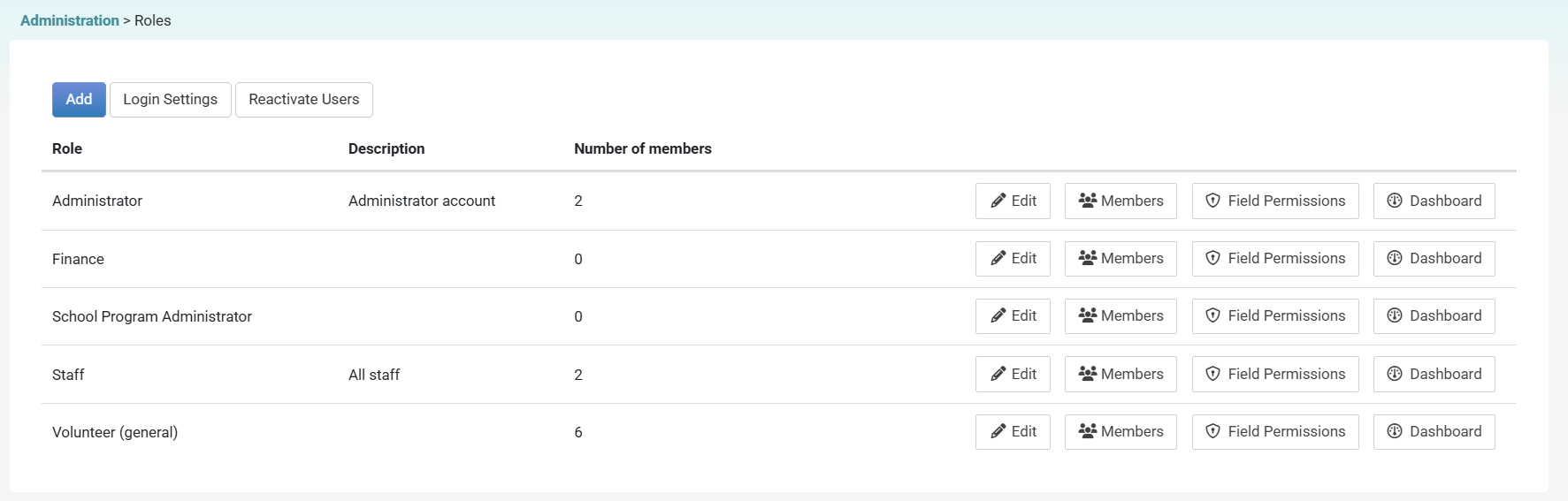
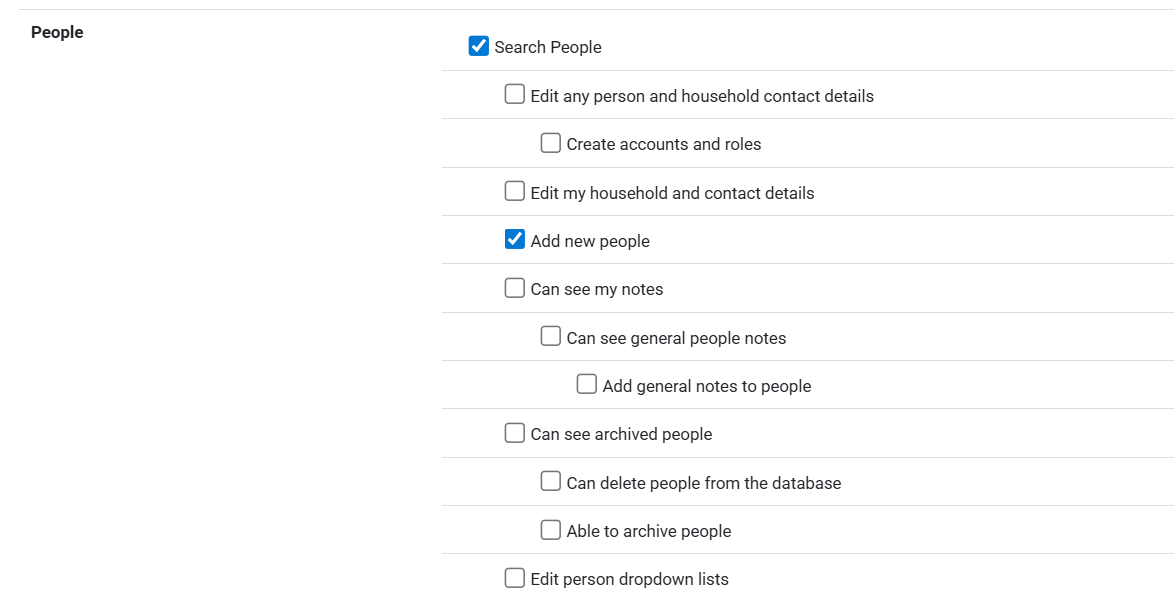
- Scroll to the People section. Each row is one permission with a tick-box.
- Click Save at the bottom of the role editor to apply the changes.
Ticking a permission grants it to every user who holds the role; clearing the tick removes it.
People permission criteria
Below is each role permission that appears in the People section of the role editor, grouped by what it lets a user do. The names below are exactly the labels you see on the Roles page.
Important: some permissions expose private data, grant administrative power, or remove records — review them carefully before granting.
Finding and viewing people permissions
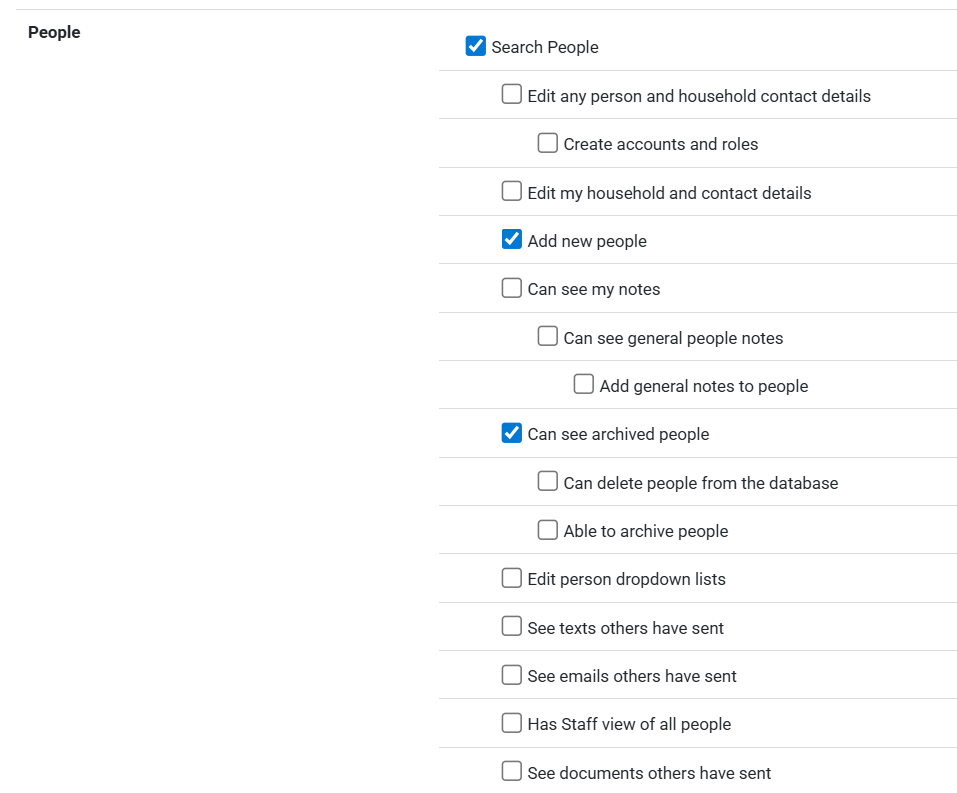
Search People
The baseline permission for the People area. Lets the user open People & Households, search the database, and view profiles they are allowed to see.

Has Staff view of all people
Reveals fields your tenant has marked as staff-only on each profile — typically the most sensitive data, such as date of birth, safeguarding notes and pastoral context. Pair with Field Permissions for People to control which individual fields the role can see.
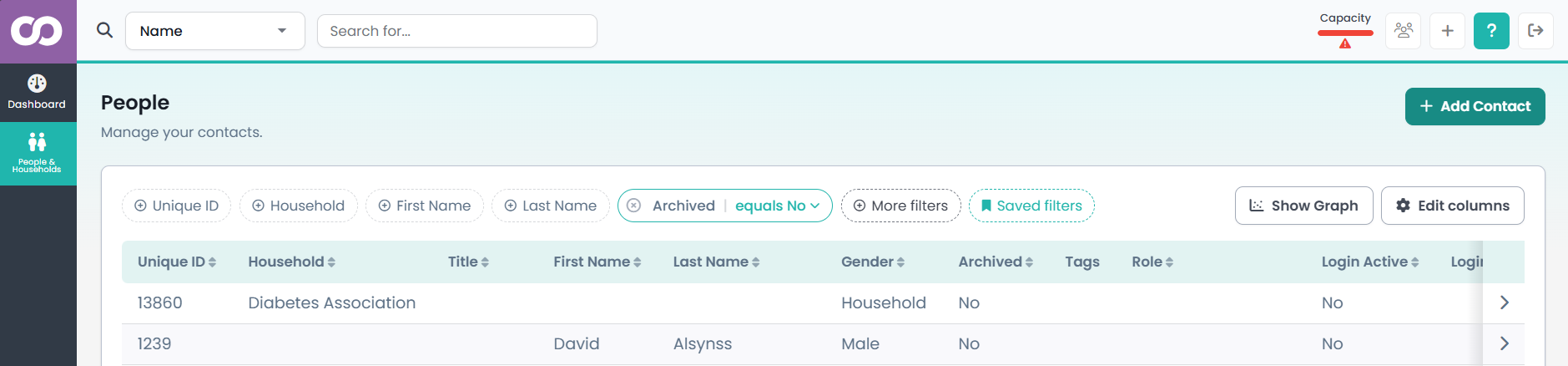
Can see archived people
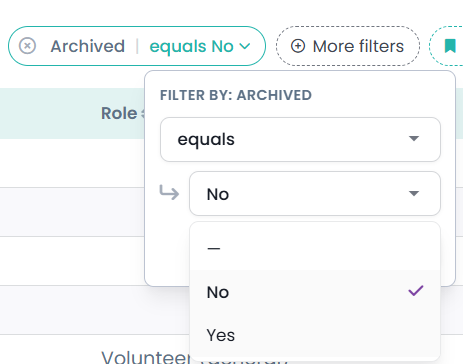
Lets the user tick the Archived checkbox in people search and see archived profiles. Without this, archived people are hidden from search results and lists.
Online Directory
Restricts the user to the contact items ticked Visible for people outside the groups they administer. Use for directory-only users who should only see public contact info.
Limit view to just directory settings
A stricter form: limits the user to the Visible items even for people in groups they are a full member or administrator of.
Privacy tip: combine Online Directory and Limit view to just directory settings with Search People to publish a member directory while keeping non-Visible fields private.
Editing people permissions
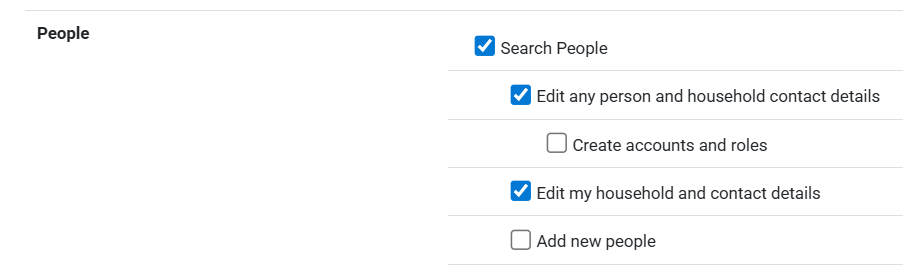
Edit any person and household contact details
The broad edit permission. Lets the user open the Edit form on any person they can view and change names, phone numbers, emails, custom fields and household details.
Edit my household and contact details
A scoped edit permission. Lets the user edit only their own profile and the other members of their household. Use for self-service users who maintain their own contact details.
Edit person dropdown lists
Lets the user manage the configurable dropdown lists used on the person form (for example, phone types or contact-method preferences). Grant only to users responsible for configuration — changes affect every record that uses the list.
Adding, archiving and deleting people permissions
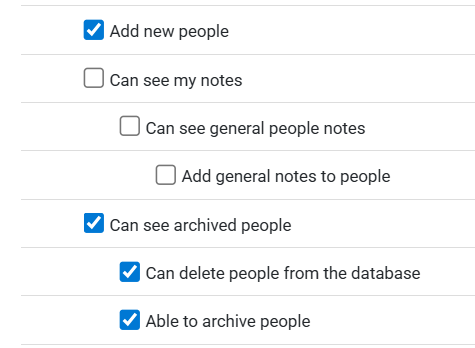
Add new people
Lets the user create new person records. Without this tick, the Add a new person action is hidden.
Able to archive people
Lets the user archive a person record. Archiving keeps the person in the database but removes them from active lists and reports. It is the first step of the two-step delete flow.
Can delete people from the database
Lets the user permanently delete a person record. Deletion is a two-step archive-then-delete flow, so this permission only takes effect alongside Able to archive people. Once deleted, there is no in-product restore — recovery requires a database restore from backup by infoodle support.
Notes permissions
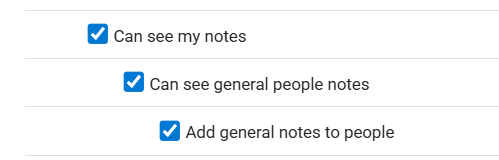
Can see my notes
Lets the user see notes they have authored themselves on people they can view.
Can see general people notes
Lets the user see general notes (notes not restricted to a specific note-visibility role) on people they can view.
Add general notes to people
Lets the user add new general notes to a person's profile.
Communication history permissions
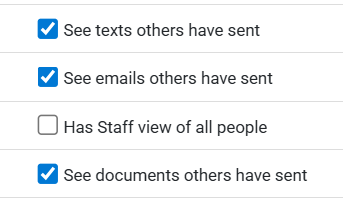
These three permissions expose communications sent by other staff members to a contact. They are GDPR-relevant — reading another staff member's correspondence with a parishioner is, in data-protection terms, accessing a third party's communications.
See emails others have sent
Lets the user see the email history of any person they can view, including emails sent by other users. Without this tick, the user only sees emails they themselves sent.
See texts others have sent
The SMS equivalent. Lets the user see texts other users have sent to the contact.
See documents others have sent
The documents equivalent — visibility of documents (PDF letters, receipts and the like) other users have sent to the contact.
Account and role administration permission
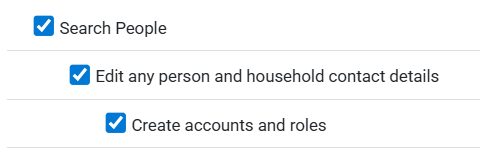
Create accounts and roles
Grants the ability to create logins and assign roles. A user with this permission can effectively grant themselves or anyone else any other permission on this page — by editing an existing role or building a new role and then assigning it. Treat this like a system-administrator permission and review the role-holders regularly.
Other people permissions
Access actions features
Lets the user open and use the Actions area (workflow-driven follow-up tasks attached to people).
Home page widget - birthdays
Adds the Birthdays for the next 7 days widget to the user's dashboard.
Your tenant may show additional People rows beyond those above — for example, Approve edits to household and contact details, Edit users involvement and Add new households appear only when their tenant features are enabled. The label on the Roles page is always the canonical name.
How to Edit People Role Permissions
- Click on the administration cog in the top right, then click on Roles.
- Click Edit next to the role you want to change.
- Tick the permissions you want the role to grant, and clear the ones you want to remove.
- Click Save at the bottom of the page.
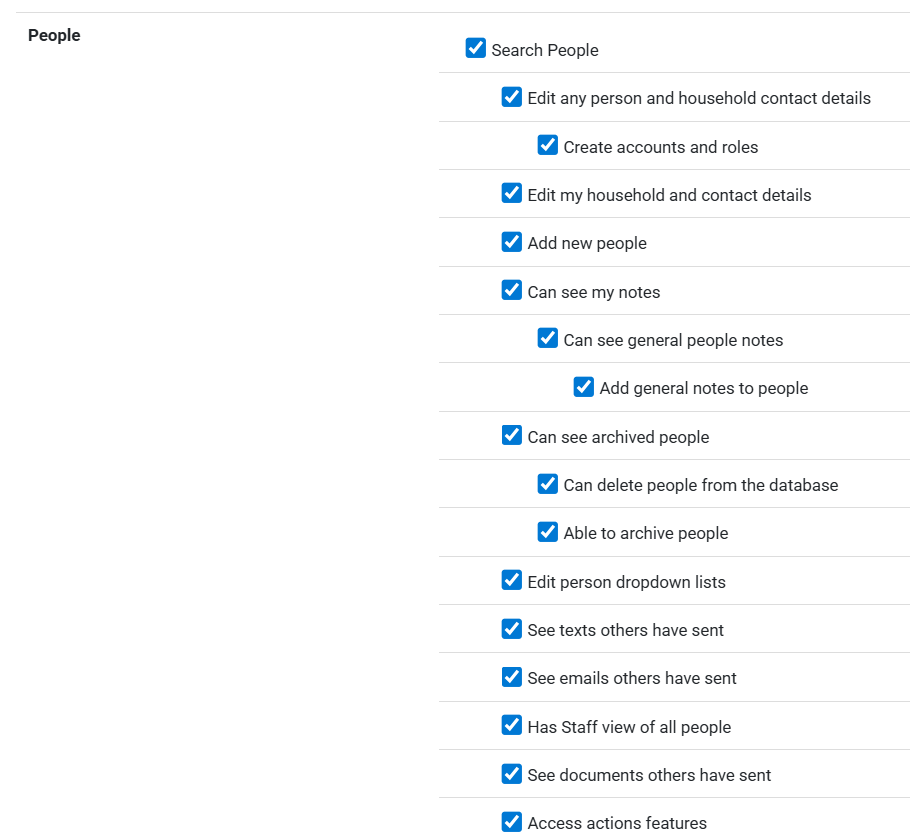
The change applies to every user who already holds that role.
For granting a permission, signed-in users pick up the change at their next session re-check; signing out and back in is the quickest way to refresh. For revoking a permission — particularly when off-boarding a staff member — also disable the user's login under Administration → People → [the person] → Login so their access terminates immediately.
The cluster-member restriction
At the bottom of the role editor is a Cluster section with the role permission Is a member of a cluster. This is a restriction modifier that changes how the People permissions above behave for the user.

When Is a member of a cluster is ticked, the user is treated as a group-restricted (cluster) member: the People permissions in the role apply only to people who are members of a group the user is a full member or administrator of.
So if a role has both Edit any person and household contact details and Is a member of a cluster ticked, the user can edit any person within their cluster — not any person in the whole database.
Use the cluster restriction as your main scoping tool. If a role needs a broad permission such as Edit any person for day-to-day work, ticking Is a member of a cluster confines that power to the user's own groups. This is usually easier to audit than building narrow custom roles.
The accompanying tick-box, Can duplicate check whole database, lets a cluster member request a duplicate check against the full database when adding a new contact, even though their day-to-day visibility is restricted to their cluster.
Common questions
I ticked Edit any person and household contact details but the user still cannot see archived people.
The edit permission and the archived-visibility permission are separate. To let the user edit archived people, also tick Can see archived people.
The user has Add new people but the Add button is missing.
Adding a person also requires Search People, the gateway to the People area. Tick both.
The user can see their own emails but not emails sent by other team members.
Tick See emails others have sent. The same applies to See texts others have sent and See documents others have sent.
I want a user who can update their own details but nobody else's.
Give them Edit my household and contact details, and leave Edit any person and household contact details unticked.
I want a user who can edit only the people in their own group, not the whole database.
Give the role Edit any person and household contact details, then in the Cluster section at the bottom of the role editor tick Is a member of a cluster. The combination grants edit power scoped to the user's own groups.
How do I let a user delete a person?
Tick Able to archive people and Can delete people from the database. Deletion is a two-step archive-then-delete flow, so both permissions are needed.