This article shows you how to update a contact's stored details (name, phone, email, custom fields, and so on) using the inline edit form on the contact's profile.
Jump to If you can't see the Edit button below.
Step 1 — Open the contact's profile
- Click People & Households in the left navigation, or search for the contact using the search box at the top of the page.
- Click the contact you want to edit.
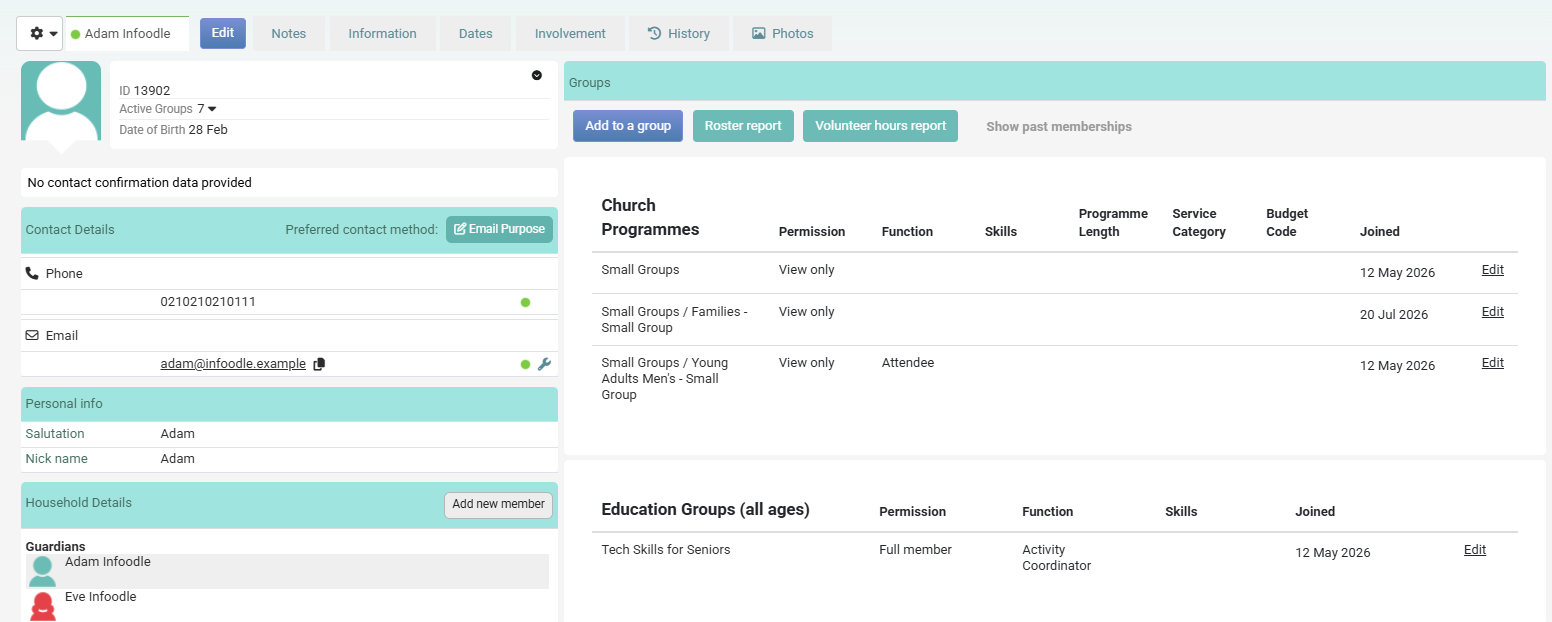
The profile opens with the contact's stored information laid out down the left in read-only form, plus tabs across the top for non-core data (Information, Dates, Involvement, Groups, History, Photos, and any custom tabs your site has configured). The Edit button sits next to the contact name at the top of the personal info panel.
Step 2 — Click Edit
Click the Edit button.

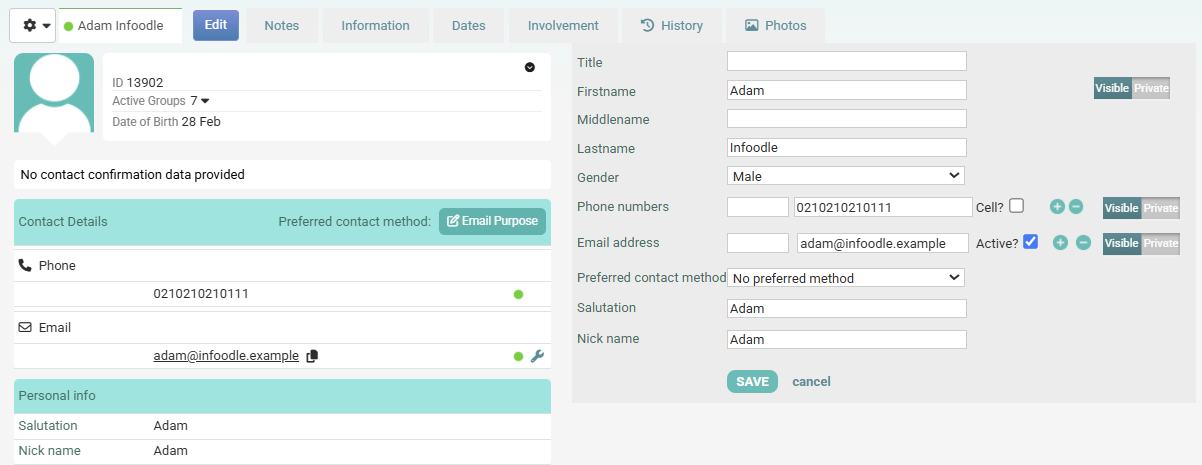
The right-hand side of the page swaps from a read-only summary into an editable form containing the core person fields plus all custom person fields your site has configured.
Step 3 — Update the fields you need
Make the changes you need. The most common edits and what to watch for:
Title, Firstname, Middlename, Lastname, Suffix.
Firstname and Lastname are mandatory — infoodle does not save with either empty.
Note: changing a contact's name does not change historical receipts already issued to them, and it does not change the household's receipt-to alias if one is set. See What edits don't change.
Gender
A drop-down with the values (blank), Female, and Male. The values are fixed. If your site has the Hide gender setting turned on, the field is hidden entirely.
This field needs to be added through custom fields. If you do not see this field, you will need to add it. Follow the instructions on Adding a Gender field.
Phone numbers
Add a number with the + button, remove with the x. Each number has:
- Type — chosen from the list your administrator has configured (typical entries: Mobile Phone, Work Mobile, Home).
- The number itself.
- Cell? tick — tick this for numbers that should receive bulk SMS. Numbers without this tick are skipped by SMS sends.
- A visibility toggle — Visible or Private. Private numbers are not shown in directories or exports that respect the visibility flag.

Email addresses
This follows the same format as phone numbers. Each address has a Type (also from the configured list), the address itself, an Active? tick, and a Visible / Private toggle.

Active matters.
Only addresses with Active? ticked receive infoodle's outgoing email. Use this when an address is no longer in use but you don't want to delete it from history.

If the email is shared.
If the address you're changing is also stored against other contacts in your site (e.g. a family address shared between household members), infoodle prompts: "The email address is used by other people. To change the address for the other people affected, click OK."
Clicking OK rewrites the email on every other contact who shares it. Click Cancel if you only want to change this contact's address.
Additional fields
There are additional optional fields that can be completed on the Profile, Information, and Dates tabs.

Profile: Salutation, Nick name
Information: Guardian, Marital Status, Occupation
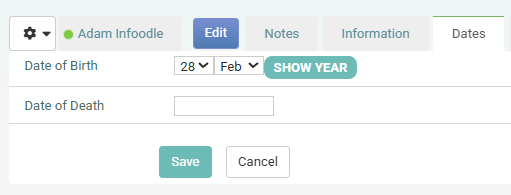
Dates: Date of Birth, Date of Death
Date fields
Date fields use a date picker. Date of Birth has a Remove year toggle for contacts whose birth year you don't want recorded.
To edit this, open the Dates tab, then click Edit.
Custom person fields
Anything your administrator has added under Settings → Custom Fields → People appears in the form too. Mandatory custom fields are marked; if you miss one, save will be refused and the missing field highlighted.
Visibility ticks on each contact-info row
Each phone, email and address row has a Visible / Private toggle. Private values are not shown in the online directory, in exports that filter by visibility, or in merge tags that exclude private fields. The toggle is a flag on the value itself, not a separate role permission.
Step 4 — Save
Click Save at the bottom of the edit form. infoodle validates the input, writes the changes, and closes the edit panel. The read-only summary on the left repopulates with the new values.
To discard your changes without saving, click cancel next to Save.
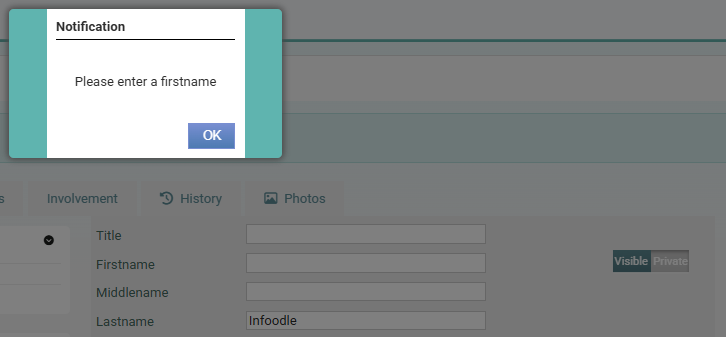
If a required field is empty
infoodle does not save and shows Please enter a first name or Please enter a last name above the form. Restore the value and save again.
If you can't see the Edit button
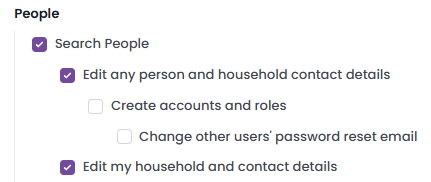
The Edit button only appears for users whose role allows editing this contact. Two role items in Settings → Roles control this:
- Edit any person and household contact details — lets the user edit any contact they can view.
- Edit my household and contact details — lets the user edit only themselves and members of their household. A user with this role item but not the broader one will see the Edit button on their own profile and household members only.
Two further restrictions apply:
- If the role has Is a member of a cluster ticked, the user is treated as a group-restricted (cluster) member: even with the broader edit role item they can only edit people who are members of a group they administer.

- The first system user (the built-in infoodle support account) can only be edited by itself.
- To grant or check a role item, an administrator goes to Settings → Roles, picks the role, and ticks the relevant item under the People section.
If you made a mistake
Before saving:
Click cancel at the bottom of the edit form. The form closes and the contact's stored values are unchanged.
After saving:
Open the edit form again and re-enter the previous values. To recover values you don't remember, your administrator can ask infoodle support to look up the previous record from backups.
Wrong contact:
Open the contact's audit trail to confirm what was changed and when, then re-edit with the correct values.
See more on People Audit Trails.
What edits don't change
Some things look like they should follow from a person edit but don't:
- Historical receipts are unchanged. A receipt issued to "Jane Smith" stays issued to "Jane Smith" even if you rename her to "Jane Jones". Reissue the receipt if the historical record needs to match.
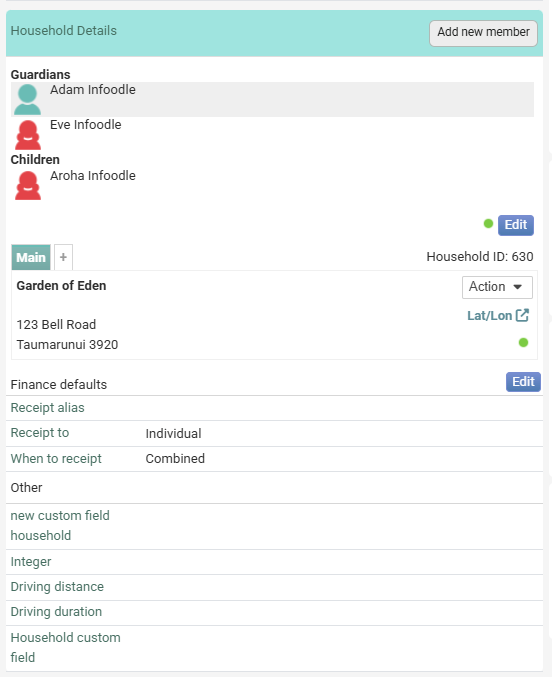
- The household's receipt-to alias is a separate field on the household, not derived from the head-of-house's name. If the household has an alias set, edit it directly in the Household Details panel.
- Existing exports / merge tags / report results. A CSV you exported yesterday won't update; export again. A scheduled email already in the queue uses the recipient values it was queued with.
Editing the household
The Household Details panel has its own Edit button. Use it for the household name, postal address, household custom fields, and the receipt-to alias. Changes here affect every member of the household.
Updating the photo
Click the contact's photo (or the photo placeholder) on the profile to open the photo dialog. You can upload a file or take a picture with the camera, and choose whether the photo applies to this person or the whole household.
See more information on photos
Common errors
I can't see the Edit button
Your role doesn't include the right item, or this contact is outside your editing scope. See I can't see the Edit button within this article.
Please enter a first name / Please enter a last name
You cleared a mandatory name field. Restore it before saving.
The email address is used by other people. To change the address for the other people affected, click OK.
See If a required field is empty within this article.
You're changing an email shared with other contacts.
Click OK to update all of them, or Cancel to update only this contact.
Please archive first
You hit this from the deletion flow, not the edit flow. Removal is a two-step process:
- Archive the contact
- Delete from archive.
Other ways to edit a person
Most everyday edits use the main inline edit flow above. infoodle does support several other ways to update person data — useful when one of these is what you actually need:
- Per-tab inline edit — the Volunteer Info, Membership, and other custom-field tabs each have their own edit link.
- Household details edit — for household-level fields (see Editing the household above).
- Photo upload — via the photo on the profile.
- Contact-type / tag changes — click the contact-type header above the personal info to add or remove a contact type.
- Convert to organisation / contact — under the cog menu (top-left of the profile) you can flip a person record between an individual and an organisation.
- Workflow-driven field updates — a workflow can include an Update a person field step that sets a single field to a fixed value. Right tool when many contacts need the same change on a schedule or a trigger.
- API edit — integrations can update a person via PATCH /apiv2/people/<unique_id> on the infoodle v2 API. The edit respects the API key's scopes.
- Bulk import (update mode) — a CSV import run with matching set to Update existing person can change many contacts at once.
What's next
- See the audit trail — the audit trail tab on the contact shows every change made to the record.
- Make the same edit on many people — build a workflow with the Update a person field step, or do a CSV bulk import in update mode.
- Manage household membership — see Adding a Person to a Household, Moving a Person between Households.
- Photos — see Adding a Person Photo.
- Custom fields — see Adding Custom Fields for People.