The contact record provides for a number of different phone numbers - and functions to assist their usage.
All phone numbers can be :
- added and edited on the profile page by a person who has the role permission to edit them.
- added and edited via a form if the form includes these fields for the user to add
- updated via the Portal contact page if the portal package is purchased and the feature is enabled in the portal configuration
- included in reports if the fields are selected for output
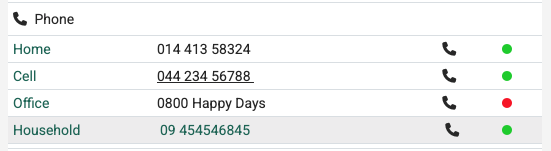
Household Phone numbers
Each household/organisation can hold a single phone number that is applicable to the address e.g. the household phone number or the organisations main contact number. This is shown highlighted in grey - and is editable in the address area - or from the cog menu by selecting "Correct Address".
Cell phone number
Mobile phone numbers are identified when editing the phone numbers. These are shown as underlined. When clicking them, you are taken to the infoodle contact page to send text messages to them. When requesting infoodle to send to a cell phone, these are the numbers that are used only.
Multiple cell phone numbers can be recorded against a single contact.
The description in the first column - e.g. 'Cell' or 'Office' in the example - is free text for you to type what helps you describe this phone number's purpose.
Personal phone numbers
Other phone numbers that are not identified as cell phone numbers are listed also.
Multiple personal phone numbers can be recorded against a single contact.
Click to Dial
The phone icon shows that the number is available to be dialled. By clicking the icon infoodle will add the country code and use a standard link that is honoured by systems such as 3CX, Teams and WebEx assuming these systems are enabled in your web browsers. These are separately purchased and supported systems not available through infoodle.
Enable click to Dial
This is enabled per login. You login and go to your Account page - and set the 'show click to dial icon' to Yes. This now shows the new icon on all profile pages - but only for your login.
