A membership product is one of the memberships your organisation offers, for example an annual individual membership or a household membership. It carries the code you file it under, the title members see, the fee account it is recorded against and the dates it is on offer. You create and manage membership products from Membership Products, and Basic Details is the first tab you fill in: the name, the account codes it is recorded against, and when people can join.
Before you start
Role Permissions
- Manage finance configurations: lets you create, edit, duplicate, cease and delete a membership product.
- Read and Report on Transactions or Manage, Read and report on transactions: lets you open the Membership Products list and read what is there, without changing it.
For what each role permission means and how to change one, see People Permissions.
You will also need:
- The Membership package active on your site. See Turning on the Membership and Portal packages.
- At least one account code to record the membership fee against. See Account Codes.
Step 1: Open the Membership Products list
Click or hover on Finance on the main menu bar on the left, then click Membership Products.
The list shows every membership product you offer, with its code, title, account code, coverage, period, how long it runs, the dates it is available, how many current members it has and whether it is still on offer. Use the Code and Title search boxes at the top to narrow a long list.

Three buttons appear on this screen in the top right:
- Reports: opens the membership reports and is there for anyone who can see the list.
- Generate: opens the bulk Generate Memberships screen
- New Membership: appears when your role can manage finance configurations.
Step 2: Start a new membership product
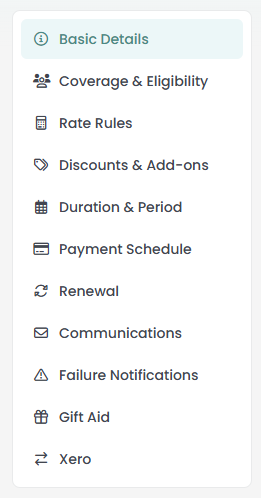
Click New Membership at the top right of the list. The membership product opens on the Basic Details tab, with the rest of the tabs listed down the left: Coverage & Eligibility, Rate Rules, Discounts & Add-ons, Duration & Period, Payment Schedule, Renewal, Communications and Failure Notifications.
Gift Aid is there when the Gift Aid package is on, and Xero when Xero is connected.
Step 3: Fill in Basic Details
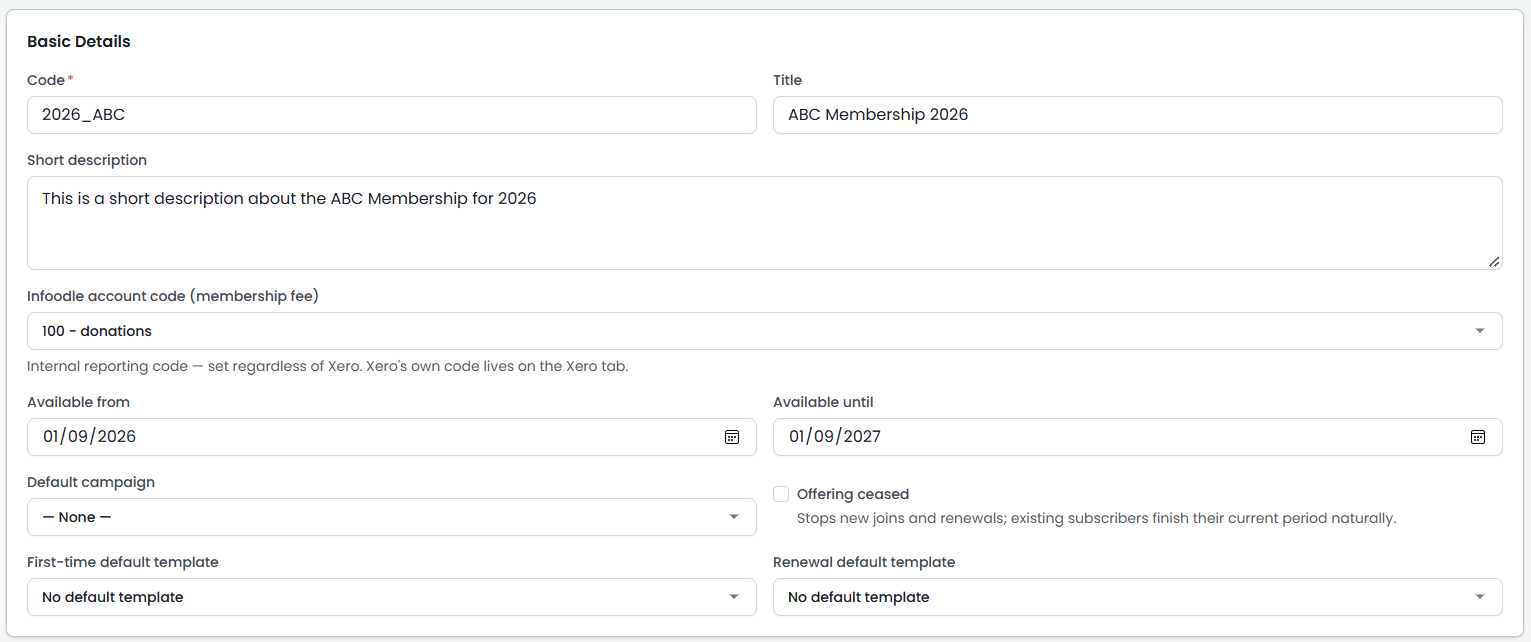
- Code: required, up to 50 characters. This is how the membership product is filed, and it cannot be changed once the product is saved, so choose something you will still recognise next year, for example ANNUAL-2027. This is generally internal use only.
- Title: up to 255 characters. This is the name members and staff see. When it is blank, infoodle falls back to the code, so it is worth filling in.
- Short description: a sentence or two shown to members in the Portal and on the public signup page.
- Infoodle account code (membership fee): the account code the membership fee is recorded against when a payment is written.
- Available from and Available until: the window in which people can join. Leave either blank to leave that end open. Outside the window the membership product is not offered in the Portal or on the public signup page.
- Default campaign: the campaign recorded on the transaction when a membership payment is written.
- Offering ceased: tick to stop new sign-ups and renewals. Existing members keep their current period, but the product stops being available for new sign-ups.
- First-time default template and Renewal default template: which document template infoodle uses for a member's first membership payment and for their later ones.
 {height="" width=""}
Step 4: Save the membership product
Click Save Membership. infoodle returns you to the same membership product on the same tab, now with its own web address, so you can carry straight on into the next tab.
Three things are checked as you save:
- A membership product needs a code. Without one you get A code is required, and the screen jumps back to Basic Details with the cursor in the field.
- Codes are unique. Reusing one that is already taken gets you This code already exists.
- The availability window has to run forwards. An Available from date later than the Available until date gets you "Available from" is after "Available until", because nobody could join between those dates.
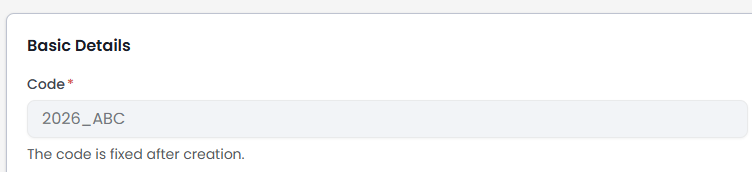
After the first save the Code field is read only, and the screen says so underneath it. Everything else on Basic Details stays editable.
Managing a membership product from the list
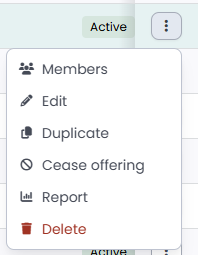
In the Membership Products page, each line item has menu options. Click the three dots icon at the end of the row to see:
- Members
- Edit
- Duplicate
- Cease offering (or Reopen offering)
- Report
- Delete
Note: Edit, Duplicate, Cease offering and Delete need the Manage finance configurations permission. Members and Report are open to anyone who can see the list.
Members
See The Members list for a membership product
Edit
Opens the membership. See step 3 for guidance on the Basic Details. Or the following pages for other items of the membership:
- Coverage and eligibility
- Rate rules and pricing shapes
- Discounts and add-ons
- Duration, period and payment schedule
- Renewal settings
- Communications and failure notifications
- Gift Aid and Xero account codes
Duplicate
 {height="200" width=""}
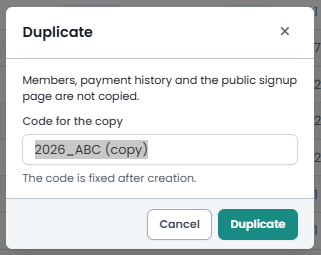
Duplicate copies a membership product's settings into a new one: the Basic Details, rate criteria and rates, eligibility conditions, add-ons, discounts and failure-notification recipients.
Members, payment history and the public signup page are not copied. You are asked for a code for the copy before it is made. infoodle suggests one, the original code with (copy) on the end, and you can type your own instead, because that code is fixed once the copy exists.
 {height="" width=""}
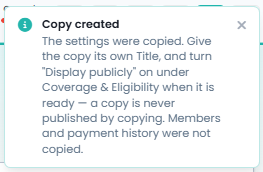
The copy starts with Offering ceased off and public display off. That keeps it off the public signup page until you put it there, but members can join it in the Portal as soon as it is made. Tick Offering ceased on the copy if you want to look it over first.

Cease offering
Cease offering stops new sign-ups and renewals straight away. Existing members are not cancelled: they keep the period they have paid for and it runs to its end.
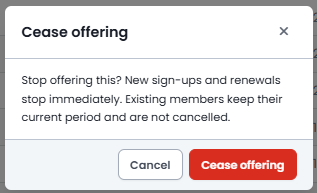
The membership product stays in the list with an Offering ceased status, and Reopen offering puts it back on offer. Using the menu also deactivates any public signup form the product has, and reopening it turns that form back on. Ticking Offering ceased on the Basic Details tab sets the same status.

Report
See Membership Reports
Delete
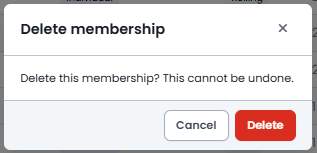
Check the Members column before you delete. infoodle does not stop you deleting a membership product that people currently hold, and their memberships will not renew afterwards. Deleting cannot be undone. Cease the offering instead when you only want to stop people joining it.
Delete removes the membership product from the list and deactivates any public signup form it has. People who already hold it keep their membership records, but the product will not renew and nobody can join it again.
This is the difference that matters: ceasing is a status you can reverse, deleting is not.
 {height="200" width=""}
Common questions
Can I change the code after I have saved?
No. The code is fixed once the membership product exists. The title, the description and everything else on Basic Details can be changed whenever you like, so use the title for the wording you expect to revisit.
What is the difference between ceasing and deleting?
Ceasing stops new sign-ups and renewals and leaves everything else alone, and you can reopen it. Deleting takes the membership product out of the list for good. Both leave existing members' records in place.
Does ceasing a membership product cancel the people on it?
No. They keep their current period and it ends on its own date.
Why can I not see Membership Products under Finance?
The three membership entries appear when the Membership add-on is active on your site and your role holds one of the finance permissions listed above. Generate Memberships additionally needs Manage finance configurations.
What do I put in Title if the code already says it?
Use the wording your members should read. The code is for filing, the title is what appears on screens and in emails, and infoodle uses the title wherever it has one.
Next steps
Basic Details names the membership product. The next tab, Coverage & Eligibility, decides who a single membership covers, whether a household can join on one membership, and who is allowed to take it out. Work along the tabs from there: rates, discounts and add-ons, duration, payment schedule and renewal.
A membership product also needs a price before anyone can join it. Give it at least one rate on the Rate Rules tab, or turn on "You decide" pricing there so the member sets their own amount. Until one of those is in place the product shows in the Portal as Not yet priced, with a line asking the member to contact you instead of a button to join.