In order to keep your members fully informed of the activity on their account infoodle has provided a suite of notifications. These notifications are sent out as emails to their respective members. By default they will all be sent when the situation requires them. You can choose to not send specific - or all - notifications.
Changing the notifications and whether they send or not is a global setting, it affects all products as soon as you make the change.
Before you start
Role Permissions
- Manage finance configurations
For an explanation of what each role permission does, see People Permissions.
View and edit the notifications
- Click Finance
- Click Membership Products
- Click Notifications
This screen lists all the notifications and what triggers them being sent.
Notifications cannot be deleted, they can only be disabled.
Change the status of a single notifications
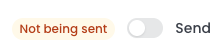
Each notification has the send option. This example shows that the notification is active and will be sent.

click the switch to change the status - this shows its disabled and wont be sent
Change the notification status in bulk
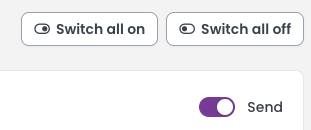
You can choose to change the sending status of all notifications in one go if preferred - click the 'Switch all off' (or on).
Editing a notification
You can opt to edit the subject line and the body of the text if you require. Each input has its own 'edit' link.
The content can have merge tags included in order to make the notifications more meaningful. The list of available merge tags are the only ones available.
Merge fields available in subjects and bodies: {first_name} {membership_name} {amount_line} {renewal_date} {portal_link} {payment_instructions} {period_start_date} {period_end_date} {period} {due_date} {fail_date} {invoice_details} {pay_online} {signup_link} {start_status} {payment_timing}
Only for specific notifications
If used on any other email - they are removed an no content is output.
| Notification | merge tag | Description |
|---|---|---|
| Membership: Action Needed | {start_status} | Reads "has not started yet" while the period is still to come and "is not active yet" once it has begun. |
| Renewal: Payment Due | {payment_instructions} | Is filled in only on a membership collected by hand, such as by cheque or bank transfer, and carries your organisation's payment instructions as provided on the payment method |
| Renewal: Payment Due | {payment_timing} | Asks the member to pay before the new period starts, or as soon as they can once it has. |
| Renewal: Payment Due | payment_instructions} | Is filled in only on a membership collected by hand, such as by cheque or bank transfer, and carries your organisation's payment instructions as provided on the payment method |
All notifications
| merge tag | Description |
|---|---|
| {portal_link} | Is a button taking the member straight to this membership in the portal. Use it in the body, on its own line, wherever the email asks them to do something. Leave it out and nothing is shown. |
| {period_start_date} and {period_end_date} | The dates of the membership period the email is about — on a renewal email that is the NEW period, which is usually the one the member wants to know. Use them wherever "your membership runs from … to …" helps; a membership with no end date (a lifetime one) leaves the end blank, so write the sentence to survive that. |
| {period} | does that for you: it reads "from 1 Jan 2027 to 31 Dec 2027", or "from 1 Jan 2027 (no end date)". |
| {due_date} and {fail_date} | Used by the instalment emails, for a membership paid in instalments by cheque, direct credit or bank transfer: the day the instalment was due, and the last day it can be paid before the membership is put on hold. On any other email they are removed. |
| {payment_instructions} | Is filled in only on a membership collected by hand, such as by cheque or bank transfer, and carries your organisation's payment instructions. It is used by Renewal: Payment Due and Membership: Action Needed. On any other email, and on a membership collected automatically, it is removed. |
When using the bulk membership screen the is also
| merge tag | Description |
|---|---|
| {invoice_details} | The invoice: its reference, dates, what it is for and the total, headed “Tax invoice” with your GST number when your organisation is GST registered. |
| {pay_online} | A Pay now button for a member with portal access, and nothing for anyone else. |
| {signup_link} | The invitation's link to your signup form. On any other email they are removed. |