Memberships are generally paid for (there is the option for a free membership). Which payment methods and how people pay can be configured to suit the requirements of each membership product. Use this payment schedule tab to configure as required.
Before you start
Role Permissions
- Manage finance configurations: needed to open a membership product and to save it. There is no read-only view of these tabs.
For more about what each role permission means, see People Permissions.
-
You will also need the Membership package turned on for your infoodle. See Turning on the Membership and Portal packages
-
The product itself must already exist. See Creating a membership product
-
Payment methods. You will need one or more payment method configured. See Payment methods.
Every membership product needs at least one rate row before anybody can join it, whatever you set on these two tabs. Set that up on the Rate Rules tab first. See Rate rules and pricing structures
You will also need to configure the Duration & Period fields.
The Payment Schedule tab
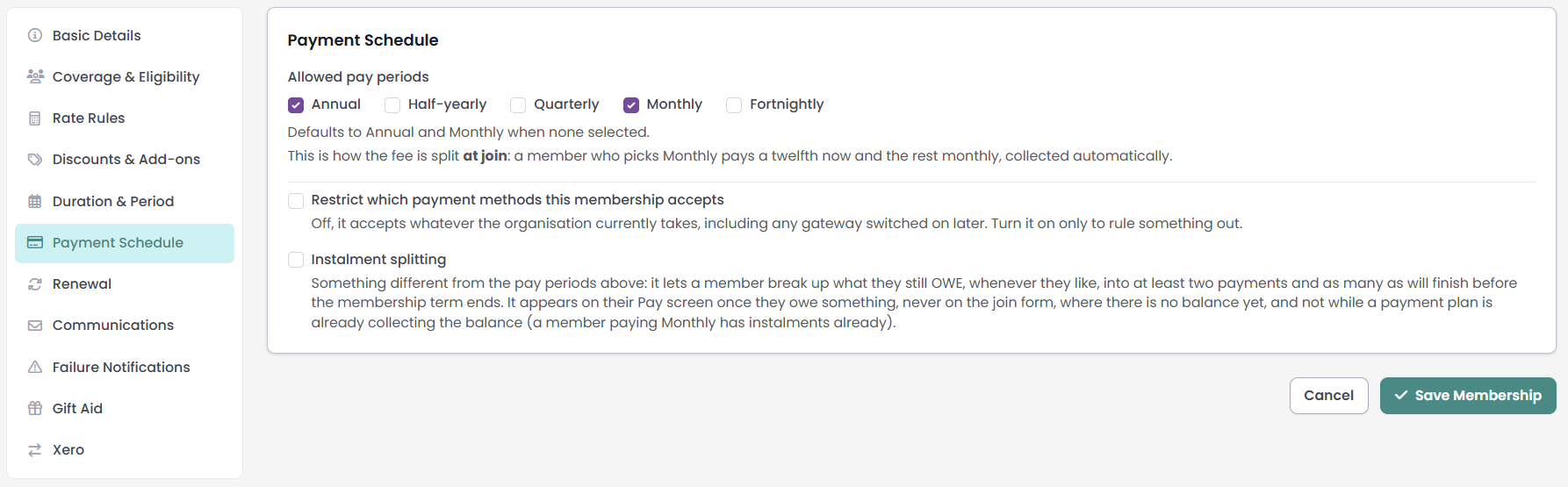
Step 1: Choose the allowed pay periods
Allowed pay periods is the set of payment rhythms a member may pick from when they join: Annual, Half-yearly, Quarterly, Monthly and Fortnightly. Tick the ones you want to offer. The screen notes that it "Defaults to Annual and Monthly when none selected", and a new product arrives with those two already ticked.

On a Lifetime or Free (no expiry) membership these do nothing. With no end date there is no period to spread payments across, so the whole fee is taken as a single payment, whatever is ticked here. See Step 1 for the duration choice that decides this. Step 9 is the only way to spread the cost on a membership with no end date.
Each option names a frequency, not a number of payments. The screen puts it this way: "This is how the fee is split at join: a member who picks Monthly pays a twelfth now and the rest monthly, collected automatically." How many payments there are follows from the length of the period, so a two-year membership paid monthly is collected twenty-four times.
Annual means the whole period in one payment, whatever the period turns out to be. On a membership whose period is not a year, the member sees that option labelled One payment rather than Annual.
Every period you offer needs a rate that prices it. If your rate rows are keyed to a pay frequency and one of the periods you offer has no row for it, the Rate Rules tab shows a warning that opens "Nothing prices", goes on to name the uncovered periods, and tells you that a member who chooses one gets no price at all. Add a rate for each period, or leave one rate row's Frequency on Any so it covers the rest.
The two tabs stay in step with each other. The Frequency list on a rate row only offers the periods you have ticked here. Untick a period that a rate row is already keyed to and that option stays on the row marked as not offered, and the Rate Rules tab warns you that nobody can choose it, so those rates never apply.

Step 2: Choose which payment methods the membership accepts
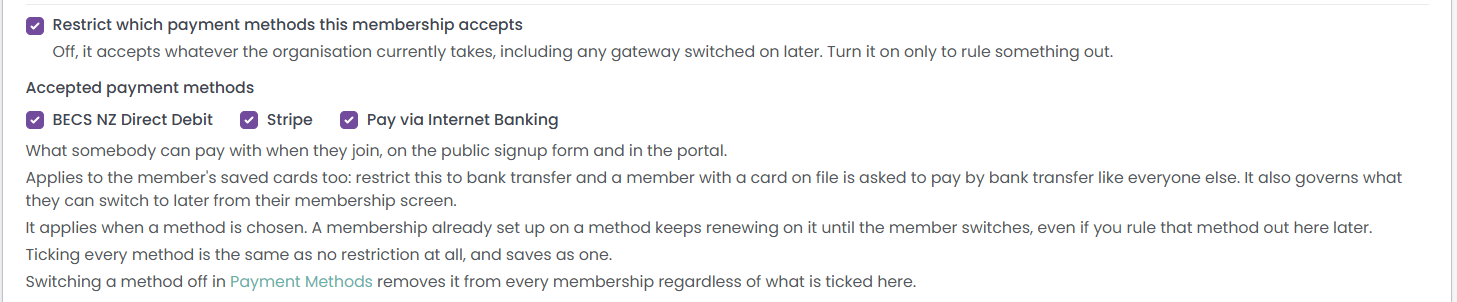
By default a membership accepts every payment method your organisation currently takes. The help text beside the tick opens "Off, it accepts whatever the organisation currently takes", and goes on to say that this includes any gateway you switch on later.
To narrow that, tick Restrict which payment methods this membership accepts and a list of your active methods appears. Tick the ones this membership accepts. This is helpful if you want to control the payment method for different periods such as Direct Debit only for annual memberships. Create a membership product just for the annuals.
- Ticking every method is the same as no restriction. The screen says so, and it saves as no restriction, so a gateway you add later is picked up automatically.
- Saved cards are covered too. Restrict a membership to bank transfer and a member with a card on file is asked to pay by bank transfer like everyone else. The same list governs what they can switch to later from their membership screen.
- Existing memberships are not moved. A membership already set up on a method keeps renewing on it until the member switches, even if you rule that method out afterwards.
- Removing a method off wins. Removing a method in the Administration → Payment Methods screen removes it from every membership regardless of what is ticked here.
Turning the restriction on and ticking nothing is refused when you save, with the message "Choose at least one payment method, or turn the restriction off." A restriction that names no method would leave a membership nobody could pay for.
Memberships can be paid by cheque (free text payment method) or bank transfer as well as by card or direct debit. A membership paid that way stays Pending until the money is recorded against it, and becomes Active once the full amount has arrived. A part payment leaves it Pending.
Payment methods themselves are set up elsewhere. See Payment Methods and Gateways and Adding Payment Gateways.
Step 3: Decide whether members can split what they owe
Instalment splitting is a separate thing from the pay periods above.

- Allowed pay periods splits the fee at join, on a plan the member picks from the list you offered, collected automatically from then on.
- Instalment splitting lets a member break up what they still owe, later, themselves.
Tick it and a Spread it over instalments card appears on the member's Pay screen whenever they have an outstanding balance. They choose how many monthly payments to split it into, the first is taken straight away and the rest are collected monthly. The smallest split is two payments, and the largest is however many monthly payments still fit before the membership ends, because payment is always in advance. On a membership with no end date the limit is twelve.
Because the pay periods do nothing on a Lifetime or Free membership, this is the only way a member can spread the cost of one.
The card does not appear on the join form, because there is no balance yet, and it does not appear while a payment plan is already collecting the balance, because a member paying Monthly already has instalments.
Next steps
With the duration, period and payment schedule set, move on to the Renewal tab to decide how and when a fixed-length membership is offered again.
Common questions
A member is joining now but their period starts next month. When are they charged?
When they complete the join. The start date sets the period and anchors the payments that follow it; it does not hold the first one back.
What happens if I offer Monthly but have no monthly rate?
A member who chooses Monthly gets no price at all. The Rate Rules tab warns you about this while you are editing. Either add a rate for that period, or leave one rate row's Frequency on Any.
Can a member change their payment method later?
Yes, from their own membership screen, and they can only choose from the methods this membership accepts. Changing it moves every payment still to come; anything already collected is untouched.