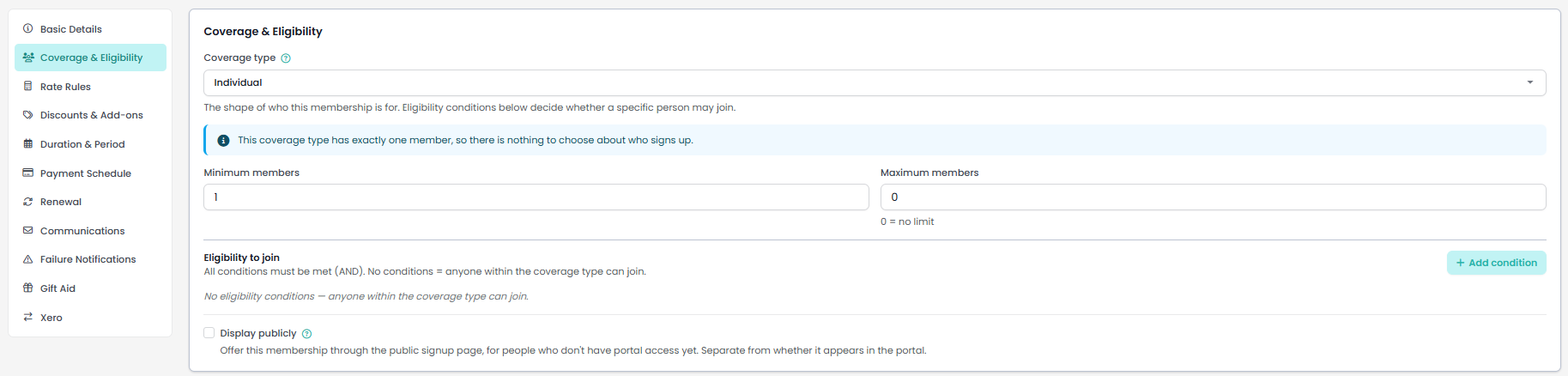
Every membership product answers two separate questions on its Coverage & Eligibility tab. Coverage decides who a single membership covers: one person, a household, or an organisation. Eligibility decides who is allowed to join it in the first place. Both are set up on this one tab and they are easy to read as the same thing, so it is worth keeping them apart: coverage structures the membership, eligibility screens the people.
Before you start
Role Permissions
- Manage finance configurations
For an explanation of what each role permission does, see People Permissions.
- You will need the Membership package switched on. See Turning on the Membership and Portal packages.
- You will need a membership product to work on. See Creating a membership product.
- Note, the same permission covers looking and saving, so there is no read-only view of this tab. Without Manage finance configurations you can still see the Membership Products list on the Finance menu, but opening a product takes you back to the home page.
Opening the tab
You can find this by going to Finance → Membership Products, opening the membership product you want to configure, then opening Coverage & Eligibility in the section list down the left of the edit screen.
 {height="" width=""}
Coverage type
Coverage type is the structure of who a single membership covers. It also decides which of the settings below the picker apply, so choose it first.

| Coverage type | Who it covers |
|---|---|
| Individual | Only the person who takes it out. Nobody else can be added. |
| Household (whole) | A whole household. Everyone covered must be in the same household as the member. |
| Household (per-person subset) | Some of a household. The same household rule applies, so this behaves the same way as Household (whole) when someone joins. The difference is what you intend the membership to be, and the two start Who can sign up on different settings. |
| Organisation | The organisation itself. Only an organisation record can take one out, and an organisation cannot take out any of the other types. |
| Adults only | Household based, and everyone covered must be 18 or over. |
| Children only | Household based, and everyone covered must be under 18. |
The question mark beside the picker opens a summary of the six types.
When a member joins through the portal or the public signup page, anyone added to a household, adults-only or children-only membership has to be in the member's own household. Someone outside it is refused with "You can only include people in your own household".
Adults only & Children only
For Adults only and Children only memberships, ages are worked out from the date of birth on each person's record, on the day they join. A person whose date of birth is not recorded, or is recorded without a year, counts as an adult. They can be covered by an adults-only membership and are refused from a children-only one, with "This membership covers adults only" or "This membership covers children only".
These coverage rules are applied on the member-facing routes. The section Where the conditions are applied, further down this page, sets out what an administrator adding members is held to instead.
Who can sign up
Coverage type says who a membership covers. Who can sign up says what type of sign-up you will accept, which is a different question: it is about how the list of covered people relates to the person taking the membership out.
- Just the member: the person signing up is the only person covered.
- The whole household: everyone in the household who this membership can cover, all together. The member cannot leave anyone out.
- Any household member: any combination of people from the household. The person taking it out does not have to be one of them. They still hold the membership, pay for it and receive its emails.
Tick every membership structure you will accept. A member only has to match one of them.
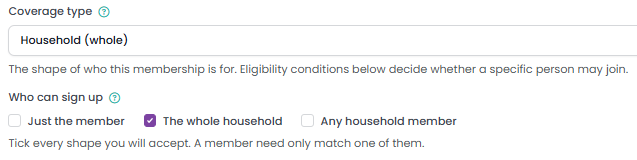
Picking a coverage type ticks the membership structure that usually goes with it: Household (whole) starts on "The whole household", and Household (per-person subset), Adults only and Children only start on "Any household member". Change it afterwards if you want something else.
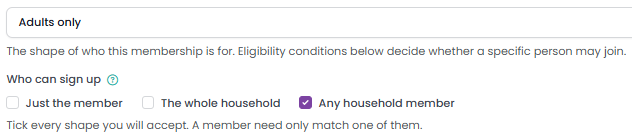
Ticking only Just the member on a household, adults-only or children-only membership is treated as not set, and every membership structure is accepted. That is because it is also what a membership configured before this setting existed looks like. To restrict the structure deliberately, tick The whole household or Any household member. The screen shows a note when this applies.
Individual and Organisation memberships cover exactly one person, so there is nothing to choose and the ticks are replaced by a note saying so.

Minimum and maximum members
Minimum members and Maximum members set how many people one membership may cover. A maximum of 0 means no limit.
Both are checked when a member joins through the portal and when an administrator adds someone on the membership's Members screen. A join outside the range is refused with "This membership needs at least 2 members" or "This membership allows at most 4 members".
Saving a product whose minimum is higher than its maximum is refused with "Minimum members cannot exceed maximum members".

Eligibility to join
Coverage decides the structure of the membership. Eligibility to join decides whether a particular person is allowed on it at all.
Click Add condition to add a row, and add as many rows as you need. All of the conditions must be met. A membership with no conditions is open to anyone within its coverage type.
Each row starts with the condition type, and the rest of the row changes to suit it.
| Condition type | What you set | What it matches |
|---|---|---|
| Age | Under, Over or Between, and an age | Whole years old, worked out from the date of birth on the person's record on the day the check runs. Under 18 means 17 and younger. Over 17 means 18 and older. For Between, enter the two ages separated by a comma, for example 8,12, which includes both 8 and 12. A second number of 0 means no upper limit. |
| Gender | Male or Female | The gender on the person's record. |
| Member of a group | A group | Membership of that group at View only level or better, so Administrator, Full member and View only all match. A Past member does not. |
| Custom field | A custom field, Equals or Contains, and a value | The value held on the person's record. Equals matches the whole value, Contains matches any part of it. Capitals are ignored either way. |
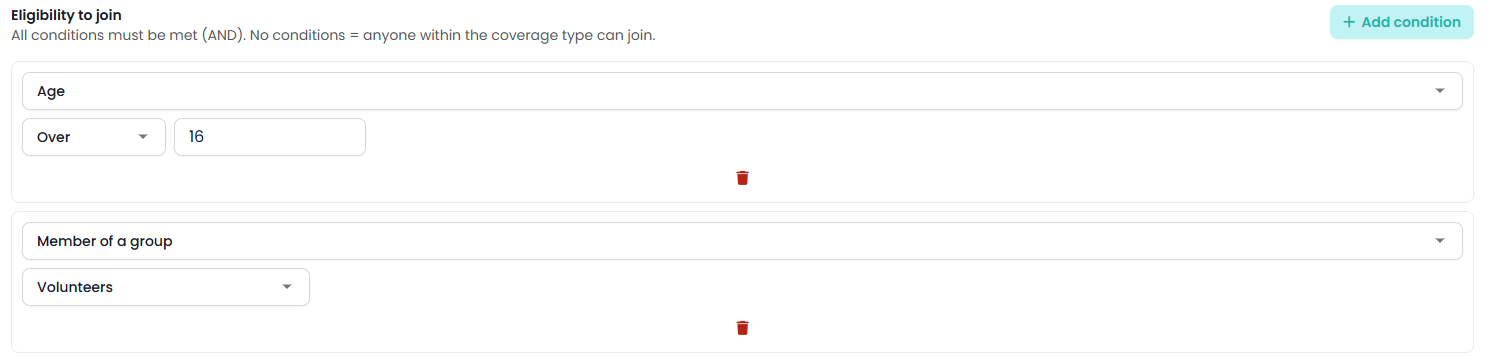
Pick the group or the field on every row. A Member of a group row needs a group and a Custom field row needs a field. Choose them before you save. A row saved without one is kept, and because it can never match anybody it turns the membership away from everyone.
Type the value the way the field stores it
A custom field condition is typed into a plain box, and the value you type is compared with what infoodle holds on the record. That is not always the wording you see on a profile, so match the way the field stores its value.

| Field type | What to type |
|---|---|
| Yes / No | yes or no. |
| Text, Long Text, Rich Text, Web address | The text itself. Here what you type is what infoodle stores. |
| Integer, Incrementing field | The number. |
| Date | The date written as year, month, day, for example 2026-09-21. |
| Lookup | The choose from the list |
What happens when infoodle has nothing to check
Conditions are answered from what is on each person's record, so it is worth knowing what an empty record does.
- Age, with no date of birth on record. The person does not meet the condition, and the reason says so: "This membership has an age requirement, and we don't hold a date of birth for you". Record the date of birth, or take the age condition off the membership, to let them join.
- Age, with the birth year withheld. infoodle can hold a birth day and month without the year, which is how a person who would rather not give their birth year is recorded. No age can be worked out from that, so an age condition turns the person away. The record still shows a date of birth, so the refusal will not be obvious from the record you are looking at. The same two options apply: record the full date of birth, or take the age condition off the membership.
- Custom field, with nothing recorded. The person does not meet the condition, with one exception: on a Yes/No field, a person who has never been asked counts as a No, so a condition looking for the No answer does match them.
- Household fields. A value on the person's own record is used first. A value held at household level is used when the person has none of their own.
Where the conditions are applied
Eligibility conditions are checked on the member-facing routes into a membership:
- The portal's list of memberships to join, where a membership a person does not qualify for stays visible with the reason beside it rather than disappearing.
- The portal join screen, beside each household member's name.
- The public signup page, before payment is taken.
A member who does not qualify is told which condition they missed. The age reason names the age infoodle holds for them, so they can check it against their record. The others are shorter: "This membership requires membership of a specific group", "This membership is limited by gender" and "This membership has a requirement your profile doesn't meet". The custom field reason does not name the field, so a member who asks you why cannot tell you which one it was. Read the condition rows on this tab to answer that. Where the person is somebody else in the household, the message names them, in the form "Mr Smith is not able to be covered by this membership", followed by the reason.
Everything on this tab is applied on the member-facing routes. When an administrator adds someone on the membership's Members screen, only Minimum members and Maximum members are checked. The household rule, the adults-only and children-only age rules and the eligibility conditions are not applied there, and the picker on that screen offers every person in the household whatever the coverage type is. See The Members list for a membership product. Generate Memberships applies none of them, and gives each person it matches a membership of their own. See Generating memberships in bulk.
Display publicly
Display publicly offers the membership on the public signup page, for people who do not have portal access yet. It is separate from whether the membership appears in the portal.
The tick sits under the eligibility conditions because whether a membership can sensibly be public depends on what those conditions ask for. A public applicant has no record in your infoodle yet, so anything that has to be looked up cannot be checked.
- Group conditions turn it off. Adding a Member of a group condition, or a group-based rate rule, switches Display publicly off and tells you why. You can turn it back on, and that choice sticks. A warning then stays on screen recording that the group criteria cannot be checked for public applicants, while the rest of the eligibility and rate rules still apply.
- Organisation memberships are never public. The public form asks for a person's name, so it has no way to capture an organisation. An organisation membership is still offered in the portal to anyone signed in as an organisation.
The question mark beside the tick lists the questions the public form will ask, once the membership has been saved.

Common questions
What is the difference between Household (whole) and Household (per-person subset)?
At the point somebody joins, nothing. Both require everyone covered to be in the member's household. The difference is what you mean by the membership, and it shows in the Coverage column of the Membership Products list, where the two are labelled Household and Household (subset). Use Who can sign up to control whether the member gets to choose who is on it.
Can a parent hold a children's membership without being on it?
Yes. Tick Any household member under Who can sign up. The parent holds the membership, pays for it and receives its emails, and the children are the people it covers.
Does the age reference date on the Rate Rules tab change age conditions?
No. The age reference setting belongs to the rate table and decides which age a person is priced at. An age eligibility condition uses the person's age on the day the check runs.
Someone qualifies but cannot see the membership in the portal. Why?
Check the coverage type first. An organisation only sees organisation memberships, and a person only sees the other types. Then check the availability dates on the Basic Details tab, and check the membership has a rate, because one with no rate is listed but cannot be joined.
Can I set an age condition and an age-based rate on the same membership?
Yes, and they do different jobs. The eligibility condition decides who may join. The rate rules decide what each person who joined pays.
Next steps
With coverage and eligibility set, move on to the Rate Rules tab to decide what an eligible person pays. See Rate rules and pricing structures.
Set the rate before you tell anyone the membership is open. A membership with no rate, and without "you decide" pricing, is shown in the portal as "Not yet priced", with an invitation to contact you and no Join button at all, so nobody can join it however well they qualify.