The Members list is the office's view of one membership product: who holds it, who each membership covers, when their period runs and what state each one is in. It is also where you add a membership by hand for somebody who did not join through the Portal, open a single membership to see its money and its history, and remove a record that should not be there.
Before you start
Role Permissions
- Read and Report on Transactions: opens the Members list and lets you view a single membership.
- Manage, Read and report on transactions: the same view for a role that also works with transactions.
- Manage finance configurations: adds everything that changes a record: Add member, Edit, Remove and the actions on a single membership.
For what each role permission means and how to change them, see People Permissions.
You will need the Membership package switched on. See Turning on the Membership and Portal packages
You will need a membership product to work on. See Creating a membership product
The people you can pick as a member, and the household members offered beside them, are the ones your role already lets you see on the people screens. Somebody you cannot see on a person search cannot be added here either.
Opening the Members list
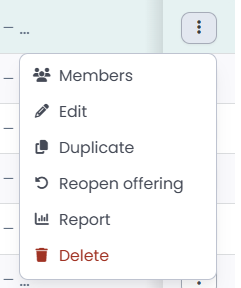
You can find this by going to Finance → Membership Products, then choosing Members from the actions menu at the end of a product's row. Look at each membership product individually.
The two cards at the top
Current members
Counts the memberships that are Active or in Grace today, and says how many people those memberships cover between them. A household membership of four counts as one member and four people. Memberships that are Pending, Failed, Lapsed or Cancelled still appear in the list underneath, and the card says so: "Active and in-grace memberships. Pending, lapsed and cancelled ones are in the list below but not counted here."
This is counted by the same rule as the Members column on the products list, so the number here and the number there always agree.
Next renewal
The earliest period end date still ahead among those current members, with how many memberships end on that day. It shows a dash in three cases, and the line underneath says which one applies: nobody holds the product yet, the memberships have no end date to renew from, or every current member is already past their end date.

What the list shows
| Column | What it shows |
|---|---|
| ID | The membership record's own number. Worth turning on when you are comparing a record against a report. This is not a Membership ID to reference publicly |
| Member | The primary member, the person who holds the membership. |
| People | How many people this membership covers, the primary member included. |
| Start | The first day of the current period. |
| End | The last day of the current period. A membership with no end date shows a dash. |
| Auto-renew | Yes or No, from the tickbox on the member's own record. |
| Status | The state this membership is in today. |
The list opens sorted by start date, newest first. Click Start or End to sort on those instead. Edit columns chooses which of the columns above are shown.
The list cannot be searched or filtered. Sorting and Edit columns are the only ways to work through it, so on a product with a lot of members the quicker route to one person is their own record, under Memberships.
What the Status column means
A membership is always in one of six states.
| Status | What it means |
|---|---|
| Pending | Joined or renewed, payment due but not yet received. |
| Active | Paid and inside the current period, or a first payment still with the payment provider. |
| Grace | The period has ended and the product's grace days have not run out yet. |
| Failed | A charge was attempted and did not go through. |
| Lapsed | Grace has run out, or there was none, and nothing renewed. |
| Cancelled | Ended on purpose, part way through a period or by declining a renewal. |
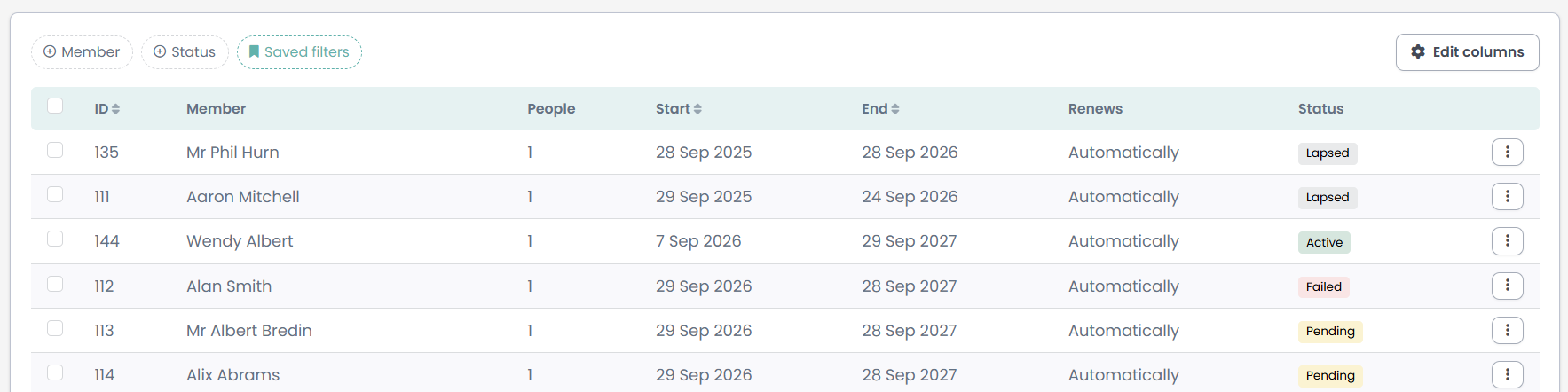
Only Active and Grace answer yes to "is this person currently a member?". Every other part of infoodle that asks that question uses the same two.
Active, Grace and Lapsed are worked out live rather than being written to the record on the day. Grace and Lapsed come from the End date plus the product's grace days, so the column is right the moment a period ends, before any overnight job has touched it. Open a membership whose state today differs from the state last written to it and the page shows both, with the written one in brackets, for example Active (stored: Grace).
A membership also reads Active while its payment is still with the payment provider, before the money has arrived. On the membership's own page an Awaiting confirmation tag beside the status says so. The list carries no such tag, so therefore a membership waiting on its payment looks exactly like a paid one, and it is counted in Current members. Open the membership and read its Payments card before treating Active on the list as money received.
For how a membership moves between these states, what the nightly job does and what happens when a renewal cannot be priced, see Renewal settings
Adding a member by hand
Use Add member when somebody joins in the office rather than through the Portal: a form filled in at the desk, a cheque in the post, or memberships you are carrying over from another system.
- On the Members list, click Add member.
- Search for the Primary member. This is the person who holds the membership. The change link beside the box switches what you are searching on: name, household name, email address, address lines, postcode, country and phone number, and, depending on your site's settings, giving number, ID and any search fields your administrator has added.
- On a product that lets a household sign up, Other household members fills with the rest of that person's household as soon as you choose them. Tick everybody this membership covers. The primary member is included automatically and is not in the list.
- Set the Start date and End date. These are the period this record covers.
- Set the Status. A membership somebody has already paid for is Active. One you are waiting on money for is Pending.
- Click Save. You come back to the Members list with the new record on it.

What the save checks
The number of people. Where the product sets a minimum or a maximum number of members, the save is refused until the number you have ticked fits. The message names the product's own figure, for example "This membership needs at least 2 members".
That the period runs forwards. Put the end date in front of the start date and the save is refused with "The end date is before the start date", going on to say that a membership cannot end before it begins. Only you know which of the two dates you meant to move, so infoodle refuses rather than repairing it.
That you are not cancelling from here. Choosing Cancelled in the Status list is refused with "Use the Cancel membership action rather than the status field", going on to explain that cancelling also stops the payment plan and emails the member. Use the Cancel membership action on the membership's own page instead.
What the save does not check
Add member connects a person to a product. It does not apply the product's joining rules, and that is worth knowing before you use it.
- Eligibility conditions are not applied. Somebody the Portal would turn away can be added here.
- The coverage shape is not applied. On an Adults only product the household list still offers the children in that household, because the list is the person's household filtered only by who you are allowed to see. See Coverage and eligibility.
- No price is worked out. A membership added this way carries no amount, no breakdown and no payment plan. Its Amount shows a dash and its Payments card says "No payments recorded against this membership."
- Apply subsidy cannot be used on it. There is no amount to reduce, so the action is always refused.
That is the point of the screen: it is the way round the join-time rules for the cases that need one. Check the product's own rules yourself before you use it, because nothing here will.
Opening one membership
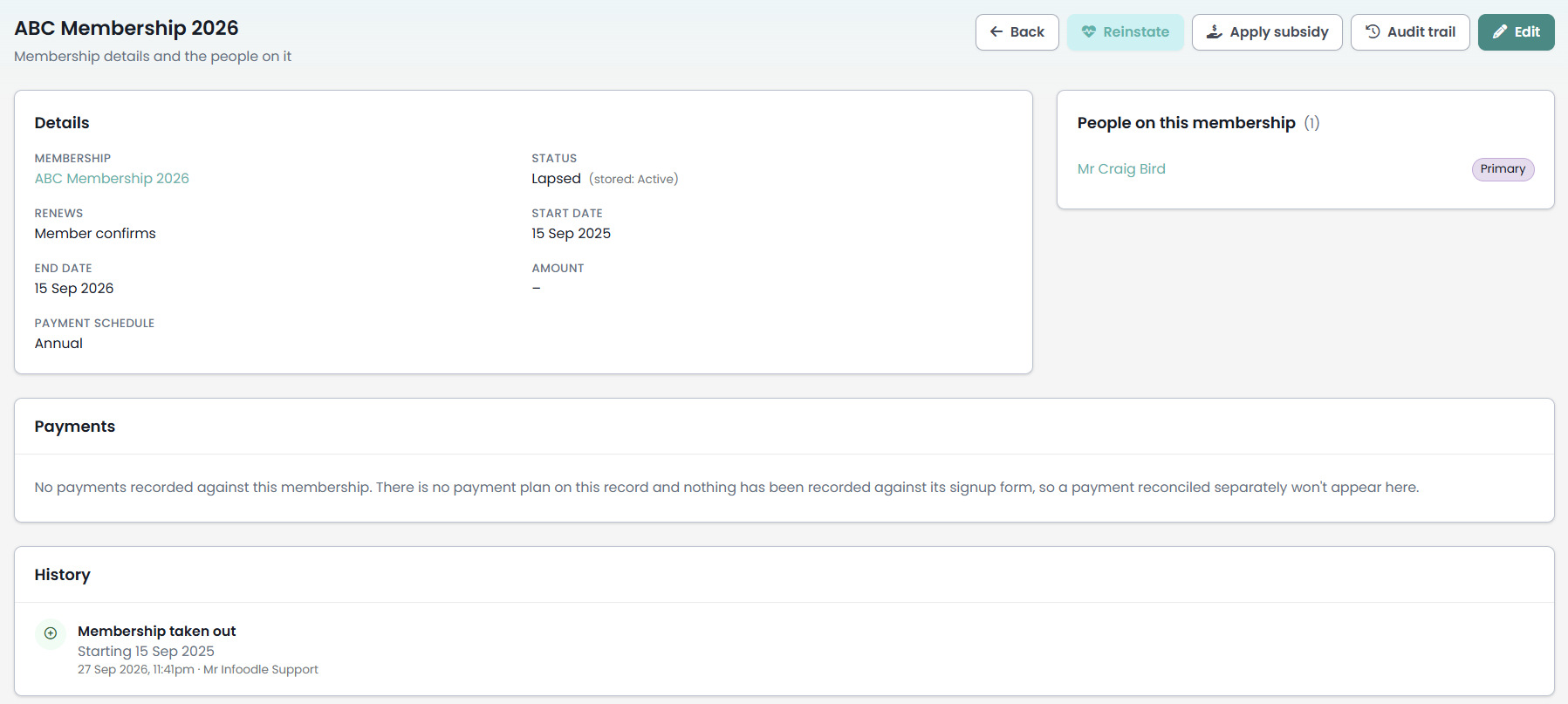
Click View in a row's actions menu to open a single membership. The page is read-only apart from the buttons across the top.
Details names the product, the status, Auto-renew, the start and end dates, the amount agreed, the payment schedule and, where there is one, the saved card or bank account the charges go to. A saved method that has since been removed is still named, tagged to say it is no longer available, because that is usually why a charge failed.
People on this membership lists everybody it covers, with Primary beside the holder. Each name links to that person's record.
Breakdown shows the lines the price was built from when the membership was taken out or last renewed: a line per person at the rate they matched, then add-ons, discounts and any subsidy, then the total. A fee that a member's own chosen amount replaced is shown struck through and does not count towards the total.
Payments shows what has been collected, with the date, method, receipt number and amount, and the collected and outstanding totals above. Still to collect lists instalments not yet taken and marks the ones already handed to the payment provider. Provider activity folds open to show every exchange with the payment provider for this membership, including attempts that did not result in a payment.
History is how the membership reached its current state: when it was taken out, each status change, each reduction to the amount and each payment plan stopped, with the date and a name against it.
Every reduction on the Breakdown appears in History under the heading Subsidy applied. That includes a product discount and the automatic adjustment infoodle makes when somebody joins part way through a period, neither of which anybody applied by hand. Read the amount and the label beside it rather than the heading, and open the Breakdown when you need to know where a reduction came from. The name on one of these entries is whoever was signed in when the line was written, which for a membership taken out in the Portal is the member.
Where the membership came from a signup form, a View signup form button at the top opens the entry the member filled in, following renewals back to the original application. A membership added by hand, or created by Generate Memberships, never had an entry and has no button.
The actions on one membership
The buttons that appear depend on the state the membership is in.
| Action | When it appears | What it does |
|---|---|---|
| Apply subsidy | Always | Takes an amount off what this membership owes. |
| Reinstate | Lapsed, cancelled or in grace, as last saved | Puts the membership back to Active. |
| Resolve failed payment | Failed | Clears the failure and puts the membership back to Pending. |
| Cancel payment plan | There are instalments still to collect | Stops the instalments and leaves the membership alone. |
| Cancel membership | Not already cancelled or lapsed | Ends a membership that is still running. |
| Edit | Always | Opens the same form as Add member, filled in. |
Apply subsidy
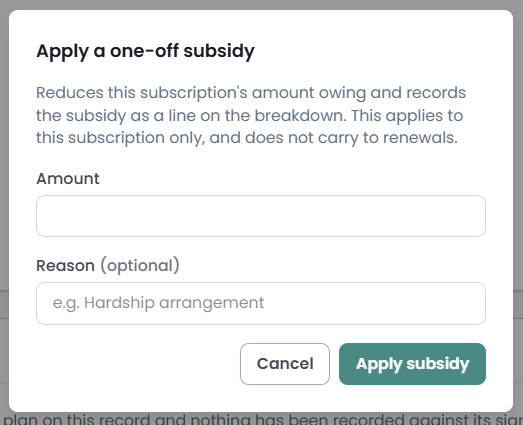
A subsidy is a one-off reduction on a single membership, for a hardship arrangement or a concession agreed in the office. Click Apply subsidy, enter the Amount, add a Reason if you want one on the record, and confirm.
Three things change on the membership:
- a line on the Breakdown for the amount taken off, labelled Admin subsidy with your reason after it
- a reduction of the same size in the membership's Amount
- an entry in History, built from that line, naming who applied it and when
It applies to this membership only. A renewal is priced afresh from the product's rates, so the subsidy does not carry forward, and the dialog says so. A subsidy also cannot take off more than the membership still has on it: enter more and only what is there comes off.
A subsidy changes what is owed and nothing else. It moves no money, sends the member nothing, and does not rebuild a payment plan. Where money has already been collected, refund it separately.
infoodle refuses a subsidy in three situations:
- The amount is zero or less.
- A payment plan is still collecting. The instalments still to be taken already add up to the old total, so lowering the amount underneath them would overcharge the member. Cancel the payment plan first, with the button in Still to collect, then apply the subsidy.
- There is nothing to reduce, or the reduction would leave the membership in credit. A membership added by hand has no amount at all, so the answer is "There is nothing left to subsidise on this subscription". Where money has already been collected, the message names how much of the membership is still unpaid, and that figure is the most you can subsidise. Refund the difference instead.
Reinstate
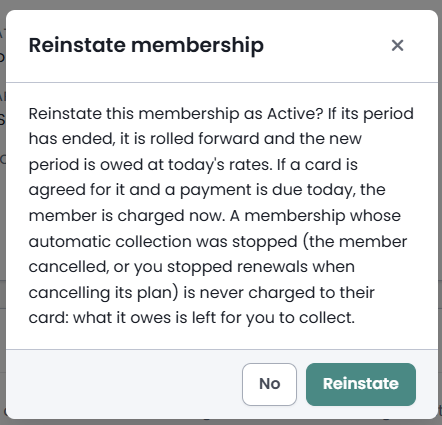
Puts a lapsed, cancelled or in-grace membership back to Active. Where the period has already run out, infoodle rolls it forward by whole product periods from the day after the old end date until the new end date covers today, so the membership does not read as lapsed again the moment you save. The start date is left alone, because the record is the member's continuous membership and the extension is the part that was missing. Where money is still owed and no instalments already cover it, the payment plan is rebuilt for the outstanding amount, and the result message says what happened.
Where no new period can be worked out, for a product that no longer exists or one with no expiry, the action is refused and you are asked to correct the dates by hand.
The button follows the status last saved rather than the one worked out today, so it can appear on a membership the same page is showing as Active. Pressing it there leaves the dates as they are.
Resolve failed payment
Clears the failure and puts the membership back to Pending. Payments already collected are kept, and so is the payment plan they are read from. infoodle does not charge the member again on its own: where there is still a balance, the message says how much, and the member pays it from the Portal at the moment they choose. You can cancel the payment plan instead if the arrangement is finished with.
Cancel payment plan
Stops the instalments listed under Still to collect without touching the membership itself. The membership stays exactly as it is, and payments already taken are unaffected. An instalment already handed to the payment provider has been handed over, so cancelling the row here does not cancel it there: both the dialog and the result message say to stop it at the provider as well.
Cancel membership
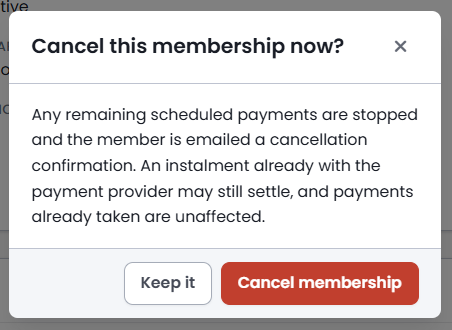
Ends a membership that is still running. It stops the remaining scheduled payments and closes the commitment on the member's saved payment method, sets the status to Cancelled, turns Auto-renew off, and emails the member a cancellation confirmation. Where a renewal period had already been opened and nothing collected on it, that period is cancelled too, so nobody is charged in a new period for a membership they have just ended. Payments already taken are unaffected and the payment history stays on the record.
This is why choosing Cancelled in the Status list is refused. The status field would set the word and leave the money running.
Removing a member
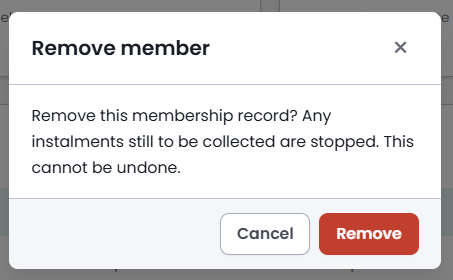
Removing a member does not stop a payment plan. Instalments that are already scheduled are collected from the payment records rather than through the membership, so they carry on being taken on their dates after the membership record has gone. Stop the money first: cancel the membership, or cancel its payment plan, and then remove the record. Once the record is removed you cannot open it again, and the page that carries Cancel payment plan, Still to collect, Payments, Provider activity and History goes with it, for everybody, permanently.
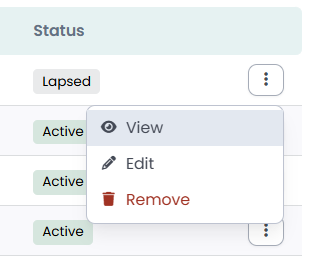
To remove one record, choose Remove from the actions menu at the end of its row and confirm: "Remove this membership record? This cannot be undone." To remove several, tick them in the list and use the Remove button above it. That dialog asks for a count rather than repeating the warning, and it removes every ticked record the same way, with the same consequences.
What Remove does:
- The membership record is marked as deleted. It leaves this list, the two cards, the person's own Memberships tab, reporting and the Portal. Nothing in infoodle brings it back.
- The links to the people it covered go with it, marked as deleted at the same time.
- The removal is recorded in your site's change history, with the values the record held, who removed it and when. infoodle's audit trail screens do not cover memberships, so this is not a record you can open yourself: ask infoodle support if you need one produced.
- Payment history is not touched. Transactions, receipts and the charge records stay where they are in Finance. What goes is the membership's own view of them.
- A payment plan is not stopped, which is what the warning above is about.
Cancel membership is the action for a member who is leaving. It stops the money, tells the member, leaves the record and its history in place, and can be undone with Reinstate. Remove is for a record that should never have existed.
Common questions
Why does Current members say fewer than the number of rows?
Because the card counts only the memberships that are Active or in Grace. Pending, Failed, Lapsed and Cancelled records are still listed underneath, and they are real records, but they are not current memberships.
I set somebody's status to Grace and the list still says Active. Why?
Grace and Lapsed are worked out from the End date and the product's grace days, not from the value last saved. While the period still covers today the membership is Active whatever the Status field holds. Open the membership and you will see the saved value in brackets after the one worked out today. To put a membership into grace, move its End date.
I unticked Auto-renew for a member. Does that stop their renewal?
No. The tickbox records the member's own preference, and it is what they see in the Portal under their upcoming payments. Whether a renewal opens, and whether it is charged, is decided by the product's Renewal tab. See Renewal settings. To stop one person renewing, cancel their membership.
Can I add somebody who does not meet the product's rules?
Yes. Add member applies the product's minimum and maximum member counts and nothing else. Eligibility conditions, the coverage shape and the rates are join-time rules, and this screen sits outside them on purpose so the office can record what actually happened. Check the rules yourself first.
Why does a membership have no Amount and no Breakdown?
Because nothing priced it. Add member records who is covered and for how long, and no more. Memberships taken out through the Portal or the public signup form carry the price they were quoted, line by line.
Somebody paid by cheque. Where do I record it?
On the transaction, the way you record any other money. Where the membership came from a signup form, the entry approval screen carries an Add payment action, and money recorded there appears on the membership's Payments card. Money reconciled anywhere else stays in Finance and does not appear on the card, and the card says as much. Until the money is recorded, the Payments card names the method the member chose and says "no payment has been recorded yet. It starts once the money arrives and somebody records it".
Can the same person hold two memberships on the same product?
Yes. Each record is its own period, so a renewal opened ahead of time sits in the list beside the period it follows. Nothing on this screen stops the same person being added twice, so check the list before adding somebody.
Next steps
To create memberships for a lot of people at once, use Generate Memberships in the Finance menu, which appears for a role with Manage finance configurations. It works from the product's rates and skips anybody it cannot price or who already holds the product, and it does not apply the product's joining rules, so check the result on this list afterwards. See Generating memberships in bulk
Membership Reports, also in the Finance menu, answers the questions that span products: failed renewals, upcoming renewals and who is due. See Membership Reports: failed renewals, grace, upcoming renewals and revenue. A single person's memberships are on their own record, under Memberships. See The Memberships tab on a person's profile