The Memberships tab on a person's profile lists every membership that person holds, and every membership somebody else holds that covers them. Each row gives the membership name, the person's part in it, the period it runs for, the money and the current status. It is the per-person view of the same records the Members list shows one product at a time, and it is the quickest way to answer "what is this person a member of?"
Before you start
Role Permissions
- Search People
- One of Read and Report on Transactions, Manage, Read and report on transactions or Manage finance configurations
For what each role permission means, see People Permissions.
You will also need the Membership add-on package, which sits on top of Finance, switched on for your infoodle. Without it the tab is not offered on any profile. See Turning on the Membership and Portal packages.
The tab loads only for people you are able to view in infoodle. It does not widen what your role can see.
Open the Memberships tab
- Find the person and open their profile.
- Click Memberships in the row of tabs at the top of the profile.
The list loads the first time you open the tab.
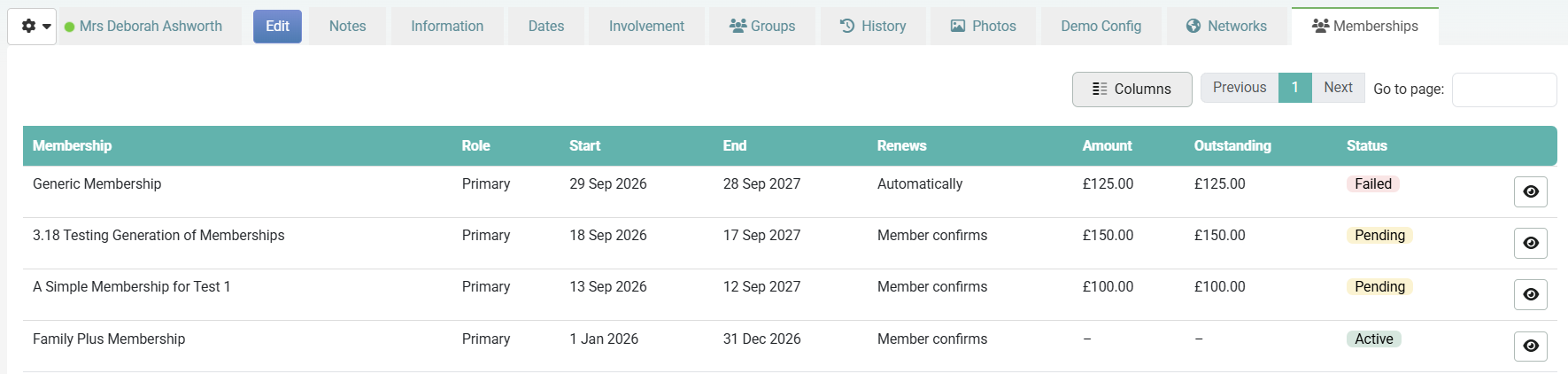
Whose memberships appear on the tab
A membership appears on a person's tab when one of two things is true:
- They hold it. The Role column reads Primary.
- It covers them. Somebody else holds it and this person is named on it. The Role column reads Covered by followed by the holder's name.
Nothing else puts a row on the tab. Sharing a household with the holder does not, on its own, show you their memberships here.
The Portal uses a wider rule. A member signed in to the Portal also sees the household memberships of the household they belong to, whether or not they are named on them. The profile tab is narrower on purpose, so one household member's memberships do not repeat on everybody else's profile.
Household memberships
A household does not have a profile page or a Memberships tab of its own. A household membership reaches the tab through the people it covers: it appears on the holder's tab, and on the tab of each person named on it. A household member who is not named on it will not see it on their own tab, even though it is a membership of their household.
The Role column is what tells the two cases apart, and it names the holder rather than saying "member", so a covered row is never mistaken for a membership this person took out themselves.
To see everything a household holds, open the Memberships tab on each person in the household in turn. Every membership shows on the tab of the person who holds it, and the holder's row is the one that carries the money. To see who a single membership covers, open its row with View and read the record's People on this membership card, which lists everyone on it.
Organisation memberships
An organisation in infoodle is a record with its own profile, and it gets the same Memberships tab with the same columns. An organisation membership is held by the organisation's own record, so it appears on the organisation's Memberships tab.
The people in an organisation share the organisation's household. As above, that alone does not put the organisation's membership on their profiles. They see it on their own tab when they are named on the membership.

What each column shows
| Column | What it shows |
|---|---|
| Membership | The name of the membership product this record is for. |
| Role | Primary when this person holds the membership, or Covered by and the holder's name when somebody else holds it. |
| Start and End | The period this record runs for. A membership with no end date shows a dash. |
| Auto-renew | Yes or No, taken from the record rather than from the product. |
| Amount | The agreed amount for the period. Filled in on the holder's row only. |
| Outstanding | What is still to collect. It is filled in on the holder's row where the membership is collected by a payment plan. On a membership collected by hand the column shows a dash, even where money is still owing. |
| Status | The membership's current state, as a coloured badge. |
Money shows on the holder's row only
One membership is one amount owed by one person. Repeating the holder's figures on everyone the membership covers would put the same sum on several profiles at once, so a covered row shows a dash in Amount and in Outstanding. The Role column names the holder, and their profile carries the figures.
Status is worked out, not simply read back
Grace and Lapsed are worked out from the end date and the product's grace window at the moment you open the tab, so the badge tells you where the membership stands today. Two consequences are worth knowing:
- Grace and Lapsed are only ever worked out for a membership that has an end date. A lifetime or free membership has none, so it stays Active and never moves into grace.
- A membership whose payment is on its way to the bank reads Active while it settles, and resolves to Active or Failed once the payment provider answers.
The badge can therefore differ from the status somebody typed on the record. The membership record's Details card shows the worked-out status, and adds the stored one in brackets when the two differ, so open the record when you need to see both.
What you can do from the tab
The tab is a read-only list. Each row carries one action, View, which opens the membership record for that row.
You can also:
- Use Columns to choose which columns show.
- Page through the list, and change how many rows show per page.
Rows come newest period first. There is no search box and no sortable column on this tab.
What you do on the Members list instead
Everything that changes a membership lives on the product's Members list and on the membership record it opens.
| To do this | Go to |
|---|---|
| Put a person on a membership | Add member on the product's Members list |
| Change the dates, status or auto-renew setting | Edit, from the Members list or from the membership record |
| Take a record off a membership | Remove on the product's Members list. The Members list article linked below explains what Remove does. |
| Cancel a membership, reinstate one, resolve a failed payment or apply a subsidy | The membership record, reached by View |
See The Members list for a membership product for all of these.
Finding one person's membership
The Members list is always scoped to one product, and it carries no search box, so on a product with hundreds of members there is no way to pick a person out from it. The person's own Memberships tab is the way to find a named person's membership: open their profile, open the tab, and every membership they hold or are covered by is on one screen, whichever product it belongs to.
There is no screen anywhere in infoodle that lists members across all products at once.
Common questions
Why do two rows show the same membership name?
Each renewal opens a new period as a record of its own, so a member of several years has one row per period. The newest one is at the top of the list.
Why does a holder's row show an Amount but a dash under Outstanding?
A dash under Outstanding does not mean nothing is owing. The column is filled in where the membership is collected by a payment plan, so a membership collected by hand, by cheque, bank transfer or internet banking, shows a dash whatever has or has not been collected. Open the row with View and read the membership record's Payments card, which shows the payments received against the membership and the outstanding figure.
Does the tab show memberships that have ended?
Yes. Every record that has not been removed shows, whatever its state, including Lapsed and Cancelled ones, so the tab doubles as the person's membership history.
Can I see this tab on a phone?
The Memberships tab is part of the full profile page. The phone view of a profile carries a shorter set of tabs and this is not one of them.
The tab is not there at all. Why?
The tab is offered when the Membership package is on for your infoodle and your role holds one of the finance permissions listed under Before you start. If any of those is missing, the tab is simply absent from the profile. Also check the cog menu for the person to the left of their name, the membership may not be showing by default (favourite it by clicking the star).
Does the tab label always say Memberships?
The word Membership can be renamed for a whole site, and the tab label and the first column heading follow that renaming. On a site that calls them something else, look for that word in the tabs instead.
Next steps
To work on a membership rather than look at it, open it with View and follow The Members list for a membership product. To see which of a person's memberships are about to come up, use Membership Reports: failed renewals, grace, upcoming renewals and revenue.