Membership Reports is a set of four ready-made reports on the memberships your site has sold. Each one answers a single office question: who has a payment that did not go through, whose period has ended but who is still inside their grace days, who comes up for renewal in the next two months, and what each membership product is currently worth.
Every report prints the rules it selects on, right above the table, so you can see what the list includes before you act on it. From each report you can download the rows, send them to one email address, and add the people in them to a group.
Before you start
Role Permissions
- Read and Report on Transactions: opens Membership Reports and downloads from it.
- Manage, Read and report on transactions: the same, and adds Send by email.
- Manage finance configurations: the same, and adds Send by email.
Any one of those three opens the screen. Send by email needs one of the last two: with only Read and Report on Transactions the button is not on the page.
For what each role permission means and how to change them, see People Permissions.
You will need the Membership add-on package switched on. See Turning on the Membership and Portal packages
You will need to be able to change who is in a group before you can use Add to group on it. That means being an Administrator of that group, or holding Maintain all groups for a group that is not Locked. See Group Permissions and Locked Groups.
Finding the reports
You can find this by going to Finance → Membership Reports.
You can also get there from Finance → Membership Products, where the Reports button sits in the row of buttons above the list on the right. The Back to Memberships button and the breadcrumb at the top of the reports screen both return you there.
This screen is separate from Finance → Finance Reports and from the main Reports menu. Those build reports you design yourself. Membership Reports gives you four fixed ones that need no setting up.
Membership Reports and Membership report are two different screens with almost the same name. This article covers Membership Reports, the four fixed reports that run across every membership product at once. To report on one product on its own, over a date range you choose and grouped by Calendar Year or Financial Year, use the Report action in that product's row menu on Finance > Membership Products. See Membership report.
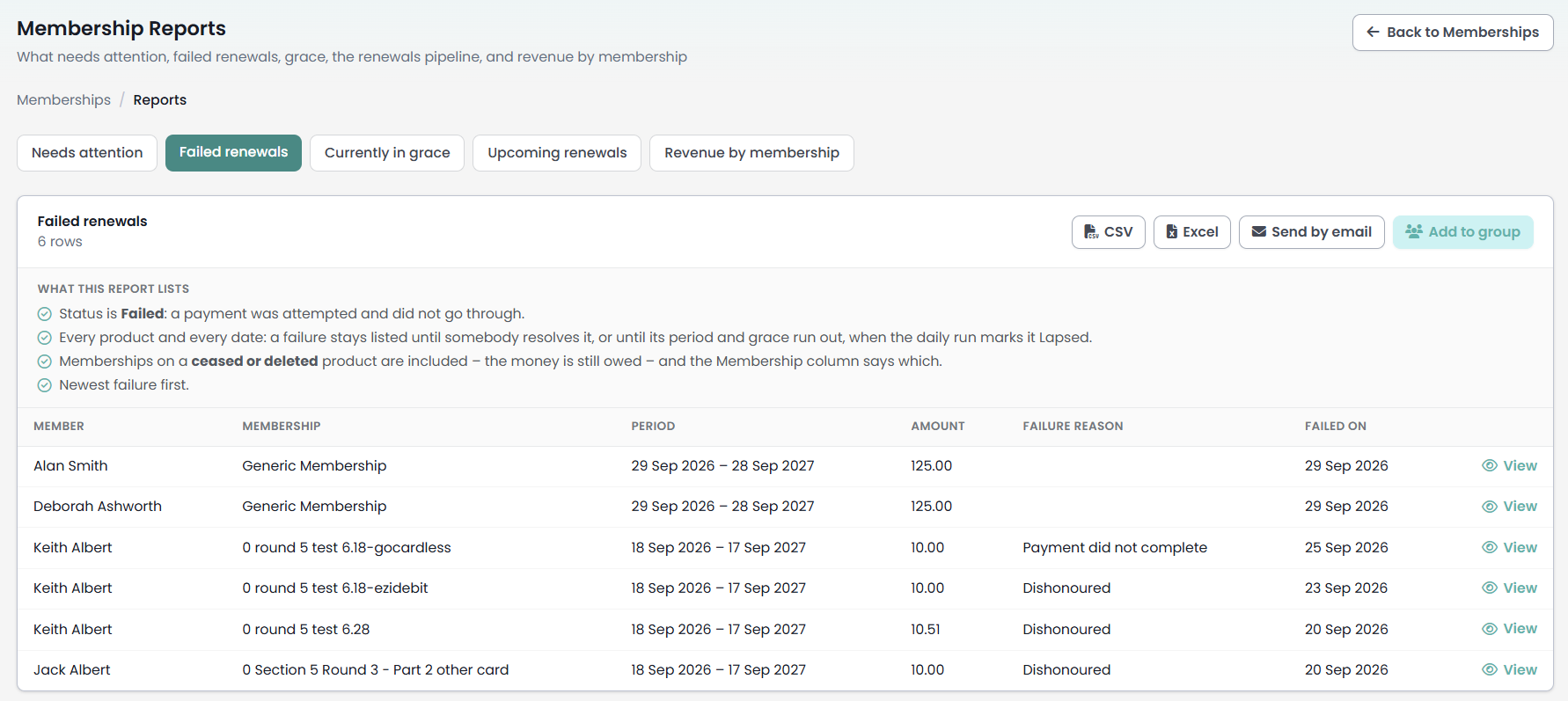
How the screen works
The four reports are tabs across the top. Opening a tab runs that report there and then against today's data. There is nothing to configure and nothing to save.
Under the report name you get the number of rows found. Under that, a panel headed What this report lists gives the rules the report selected on. The panel is always on the page, whether the report found six rows or none, so you can always see what the number is out of.
Each report runs over your whole site and shows every row it finds. There are no pages to click through.
On the three person-based reports each row ends with a View button that opens that person's profile on its Memberships tab, which is where you act on the membership itself. See The Members list for a membership product
When a report finds nothing it says so plainly: "Nothing matches those rules right now.", followed by "That is an answer, not a fault".
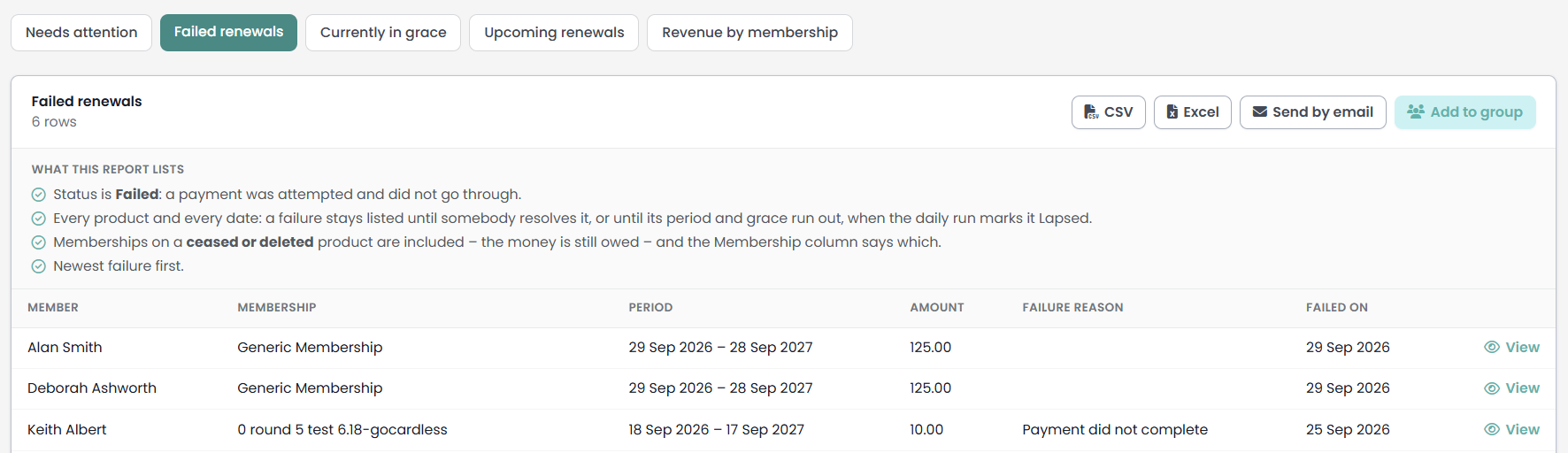
Failed renewals
The memberships whose payment was attempted and did not go through. This is the chase list.
| Column | What it shows |
|---|---|
| Member | The person the membership is held by. |
| Membership | The membership product. |
| Period | The start and end dates of the period that failed. |
| Amount | The agreed amount for that period. |
| Failure reason | What came back when the payment was attempted, for example Dishonoured. |
| Failed on | The day the membership record was last changed, which is usually the day the failure was recorded. Any later edit to the membership moves this date, and the report is sorted on it. |
The rules on screen are "Status is Failed", then "Every product and every date: there is no time window, so a failure stays listed until somebody resolves it.", then "Newest failure first."
That second rule is the one to read twice. Nothing ages off this report. A failure stays on it until somebody resolves the payment or the membership is ended, so the list is a genuine outstanding-work queue rather than a snapshot of the last few days. That holds even when the product has since been deleted or has had its offering ceased: the payment is still money owed, so it stays on the list.
Currently in grace
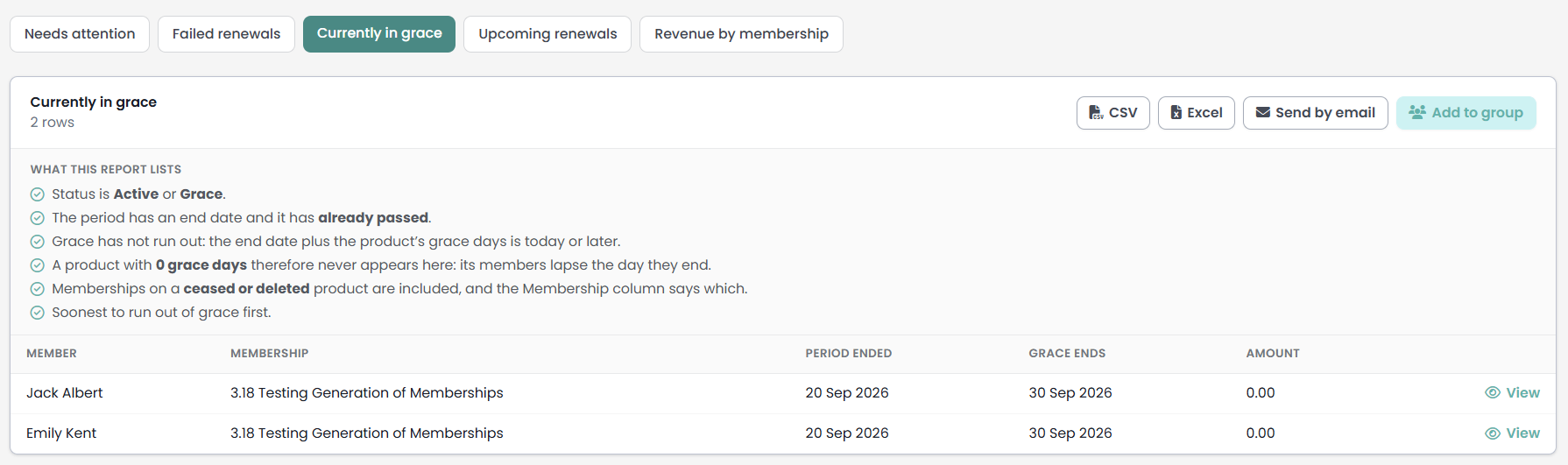
The memberships whose period has already ended but whose grace days have not run out yet. These people still count as members today and will stop counting shortly.
| Column | What it shows |
|---|---|
| Member | The person the membership is held by. |
| Membership | The membership product. |
| Period ended | The end date of the period that has just passed. |
| Grace ends | That end date plus the product's grace days. After this date the membership lapses. |
| Amount | The agreed amount for the period that ended. |
The first rule on screen is "Status is Active or Grace.", so somebody can be on this report while their status still reads Active. Grace is worked out from the end date and the product's grace days rather than read from the stored status.
Two more of the rules are worth knowing before you use the list. The report takes memberships whose period has ended and where "Grace has not run out: the end date plus the product’s grace days is today or later." And "A product with 0 grace days therefore never appears here", because on that product a member lapses the day their period ends and never spends a day in grace.
So an empty Currently in grace report can mean nobody is in grace, or it can mean none of your products give any grace at all. The grace days are set per product on its Renewal settings. See Renewal settings
The report is sorted so the people closest to lapsing come first.
Upcoming renewals
The renewals pipeline: who is due to renew in the next 60 days, for how much, on which renewal setting, and how far the renewal has already got.
| Column | What it shows |
|---|---|
| Member | The person the membership is held by. |
| Membership | The membership product. |
| Renews on | The end date of the current period, which is the day the next one starts. |
| Amount | What the next period is priced at once it has been opened, and the current period's amount until then. |
| Mode | Silent or Confirm required, from the product's renewal setting. |
| Pipeline | How far the renewal has got: Not yet opened, Awaiting member confirmation or Opened. |
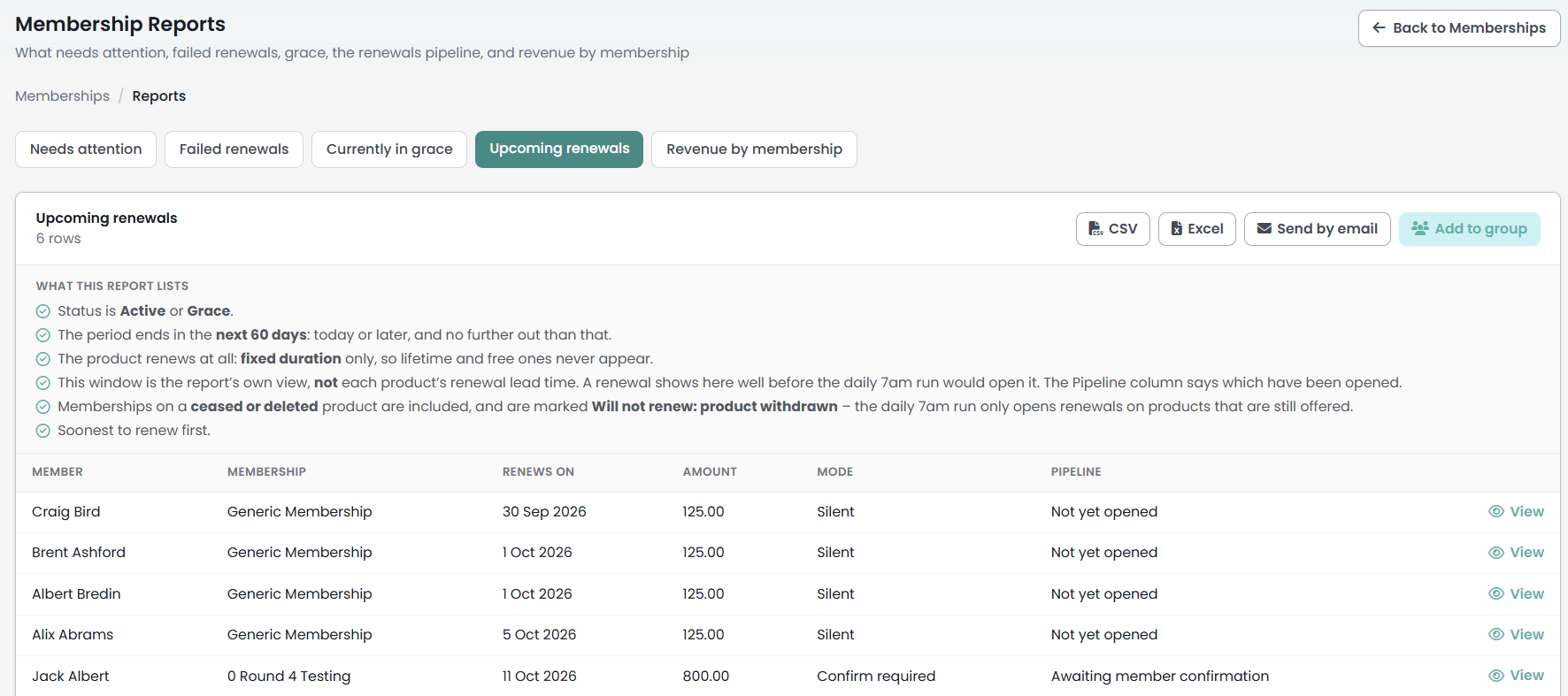
The five rules this report prints are:
- Status is Active or Grace.
- The period ends in the next 60 days - meaning today or later and no further out than that.
- The product renews at all: fixed duration only, so lifetime and free ones never appear.
- This window is the report’s own view, not each product’s renewal lead time - so a membership appears here well before the nightly job would open its renewal. The Pipeline column is what tells you which ones have been opened.
- Soonest to renew first.
Reading the Pipeline column
Not yet opened is the ordinary state for most of this list, and the ordinary reason for it is rule 4. The report looks 60 days ahead, while each product opens its renewals on its own lead time, which is usually shorter. A membership renewing in seven weeks on a product with a one-month lead time reads Not yet opened because it is not due to be opened yet.
Awaiting member confirmation means the next period exists and is waiting on the member to say yes. Opened means the next period exists and needs no answer, which is what a Silent product does.
For what opens a renewal and what happens next, see Running renewals.
Both of those values mean only that a next period exists. Neither means it is still a live one. A renewal the member declined, and one that was cancelled, go on reading Opened or Awaiting member confirmation here, while the nightly job opens a fresh renewal for that membership anyway. The Amount is read from that same next period, so it comes off the cancelled one too. Open the member's own Memberships tab before you act on this column. For the same reason, a membership that has had more than one next period opened for it is listed once for each of them, so it can appear twice in the table and count twice in the row count above it.
There is a second reason a row can sit on Not yet opened and never move. This report does not exclude memberships whose product has been deleted or has had its offering ceased, but the nightly renewal job does exclude them. Those memberships can never be opened, and they stay on this list until their end date drops out of the 60-day window. The five rules above do not mention it. If a row never moves off Not yet opened, check whether the product is still being offered.
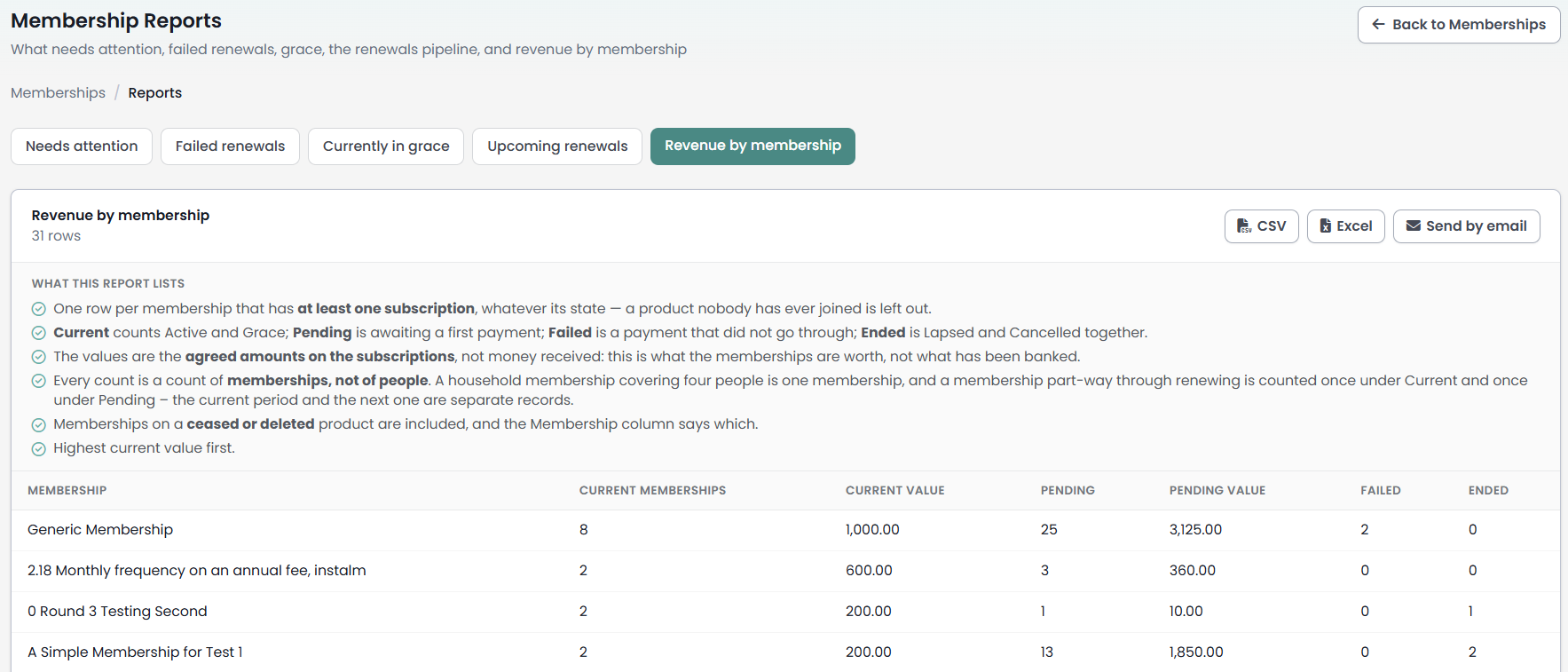
Revenue by membership
One row per membership product, with how many memberships are in each state and what they are worth. This is the summary you take to a finance meeting.
| Column | What it shows |
|---|---|
| Membership | The membership product. |
| Current members | Memberships that are Active or in grace. |
| Current value | The agreed amounts on those memberships, added up. |
| Pending | Memberships awaiting a first payment. |
| Pending value | The agreed amounts on those, added up. |
| Failed | Memberships whose payment did not go through. |
| Ended | Lapsed and cancelled memberships together. |
Two rules on screen shape what the numbers mean. Products are included when they have at least one membership on them in any state, so a product nobody has ever joined is left out entirely. And "The values are the agreed amounts on the subscriptions, not money received", so the figures tell you what the memberships are worth rather than what has reached the bank.
The rows are sorted by Current value, highest first.
Two things to keep in mind when you read the counts:
- The numbers count membership records, not people. One household membership covering four people counts as one.
- A membership part-way through renewing is counted twice, once under Current for the period still running and once under Pending for the period that has been opened for next time.
A product that has been deleted is left out of this report altogether, while the memberships on it stay on Failed renewals and Currently in grace. So when a count on one of those two reports does not agree with the Failed column here, a deleted product is the usual reason.
This report is by product rather than by person, so it carries three actions instead of four: there is no Add to group button and no View column, because there is nobody on a row to add or to open.
Downloading a report
CSV and Excel both download the report you are looking at, with the same columns in the same order as the table on screen. The file is named for the report and the date you took it, so membership-upcoming-20260921.xlsx is the Upcoming renewals report taken on 21 September 2026.
The What this report lists rules stay on screen and are not carried into the file. Note them yourself if you are sending the file on to somebody who has not seen the screen.
Both downloads are available to anyone who can open the screen. That includes Read and Report on Transactions, so somebody who cannot send the report by email from here can still take the whole list, member names and amounts included, out of infoodle as a file.
Sending a report by email
Send by email sends the report you are looking at to one address you type.
- Open the report you want to send.
- Click Send by email.
- Type the address in Send to.
- Click Send.
The email goes from your site's own email address, with the report name and today's date as the subject and the rows laid out as a table in the body. It goes only to the address you type. Nobody listed in the report is emailed, and no attachment is produced.
The table in the body is the report itself: the same columns and the same rows you are looking at, member names and amounts included. Treat the email the way you would treat the downloaded file. As with the downloads, the What this report lists rules are not carried into it.
Send with the box empty and you get "Enter an email address". Type something that is not an email address and you get "Enter a valid email address".
Adding a report to a group
Add to group takes everybody in the report you are looking at and puts them in a group you choose. It is how you turn "the people whose payments failed" into a list you can email, text or work through later.
Add to group changes people who are already in the group. The box you are about to open says "People already in the group are left as they are." That is not what happens. Everybody in the report is set to View only in the group you choose, so an Administrator or a Full member of that group who turns up in the report is dropped to View only, and somebody recorded as a Past member is made a current one. The same happens in every group above the one you choose. There is no undo on this screen, and the message at the end does not tell you who was changed. Use a group you have made for this job rather than an established one.
- Open the report whose people you want.
- Click Add to group.
- Choose the group from the picker.
- Click Add to group in the box.
A message tells you how many people were added out of how many the report held, ending "(the rest were already members)". Read that last part with care: somebody whose access level this action changed is counted among the added, so the message does not separate the people who were put on the group from the people whose level it moved.
What this writes
The box states the headline itself: "Everyone in the current result set is added with Viewer access". That is the same access level the group screens call View only: it puts somebody on the group without giving them any control over it. Its next sentence, that people already in the group are left as they are, is not what the action does.
Three things follow, and they are worth knowing before you pick a group:
- Each person is added once, whatever the report said. Somebody who appears on two rows is added once.
- Everyone in the report ends up at View only, including people already in the group. Anybody who was in that group at another level is moved to View only, so an Administrator of the group who turns up in the report comes out of this a viewer, a Full member comes out a viewer, and somebody recorded as a Past member of it becomes a current one.
- It carries all the way up. If the group you choose sits inside another group, everybody is added to that group as well at the same access level, and on up the whole chain of groups above it. The check on whether you may change a group is made against the group you picked, so the groups above it are changed whether or not you could change them yourself. See Subgroups.
Undoing it
There is no undo on this screen. People are removed from a group the ordinary way, on the group itself. See Removing a Person from a Group.
To put somebody back at the level they held before, open the group and click History on their row in the member list. It lists the access levels that person has held in that group, each with the date it started, so you can read the level they were on and set it again. It records levels and dates only, and does not record who made a change, so use it as a way to recover a level rather than as a record of what happened.
Pick a fresh group rather than an established one when you are working through a chase list. A new group is quick to make, it holds nothing you care about, and deleting it afterwards is a single action.
When it refuses
Choosing a group and being allowed to change it are two different things. The picker offers every active group on your site, and the check happens when you click Add to group in the box. If the group is one you may not change, nothing is written and the message says so. Be an Administrator of the group, or hold Maintain all groups for a group that is not Locked.
Common questions
Why does a row sit on Not yet opened and never change?
Usually because the report looks 60 days ahead while the product opens its renewals on a shorter lead time, so the renewal is simply not due yet. If the date comes and goes and the row still reads Not yet opened, check the product: this report still lists memberships on products that have been deleted or whose offering has been ceased, and those renewals are never opened.
Why is the same membership listed twice on Upcoming renewals?
Because more than one next period has been opened for it, and the report lists it once for each. Both lines count towards the row count above the table.
Does Send by email reach the people in the report?
No. It goes to the single address you type into Send to, and to nobody else.
Can I undo Add to group?
Not from this screen. Remove the people from the group on the group itself, or delete the group if you made it for this job. To put somebody back at the access level they held before, open the group and click History on their row in the member list.
Why is there no Add to group on Revenue by membership?
Because that report has one row per product rather than one row per person, so there is nobody on a row to add. Use one of the other three reports when you want the people.
My report is empty. Is something wrong?
No. An empty report means nothing on your site is in that state today. Currently in grace is the one that surprises people: a product with no grace days never puts anybody on it.
Do the reports cover memberships recorded as transactions?
No. All four read membership records, so they cover memberships taken out through the Portal, entered by the office and created in bulk. A membership recorded only as a line on a transaction is not a membership record and does not reach these reports.
Next steps
The reports tell you who needs attention. You act on each person from their profile, which the View button opens on its Memberships tab. To follow a renewal from the report through to the new period being opened and charged, see Running renewals