Generate Memberships creates a membership for a whole segment of people in one run. You choose a membership product, describe who should get it, check the list of matched people and what each one would be charged, and then create the memberships. With Xero connected you can raise an invoice for each person at the same time.
It is the office route into memberships, so it is the tool for bringing an existing member base into infoodle and for offering a membership to a group of people who were never going to sign up for themselves.
Before you start
Role Permissions
- Manage finance configurations: opens Generate Memberships and runs it. This is the only permission the screen uses, and it is also what puts the menu entry there.
For what each role permission means and how to change them, see People Permissions.
You will need the Membership add-on package switched on. See Turning on the Membership and Portal packages
You will need a membership product with at least one rate row on it. The run prices every person through the product's rates, and a product with no rates prices nobody. See Creating a membership product
You will need your Xero connection in place if you want the run to raise invoices. See using Xero with memberships
Opening the screen
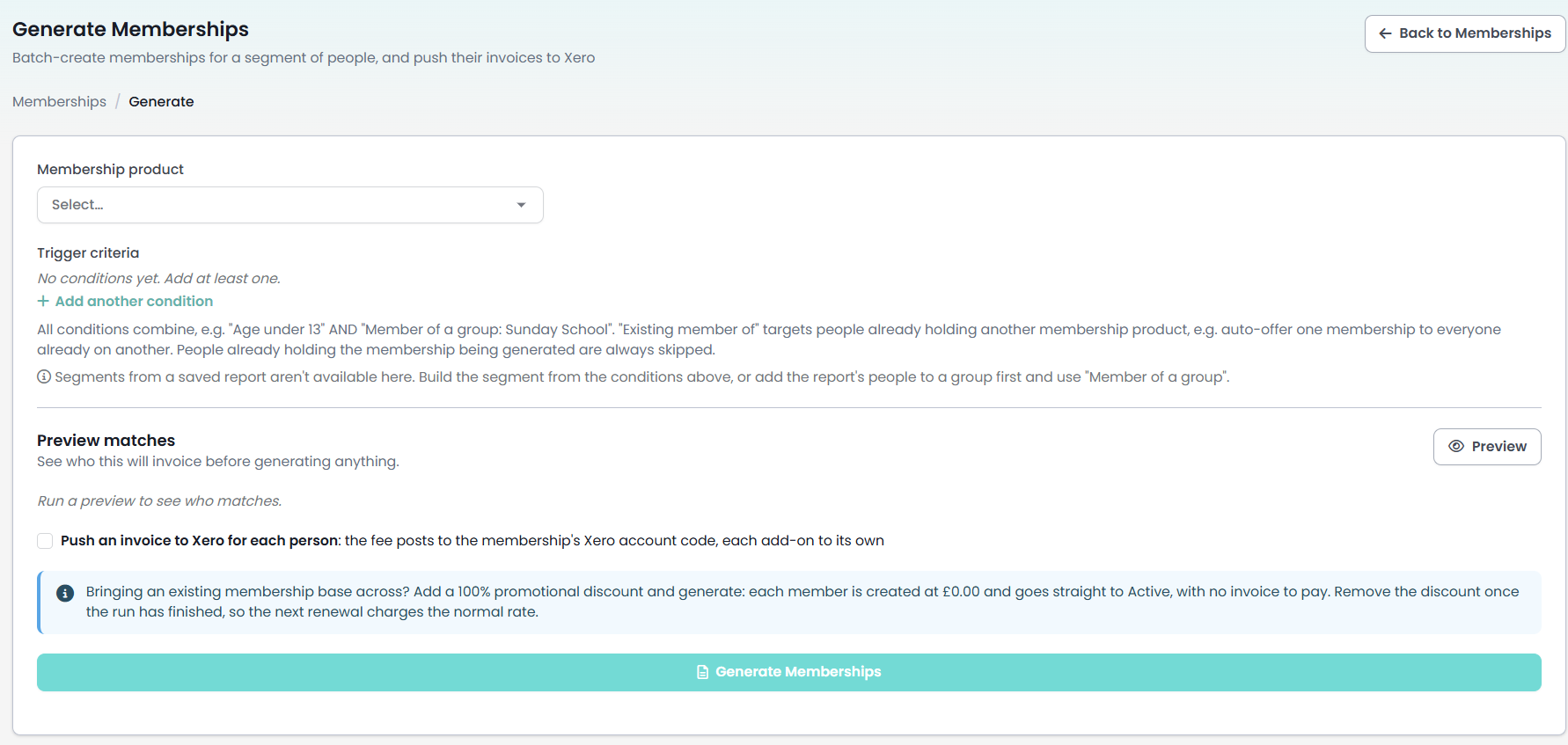
You can find this by going to Finance → Generate Memberships. The Back to Memberships button returns you to Membership Products.
 {height="" width=""}
Step 1: Choose the membership product
Pick the product from Membership product at the top. Everything the run does comes from this product: its rates set the price, its duration sets the period, its renewal setting decides whether the new memberships renew on their own, and its Xero codes decide where the invoice lines post.
The picker lists the products you are currently offering. A product is left out when it has been deleted, when you have ceased offering it, or when today falls outside the dates it is available between. If a product you expect is missing, check those on the product itself.
Step 2: Build the trigger criteria
Trigger criteria describes who the run is for. Click Add another condition to add a row, choose the kind of condition from the first box, then fill in the rest of the row. The bin at the end of a row removes it.
There are four kinds of condition.
| Condition | What it matches |
|---|---|
| Age | People of a given age in whole years today: Under, Over, or Between two ages. Only people with a date of birth recorded are considered, and a date of birth whose year is withheld counts as not recorded. Archived people are left out. |
| Member of a group | Everyone currently on the group you choose. People marked as past members of it are left out. |
| Existing member of | Everyone whose membership on another product you choose is still open, including one that is pending or has had a payment fail. Use it to offer a second membership to the people who already hold the first. The list offers the same products as the picker at the top, so a product you have ceased offering cannot be chosen as the source. |
| Custom field | People whose custom field holds the value you give. Choose the field, then Equals or Contains, then the value. |
Conditions combine, so a person has to satisfy every row to be included. Two rows reading Age under 13 and Member of a group Sunday School give you the children in that group, not the children plus the group.
Only the Age condition leaves archived people out. Member of a group, Existing member of and Custom field all include them, so an archived person who is still on a group, still holds another product or still carries the custom field value is given a membership by the run, and an invoice with it if the Xero tick is on.
On a Custom field row, the value control follows the field you picked.
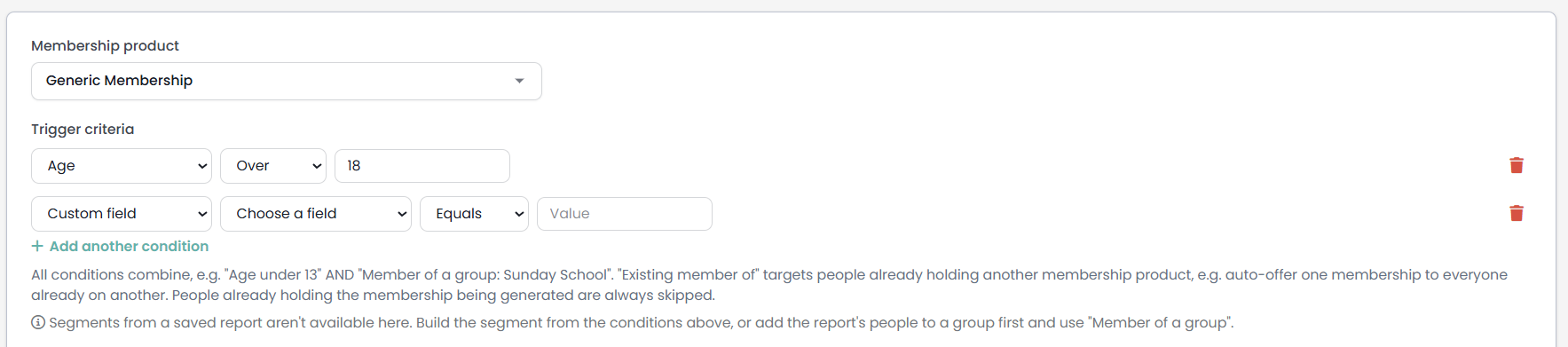
Segments from a saved report are not offered on this screen. The note under the criteria says so: "Segments from a saved report aren't available here." To work from a report, add the report's people to a group first and use Member of a group.
Step 3: Preview the matches
Click Preview. Nothing is created by a preview: it resolves the segment, prices each person through the product's rates, and shows you the result.

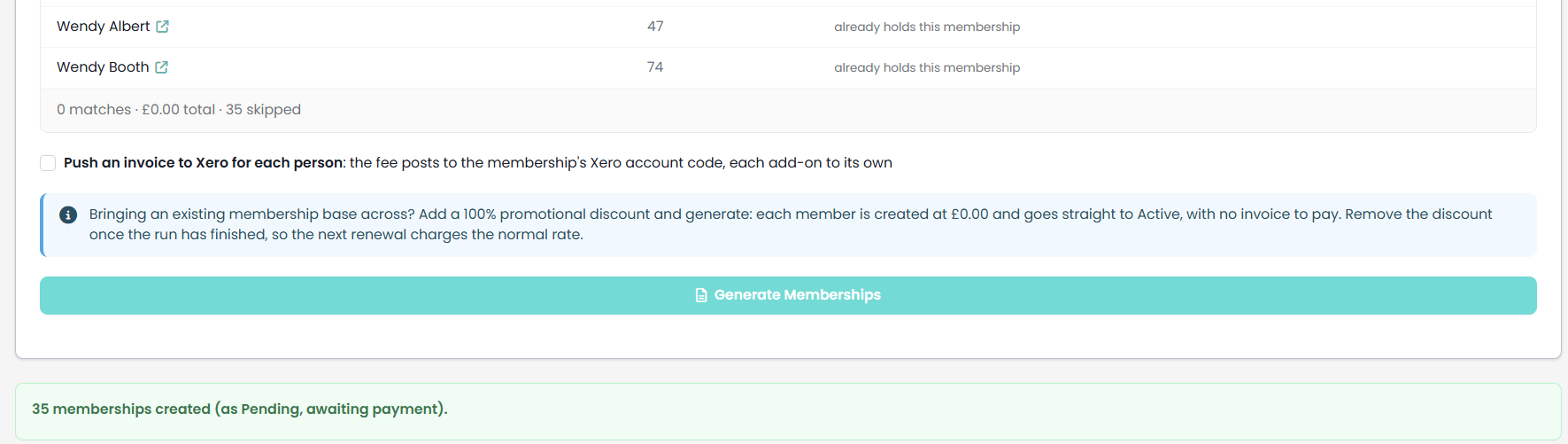
Each matched person gets a row with their name, their age and what the run would charge them. The arrow beside a name opens that person's profile in a new tab, so you can check somebody without losing the criteria you have built. The line under the table counts the matches, totals what the run would invoice, and counts how many people were skipped.
A skipped person keeps their row and shows the reason in place of an amount:
- already holds this membership: they already have a live membership on this product, so the run will not give them a second one.
- no rate matches: the product's rates do not produce a price for this person, so there is nothing to charge and nothing to create. The commonest cause is pay frequency. This run always prices a membership as a single payment for the whole period, so rates keyed to a particular pay period, such as Monthly or Quarterly, match nobody here and every person in the segment is skipped with this reason. See Rate rules and pricing structures.
People recorded as organisations are left out of the preview altogether, and so out of the run. Generate Memberships creates memberships for people.
Generate Memberships stays unavailable until a preview finds at least one person to bill. If the conditions match nobody the table is replaced by the line "Nothing matches those conditions yet."
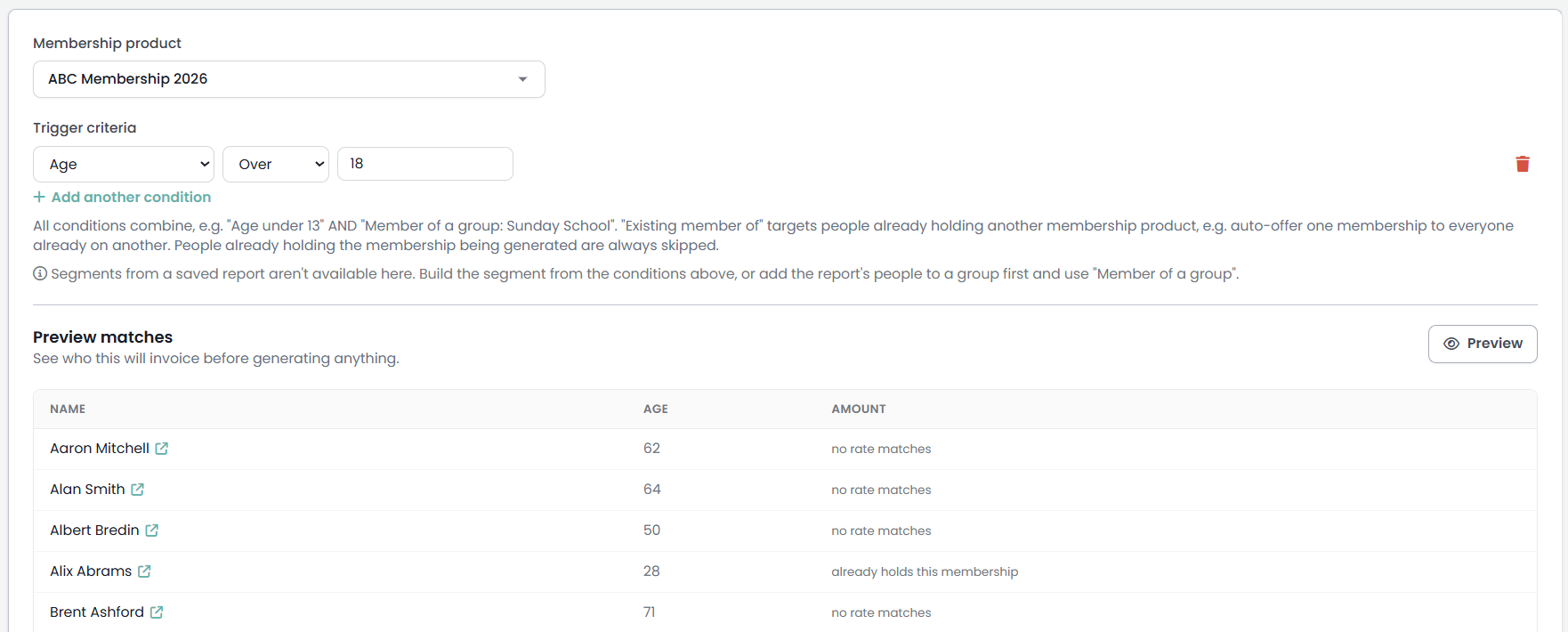
The preview is the only look you get. Run it, read the names and read the total, and change the conditions until the list is the one you meant. See Coverage and eligibility for how the product decides who it is for.
Step 4: Run the generate
Read this before you press the button. The run applies none of the product's own eligibility rules, so people the product itself would refuse are given a membership anyway. Every membership with money owing is created Pending, chased at three, seven and fourteen days, and cancelled at thirty days unless somebody settles it by hand. With the Xero tick on it raises an authorised invoice on your live Xero organisation for every person, and infoodle will not remove one afterwards. The three sections below, What the run does not check, Collecting the money and Pushing invoices to Xero, are the detail.
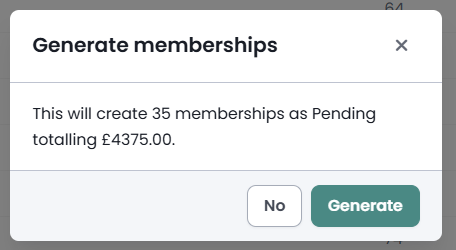
Click Generate Memberships. A confirmation states what is about to happen, using the figures from the preview you just ran: how many memberships, how many of them as Pending and how many as Active, and the total. Confirm it and the run starts.
The button changes to Generating…, or to Generating and pushing to Xero… when the Xero tick is on, and a line appears saying the run is working through the list and that leaving the page will stop it part-way. A bulk run returns once, at the end, so there is no progress to watch.
When it finishes, a results panel appears below the card and the page scrolls to it:
- The headline says how many memberships were created and in what state, for example "12 memberships created (as Pending, awaiting payment)."
- A Not created line for each person the run passed over, with the reason: "already had a membership", or "no rate matches". A third reason appears if a record could not be written at all.
- A Xero line for each person when the Xero tick was on, saying whether that invoice was created or why it was not.
The preview then re-runs by itself, so the table underneath shows the segment as it now stands, with the people you have just created reading "already holds this membership".
The results panel is the only place the per-person detail exists. Nothing writes the skipped names or the Xero outcomes anywhere else, and leaving the page loses them, so copy or screenshot the panel before you navigate away.
 {height="" width=""}
What the run creates
For each person it does not skip, the run writes one membership:
- Who it covers: that one person. Every membership a bulk run creates covers a single person, whatever structure the product has.
- Period: it starts today and ends according to the product's duration. A Lifetime or Free product has no end date.
- Price: the figure the preview showed, struck as a single payment for the whole period. Mandatory add-ons are included, and so is any add-on that a custom field adds automatically. Optional add-ons, the ones a member would tick for themselves, are not. That single payment is the pay frequency the run uses whatever frequencies the product offers, so a product whose rates are keyed to a different pay frequency will report "no rate matches" instead of pricing anybody.
- Auto-renew: on only when the product renews silently. Otherwise it is off.
- Status: Active when the price comes out at zero, because there is nothing to pay, and Pending when there is money owing.
The new memberships appear on the product's Members list straight away. See The Members list.
What the run does not check
A bulk run does not apply the product's own joining rules. Eligibility conditions, the coverage type and the minimum and maximum member counts are all skipped. The only two things that stop a person being given a membership are that they already hold one and that the rates cannot price them.
So a product set to cover a whole household generates individual memberships that cover one person each. A product with a minimum of two members generates memberships of one. A product restricted to adults generates memberships for the children who match your criteria. The records look ordinary on the Members list afterwards and nothing marks them out.
That makes the criteria and the preview the whole of your safety net. Read the preview list before you run it, and check the Members list afterwards.
Collecting the money
A bulk run creates the membership and the amount owing. It does not take the payment and it does not set up a payment plan, so infoodle will not collect these on its own. Nor does the run email anybody at the point it creates the memberships.
Recording the money in infoodle does not settle one of these memberships. A membership a bulk run created carries no payment plan and no signup entry behind it, and those are the only two things infoodle matches a payment to a membership with, so banking and receipting the money leaves the membership Pending and shows nothing against it. Changing the status by hand is what settles it.
So a Pending membership from a bulk run stops being Pending in only two ways:
- The member pays it themselves in the Portal, where the membership appears with its balance and a way to pay. That route needs the Portal add-on package switched on and the member to have Portal access and a login. See Turning on the Membership and Portal packages.
- You collect the money outside infoodle, against the Xero invoice or any other way, and then open the membership on the Members list and set its status to Active. Record the money against the person in Finance the way you normally would: the membership itself keeps the amount it was created with and carries no payments of its own, so the status is what closes it off.
A membership left Pending is chased and then given up on. infoodle emails the member at three, seven and fourteen days, and thirty days after it was created the membership is cancelled and the member is told. Settle the memberships a run creates, or remove them.
Pushing invoices to Xero
The tick Push an invoice to Xero for each person appears when Xero is connected to your infoodle. With it on, the button reads Generate & Push to Xero and the confirmation says invoices are included.
Each membership gets its own invoice, dated today and due in fourteen days. The membership fee posts to the product's Xero account code, and each add-on posts to its own, falling back to the fee code where an add-on has none. If the product carries a Xero tracking category and option, every line is tagged with it.
Before you tick it:
- The invoices are authorised, not drafts. They land on the connected Xero organisation as authorised invoices, and infoodle will not remove one afterwards. Void or credit them in Xero.
- The push creates Xero contacts. Anyone in the run who has no Xero contact has one created for them as part of the push, so a run of four hundred people can put up to four hundred new contacts into Xero.
- No Xero account code for the membership fee means no invoices at all. The memberships are still created. The results panel says so on a Xero line, under a headline that still counts the memberships as created.
- A connection that is no longer live does the same. The results panel reads "Xero is not connected" and the memberships are created without invoices.
- A Xero failure on one person does not undo their membership. The membership stands and the results panel names what went wrong, so you can raise that invoice by hand.
The account codes themselves are set on the product. See Using Xero with Memberships.
Bringing an existing member base across
The screen carries a note about this, because it is what most organisations use it for first. Add a 100% promotional discount to the product and generate: each person is created at zero and goes straight to Active, with no invoice to pay and nothing to collect. Remove the discount once the run has finished, so the next renewal charges the normal rate. Discounts are set up on the product itself. See Discounts and add-ons
Leave the Xero tick off for a conversion run. A 100% discount is priced as two lines, the full fee and a matching discount against it, rather than as a single zero, and the push sends both. Every person in the run gets an authorised Xero invoice that nets to zero, plus a new Xero contact if they had none, and infoodle will not remove either.
If a run went wrong
Remove the records from the product's Members list. The list has a row action for a single record and a button for a selection, and removing a membership there takes the membership and its covered-person link with it.
Two things removal does not do:
- It does not touch a Xero invoice. Void or credit that in Xero.
- It does not stop a payment plan. A membership a bulk run created has no plan of its own, but one that has since been paid for or reinstated may have picked one up. Check the person's transactions in Finance, and the Xero invoice if you raised one, before you remove it. As created, these memberships carry no payments of their own, so the membership's payments are not where to look.
Do not delete the product to clear a bad run. Deleting a product takes it out of every list while leaving the memberships in place, and those memberships then never renew.
Common questions
Somebody who fits my criteria is not on the preview. Why?
Three things take a person out before the list is drawn. They are recorded as an organisation. They have no date of birth on file and you used an Age condition. Or they are archived and you used an Age condition, which only looks at people who are not archived. The other three conditions do not leave archived people out, so the same person can be missing from one set of criteria and included in another.
My preview says no rate matches for everybody. Why?
Most often it is pay frequency. This run always prices a membership as a single payment for the whole period, and a rate row keyed to a particular pay period only matches a membership being paid on that period. So on a product whose rates are all keyed to Monthly, Quarterly or Fortnightly, nobody matches and every person is skipped. Add a rate row that is not keyed to a pay period if you want to generate memberships on that product. See Rate rules and pricing structures
I have banked the money. Why is the membership still Pending?
Because recording a transaction in infoodle does not reach the membership. A membership a bulk run created has no payment plan and no signup entry behind it, and those are the only two things infoodle matches a payment to a membership with. The membership stays Pending and shows no payment against it. Open it on the Members list and set its status to Active.
Can I generate from a saved report?
Not from this screen. Add the report's people to a group, then use a Member of a group condition.
Can I run it twice on the same criteria?
Yes. Anybody who already holds the product is skipped, so a second run picks up only the people the first one missed or who have joined the criteria since.
Why is a membership Active as soon as it is created?
Because it costs nothing. A membership with a price of zero has no invoice to wait for, so it starts immediately. Anything with money owing is created Pending.
The run created memberships but no invoices. What happened?
Either the product has no Xero account code for the membership fee, or the Xero connection is no longer live. The results panel says which on its Xero line. Set the code on the product's Xero tab or reconnect Xero, then raise those invoices in Xero by hand, or remove the memberships and run it again.
Does the person get an email when I generate their membership?
Not at that moment. The run creates the records and sends nothing. The emails that follow are the ones any Pending membership gets, asking for payment.
Next steps
Open the product's Members list and read what the run produced, especially if the product has coverage or member-count rules that the run does not apply. See The Members list
Membership Reports, also in the Finance menu, is where you follow the money afterwards: who is due, what is outstanding and which renewals failed.