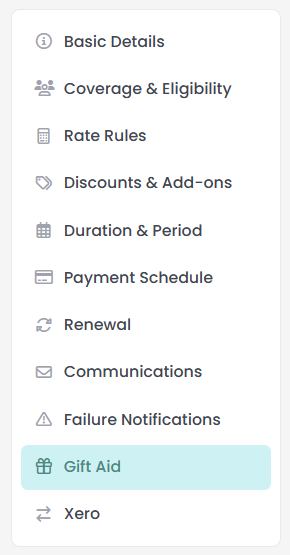
A membership product is configured across a list of tabs. One of them only appears when the matching feature is switched on for your site. The Xero tab holds the Xero account codes the membership's money is posted against, and the tracking category it is tagged with. This is only available when Xero is enabled.
Before you start
Role Permissions
- Manage finance configurations: needed to open a membership product and to save it. With Manage, Read and report on transactions or Read and Report on Transactions you can still see the Membership Products list, but you cannot open or change a product.
For what each role permission means and how to change one, see People Permissions.
When the tab appears
- Xero appears when your site is connected to Xero. See How to connect to Xero.
- You will need a membership product to configure. See Creating a membership product
Xero
Open the Xero tab on the same product. One label on this tab comes in two halves: Membership fee, which names the specific thing the picker sets, followed by Xero account code, which is the general description shared by the coding settings on the tab. This article calls that picker Membership fee, the half that tells you which control you are looking at.
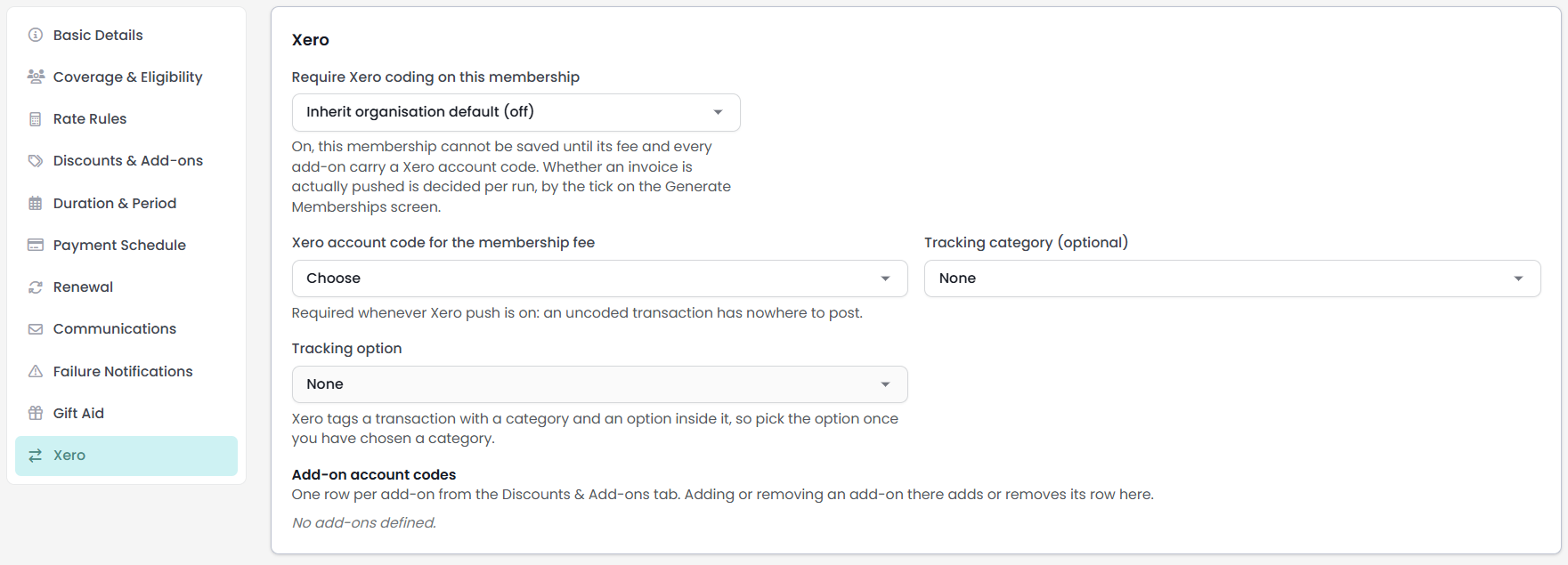
The settings on the tab
- Push to Xero on member self-service actions: records how this membership should behave when a member acts for themselves. Choose Inherit organisation default, Always on or Always off. The inherit option's own label shows which way the organisation default currently points. This setting does not send anything to Xero by itself. On this screen it decides whether a Xero account code is required before the product will save.
- Membership fee: the Xero account code the membership fee is coded to - required whenever Xero push is on.
- Tracking category (optional): one of the Xero tracking categories your infoodle has picked up from Xero, or None. See Tracking Categories for more information.
- Tracking option: the value inside that category. It stays greyed out until you choose a category, and stays greyed out when the category you chose has no options in Xero. Xero tags a line with a category and an option inside it, so a category on its own tags nothing. See Tracking Categories for more information.
Which account codes the pickers offer
Every picker on this tab lists only the account codes that are linked to a current Xero account. Account codes with no Xero account behind them are left out, because coding a membership to one would post it nowhere. A code that was chosen earlier and has since lost its Xero link stays in the list, marked (not linked to Xero), so you can see what is stored and change it.
If none of your account codes are linked yet, the tab says so instead of showing empty pickers: "No account codes are linked to a Xero account yet, so there is nothing to map to."
To link account codes to Xero accounts, see Finance > Account Codes. For what tracking categories are and where they come from, see Xero Tracking Categories.
Add-on account codes
Underneath the main pickers is a row for every add-on on the product: "One row per add-on from the Discounts & Add-ons tab", and adding or removing an add-on there adds or removes its row here. Rename an add-on and its row here is relabelled to match.
Give each add-on its own Xero account code when you want its money to land on a different Xero account from the membership fee. An add-on with no name yet is listed as (unnamed add-on), which is a sign to go back to the Discounts & Add-ons tab and name it.

What the save will not accept
Three rules are checked when you save. Each one stops the save and shows the reason in a message at the top right of the screen, and each names the Xero tab so you know where to go.
| When | What you will read | What to do |
|---|---|---|
| A tracking category is chosen with no tracking option | "Choose a tracking option to go with the Xero tracking category, or clear the category (Xero tab)" | Pick an option inside the category, or set the category back to None |
| The push setting resolves to on and the membership fee has no Xero account code | "Xero push is on for this membership", then a request to choose a Xero account code for the membership fee | Choose a code in Membership fee |
| The push setting resolves to on and an add-on has no Xero account code | "every add-on needs a Xero account code (Xero tab)", followed by the name of the add-on | Choose a code in that add-on's row |
The second and third rules are checked only while Push to Xero resolves to on. A product set to Always off, or inheriting an organisation default of off, saves with no codes at all.
What reaches Xero, and when
Membership invoices reach Xero from the Generate Memberships screen, which carries its own tick: Push an invoice to Xero for each person. With it ticked, a run creates one Xero invoice per membership it has just created, and the codes on the Xero tab are what those invoices are built from. The screen needs Manage finance configurations, the same permission as the product screen. See Generating memberships in bulk.
- The membership fee line is coded to the product's Membership fee code.
- Each add-on line is coded to that add-on's own code. An add-on can only be left uncoded on a product whose Push to Xero setting does not resolve to on, and on that product the add-on line is coded to the membership fee code instead.
- Every line is tagged with the tracking option when a category and an option are both set.
- The GST treatment comes from the account code itself, so a code set up as GST inclusive in infoodle posts that way in Xero.
- Lines worth zero are left off the invoice, and the run tells you person by person whether the invoice was created.
- Each invoice is dated the day of the run and due 14 days later, and it is created as an approved invoice in Xero unless your site's Xero invoice status setting says otherwise.
A product with no code in Membership fee produces no invoices at all for the run, whatever the add-ons are coded to. The memberships themselves are still created, and the run reports that there was no Xero account code for the fee. Because the save rule only checks the fee code while Push to Xero resolves to on, this is the run to watch on a product set to Always off. Set the Membership fee code before you run a generate with the push tick on.

Where the money is recorded in infoodle
The Xero tab changes nothing about how a membership payment is recorded inside infoodle. A collected payment is written as a single transaction line against the product's own account code, the one set as Infoodle account code (membership fee) on the Basic Details tab. The fee, the add-ons and any discount all land on that one code and that one line.
For add-ons, discounts and the account code recorded against each add-on, see Discounts and add-ons.
Common questions
I cannot see the Xero tab. Where is it?
The tab appears only when your site is connected to Xero. Connect Xero first, then reopen the membership product and the tab will be there. See How to connect to Xero.
Can each add-on post to a different Xero account?
Yes. Each add-on gets its own row on the Xero tab and its own account code. An add-on left without one is coded to the membership fee code when the invoice is built.
Do I have to set a tracking category?
No. It is optional. If you do set one, you also have to pick an option inside it before the product will save.
I changed the Xero codes. What happens to invoices already in Xero?
Nothing. The codes are read when an invoice is created, so a change applies to invoices created after it. Invoices already sent to Xero are edited in Xero.
Next steps
The Gift Aid and Xero tabs complete a membership product's configuration. With the rates, add-ons, duration, renewal and member emails already set, the product is ready to be offered to members or used to create memberships in bulk. To review the emails members and staff receive, see Communications and failure notifications.