Portal messages are a two-way conversation between one member and your organisation, held inside the Portal.
The member chooses a topic, writes a message and sends it. Staff read it in the Portal Messages inbox, reply there, and the reply appears back in that member's Portal. Everything said about one subject stays together as a single conversation, which the member and your staff both read from start to finish.
A conversation is either Open or Closed. While it is open, both sides can add to it. Once staff close it, it stays on both sides as a record and neither side can post to it again.
Before you start
Role Permissions
- Portal access: the permission a member's role needs before they can use the Portal at all, including messages.
- Process portal messages: the permission a staff member's role needs to open the Portal Messages inbox, reply to a conversation and close it.
For more information on roles and specific portal access roles, see the following pages:
About Permission Roles
What the Portal is and how members get access
You will also need:
- The Messages feature switched on in Portal Configuration. It is on by default.
- Members who can sign in to the Portal. See What the Portal is and how members get access.
- To change the topic list or the wording on the member's screens, the Update System information permission, which is what saving Portal Configuration needs.
The Messages feature can be renamed in Portal Configuration, so the member's screens may show a word your organisation chose. The Send a message button is named separately, by its own quick action, so that can differ too.
Where messages appear in the Portal
A member reaches their messages in four places, and all four go to the same page:
- Side navigation: the Messages item, in the Account section.
- Top bar: a bell, carrying a count when replies are waiting.
- Dashboard: an Unread Messages card showing the number of conversations with replies the member has not opened yet.
- Quick action: the Send a message button, which opens the Messages page with the new-message form already open.
The bell and the dashboard card count conversations, not individual replies, and they clear as the member opens each conversation.
Send a message from the Portal
For who can read what a member writes here, see Who can read a member's message.
- Open Messages from the side navigation.
- Click Send a message. The new-message form opens above the list of conversations.
- Open the Topic list and choose the topic that fits. The list is set by your organisation.
- Type the message in the Message box.
- Click Send.
Note that both the topic and message need to be completed.
Also note that Portal messages do not carry attachments.
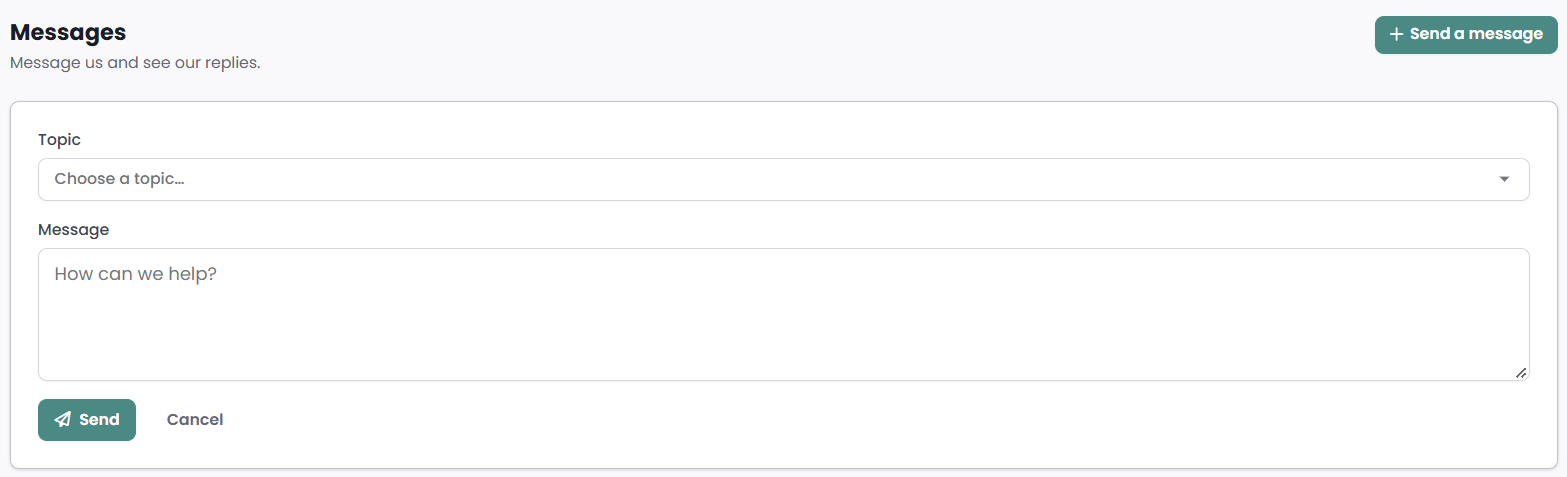
infoodle opens the new conversation as soon as it is sent, with the member's message in it and an Open badge next to the topic.

Read the reply
The member's Messages page lists their conversations, the one with the most recent activity first. Each row carries:
- The topic, with a dot beside it while the conversation holds a reply the member has not read.
- A one-line preview of the latest message. When the member wrote it, the preview starts with "You: ".
- The date and time of that latest message.
- An Open or Closed badge.
Opening a conversation shows every message in it, oldest first, each with the date and time it was sent. The member's own messages and your organisation's replies sit on opposite sides of the conversation. Opening it is what marks it as read.
While the conversation is open there is a Reply box at the bottom. Type and click Send to add to the same conversation.
Read messages in the Portal Messages inbox
Staff who hold the Process portal messages permission open the inbox from the administration cog in the top right hand corner, click the cog and choose Portal Messages.
If your role also holds Update System information, Portal Messages is listed on the Administration page as well.
While a conversation holds a message no staff member has opened, a dot sits on the administration cog and a count sits beside the Portal Messages entry in that menu.
The inbox lists conversations from every member you are allowed to see, most recent activity first. Each row shows the member's name and the topic together, a one-line preview of the latest message, the date and time, and the Open or Closed badge. A row in bold with a dot is one carrying a message no staff member has opened.
Across the top are three filters, All, Open and Closed. All is the view you land on.
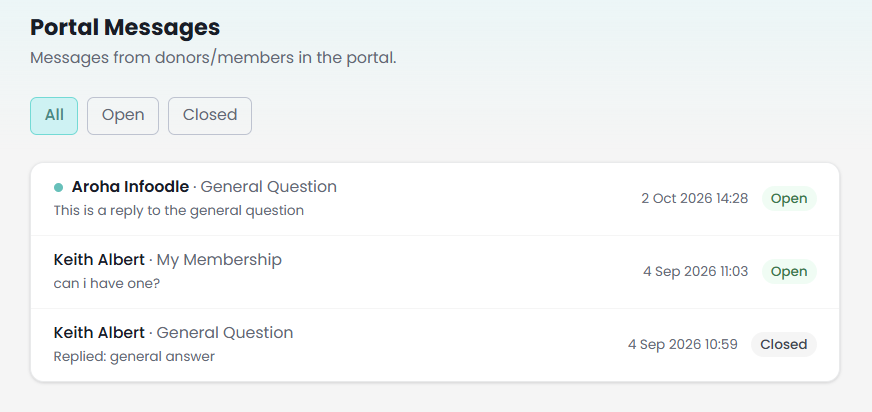
Reply and close the conversation
Click a row to open the conversation. The member's name is the heading, the status badge sits beside it, and the topic is on the line underneath. Opening it marks it read for staff, which takes the dot off the cog and the number down in the menu.
To reply, type in the Reply box and click Send reply. The reply is added to the same conversation and the member's Portal marks it as unread for them straight away.
To finish with a conversation, click Close Thread, which cannot be undone. The badge changes to Closed, and the reply box goes from both your view and the member's.
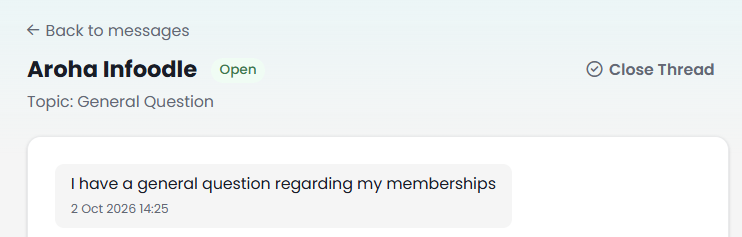
Close Thread takes effect on the one click, and there is no control anywhere that reopens a closed conversation. Close a conversation once the question has been answered, not to tidy the list. If a member needs to come back to it, they start a new message, which arrives in the inbox as a new conversation.
How the two sides line up
| What happens | What the member sees | What staff see |
|---|---|---|
| The member sends a message | The conversation opens with their message in it, badged Open | A new conversation at the top of the inbox, in bold with a dot, and a count on the administration cog menu |
| Staff reply | A dot on the conversation, a count on the bell and the dashboard card | The reply added to the conversation, with the count cleared |
| The member opens the conversation | Their dot, bell count and dashboard card come down | Nothing changes in the inbox |
| Staff open the conversation | Nothing changes for the member | The dot and the count come down |
| Staff close the conversation | The Closed badge and the line pointing them at a new message | The Closed badge, no reply box, and the conversation still readable under the Closed filter |
Each side's unread marker is its own, so neither side can clear the other's.
Who can read a member's message
Two audiences, and no others:
- The member who started the conversation. Portal messages are personal to them. Other people in their household do not see them in their own Portal, even where that household shares memberships and can act on them.
- Staff who hold Process portal messages, and then only for members they are already allowed to see under your site's people permissions. A staff member whose role narrows which people they can see sees the same narrowed set here: conversations from anyone outside it are not in their inbox and are not in their count. Check that between them, the staff who hold this permission can see every member you invite to the Portal.
Portal messages do not appear on the member's profile, in the Members list of a membership, or in reports. The inbox and the member's own Portal are the only places they are read.
Choose the topics members can pick
Topics are the list a member chooses from when starting a message, and they are set in Administration → Portal Configuration, in the Features card, under Messages.
- Messages: switches the whole feature on and off for members.
- Label: the word used for the feature on the member's screens.
- Message topics: the topic list, as "One topic per line".
infoodle ships four topics: My Pledge, My Membership, My Invoice and General Question. Replace them with whatever suits your organisation, up to 20 topics of up to 100 characters each. Repeated lines are kept once.
Emptying the box does not remove the topic list. It restores those four.
A topic is written onto the conversation when the member sends it, so editing the list changes what the next member can choose and leaves conversations already under way as they are.
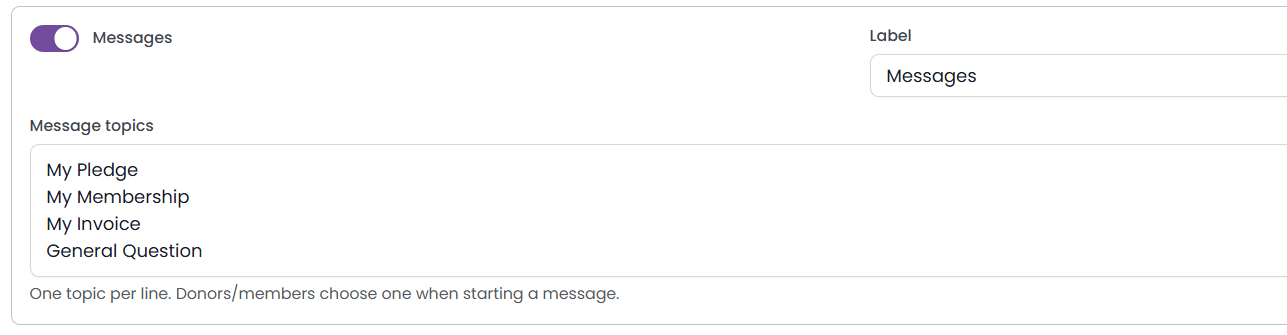
For the rest of the Portal Configuration screen, see Portal Configuration
Common questions
Can a member attach a file to a message?
No. A message is a topic and text.
Can anyone else in a member's household read their messages?
No. A conversation belongs to the person who started it. This is narrower than memberships, where a household can see and act on what the household holds.
Can a member see which staff member replied?
No. A conversation shows replies as coming from your organisation, without a staff member's name.
Why can a member not reply any more?
The conversation has been closed. The member starts a new message, and that arrives in the inbox as a new conversation.
Can staff reopen a closed conversation?
No. Closing is final, and a new message from the member is the way back into the subject.
Does the inbox show everything every member has sent?
It shows conversations from the members you are allowed to see. Two staff with different people permissions see different inboxes.
We renamed Messages. Does anything else change?
Only the wording. The label changes the member's side navigation item, the bell, the dashboard card, the page heading and the link back from a conversation. The inbox is always called Portal Messages.
Next steps
Set the topic list and the wording before you tell members that messages are available, in Portal Configuration