The Portal shows three screens for the money side of their account.
- Payment Methods holds the card or bank details they have authorised your payment provider to keep, so a later payment can be taken without asking for them again.
- Statement produces a financial statement for a year the member chooses.
- Tax Receipts lists the receipts your organisation has already issued to them, ready to download.
Before you start
Role Permissions
- Portal access is required for members to access the portal
For more information on roles and specific portal access roles, see the following pages:
About Permission Roles
What the Portal is and how members get access
- You will need at least one active payment provider that can save a method. infoodle offers this on Stripe, GoCardless and Ezidebit. See Adding Payment Gateways.
- The Statement screen appears only once an administrator has chosen a statement template for the Portal in Administration → Portal Configuration. No template is chosen to begin with, so both the screen and its dashboard quick action stay hidden until one is.
- The Tax Receipts screen and the Payment Methods screen are both switched on to begin with, and an administrator can switch either off in Administration → Portal Configuration. The Payment Methods label is a setting there too, so on your site the screen may carry a different name.
Saved payment methods
A saved payment method is a card or bank account the member has authorised your payment provider to keep on file. infoodle does not hold the card number. The provider stores the details and returns a reference, and the Portal shows only what the provider gives back - the brand or the words Direct Debit, the last few digits, and for a card the expiry month and year.
Saved payment methods belong to the member alone. Nobody else in their household can see them, choose the default or remove one. The Statement screen works the same way, it only ever produces the statement of the member who is signed in.
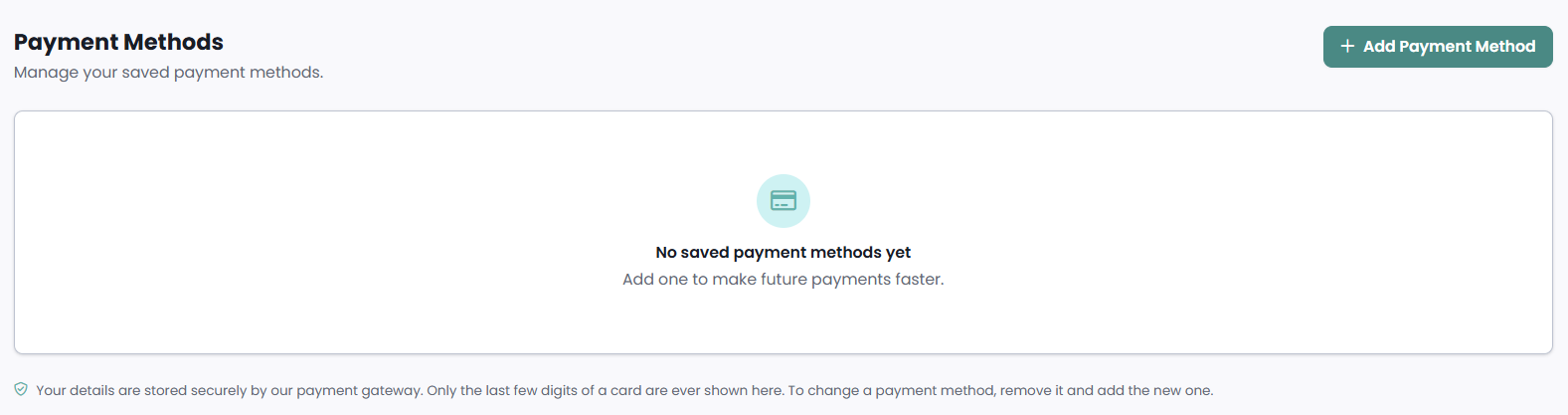
With nothing saved yet, the screen shows No saved payment methods yet and invites the member to add one.
Where a saved method is used
A saved method is what lets the member pay without re-entering anything:
- Paying a membership: the membership's Pay screen lists the member's saved methods to choose from.
- Instalments and renewals: a membership collects from whichever saved method it points at, both for the instalments the member sets up and for each renewal.
- Recurring donations: a pledge set up to collect automatically charges the saved method behind it.
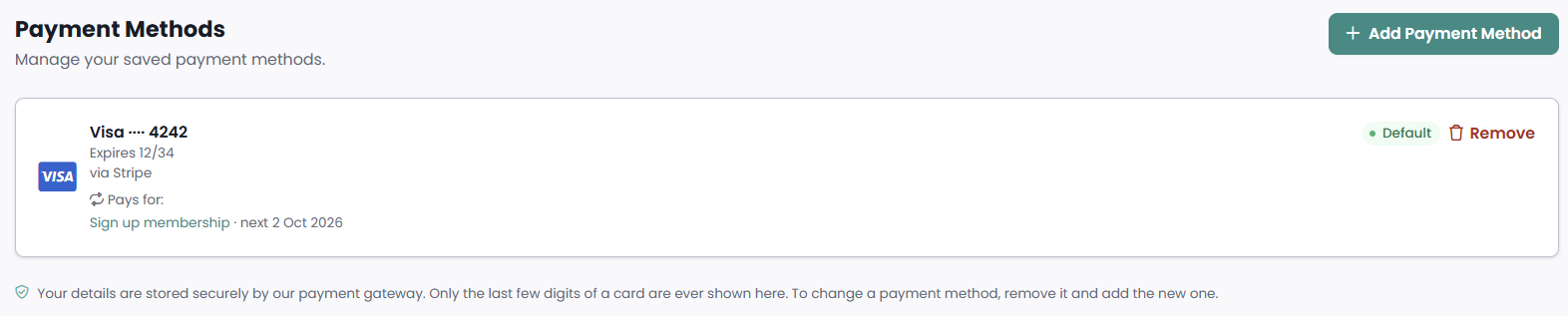
Each method in the list has a Pays for: line naming what it currently funds, with the next collection date beside each one, so the member can see what a method is committed to before touching it.
Adding a payment method
-
Open Payment Methods from the Account section of the side menu.
-
Click Add Payment Method.
-
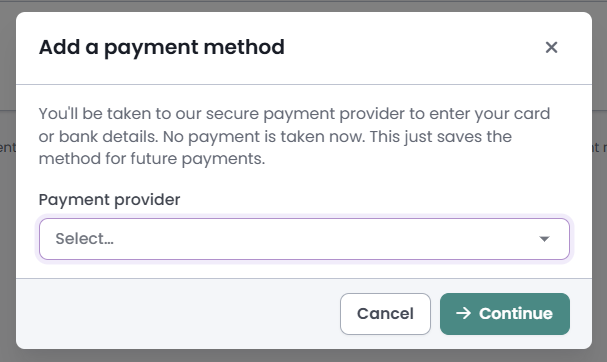
Choose the Payment provider. Where your site has only one provider that can save a method, its name is shown and there is nothing to pick. Where none is set up, the window says No payment gateways are set up yet and asks the member to get in touch instead.
-
Click Continue. The window explains you'll be taken to a secure payment provider to enter your card or bank details, and adds that the step only saves the method for future payments.
-
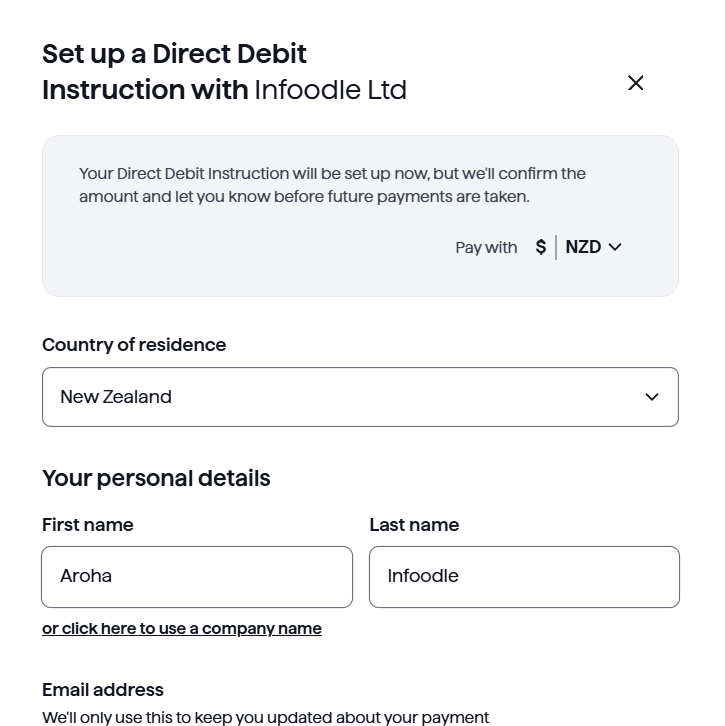
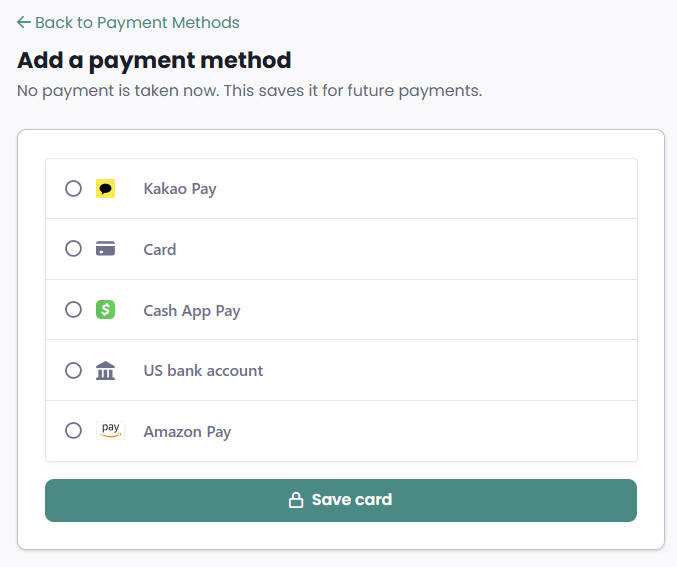
Enter the details and confirm. What this looks like depends on the provider. Some take the member away to their own page. Others stay on an Add a payment method page in the Portal, where the provider supplies the card fields and a Save card button, or opens its own secure window over the page, automatically and from an Open secure window button.
-
The provider sends the member back to Payment Methods, and the screen opens with a message saying what happened.
What the Portal tells the member on the way back
| Message | What it means |
|---|---|
| Payment method saved | The method is stored and ready to use for future payments. |
| That wasn't finished | The member left the provider's window before completing it. Nothing was saved and nothing was charged, and they can start again whenever they like. |
| Your payment method is being confirmed | The provider has the mandate and is still finishing it off. The member should refresh or come back later, and must not set it up a second time, or they could end up authorising two. |
| We couldn't add that payment method | The provider did not confirm it, so nothing was saved and nothing was charged. |
Choosing the default
One saved method carries a Default badge. Every other method shows Set default, which then makes it the default. Removing the default promotes the newest of the remaining methods, so the member always has one.
A method the provider has reported as expired or failed is shown greyed with a red badge and the provider's reason, and offers no Set default.
Removing a payment method
Click Remove on the method and confirm it in the pop-up window. Note that any scheduled giving using this method will need a new one. This cannot be undone.
Removing a method cannot be undone, and there is no edit. To move to a new card, the member needs to remove the old one and then add the new one. A card saved with Stripe is also detached when it is removed, so nothing is left behind.
When a member attempts to remove a card saved with Stripe, the Portal checks whether the card is funding any active recurring donations or membership payment plans. If it is, the removal is blocked and the Portal displays each affected payment, along with its next payment date. The member is then directed to the Pledges page to cancel recurring donations or the Memberships page to cancel payment plans before removing the card.
The Statement screen
Documents → Statement opens a page headed Financial Statement, described on screen as your annual statement for tax purposes. It produces the same statement your finance team would produce for that member, generated fresh each time it is asked for.
What the statement covers
An administrator sets two things for the Portal in Portal Configuration. Which statement template the Portal generates from, and the scope the statement covers. The scope is shown in the same way as the finance team's own Generate Statements screen. The preview on the screen and the PDF the member downloads apply that same scope.
Picking a year and downloading
- Choose a year from Financial Year. Only years that have something in scope are listed.
- Read the Statement Summary panel. It lists a line and an amount per category, then a Total, and states the period it covers.
- Click Download PDF Statement. The statement is generated and opens in a new tab.
Previously generated
Underneath, Previously generated lists statements your organisation has produced for that member, each with its description, when it was generated, and a badge reading Emailed or Downloaded. It is a record, not a set of links, nothing in it can be re-opened.
A statement the member downloads from this screen is streamed to them rather than stored, so it does not add a row to this list.
When there is nothing to show
| What the screen says | What it means |
|---|---|
| Nothing to show yet, then "There's nothing in scope to generate a statement from." | The member has no transactions at all. |
| Nothing to show here, then "Your transactions aren't covered by the statement we issue from this page. Please get in touch if you need a statement." | The member does have transactions, but they fall outside the scope set for the Portal. |
The Tax Receipts screen
Documents → Tax Receipts lists the receipts your organisation has issued to that member, newest first. Each row shows Receipt # and the receipt number, the date it was issued, the total, and a Download button that opens the receipt in a new tab.
Only issued receipts are listed. A receipt your finance team is still working on, whose number and content can still change, is not shown, and neither is a receipt that has been voided. A receipt that has been issued but whose PDF is still being produced is listed too.
Each download is checked again. The receipt has to belong to the member or to someone in their household, and the download is recorded.
When there are none, the screen reads You don't have any receipts yet.
The Portal reports receipts, it does not decide them. Which transactions are receipted, what each receipt says, and what any of it means for a member's tax are your organisation's decisions, made in the finance screens and in your receipt template. A member's question about the content of a receipt is one for your organisation to answer. See Receipts.
Common questions
Does adding a payment method take a payment?
No. The member is sent to the provider to authorise the method for future payments. No payment is taken at that point, and the screen says so before they go: "No payment is taken now".
Can someone else in the household pay a membership, or change its card?
No. A household member can see the membership and what is owing, but only the member who set it up can pay for it or change which saved method it uses.
A membership was being paid by bank transfer. What happens if the member picks a saved card for it?
The membership stops being collected by hand and starts being collected from that method. That change only goes one way: the Portal offers saved methods, so there is no control there that puts a membership back onto paying by hand. Ask your finance team to change it back if that is what the member wants.
The member paid by cheque or bank transfer. Why does the balance still show?
Payments made outside the Portal are recorded by your office, so they appear once someone has entered them. The membership's Pay screen says as much: "If you've already paid this by cash, cheque or bank transfer it may not show here yet", and notes that those payments are recorded by the office.
The statement shows less than the member expected. Why?
The statement covers the transaction type, and where relevant the account code, that an administrator set for the Portal. Anything outside that scope is not on the statement and not in the summary. Check the scope in Administration → Portal Configuration.
A direct debit was just set up and is not in the list. Where is it?
It is with the provider, being finished off. It appears in the list marked Being confirmed, and the Portal picks it up when the member reloads the page or comes back later. The member should not set it up a second time.
Next steps
Once a member has a saved method, the membership screens are where they use it. See Managing a membership in the Portal for paying a balance, splitting it into instalments and changing the method a membership uses.