A statement template controls what a donor statement looks like: the paper design it prints onto, the header and footer, the body content, and the merge tags that pull in each donor's transactions and pledges. Building one follows the same procedure as a receipt template. What differs is the content of the statement and the personalisations you use. A statement template can also carry a Pledge Detail Page, which produces an extra page for each of the donor's pledges.
Before you start
Role Permissions
- Access to Finance area: lets you open the Finance area, where the statement templates live.
- Manage, Read and report on transactions: lets you work with donor statements, and gives you the pledge merge tags in the Pledge Detail Page editor.
- Edit global receipt, donor and income templates: lets you edit, archive and delete the templates that are shared with everyone, and lets you choose whether a template is available for others to use.
For an explanation of each finance role permission, see Finance permissions.
You will also need a template design for the statement to print onto. Designs are managed separately, see Adding a Receipt or Statement Template Design.
Where statement templates live
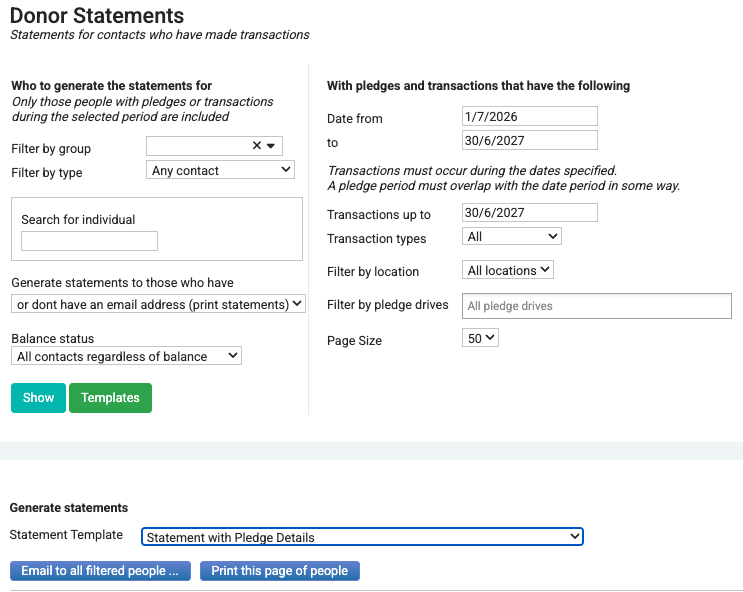
Click or hover on Finance on the main menu bar on the left, then click Donor Statements. On the Donor Statements page, click Templates.
At the top of the page, Finance Templates gives you tabs for Receipt Templates, Statement Templates and Designs, so you can move between them.
You must have a design before you can create a receipt or statement
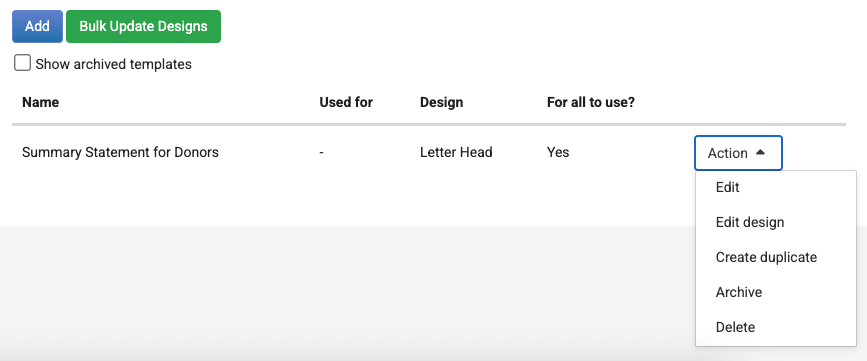
The list shows each statement template with its design and whether it is for anyone to use. It lists the templates that are shared with everyone plus the ones you created yourself, so a private template a colleague created does not appear. Click Add above the list to create a new template. Tick Show archived templates to include archived templates, which carry an Archived label in the list.
Each row has an Action menu, and what it offers depends on who owns the template and what you can do:
- Create duplicate is always available, on every template you can see.
- Edit, Edit design, Archive (or Unarchive on an archived row) and Delete are available on templates you created yourself, and on shared templates when you have the Edit global receipt, donor and income templates permission. Without it, a shared template someone else created offers Create duplicate and nothing else.
That same permission adds a tick box to each row and a Bulk Update Designs button above the list, for setting an alternate design on several templates at once.
Archiving and deleting a template
Archive and Delete are not two versions of the same thing. Archive puts a template aside and you can bring it back. Delete removes it for good. Archived is the preferred method generally.
Archive takes the template out of the list without removing it. Tick Show archived templates to see it again, then use Unarchive on the row to return it to the working list. infoodle will not archive a template that something else still points at: it stops with the message "This template cannot be archived because it is in use by:" and links to the account codes, memberships, stock items or campaigns that use it.
Delete removes the template from your infoodle. It cannot be undone, there is no record of who deleted it or when, and the in-use check does not apply, so a template that Archive would have refused to touch can still be deleted. This should only really be used when you have made a mistake and e.g. you duplicated a template and no long need that duplicate.
Deleting a statement template is permanent. A statement template holds the wording that went out on donor statements, so once it is gone you can no longer reproduce what a donor was sent. Archive the template instead whenever there is a chance you will want it, or its wording, again.
What a statement template contains
Open a template and you will see:
- Name: how the template appears in the template list and in the statement template dropdowns.
- Default design: the paper design the statement prints onto.
- Alternate Design: a second design with a date range. While today's date falls inside that range, the alternate design is used in place of the default. Useful if you want to use a different background to highlight a campaign during a specific period for example.
- Is available for others to use ? makes the template selectable by other users. This is a tick box when you have the Edit global receipt, donor and income templates permission. Without it, the row shows the current setting as Yes or No text instead.
- Header: content repeated at the top of each statement page.
- Body: the main statement content, including the transaction and pledge merge tags.
- Pledge Detail Page: content for an extra page per pledge, covered below.
- Footer: content repeated at the bottom of each statement page.
For the standard template tasks, follow these:
- Add a template design or template design.
- Adding a Statement Template
- Editing a Receipt or Statement Template
- Deleting a Statement Template.
- Use the personalisations available in a statement.
For the difference between a template and the design it prints onto, see Statement Template vs Design.
Adding a Pledge Detail Page
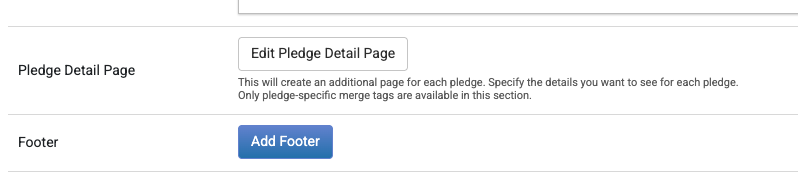
A pledge detail page is optional. It adds a page for each pledge that appears on the statement for that donor. Its helpful to be able to give clearer information about the specific state of a pledge.
See Pledge Detail Pages for more information on how to setup and use a pledge detail page.
Duplicating a template
Create duplicate on a template's Action menu copies the template's content: the Header, the Body, the Pledge Detail Page, the Footer, the default design, the paper size and the margins. The copy takes the original's name with " - duplicate" added, so rename it and edit from there.
Two things do not come across:
- The Alternate Design and its dates are not copied. The copy prints on its default design until you set an alternate design on it.
- If you duplicate a template that is available for others to use and you do not have the Edit global receipt, donor and income templates permission, the copy belongs to you alone and Is available for others to use ? reads No. This is how you get a template you can work on without being given rights over the shared one, and it means other staff will not see your copy in their statement runs.
Common questions
What happens if I leave the Pledge Detail Page empty?
Nothing extra is added. A statement template with no Pledge Detail Page content produces the same statement it always did, so your existing templates keep working exactly as they are.
Can the pledge page be a picture on its own?
No. A Pledge Detail Page holding only a picture counts as empty and no pledge pages are produced at all. Include text or merge tags alongside the image.
Why doesn't my receipt template have a Pledge Detail Page row?
The row is on statement templates only. Receipts cover single transactions, so there is nothing pledge related to put on them.
A donor has one pledge with twelve scheduled payments. How many pledge detail pages do they get?
One. Pages are counted per pledge, not per payment. The individual payments appear as rows within that page when you include the payment list table.
Does my letterhead appear on the pledge detail pages?
Yes. The design the statement prints onto is applied to every page of the finished document, so the pledge pages carry it too, including the alternate design when one is in effect. The Header and Footer content you set on the template does not carry over, so repeat what you need, the donor's name and the statement period in particular, in the Pledge Detail Page content.
A donor has no pledges. Do they get a blank extra page?
No. Pages are generated only for the pledges the statement run selected, so a donor with none gets just their statement.
Why can't I edit a template a colleague set up?
Edit, Edit design, Archive and Delete are offered on your own templates, and on shared templates only when you have the Edit global receipt, donor and income templates permission. Create duplicate is always offered, so you can take a copy and work on that instead.
How do I check the template before I send anything?
Test on a contact who has a pledge dated inside the period you are going to use, not just a contact with transactions. A contact with transactions and no pledge produces a statement with no pledge pages.
- Open the contact's profile, click Finance, then click STATEMENT.
- In the window that opens, pick the template you have been editing from Choose a layout. Nothing is picked for you, so set this before you go on.
- Set the Date period From and To dates so they cover the pledge. Both are required, and the To date has to be after the From date.
- Narrow the run with the Transaction Types and other filters if you want to. This impacts the transactions and pledges that are selected.
- Click Generate.
Next steps
Once the template produces the pages you want, run the statements: see Generating Statements.
Related articles
- Pledge Detail Pages on Donor Statements
- Donor Statement Personalisations
- Generating Statements
- Adding a Statement Template
- Editing a Receipt or Statement Template
- Duplicate a Receipt or Statement Template
- Archiving a Receipt or Statement Template
- Finding Archived Receipt or Statement Templates
- Statement Template vs Design