infoodle enables you to email your Statements either in bulk or one at a time.
For this to occur, three things need to be set up:
- An Active Email
- An Email Template
- A Statement Template
1. The Person Needs an Active Email Address
On their Profile page, ensure there is at least one Email address that is ticked as active.

2. An Email Template for the Email Needs to be Set Up
The person will receive an email from you which indicates that there is a Statement available to view. Contained in the email is a link which when selected, brings them back to infoodle and their Statement. From there they can print or download it.
TFor this to work, you need to create a suitable Statement email with the Merge Tag {receipt link} included in the email content.
infoodle will replace this with the actual link.
For more information, see Create Email Template.
If you do not have a receipt link in your email template you wish to send with your receipts, the email template will not be displayed as an option in your receipts screen.
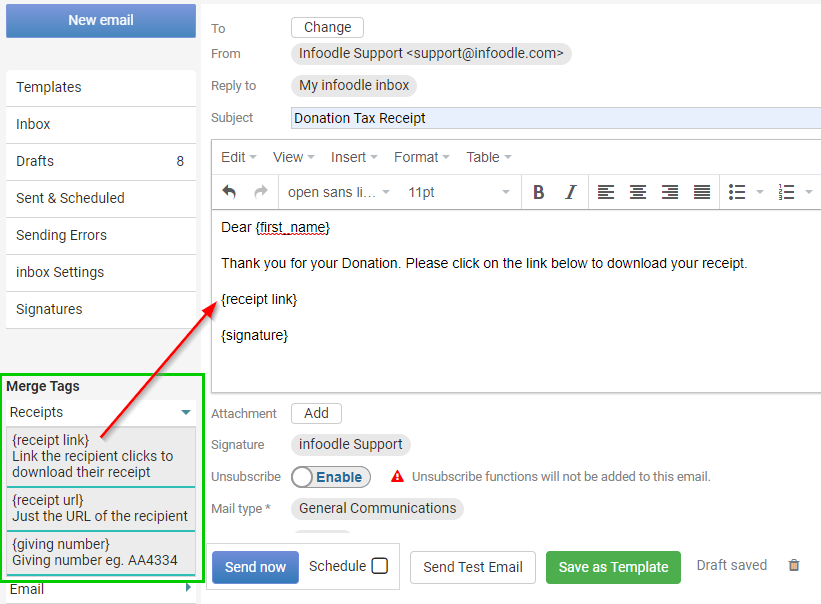
To add the Receipt Merge Tag, place your mouse in the content of the email where you want the receipt link to appear and then click on the {receipt link} tag under the Receipts Merge Tag heading. Select this heading to show the dropdown list of receipt personalisation options.
If using Basic Email, Merge Tags can be found to the left of the email Content Window.
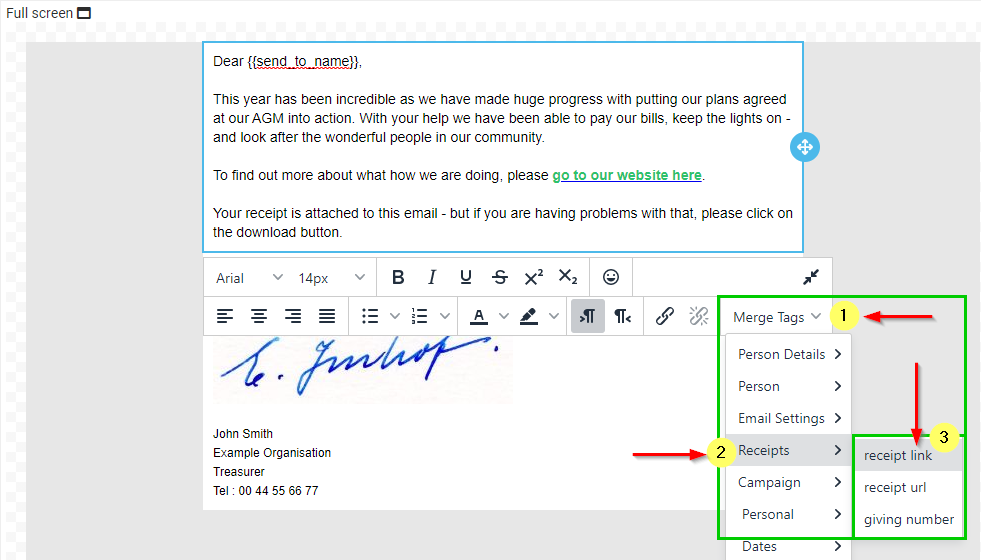
When using the Email Designer, you can access Merge Tags from the drop-down menu of the toolbar when editing a Text Content block.
On the Templates screen, you can find an Example Tax Receipt Email template created using our Email Designer.
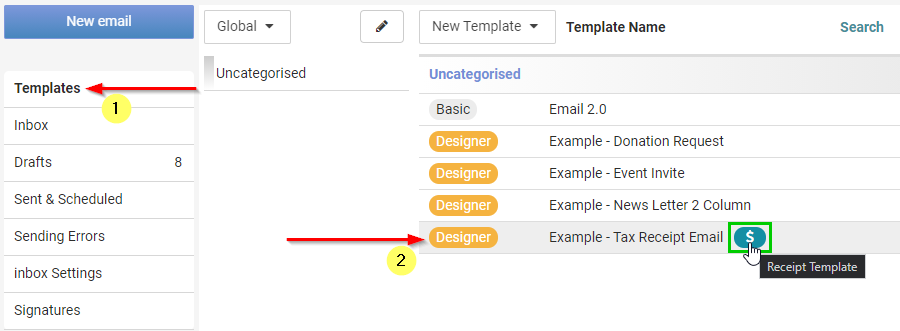
The $ icon indicates it is a Receipt Template. This icon will appear for all email templates that have a {receipt link} Tag.
3. Setting Up a Statement Template
As for other receipting from infoodle you need to establish a receipt or statement template. For information about this, see Statement templates.
Now you are ready to produce the statement. For details, see Generating statements.
What does the recipient see when receiving a receipt by email?
First, they receive your email with the link. It will look something like this:

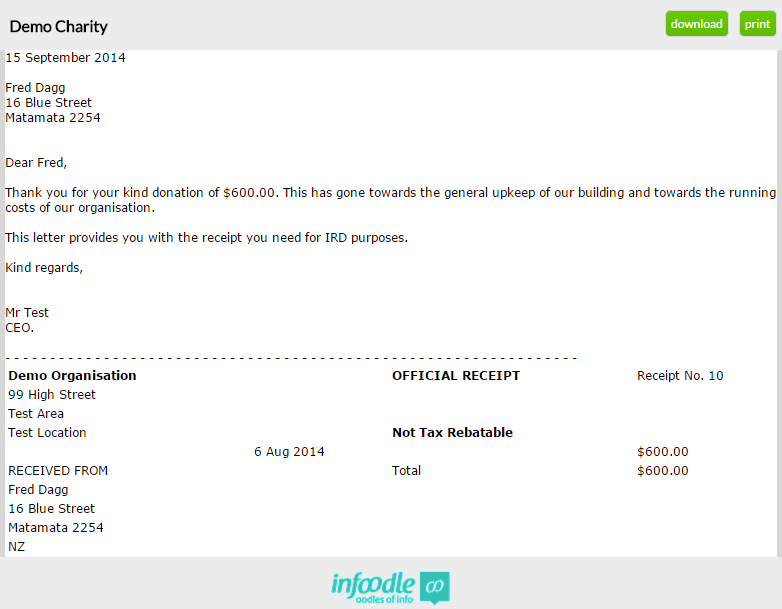
When they select the link, they are taken to a page showing your receipt. For example:
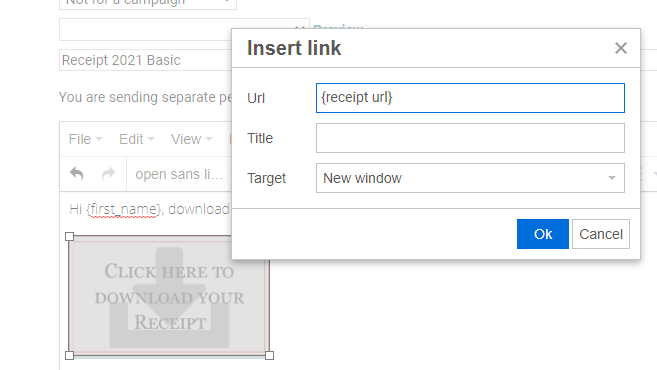
If you are using the Basic Email and would prefer your donors to simply have a 'download' link directly in the email rather than going via the preview screen, then add a suitable image (e.g. an image that shows just the word "Download") and make it a link.
First elect the image, then use the Insert/Edit Link option and enter the {receipt url} merge tag when asked for a URL.
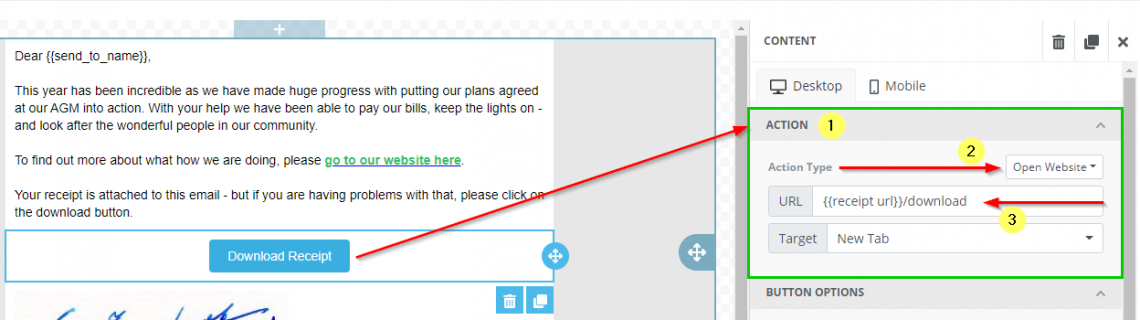
Alternatively, if you are using the Email Designer, you can use the Button or Image content items to create a Receipt Download option.
Go to the Action section of the content settings, set the Action Type to Open Website then add the {{receipt url}} merge tag in the URL field.
If you would like the Receipt to download automatically on clicking the button/image, use {{receipt url}}/download.