The Portal gives each member their own page for every membership they hold. This page will show:
- what the membership covers and when it runs to,
- pay anything still owing,
- spread a balance over instalments,
- change the card it is collected on,
- answer a renewal,
- and rejoin after a membership has ended.
Everything on these screens can be done by the member. They won't need to contact an administrator to manage their memberships.
Before you start
Role Permissions
- Portal access
For more information on roles and specific portal access roles, see the following pages:
About Permission Roles
What the Portal is and how members get access
You will also need:
- A login for your organisation's Portal. Your organisation sends this to you.
- Memberships switched on for the Portal by your organisation. If it is off, the Portal shows no membership pages at all.
- At least one membership. If you do not have one yet, see Joining a membership through the Portal.
Opening a membership
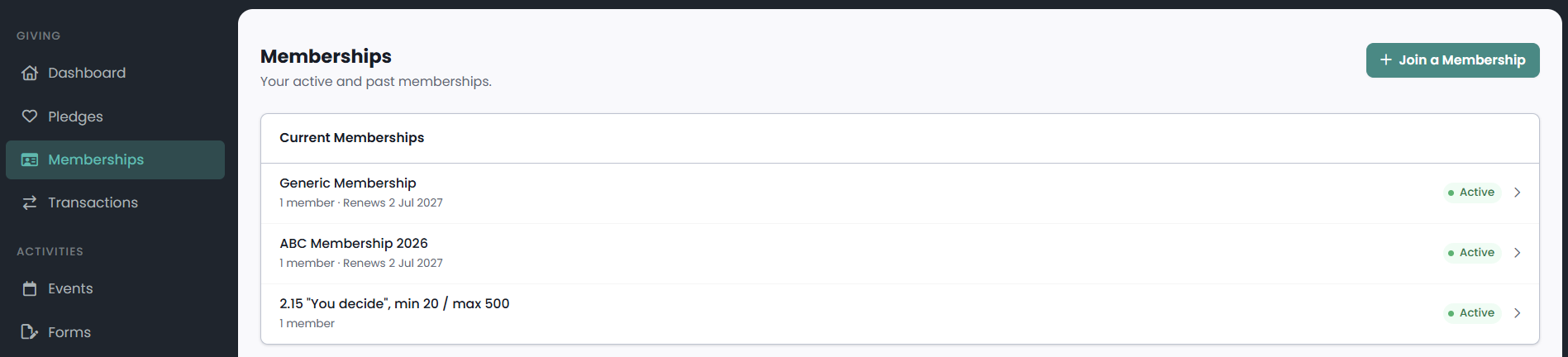
Open Memberships in the Portal menu. Your organisation can rename this menu item, so it may read something else on your Portal. The page lists your current memberships first and your past ones below, each with its name, how many people it covers and a status badge.
Select a membership to open its own page. From there, Back to Memberships returns you to the list.
You can open a membership when any of the following is true:
- You hold it: you are the person who took it out.
- You are named on it: the membership covers you by name.
- It belongs to your household: the membership was taken out in your household.
What the membership page shows
The status badge
The name of the membership sits at the top of the page with a badge beside it. There are six states:
| Badge | What it means |
|---|---|
| Active | Paid and inside the current period. |
| Pending | Recorded, with the payment still to come. |
| Grace | The period has ended, and you are inside the grace window your organisation allows. You still count as a member. |
| Failed | A payment attempt did not go through. |
| Lapsed | The period and the grace window have both run out. |
| Cancelled | The membership was ended, or a renewal was declined. |
A second badge, Payment awaiting confirmation, appears while a payment is with your bank or card provider. Direct Debits take a few working days to settle, and the membership reads as Active while that happens.
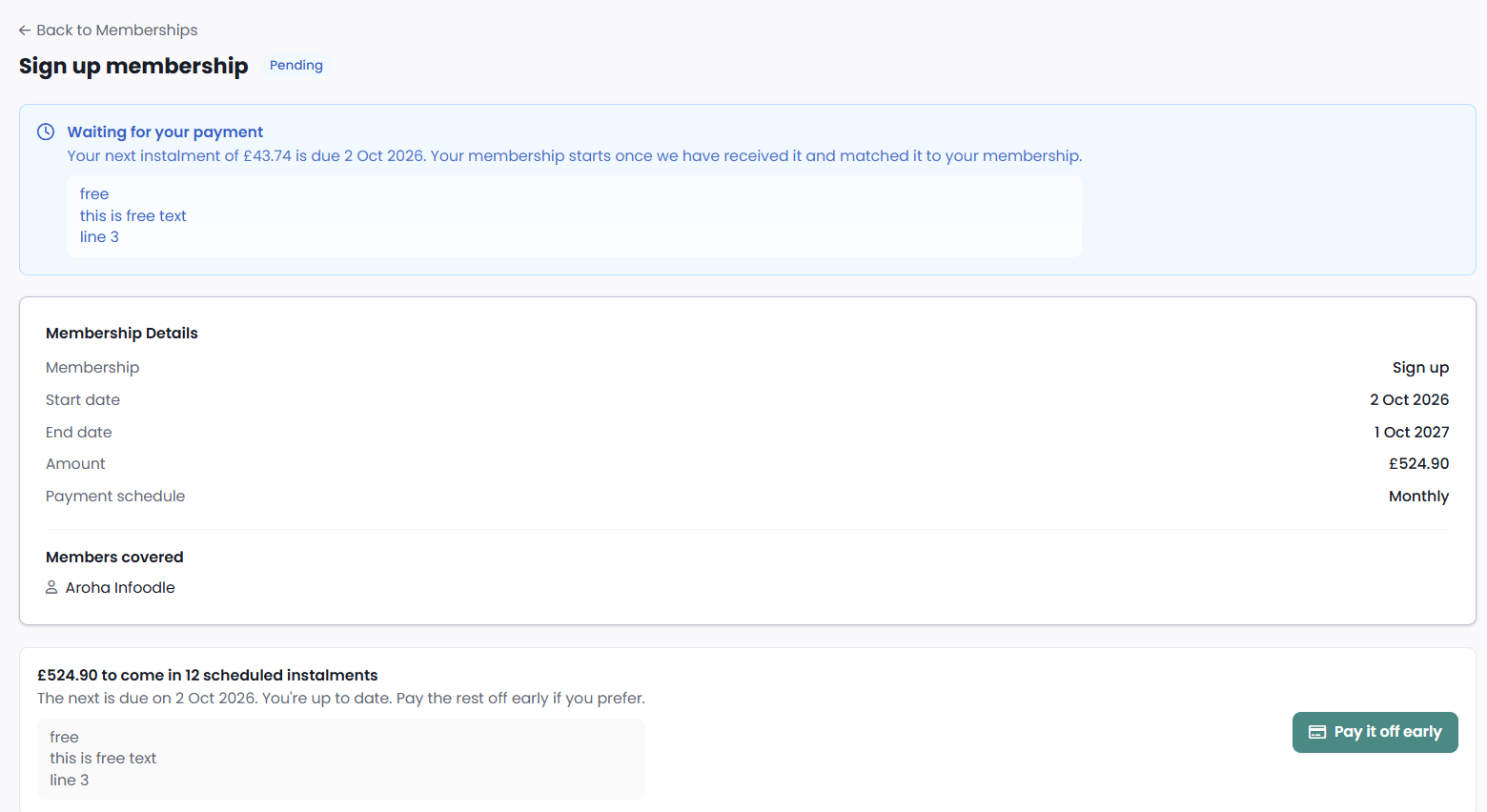
Membership Details
The Membership Details card holds the facts of the membership:
- Start date: the first day of the current period.
- Renewal date: the day the next period begins, on an active membership. This is the day after the current period's last day, so it is one day later than the end date.
- End date: the last day this period covers. Shown in place of the renewal date once the period has ended, and on a membership that is not active.
- Amount: the agreed fee for the period. If you chose your own amount when you joined, it is marked as your chosen amount.
- Payment schedule: how the fee is split across the period, for example Annual or Monthly.
- Renews: either Automatically, or We'll ask you first. Shown on an active membership. This comes from how your organisation set the membership up, not from anything you can change here.
Members covered lists everyone the membership covers, by name.
Breakdown
The Breakdown card lists the lines the fee was built from: a line for each person or rate, a line for each add-on, and any discount as a negative amount. Total at the foot is the agreed amount.
If you set your own amount, the calculated fee is still listed, struck through and marked as replaced by your chosen amount, so you can see what it stood in for. It is not counted in the total.
 {height="" width=""}
Paying an outstanding balance
While anything is owed, a card on the membership page shows the amount and a Pay now button. Select it to open the payment page, which you can also reach from View balance when there is nothing for you to do yourself.
Only the person who holds the membership can pay it. Anyone else who can see the membership sees the balance and is told that payments come from the account of whoever set it up.
Step 1: Check the balance
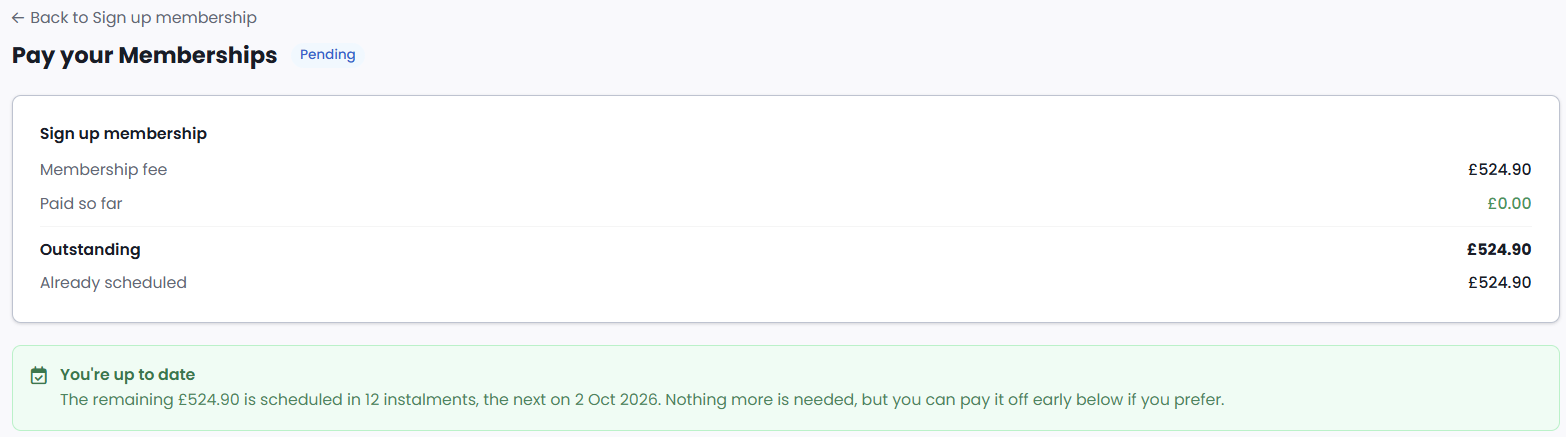
The payment page opens with the figures:
- Membership fee: the agreed amount for the period.
- Paid so far: what has been collected. Shown once the membership has a payment plan behind it.
- Outstanding: what is still owed.
- Already scheduled: the part of the balance that is planned on future instalments.

If the membership has no payment plan and something is owing, the page also notes that a payment made by cash, cheque or bank transfer may not be showing yet, because the office records those.
Step 2: Choose the method
The Payment method card lists every method saved against your Portal account. A method a membership cannot be collected on is listed with the reason and cannot be selected, so a card that has expired stays visible rather than quietly disappearing.
If you have no method saved, or none that this membership can be collected on, the card offers a button to add one and takes you to the Portal's Payment Methods page. The paying controls appear once you have a usable method saved.
 {height="" width=""}
Select the one you want and choose Use this method from now on. It applies to this payment and to every payment after it. Payments already taken are not affected. If the membership is restricted to particular payment methods by your organisation, only those are offered.
See more on managing payment methods
Step 3: Pay
Under Make a payment, the Amount box opens at the full outstanding figure. Pay full balance resets it to that figure, and you can type a smaller number to pay part of it. Choose Pay now and confirm the amount.
Paying replaces anything still planned on the membership, so you are not charged twice. If you pay part of the balance, the rest stays outstanding for you to pay when you are ready.
Two rules narrow this:
- On an instalment plan, part payments are refused. Pay the whole remaining balance to settle the membership now, or leave the instalments to collect as arranged.
- While a payment is being confirmed, nothing else can be taken. A payment already with your provider settles in a few days, and paying again in the meantime would collect the same money twice.
Spreading a balance over instalments
If your organisation allows it on that membership, a Spread it over instalments card appears under the payment card while a balance is owing that your scheduled instalments do not already cover.
Set Number of instalments and choose Set up instalments. A line under the box shows what each payment will be before you commit, and the confirmation box repeats the count. The first instalment is taken straight away, and the rest are collected monthly on their dates.
The count has a floor and a ceiling:
- At least 2. One payment is not a split, and the page will not accept a lower number.
- At most the monthly dates left inside the membership's term. Payment is always in advance, so the last instalment has to fall on or before the day the membership ends. The page tells you the ceiling and the date it comes from, and the box will not go higher.
- Up to 12 on a membership with no end date. A lifetime or open-ended membership has no term to finish inside, so 12 is the limit.
A membership that has passed its end date but is still inside its grace window offers 2, so a balance left over can still be spread.
Changing the payment method
The card a membership is collected on can be changed at any time, not only while something is owing. When the balance is clear, the membership page carries a Payment method card with Change payment method, which opens the same payment page.
Changing it applies to this payment and to every payment after it, including the next renewal. Instalments already planned move to the new method with it. Payments already taken are not affected.
Choosing a card also takes the membership off manual collection: future payments, including renewals, are collected on that card from then on. Anything already outstanding you still pay yourself, from the payment page.
Confirming or declining a renewal
A membership that renews only when you say so opens its next period and then waits. The membership page carries Your renewal is ready, with the amount and the date the new period starts.
- Confirm renewal accepts it. The payment is not taken there and then: it is collected on or after the day the new period starts, from the payment method saved against the membership. A renewal with nothing to pay becomes active on the day the new period starts, once you have confirmed it.
- Decline lets the current membership run to its end date and closes the new period. It costs nothing and takes nothing.
Confirm renewal is offered only to the person who holds the membership, because the renewal is charged to their saved payment method. Anyone else in the household who can see the membership is offered Decline only, and the page tells them they can decline on the holder's behalf. If the holder has no Portal login of their own, the renewal cannot be confirmed in the Portal at all, and the office has to be asked to handle it.
A membership that renews automatically shows This renews automatically instead, with the amount and the date. Where the membership is collected on a saved card, nothing is asked of you. The holder can still change the payment method before that date, and anyone in your household who can see the membership can cancel it.
Grace, Failed and Lapsed
Grace: the period has ended
When the period's end date passes, a membership moves to Grace for as many days as your organisation allows. The page reads Your membership period has ended and tells you that you are still fully a member for now, and the date the grace window runs out.
You have three ways out, and the page offers them together:
- Renew now takes you into the join screen for the same membership, where you pick up a new period.
- Cancel membership ends it straight away.
- Do nothing, and the membership ends on its own when the grace window closes.
Anything still owed for the period you had can be paid as normal while you are inside the grace window. Settling it clears that balance. It does not start a new period: Renew now is what does that.
If the membership is no longer offered by your organisation, there is no Renew now button. The page says so, and offers a message to the office instead.
Failed: a payment did not go through
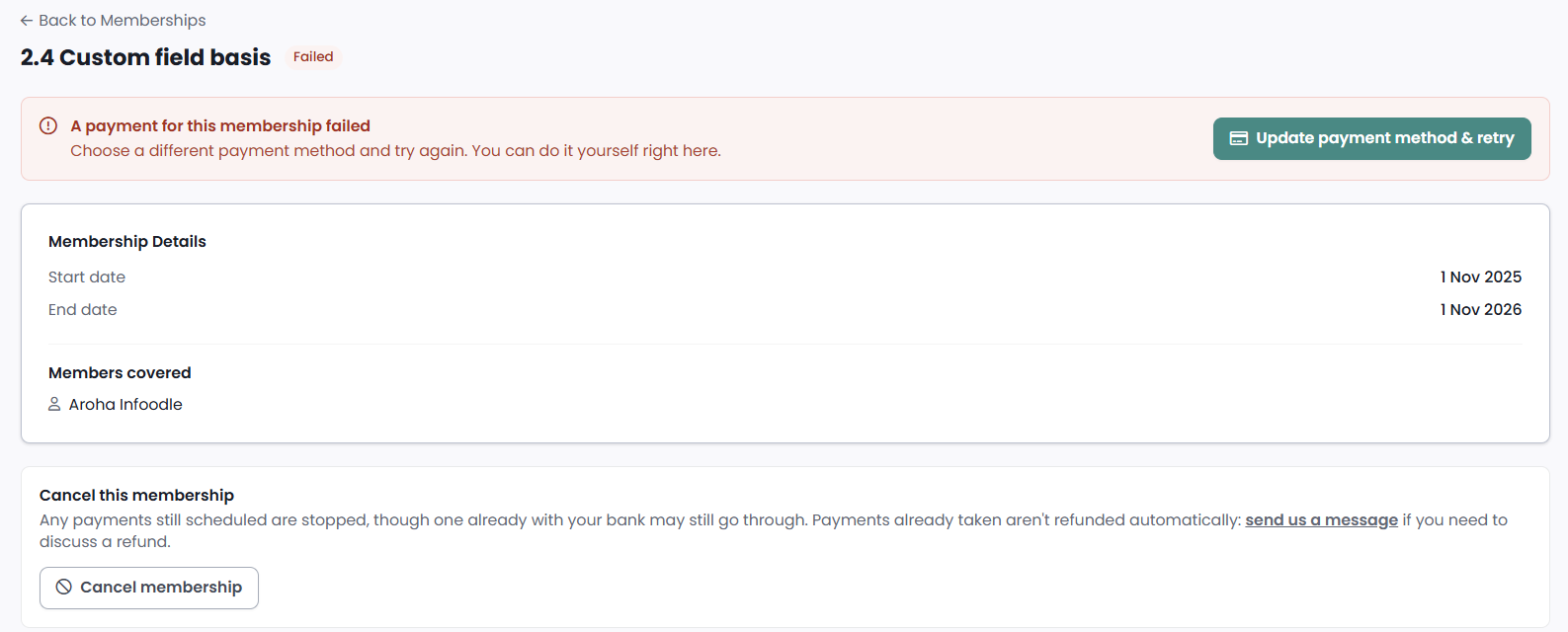
A charge that is declined puts the membership into Failed, and the page reads A payment for this membership failed with the reason the provider gave. Your organisation is told at the same time you are.
The rest of the payment plan stops with that attempt: instalments still planned on the membership are cancelled, and no more are collected until the membership is put right. An instalment already handed to your payment provider settles in the normal way.
If you hold the membership, Update payment method & retry takes you to the payment page, where you pick a different method and pay. A successful payment clears the failure: the membership becomes active again if the balance is settled and the period still covers today, and goes back to Pending if there is more to pay.
If you do not hold the membership, the page names the person who does and tells you the email about it went to them.
Lapsed: the grace window has run out
Once the grace window closes, the membership becomes Lapsed and moves to the past memberships on your Memberships page. A membership in Failed lapses the same way once its period and grace window have both run out.
Once a membership has lapsed, the Portal no longer offers you a way to pay it. The membership page can still show a balance left from the period you had, with a Pay now button, and the payment page then shows the figures and none of the paying controls. To settle a balance left on a lapsed membership, contact your organisation. To become a member again, use Rejoin.
Rejoining
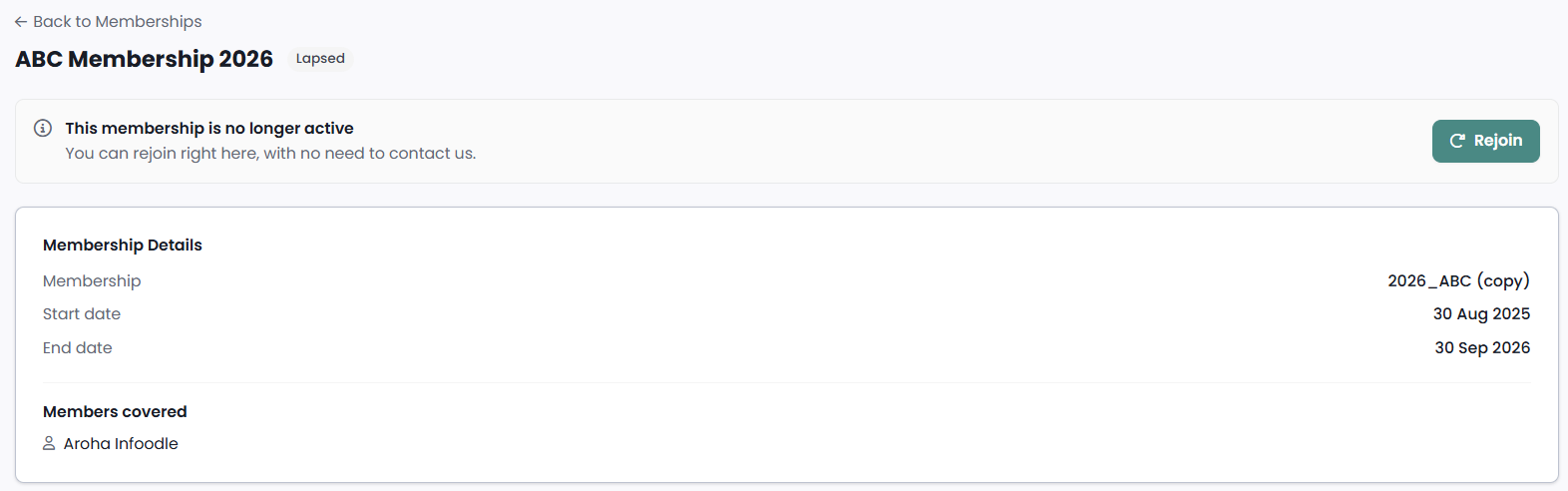
A membership that has lapsed or been cancelled carries This membership is no longer active and a Rejoin button. Choosing it opens the join screen for the same membership and starts a fresh period. You do not need to contact anyone.
The only case where Rejoin is not offered is a membership your organisation no longer offers. The page says so, and offers a message to the office instead.
 {height="" width=""}
Cancelling a membership
While a membership is live, the page carries a Cancel this membership card. Choosing Cancel membership asks you to confirm, then ends the membership.
Cancelling is open to your whole household. Anyone who can see the membership can cancel it, not only the person who holds it, and the person who holds it is emailed when it happens. Confirming a renewal is the other way round: only the holder can do that.
- Instalments still planned on the membership are cancelled.
- An instalment already handed to your payment provider settles in the normal way. There is no way to stop it from the Portal, so send the office a message if you need it looked at.
- A next period that has already been opened is cancelled with it, so a renewal you had confirmed does not go ahead.
- Payments already taken are not refunded automatically. Send the office a message to discuss a refund.
- Cancelling cannot be undone from the Portal. To start again, rejoin.
Cancel membership is not offered while a renewal is waiting for your decision. Decline is the control for that, and it ends only the next period rather than the one you are in.
 {height="" width=""}
Common questions
Why does my membership say Active when I have just paid by Direct Debit?
A Direct Debit is accepted at the time you pay and settles over the next few working days. The membership reads as Active with a Payment awaiting confirmation badge while that happens, and the badge clears once the money lands.
Why can I see a membership but not pay it?
Paying, changing the payment method and confirming a renewal are all charged to the saved method of the person who holds the membership, so only they are offered those controls. Everyone else who can see the membership can read the balance, and can decline a renewal.
Cancelling is different. Anyone in your household who can see the membership can cancel it, and the person who holds it is emailed when that happens.
Why is there no renewal date on my membership?
A lifetime membership, and one set up with no expiry, has no end date. It never reaches a renewal, never goes into grace and never lapses. Its payment schedule is a single payment whatever frequency was chosen, and the instalment ceiling is 12.
A membership with no expiry is not necessarily free of charge. The rates set by your organisation still apply.
My renewal has not opened and nobody can tell me why.
A renewal is priced for everyone the membership covers. If any one of them cannot be priced, for example because they have aged out of the rate that covered them, the whole renewal is refused rather than opened at a price that leaves someone out. Your organisation is told once, and the renewal is retried each night until it can be priced.
What happens if I do not pay a new membership at all?
A membership that stays unpaid is chased, and is given up on after 30 days. It is marked as cancelled rather than lapsed, because it never started, and you are told you can join again.
Can I pay by cheque or bank transfer?
If your organisation offers a manual method, the membership page shows Waiting for your payment with the payment instructions, and the membership starts once the office has received and recorded the money. Choosing a card on the payment page moves the membership off manual collection.
Next steps
If a membership has ended and you would like to start again, or you want to take out a different one, see Joining a membership through the Portal