Use Assets Reports to track and analyse asset records in infoodle. Filter assets by status, category, location, and other properties; select which data fields to display; and then view, download, or process the results.
How to Create an Asset Report
Step 1: Create Criteria
- Click Reports in the main menu
- Click Assets under Report Areas
- Click the Create Criteria tab
- Click Add criteria
- Select the field to filter by (e.g., "Status", "Category", "Location")
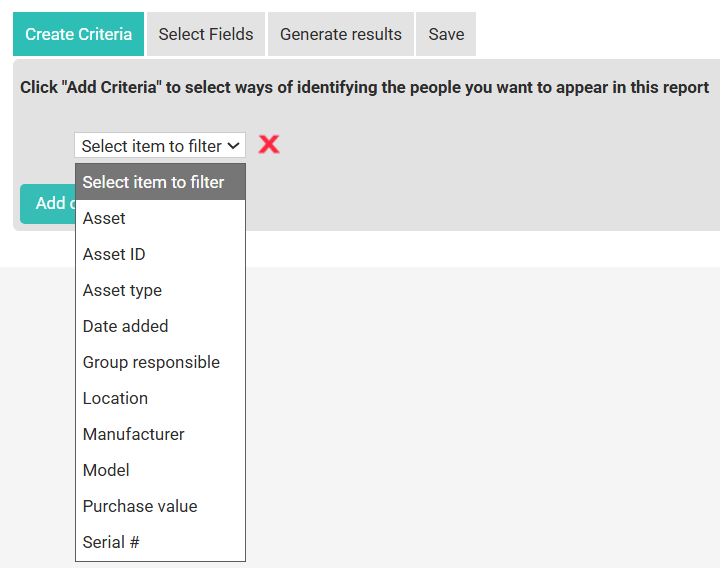
- Select an operator (e.g., "equals", "contains", "is greater than")
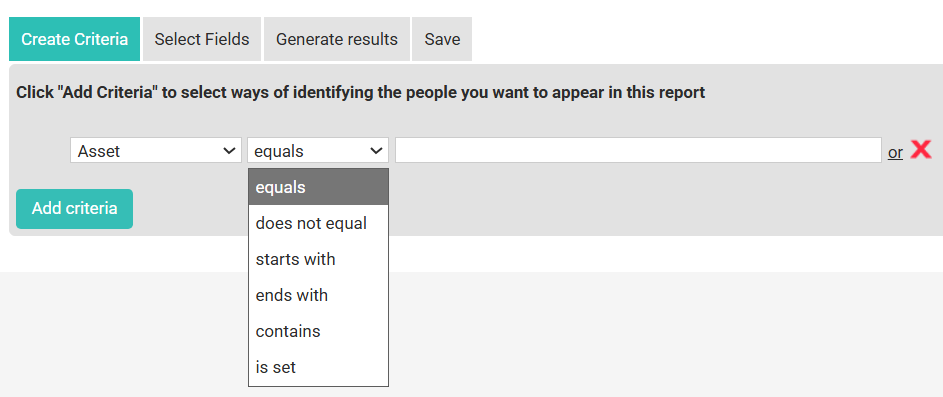
- Enter or select the value
- Click Add
- Repeat to add more criteria
Step 2: Select Fields
- Click the Select Fields tab
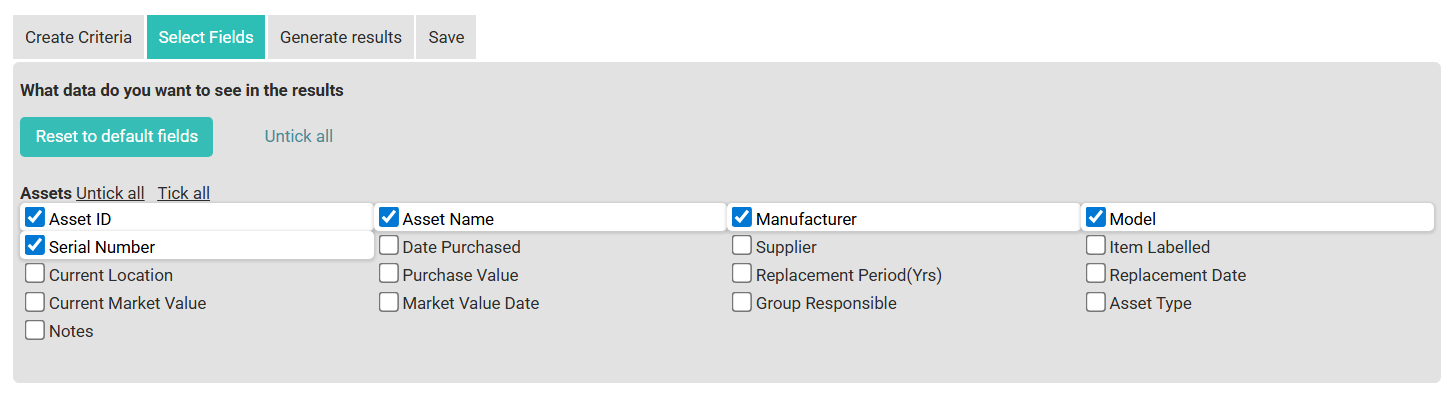
- Check the boxes next to the fields you want to include — fields are organised by category:
- Asset — Name, code, description, serial number
- Status — Current status, condition
- Category — Asset category or type
- Location — Where the asset is stored or used
- Owner/Assignment — Who owns or is responsible for the asset
- Dates — Purchase date, last serviced, warranty end
- Value — Cost, current value, depreciation
- Custom fields specific to your site
Step 3: Generate Results
- Click the Generate Results tab
- Your results will appear in a table
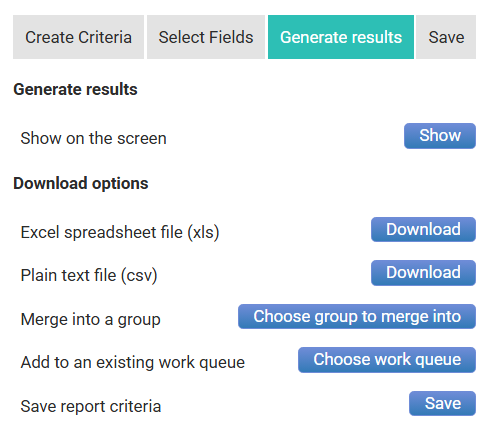
- From here you can:
- Export to Excel — Download as .xlsx
- Export to CSV — Download as plain text
- Merge into a group — Add all results to a group
- Add to a work queue — Assign results for processing
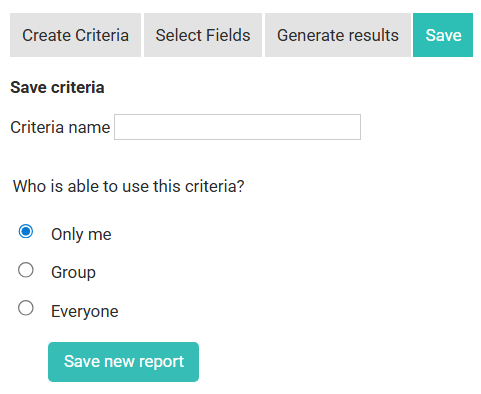
Step 4: Save Criteria (optional)
- Click the Save tab
- Enter a Name for this saved criteria
- Enter a Description (optional)
- Set Access:
- Private — Only you can access it
- Public — All users with report permission can access it
- Click Save
Tips
- Criteria are temporary by default — Save criteria you'll use regularly so you don't have to rebuild them each time
- AND logic — Multiple criteria all work together (all must match for a record to appear in results)
- Test before processing — Always view your results first before merging into a group or sending emails
- Grouping affects row counts — Grouping by household produces fewer rows than grouping by individual
- Finance criteria requires Finance Package — Finance filters only appear if your site has the Finance Package enabled
- Assets requires Assets Package — Assets Reports only appear if your site has the Assets package enabled
Related Articles