Start by clicking '+ New Report' on the top right of the report screen. This will present your default set of fields for you to specify settings for.
Report Settings:
The primary settings you will need to configure are the Report settings
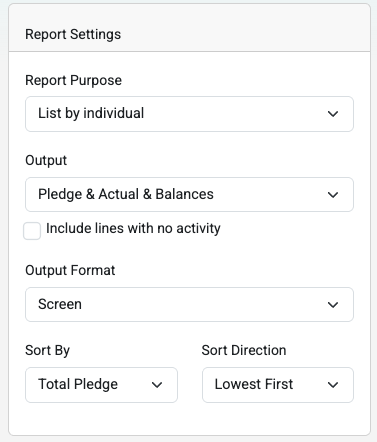
- Report Purpose - Tells the report how to summarise the report. Note that you can add up to 2 more 'List By' options in the Configuration screen
- Output - You can choose whether to put out all three items or just one of Pledge, Actual or Balances. In general you would exclude those individuals or campaigns (from the purpose option) that have no activity, or you can choose to include them here by ticking the option to include lines with no Activity.
- Output Format - Here you can choose to generate the report output to be displayed on screen, or choose to have it downloaded to your device in either CSV or Excel file format
- Sort By and Sort Direction - Choose how the screen and exports are sorted.
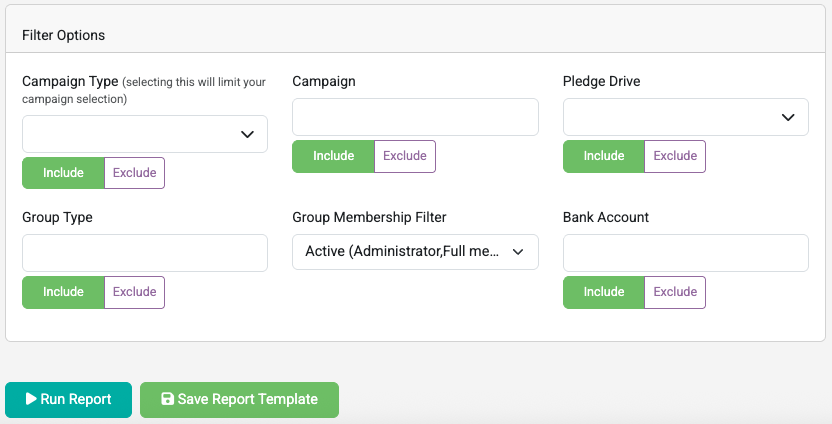
Click here to see the explanation below of each of the available fields on your screen.
Generating/Saving the Report
Once the settings have been configured, you can then click the Run Report option to output the Report in the specified format. You can also click Save Report Template to save the current settings for future use by yourself or other users.
 {height="" width=""}
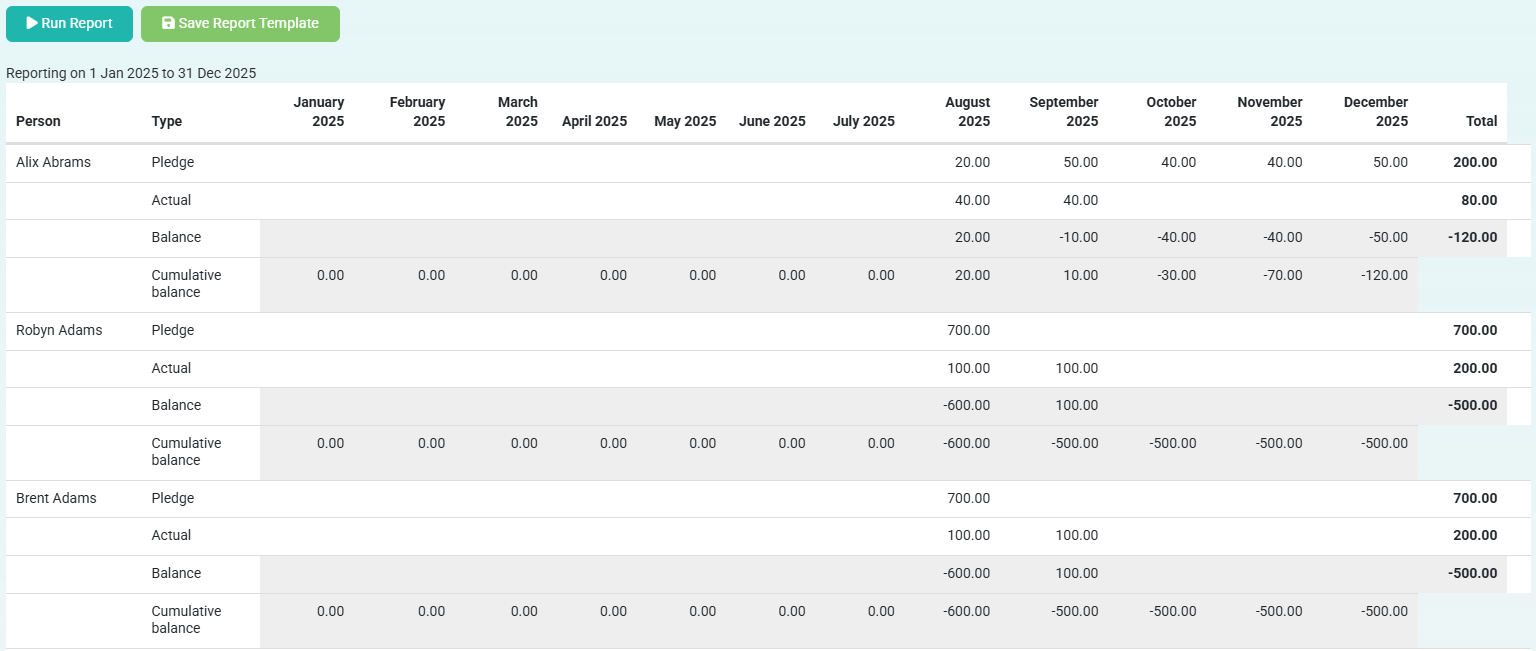
The report output includes a breakdown as per the requested settings - separated by month. Included are balances, cumulative balances and differences to quickly identify anomalies in data together with the ability to forecast projected income. Below is an example report generated to display on screen but these reports can also be exported to Excel or CSV files.
 {height="" width=""}
Saving Reports
When choosing to save the Report template, this will save it with all the current Configurations and settings, and you can give the report a Unique Name as well as a Description. You can also choose to save this report as a Personal report just accessible for your user login, accessible for a select Group of Users, or accessible Globally to all users with the ability to run Pledge vs Actual Reports.
Note that any report you can run can be used as a basis for a new report. You can edit the configurations and save as a new report according to your permissions. You can only update a report if you have permission to do so.
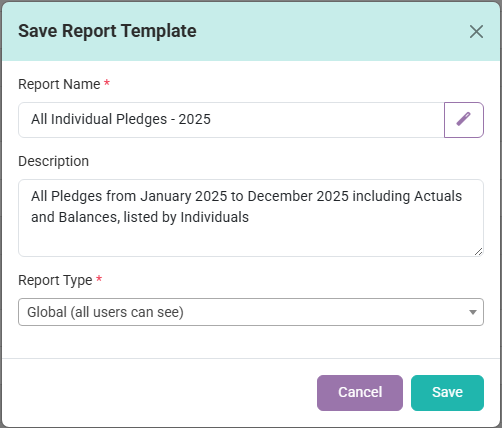
If using a Previously saved Pledge Vs Actual Report, you have the options to save any changes made, choosing to either Update Report Template or to Save as New Template
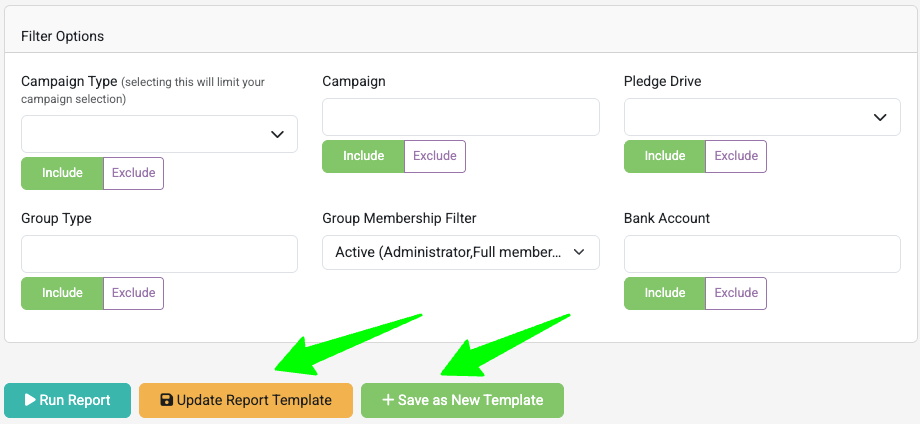
When saving new reports and updating existing reports the following restrictions apply:
- Personal Reports - Any user (with access to Finance Reports) can use this to create/update their own reports. The saved report is restricted to just the user to see and use.
- Group Reports - To Save to, and Update a Group report, you need to be administrator of the group or have the 'Maintain all groups' role permission.
- Global Reports - To Save to and Update a Global report, you need to have the 'Manage finance configurations' role permission.
If a user does not have access to Update an existing report they can still save a copy as a new template, in line with the access the user has for saving reports.