Editing a transaction connected to a pledge
If the transaction is linked to a pledge then this is shown to you in the 'Outstanding Form Entries & Pledges' box
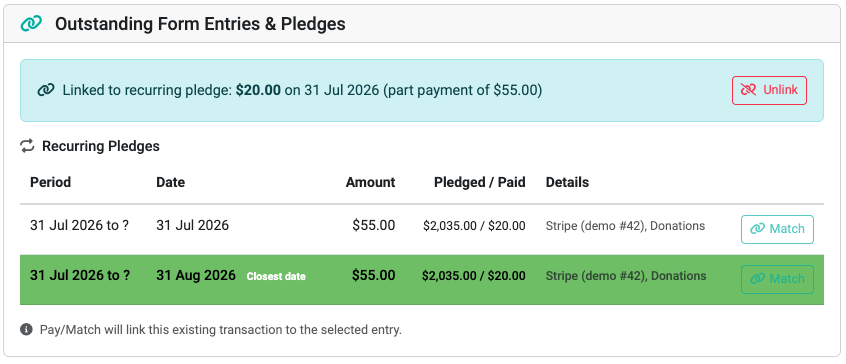
Click 'unlink' if this is an incorrect match.
Below this the pledge panel is shown to allow you to alter the allocation or pledges that have been used to allocate the transaction.
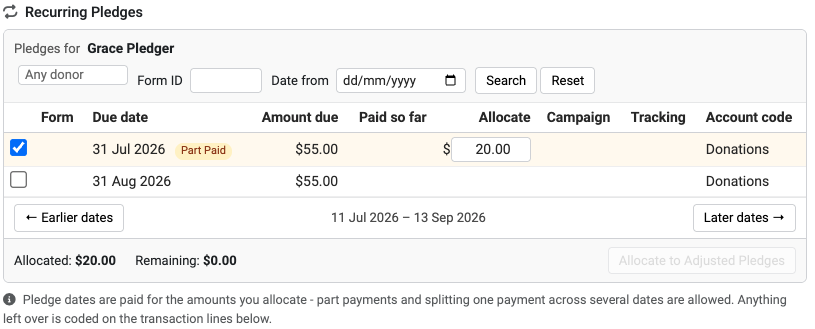
A list of pledges and memberships that are in the date range for the donor currently selected is shown so that you can select which ones to pay and how much to allocated against each one.
Lastly - if there is any remaining transaction amount to allocate e.g. for a donation that is added to a membership, then use the Transaction Lines below.
What you can and cannot change when editing
| Change | What happens to the pledge dates |
|---|---|
| Note, Date, Payment method or Reference number | The pledge dates stay paid. |
| The amounts on ticked dates, or which dates are ticked | The pledge dates are paid again from what you tick. See Change which dates are paid. |
| Total Amount, with the extra on a transaction line | The pledge dates stay as you have ticked them, and the rest goes on the lines. |
| Who presented this transaction | The pledge dates are cleared. See Reassigning a transaction to a different person. |
| The account code, campaign or tracking of the pledge money | Not possible here. Pledge money takes its account code and tracking from the pledge (or membership product), and its campaign from the pledge if it has one. A processing fee line takes the fee's account code from the form. |
| More on a date than it still owes, or more than the Total Amount | The panel does not allow it. Allocate is reduced to the most the date can take. |
Change which dates are paid
Use this to change the amount on a date, stop paying a date, move the payment to a different date, or spread it across more dates.
- Open the transaction from the Transaction List with the pencil icon.
- Go to the Recurring Pledges panel in Transaction Details.
- Untick any date the payment should no longer pay.
- Tick each date the payment should pay. Use Earlier dates or Later dates to reach dates outside the list.
- Check the amount in Allocate on each ticked date.
- Change the Total Amount if the payment itself was a different amount.
- Check that Remaining shows $0.00, or that the rest is on a transaction line with a Coding.
- Click Save Transaction.
Nothing is written until you click Save Transaction. When you save, infoodle takes this transaction's money off every date it paid, then pays the dates you ticked, for the amounts you allocated. Money from other payments on those dates is not changed, and nothing is counted twice. If the pledge came from a form, the form's paid total and payment history follow the change: the old amount is taken off and the new amount is recorded.
What you see as you change the ticks:
- Lower the amount on a date: the difference moves onto Transaction Line 1. Choose a Coding for it. After saving, a date that is no longer paid in full shows as Part Paid.
- Untick a date: its money moves onto Transaction Line 1. After saving, the date reopens for payment and the money is an ordinary coded line.
- Tick a date again: Transaction Line 1 empties itself and is removed when you save. The Total Amount does not change.
For example, Iris's $40.00 payment put 25.00 on her 25 Jul date and 15.00 on her 25 Aug date, both $40.00 instalments. The payment was really $55.00, with the extra $15.00 meant for 25 Jul. Change the Total Amount to 55.00 and raise Allocate on 25 Jul to 40.00. After saving, 25 Jul shows as Paid (matched) and 25 Aug is still Part Paid.
For how to tick dates and set amounts in the panel, see Adding Individual Transactions. For what each status means, see Pledges & Recurring Payments.
Unlink a transaction from its pledge dates
Unlink takes the transaction off every pledge date it pays, and keeps the money as ordinary transaction lines. It saves as soon as you confirm it and reloads the screen, so do it before you make any other changes.
- In Outstanding Form Entries & Pledges, click Unlink.
- Read the confirmation. When the transaction pays several dates, it says so, for example: "This will remove the link between this transaction and the recurring pledges it pays - all 2 of them. The transaction itself will not be deleted."
- Click Yes, Unlink.
The screen reloads. The pledge money now shows as transaction lines, with the same amounts and the same Total Amount, and the banner has gone. You can now make any other changes and click Save Transaction, or leave the screen.
Each date then goes back to what its other payments justify:
- No other payment on the date: it goes back to Planned, or Date passed if the date has passed.
- Another payment also pays the date: that payment's money stays. For example, Henry's 15 Aug date is part paid by a $40.00 payment and a $50.00 payment. Unlinking the $50.00 payment leaves 15 Aug as Part Paid with $40.00 paid.