The Transaction List brings together the financial transactions recorded in infoodle. You can search, filter, sort and customise the columns to find exactly the transactions you need.
The list shows the transactions your role lets you see, so a role that is limited to your own groups sees the transactions for those groups rather than every transaction on your site.
Everything on this page changes only what you see. Filtering, sorting, adding a column and opening a transaction's detail popup all leave the transactions themselves unchanged.
Before you start
Role Permissions
Any one of these role permissions lets you open the Transaction List:
- Manage, Read and report on transactions
- Manage finance configurations
- Read and Report on Transactions
For an explanation of what each finance role permission does, see Finance Permissions.
How to view transactions
- Click or hover on Finance on the main menu bar on the left, then click Transaction List.
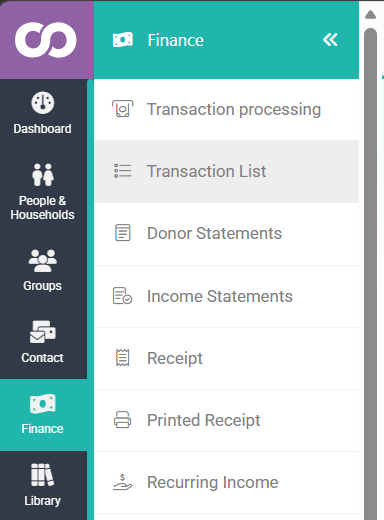
- The Transactions page opens, listing the transactions recorded on your site.
- Narrow the list using the filter buttons above it: Date, Name, Amount, Account Code and Batch.
- Click More filters to filter on any other column, for example Payment Method, Type or Location.
- Click a column heading to sort the list by that column.
- Click the heading again to reverse the order.

You can also reach the Transaction list by going to Finance → Transaction processing → Transactions → Find
Seeing more detail on one transaction
Each row has an eye icon that opens a detail popup over the list. The popup gathers what is recorded against that one transaction in one place, without you leaving the list: the transaction type, the payment method, the campaign, the location and the receipting settings.
Opening the popup needs a role permission that can view transactions, which means Manage, Read and report on transactions or Read and Report on Transactions. Manage finance configurations on its own opens the list but not the popup, and the popup reads You do not have permission to view this transaction. instead of the details.
- Find the row for the transaction you want.
- Click the eye icon. It is the first icon in the group of buttons at the right-hand end of the row, and hovering over it shows the label View details.

- Read the details in the popup. Its heading is Transaction # followed by the transaction's ID number.
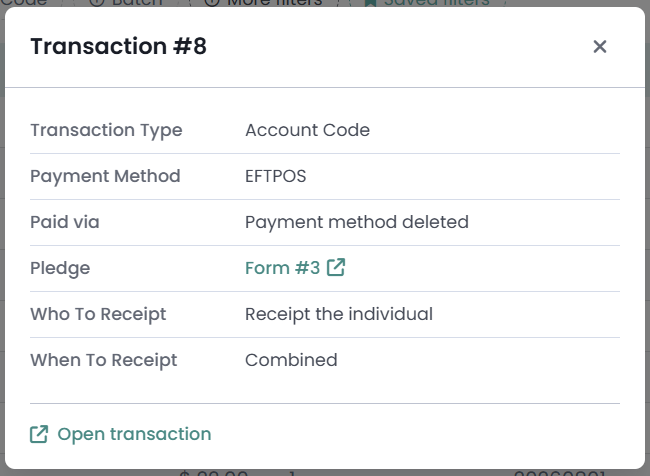
- Click Open transaction at the foot of the popup to open the full transaction page in a new tab.
- Click the X in the top right of the popup to close it and go back to the list. Pressing Escape or clicking outside the popup also closes it.
How many icons sit in that group depends on your role and on the transaction, so you may see one, two or three. Hovering over each one names it: Edit Transaction opens the transaction for editing, and Audit Trail shows its change history.
The popup only shows the fields this transaction has a value for, so the rows you see change from one transaction to the next. For a full list of the rows it can show, see the Transaction Detail Popup (the Eye Icon) article.
Opening the full transaction
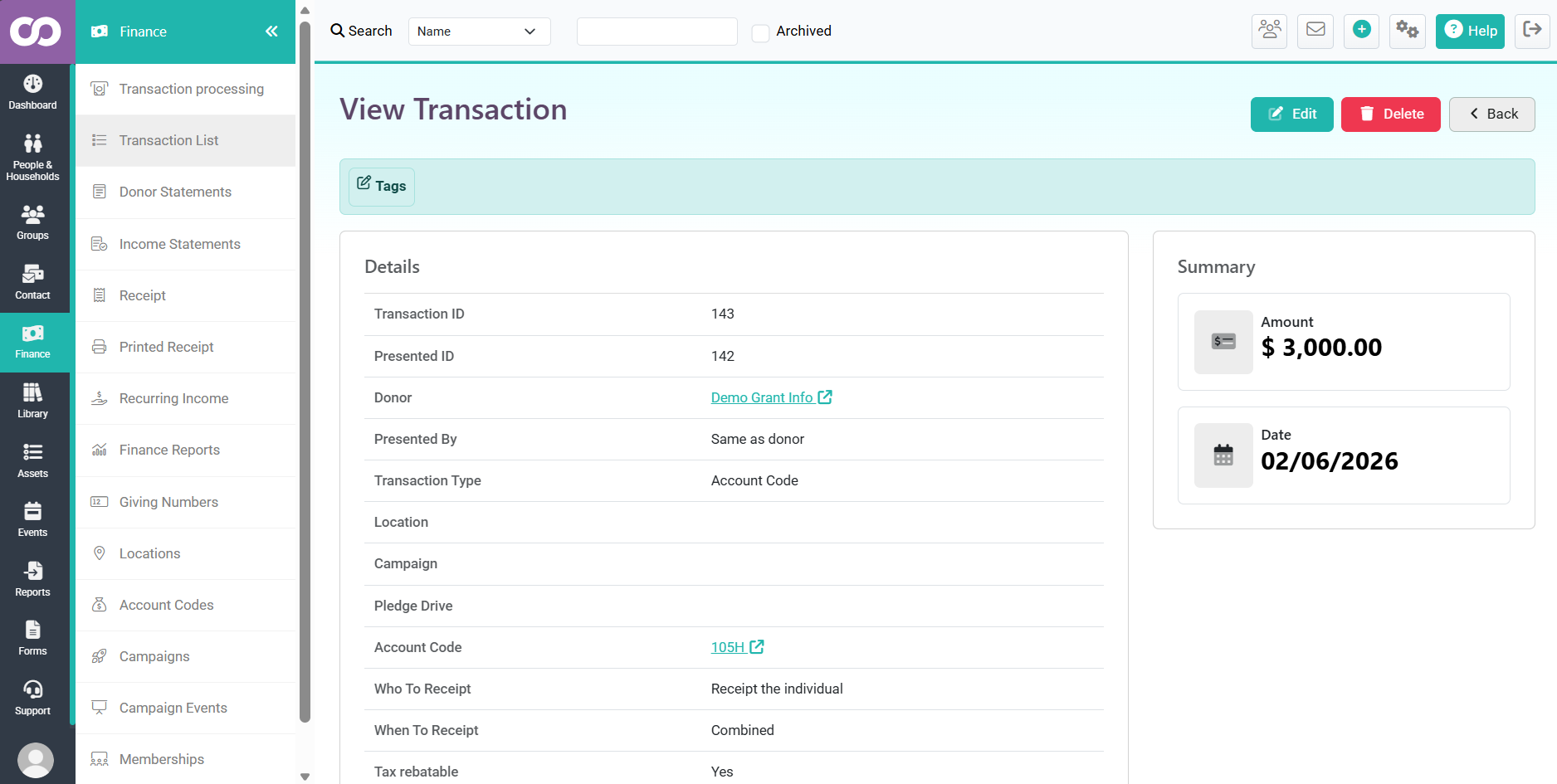
Click any of the transaction's details in the row, rather than the eye icon, to open the full transaction page. Some cells link to their own record instead, for example Batch. From the full transaction page you can see everything recorded against the transaction and edit it if your role allows.
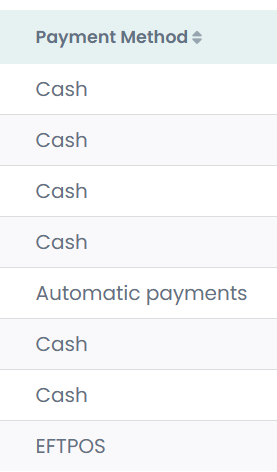
Adding the Payment Method column
The Payment Method column shows how each transaction was paid, for example Cash, Cheque or Direct credit. It is not one of the columns you get to start with, so add it yourself.
- Open the Transactions List page.
- Click Edit columns above the list.
- Find Payment Method in the Available columns part of the panel.
- Tick Payment Method.
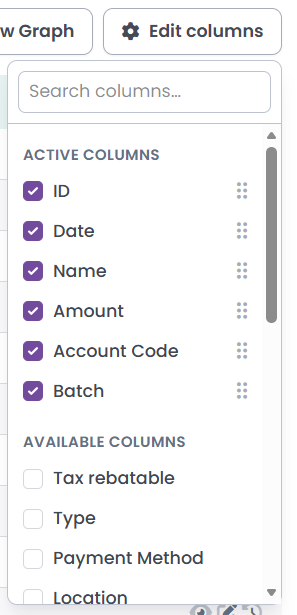
- Click Edit columns again to close the panel, or click anywhere outside it.
The column appears in the list straight away. infoodle saves your column choice against your login rather than against the browser, so Payment Method is still there the next time you open the list, on whichever computer you sign in from.
Filtering by payment method
- Click More filters above the list.
- Click Payment Method.
- Pick a payment method from the list.
- Click Apply.
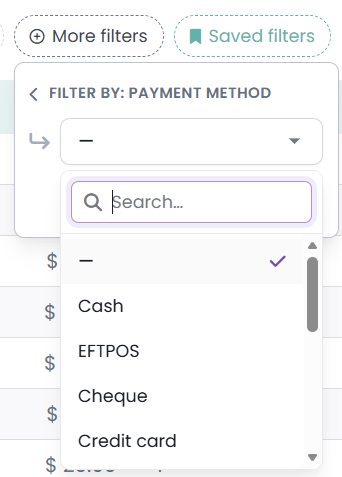
You can filter on payment method whether or not you have added the column, so this is a quick way to pull out every cash donation without changing how the list looks.
The methods you can filter on are Cash, EFTPOS, Cheque, Credit card, Direct credit, Charity Voucher, Envelope, Online, Automatic payments, Inkind, Journal and Other.
Sorting by payment method
- Add the Payment Method column, as above.
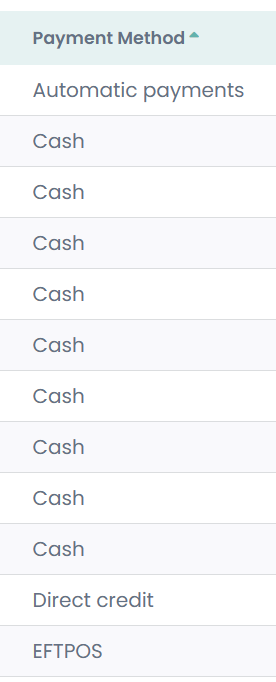
- Click the Payment Method heading.
- Click the heading again to reverse the order.
Each payment method groups together in the sorted list. The groups are not in A to Z order.
Transactions with no payment method recorded show an empty cell in that column, and they group together at one end of the sorted list.
Common questions
Does the eye icon still open a new page?
No. It opens a detail popup over the list you are already on, so you keep your place in the list. To open the full transaction page, click any of the transaction's details in the row, or click Open transaction at the foot of the popup.
Why can I not see the Payment Method column?
It is not shown until you add it. Click Edit columns, then tick Payment Method.
I sorted by Payment Method and the order looks wrong. Why?
Sorting gathers each payment method together, but it does not put the groups in A to Z order. Credit card comes before Charity Voucher, and Charity Voucher before Cheque. infoodle sorts on the value it stores against the transaction rather than on the label you read, and the order is the same every time you sort.
Why is the Payment Method cell empty on some rows?
Those transactions have no payment method recorded against them. Payment method is a required field on the add and edit transaction form, so an empty cell means the transaction reached your site another way. Transactions brought in through the import tool are the common case, because the import tool has no payment method field to map.
To fill the cell in, edit the transaction and pick a payment method. Two kinds of transaction cannot be edited, so the cell stays empty on those:
- A fully receipted transaction. Its row shows a lock labelled Receipted - cannot be edited in place of the edit pencil. Void the receipt first if the transaction needs to change.
- A transaction inside a filed Gift Aid claim. This applies on UK sites that use Gift Aid.
The column says Direct credit but the popup says Stripe. Which is right?
Both. Payment Method is the method recorded on the transaction itself, and it is what the column shows. Paid via in the detail popup is the gateway the money actually came through. They are two separate pieces of information and they can differ on the same transaction. The Transaction Detail Popup (the Eye Icon) article covers Paid via in full.