Opening one membership
From the members list for a specific product you can show and manage the details of a specific members membership.
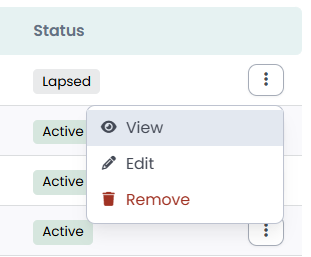
Click View in a row's actions menu to open a single membership. The page is read-only apart from the buttons across the top.
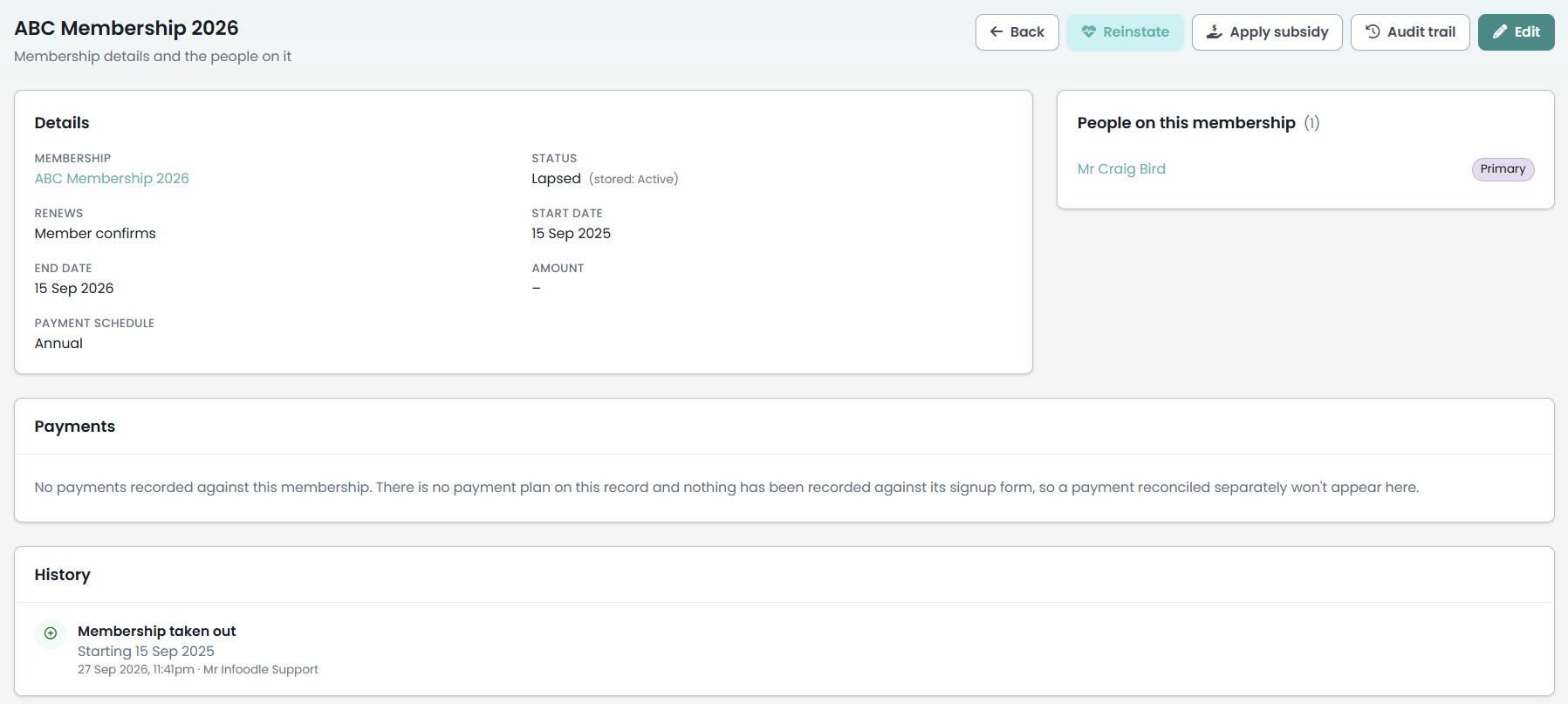
Details names the product, the status, Auto-renew, the start and end dates, the amount agreed, the payment schedule and, where there is one, the saved card or bank account the charges go to. A saved method that has since been removed is still named, tagged to say it is no longer available, because that is usually why a charge failed.
People on this membership lists everybody it covers, with Primary beside the holder. Each name links to that person's record.
Breakdown shows the lines the price was built from when the membership was taken out or last renewed: a line per person at the rate they matched, then add-ons, discounts and any subsidy, then the total. A fee that a member's own chosen amount replaced is shown struck through and does not count towards the total.
Payments shows what has been collected, with the date, method, receipt number and amount, and the collected and outstanding totals above. Still to collect lists instalments not yet taken and marks the ones already handed to the payment provider. Provider activity folds open to show every exchange with the payment provider for this membership, including attempts that did not result in a payment.
History is how the membership reached its current state: when it was taken out, each status change, each reduction to the amount and each payment plan stopped, with the date and a name against it.
Every reduction on the Breakdown appears in History under the heading Subsidy applied. That includes a product discount and the automatic adjustment infoodle makes when somebody joins part way through a period, neither of which anybody applied by hand. Read the amount and the label beside it rather than the heading, and open the Breakdown when you need to know where a reduction came from. The name on one of these entries is whoever was signed in when the line was written, which for a membership taken out in the Portal is the member.
Where the membership came from a signup form, a View signup form button at the top opens the entry the member filled in, following renewals back to the original application. A membership added by hand, or created by Generate Memberships, never had an entry and has no button.
The actions on one membership
The buttons that appear depend on the state the membership is in.
| Action | When it appears | What it does |
|---|---|---|
| Apply subsidy | Always | Takes an amount off what this membership owes. |
| Reinstate | Lapsed, cancelled or in grace, as last saved | Puts the membership back to Active. |
| Resolve failed payment | Failed | Clears the failure and puts the membership back to Pending. |
| Cancel payment plan | There are instalments still to collect | Stops the instalments and leaves the membership alone. |
| Cancel membership | Not already cancelled or lapsed | Ends a membership that is still running. |
| Edit | Always | Opens the same form as Add member, filled in. |