Review Data
-
Once the form entry screen is displayed you can review the entered fields and edit them if needed. For example, there may be a spelling mistake or an incorrect value.
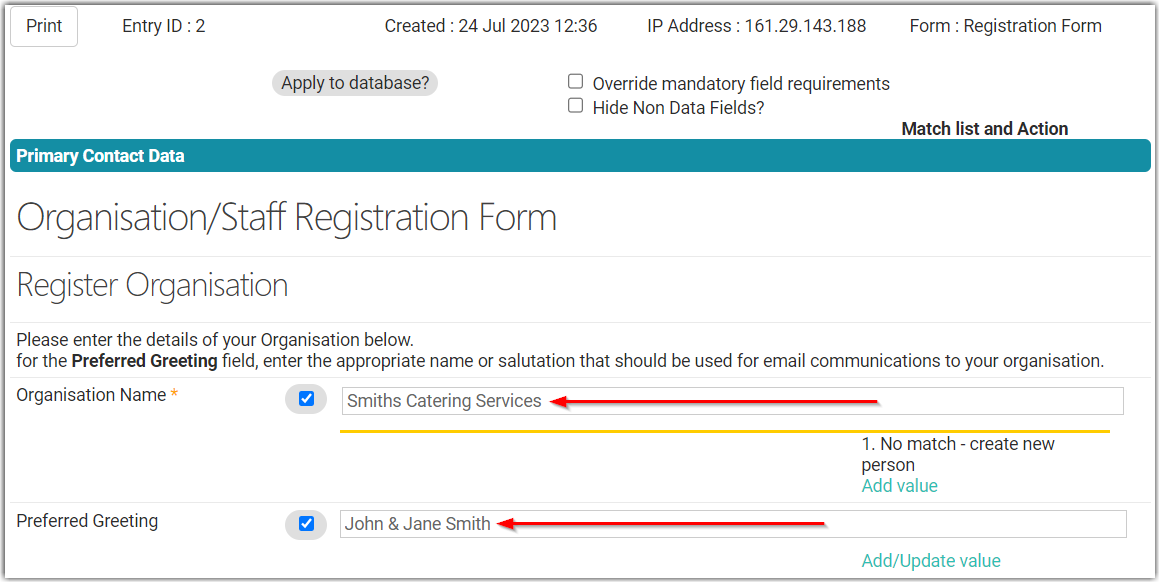
-
If you have made any changes or corrections to the data, be sure to click the Save Form Changes button near the bottom of the page, to apply the corrections

-
To the right of each field you will see a note by infoodle telling you what will happen with the data when approved. Possible matches to existing contacts (if found) will also be listed next to the relevant data field.
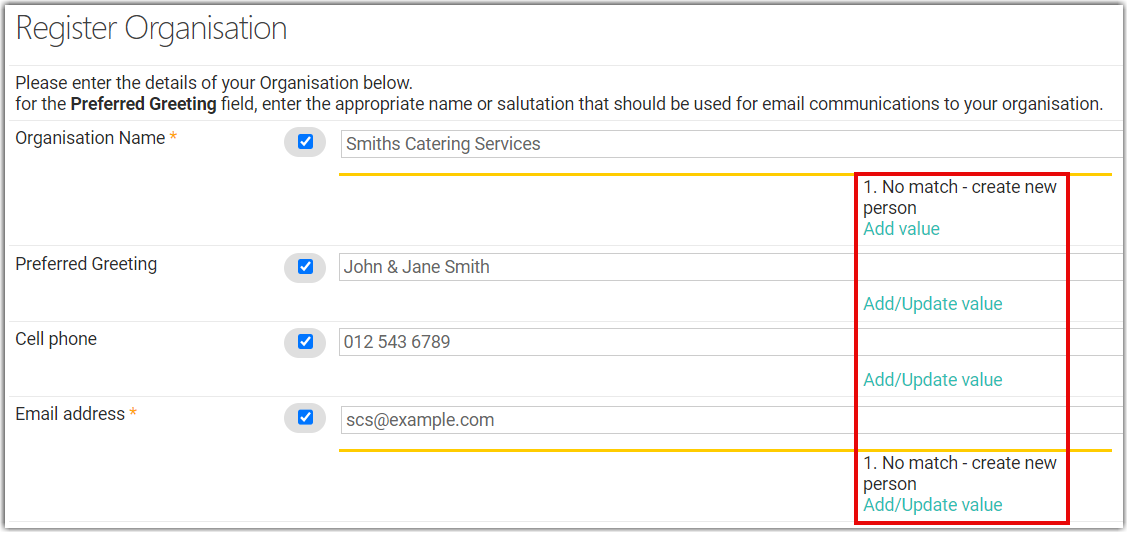
-
If data in a certain field is not required, you can untick this field.
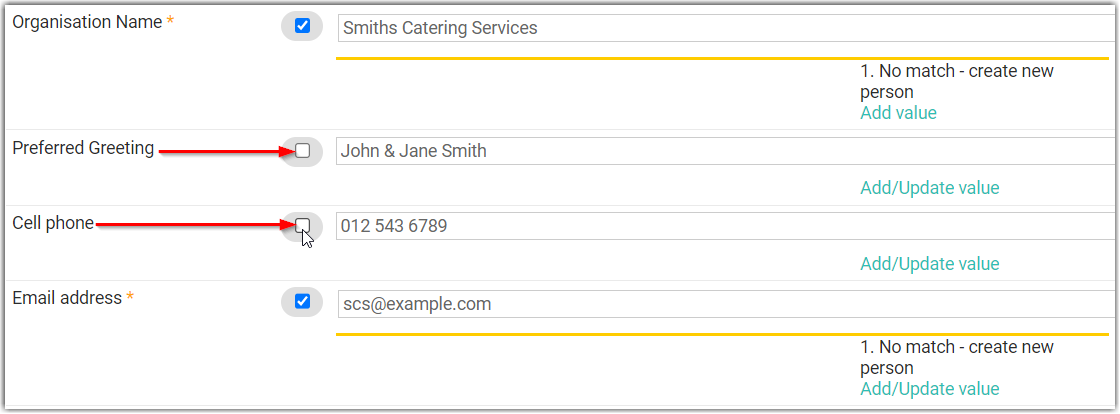
-
Mandatory data fields are indicated with an asterisk and are underlined yellow.
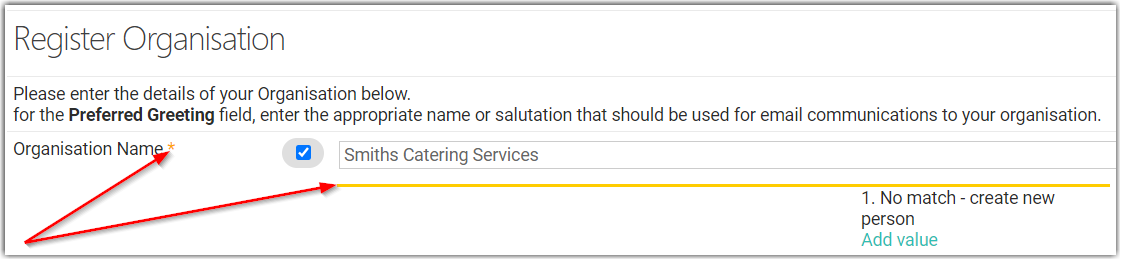
-
Normally, Mandatory fields cannot be unselected, and cannot be left blank when approving a form, but you can use the Override Mandatory Fields option in order to be able to unselect mandatory fields.
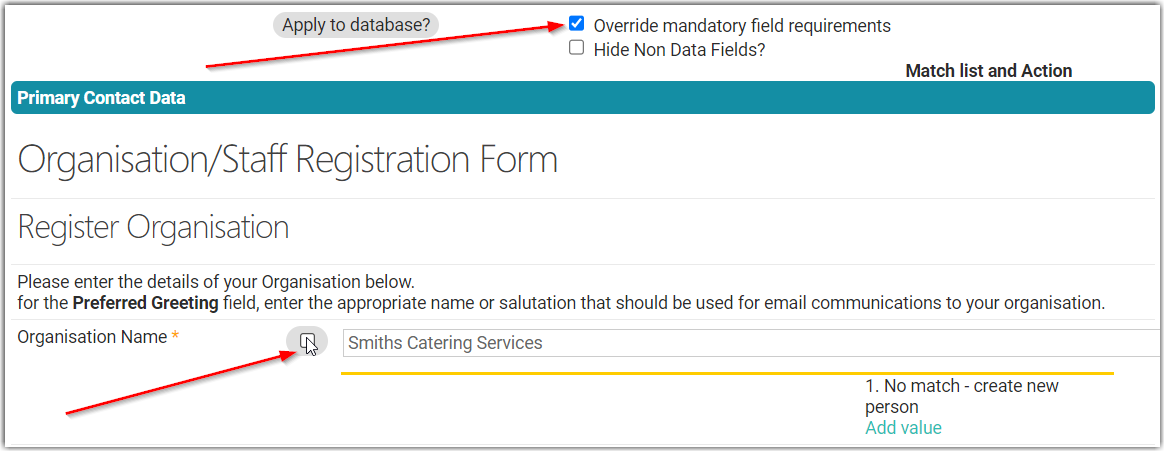
-
If you have added the Repeating people block field (when building your form) in order to allow multiple people to be added to one form, then you have the ability to ignore or cancel one or more of the multiple people entered onto the form if need be for any reason. Simply tick the This repeat is not required box.
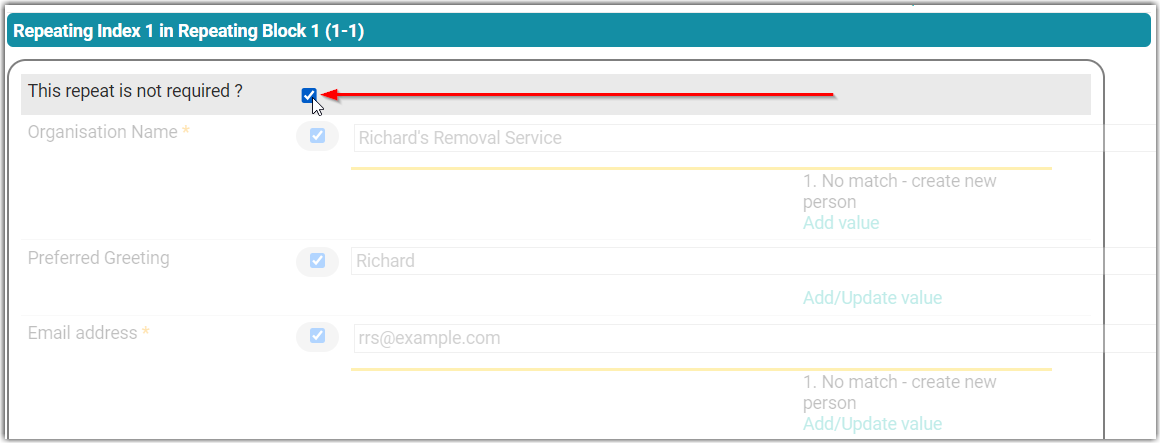
See Repeating people block for more information
Once you have reviewed and edited the form entry, scroll down that page to the Approve this form section of the form entry screen.