Approving Forms with Multiple Contacts
If your form uses one or more Repeating People Block sections, then the Primary Form and each Repeating Block section can each be processed as a separate infoodle contact so long as it contains a Persons Name field or an Organisation/Household Name field.
For multi-contact forms, the Approve this form section will show one Tab for the Primary Form, as well as a Tab for each Repeating Block.
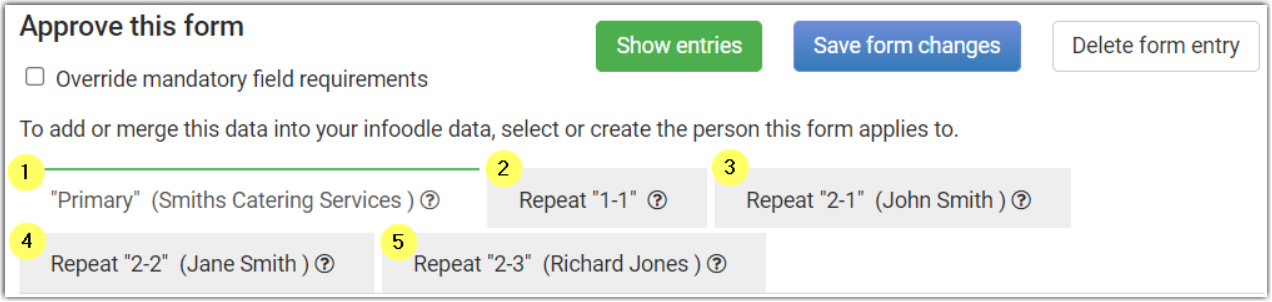
Repeating blocks are labelled Repeat (Block No. - Index No.)
For example, Repeat 2-3 is from Repeating Block 2, and is the 3rd repeat of that block.
For Each Repeating Tab:
- Select how to process this contact

There are a number of options from which to choose. Select the one that best applies to each contact.
For example, if all of the contacts on the form are from a single household or organisation your selections could be:
- Primary
- if the contact exists: Create as a new household (or organisation) or update existing contact
- Repeats (all) - Create as a new contact or update existing contact and add to the household (organisation) specified in tab "Primary"
-
Choose to create a contact, or assign to an existing record

-
Once all repeating tabs are assigned, click Approve this form
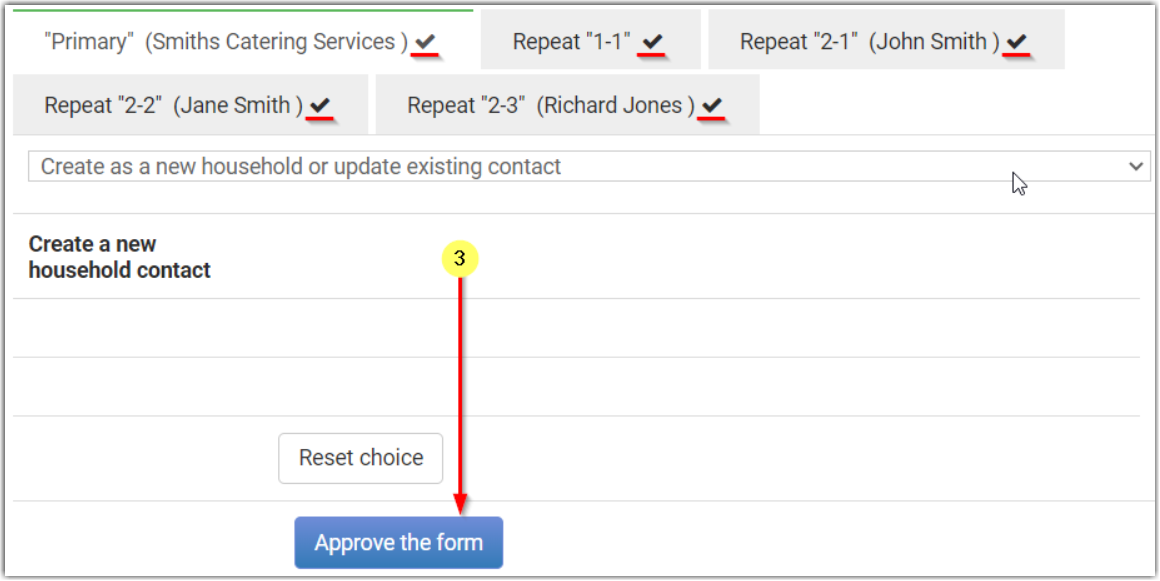
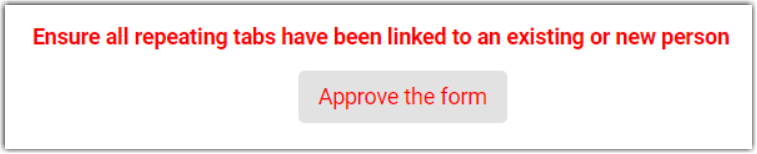
Unassigned Repeating Tabs - If there are Repeating Tabs not yet processed on this form, you will see the below error message, and will need to select an action for any unassigned tabs in order to proceed.
Inactive Repeating Tabs - If there is a Repeating Tab that has no Person or Organisation/Household Name data, then this will show with a Strikethrough, as shown for the Primary Tab below.
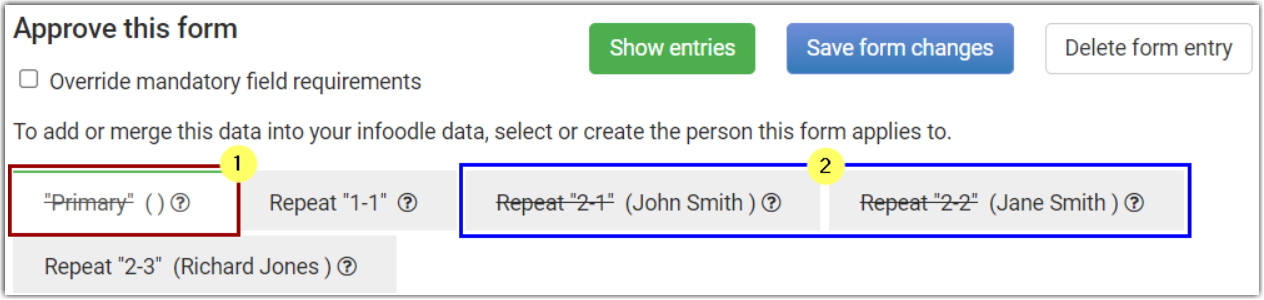
This will also be what is displayed if you use the This Repeat is not Required option for any repeating section, as has been done for Repeat 2-1 and Repeat 2-2 tabs in the above example.
In either the No Data or Not Required scenarios, you will be able to ignore these inactive Repeating tabs, and will be able to approve the form once the active repeating tabs have been processed.
If you do not have at least one Repeating tab that is configured to Create/update a contact record, then you will not be able to Approve that form entry.