When a single payment covers multiple account codes, campaigns, or transaction types, you can split it into separate transaction lines. For example, a $1000 deposit might need 100 allocated to one account code and 900 to another. infoodle lets you split a transaction into as many lines as you need.
Two ways to split a transaction
You can split a transaction in two different places depending on where you are in the process:
- When entering or editing a transaction — add extra transaction lines directly in the Transaction Details section.
- When reconciling — use the Split option on the reconcile screen to divide a bank import line across multiple contacts or account codes before reconciling.
Splitting an existing transaction (Transaction Details)
- Open the transaction you want to split. You can do this by:
- Navigating to Finance → Transactions, finding the transaction, and clicking the pencil (edit) icon.
- Or entering a new transaction via Finance → Add Transaction.
- In the Transaction Details section, set the Total Amount at the top. A blue Amount to allocate indicator shows how much of the total has not yet been assigned to a transaction line.
- To add another split line, click + Add Split in the top-right of the Transaction Details section. A new transaction line block will appear.
- To remove a split line, click the red bin (delete) icon on the right-hand side of that line's header.
- Continue adding lines until the Amount to allocate indicator reads $0.00. The Save Transaction button (bottom right) only becomes active once the total across all lines equals the Total Amount.
- Click Save Transaction to save.
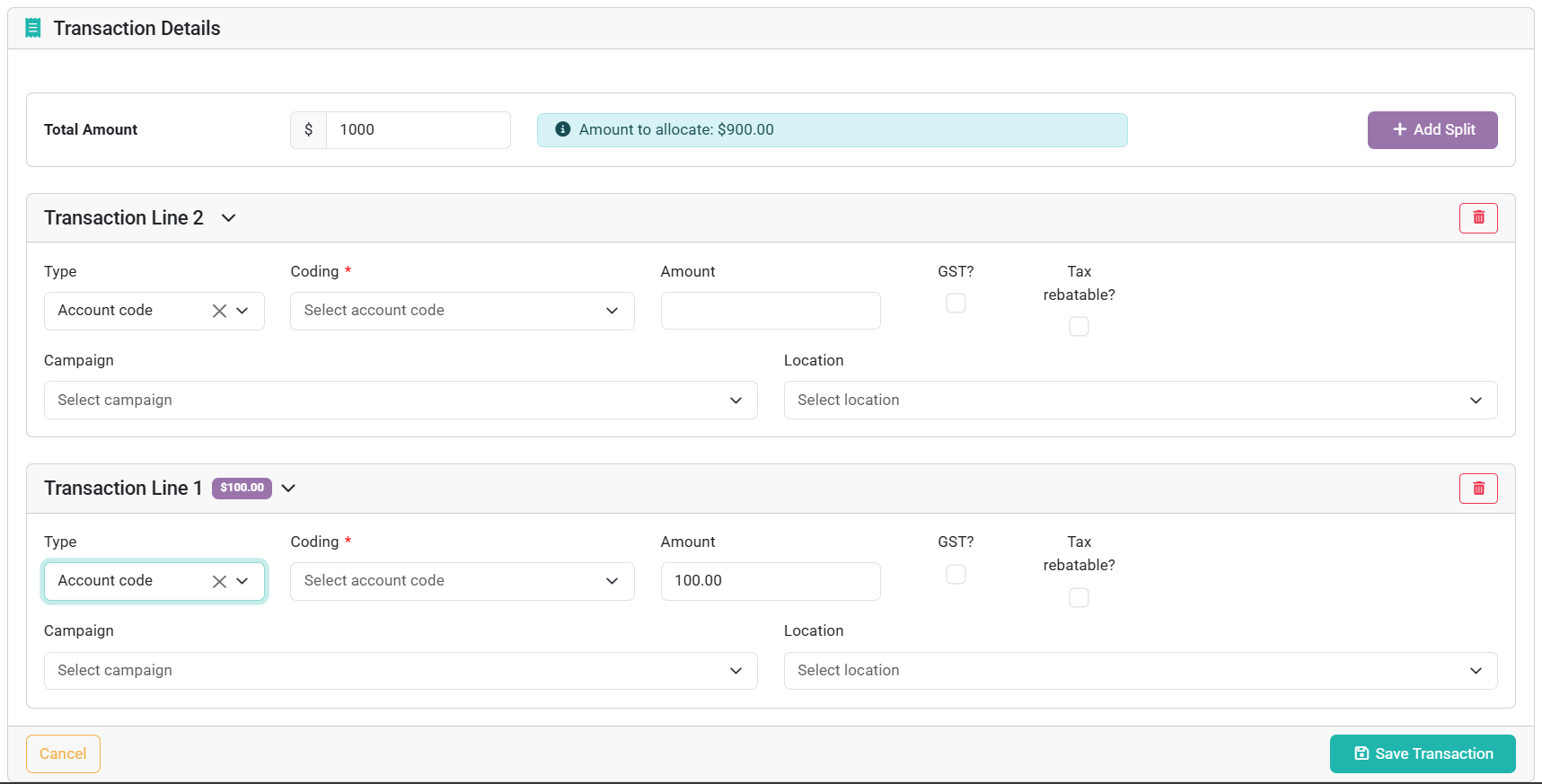
The amount badge on each transaction line header (e.g. $100.00) updates as you enter the amount, giving you a quick visual check of how much each line is allocated.
Splitting when reconciling
When reconciling bank import lines, you can split a transaction across multiple contacts or account codes before reconciling it.
- Go to Finance → Reconcile.
- Find the bank import line you want to split and click Split.
- For each split:
- Search for the contact this portion relates to.
- Enter the Amount for this split.
- Choose the Type (Account code, Stock item, Event, Membership, etc.) and select the relevant item from the dropdown that appears.
- Set GST, Tax rebatable, When to receipt, and Who to receipt as required.
- Click Create more splits to add additional lines. You can delete any line with the red × button.
- The Still to allocate amount is shown in red until all of the total has been assigned — make sure this reaches $0.00.
- Click Reconcile to finalise.
If the transaction has already been auto-reconciled (e.g. imported from Xero), you cannot split it between multiple contacts from the edit screen — the edit screen only allows splitting within one contact. To split between contacts, you must first unreconcile the transaction via the Transaction Status screen, then split it using the Reconcile screen as above.
What if I need to split across different people (collective transaction)?
If the one bank deposit represents gifts from multiple individuals, enable the Collective Transaction option on the transaction. Tick Allow line-specific recipients and receipt settings in the Transaction Settings section — this lets each transaction line have its own donor, receipt timing, and receipt recipient. See Editing a Transaction for more detail on Collective Transactions.
