The Form Usage screen lists every form entry that has paid via a particular payment method. Use it when you want to see which forms a payment provider is being used on, and to review the entries that have come through it. Entries are shown newest first, fifty rows at a time.
Before you start
You need one of the following role permissions to access the Form Usage screen:
- Read and Report on Transactions — read-only access
- Manage, Read and Report on Transactions — full access to the screen and payment history
- Manage Finance Configurations — also opens the screen; typically held by users who configure payment methods
For a full explanation of role permissions, see [People role permissions].
Payment methods configured
The Form Usage screen is per payment method. You need at least one payment method set up before there is anything to view. See [Payment Methods] for setup.
Opening the Form Usage screen
- Go to Transaction Processing in the main menu.
- Select Banking.
- Select Payment Methods.
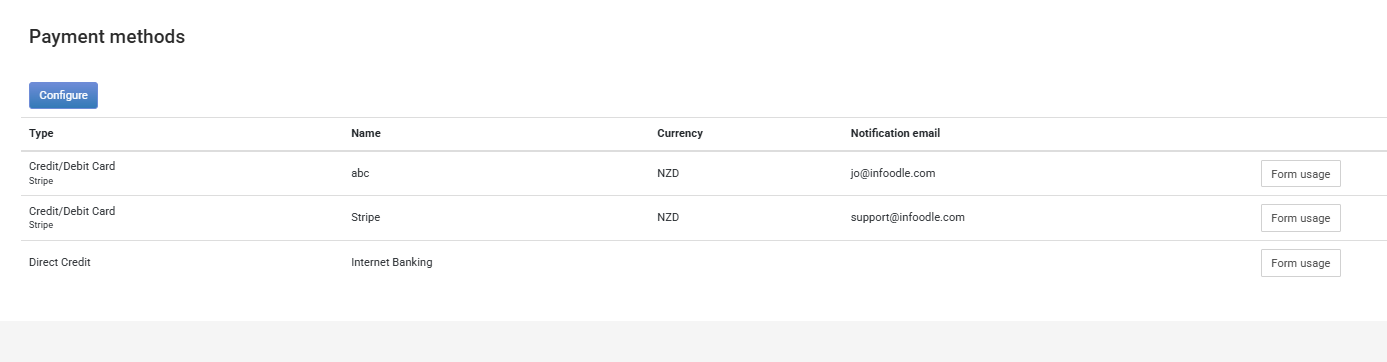
The Payment Methods screen displays a table showing each configured payment method with its Type, Name, Currency, and Notification email columns.
- Find the payment method you want to review and click the Form usage button on the right side of its row.
What the Form Usage screen shows
Once open, the screen heading reads Payment methods with the payment method's name displayed underneath.
The table has one row per form entry that paid via this payment method, newest first.
| Column | What it means |
|---|---|
| Entry ID | The ID number of the form entry. Click it to open the entry in Forms, where you can see the submitted answers, the approving user (if any), and the payment details. |
| Form name | The name of the form the entry came from. |
| Approved? | A tick means the form entry has been processed (approved by a user with the Process responses of forms permission). A blank cell means the entry is either still pending or has been deleted in Forms — click the Entry ID to confirm which. |
| Created | The date and time the form entry was submitted, in your local time. |
| Total required | The amount the entry was asked to pay, based on the form's amount fields. |
| Total paid | The amount actually paid against this entry so far. For one-off payments this matches the required amount once paid. For recurring or partially paid entries the two columns may differ. |
| Last Message | The most recent message returned by the payment provider — for example a success acknowledgement, a failure reason, or a scheduling action for a direct-debit method. This shows only the latest message; for full interaction history check the payment provider's own dashboard or open the entry directly. |
If a payment method has more than fifty matching entries, page links appear above the table. There is no built-in date filter on this screen — for date-range filtering use Finance Reports or the Transaction List.

What Form Usage is useful for
- Audit which forms a payment provider is active on. Scan the Form name column to see all forms collecting payments through this provider — helpful when tidying up old forms or migrating to a different payment provider.
- Find entries that may need attention. A blank Approved? cell on a row that shows a Total paid value means money has come in but the entry hasn't been marked as approved. Open the Entry ID to confirm the entry's status before acting.
- Investigate a payment mismatch. Compare Total required with Total paid on the same row — a difference is your starting point to open the entry and investigate.
- Check a payment provider's last response. The Last Message column shows the latest message from the provider, useful when a payer reports a failed payment and you want to see what the provider last reported.