The first time infoodle presents a transaction through the various payment screens and the donor has outstanding pledges, the screen is presented to allow allocation of the amount to the various pledges.
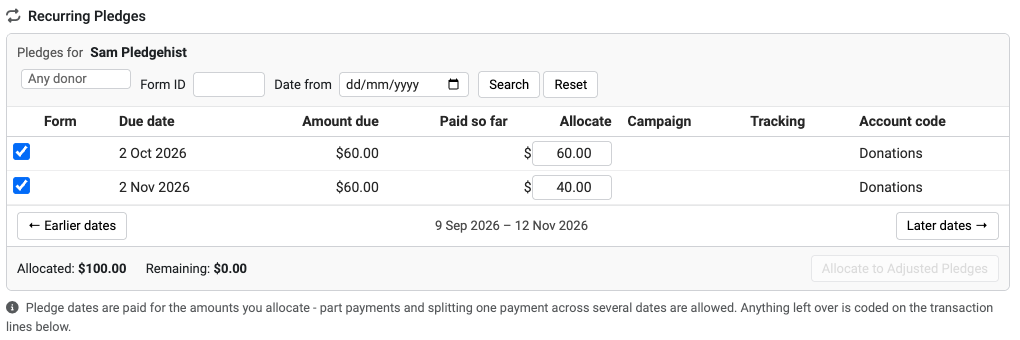
Any donor allows you to search other donors. This makes it possible to pay another persons pledge if this is required.
Form Entry ID can be used to enter the form entry ID needed
Date from allows you to enter a date to search from. The next 50 days are checked from this date.
Search click this once you have set or cleared any or all of the previous 3 filters to apply the filter.
You can also use the 'Earlier dates' and 'Later dates' to move to earlier or later date ranges. The date range currently selected is shown in between these two buttons.
Apply an amount to a pledge
Once you have identified a pledge to pay, then click the tickbox in the first column. This reveals the 'allocate' input box which allows you to specify up to the amount remaining or the amount due - which ever is the lease - to allocate, how much of the transaction value to allocate to this payment.
Types of payments
In the Recurring Pledges panel, every date this transaction pays is listed and ticked, with Allocate showing the amount this transaction put on it:
- A date this transaction part pays shows the Part Paid label.
- A date this transaction paid in full is listed and ticked too, so you can change it in the same way.
- Paid so far shows only what other payments have put on the date. This transaction's own money is in Allocate, so you can raise it up to the full amount due.
Adjusting pledges
If your role has Manage pledges, the panel also has the Allocate to Adjusted Pledges button, which changes the donor's pledge to take a leftover amount. It works as it does on Add a transaction.
Clicking Extend by or Raise to does not change the pledge yet. The panel shows the change as a pending change, in a summary such as "Extend the pledge by 2 dates to 2027-02-14 ($46.58) - made when you save", with a Remove button. The pending amount counts towards Allocated.
- To keep the change: click Save Transaction. infoodle changes the pledge and puts the leftover on it as part of the same save.
- To drop the change: click Remove, or leave the screen without saving. The pledge stays as it was.
If the pledge change cannot be made when you save, for example because your role no longer has Manage pledges, the save is refused and nothing on the transaction is changed.