You can set up a schedule to have a report run automatically in the background and email the results to specific people or groups. This is useful for recurring reports you need to review regularly — for example, a weekly attendance report, a monthly pledge summary, or a quarterly donor report.
Before You Begin
You must create and save the report first. The report will run on schedule using the exact criteria and columns you saved. For details on how to create and save a report, see one of the following options: Asset Reports, People - Notes Reports, or Special Reports.
Note: Scheduled reports email their results only. They cannot automatically add people to a group or trigger workflows. If you need those capabilities, run the report manually from the Reports screen and use the Send To options there.
Creating a Report Schedule
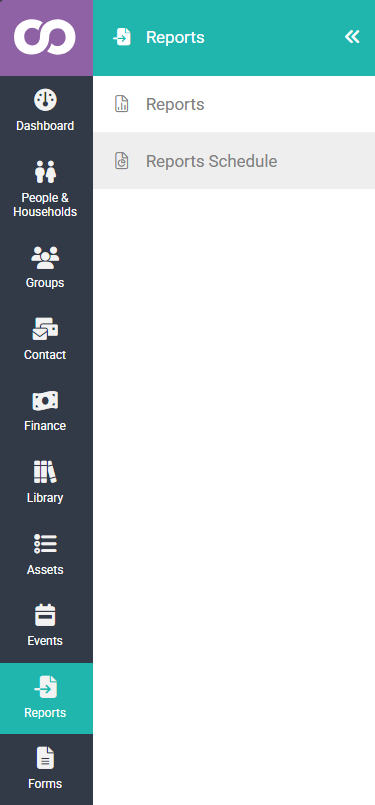
- Hover over Reports from the main menu
- Click Reports Schedule
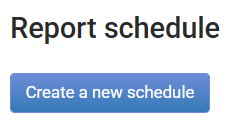
- Click Create a new schedule
- Fill in the details (terms outlined below)
- Click Save
Report Schedule Criteria
Schedule Details
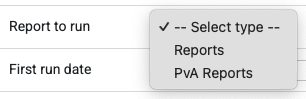
- Report to run — select the saved report you want to run on schedule from the dropdown. Only reports you have access to will appear. You first need to choose which type of report you want -
 {height="" width=""}
Reports are those from the Reports screen that you have created.
PvA reports are Pledge vs Actual reports created from the Finance area.
Once you have chosen the type you need to choose which group of reports you want.
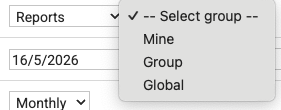
You are then presented with a list of available reports you have access to.
-
First run date — select the date and time the report should first run.
-
Frequency — choose how often the report should run:
- Hourly
- Daily
- Weekly (select which day of the week)
- Monthly (select which date of the month)
- Quarterly
- Annually
-
Last run date (optional) — if you want the schedule to stop running after a certain date, select it here. Leave blank if the schedule should run indefinitely. You can also select the end time if you need to be specific. e.g. you could choose to run a report every hour between 7am and 4pm on the one day.
-
Who to email the report to — select the person or people who should receive the emailed report. You can select:
- Individual contacts
- A group (the email will be sent to all members of the group)
The schedule is now active and will run at the specified times. You'll receive the report as an email attachment (Excel or CSV format, depending on how the report was saved).
Adding to the schedule from the reports menu
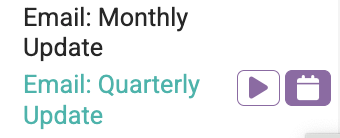
Moving your mouse over a report you have built shows the Run and Schedule icons. Click the Schedule icon to take you to the Report schedule screen adding the selected report.
Editing or Deleting a Schedule
- Go to Reports > Reports Schedule
- Click the schedule you want to edit or delete
- Make your changes and click Save, or click Delete to remove the schedule
Important Notes
Report criteria are locked — the schedule runs with the exact criteria you saved. If you change the saved report later, the schedule uses the new criteria on its next run.
Preset date ranges recalculate — if your report uses "Past 7 days" or "This month", the schedule recalculates this each run (e.g. a monthly report always shows the prior calendar month).
Scheduled reports email only — you cannot use a schedule to automatically add people to a group or trigger a workflow. Run the report manually from the Reports screen and use Send To options instead.
Check email settings — verify your email domain is verified and email sending is set up (go to Administration > Email). See Managing Email for details.
Troubleshooting
I'm not receiving the scheduled report
- Check that the recipients have active email addresses
- Verify your email domain is verified (go to Administration > Email)
- Check your email sending limits — if you've hit your monthly send limit, emails may be delayed
The report results look wrong
- Remember that scheduled reports use the exact criteria from the saved report. Check that the saved report's criteria are what you expect.
- If your report uses a preset date range (e.g., "Past month"), it recalculates each run.
I want to save the report results to a group
- This is not available via scheduled reports. Run the report manually from the Reports screen, then use Send To > Add to a group to add the results to a group, with optional workflow firing.