What is the Group Syncs page?
The Group Syncs page lets you review and fix group membership and settings across your entire site at once. It's in Administration → Groups and has five tools:
- Resync all groups — fixes parent-child group membership mismatches
- Action status — turns group availability in tasks on or off site-wide
- Content status — turns group availability for content on or off site-wide
- Hibernation date — pauses all groups (or reactivates them)
- Expiry date — expires all groups (or reactivates them)
Because these changes affect every group on your site at once, double-check before you apply and warn other admins. There's no single-click undo — you must run the reverse action or restore from an export.
Before you start
- Update System information role permission
- Access to the Administration area
Resync all groups
What it does: Checks whether every member of a sub-group is also in the parent group above it. If not, it shows you who to add or remove.
Common use case: After moving sub-groups around, or when members are added to a child group but don't appear in the parent.
How to resync
- Open Administration → Group syncs
- In the Resync all groups section, click Review changes
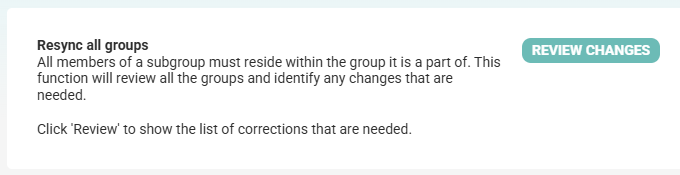
- The page lists each group with additions and removals that would happen:
- If in sync: "Your groups are in sync"
- If issues exist: lists members to add to parents and members to remove
- (Optional) Click Export to save the review (Excel or CSV) — keep this in case you need to manually re-add members
- Tick Process additions to add members to parent groups where they're missing
- Tick Process deletions to remove members from parent groups where they're orphaned
- Choose how deletions should be handled (explained next to each option)
- Click Update
- Each membership change is logged in that person's audit trail
Audit trail: Yes — each membership change is logged per person
Undo: No direct undo. Re-running Resync will not restore deleted members. Use your export to manually re-add if needed.
Action status (turn task availability on/off)
What it does: Sets whether groups appear when someone chooses who's responsible for a task.
Effect on members: None — members stay in the group.
| Action | Result |
|---|---|
| Make all groups available in action tasks | Groups appear in task dropdowns |
| Stop all groups being available in action tasks | Groups don't appear in task dropdowns |
How to change Action status
- Open Administration → Group syncs
- Scroll to Groups have 2 settings for determining when they can be used
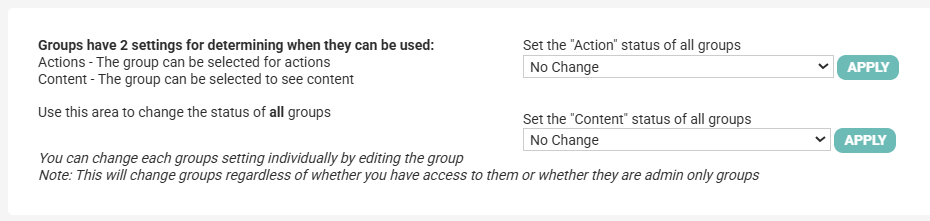
- In the Action dropdown, choose your option
- Click Apply
- The change applies to every group, including admin-only groups and groups you don't have access to
Audit trail: ✗ No — keep your own record before running
Undo: Run the opposite action (e.g., after "Stop all groups...", run "Make all groups...")
Content status (turn content visibility on/off)
What it does: Sets whether groups can be picked to see notes, documents, and other content.
Effect on members: None — members stay in the group.
| Action | Result |
|---|---|
| Make all groups available for content | Groups appear in content dropdowns |
| Stop all groups being available for content | Groups don't appear in content dropdowns |
How to change Content status
- Open Administration → Group syncs
- Scroll to Groups have 2 settings for determining when they can be used
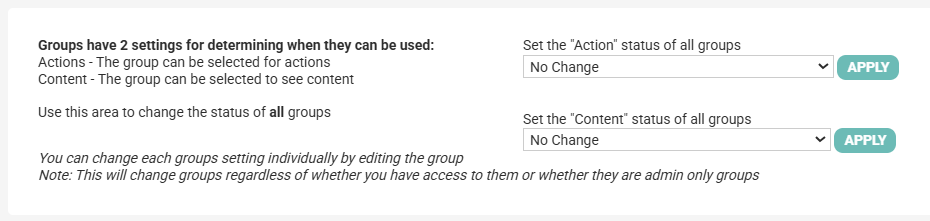
- In the Content dropdown, choose your option
- Click Apply
- The change applies to every group, including admin-only groups and groups you don't have access to
Audit trail: No — keep your own record before running
Undo: Run the opposite action (e.g., after "Stop all groups...", run "Make all groups...")
Hibernation date (pause all groups)
What it does: Sets whether all groups are hibernated (paused) or active.
Effect on members: Members stay attached. While hibernated, no new members can be added. The group still appears in reports.
| Action | Result |
|---|---|
| To Yesterday | Hibernates every group (pauses them) |
| Remove the hibernation date | Reactivates every group |
How to hibernate or reactivate
- Open Administration → Group syncs
- Scroll to Groups have 2 dates to help reduce the list of groups to just those that are active groups
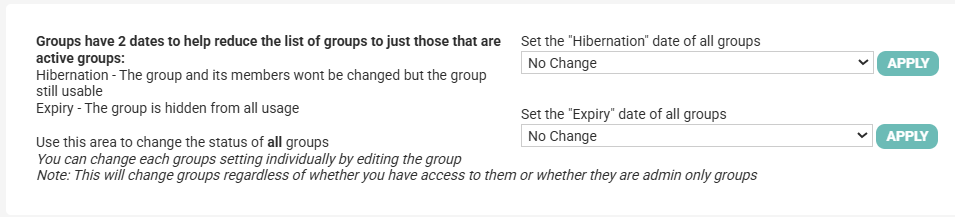
- In the Hibernation dropdown, choose your option
- Click Apply
- Confirm in the prompt that appears
- The confirmation tells you how many groups were changed
Audit trail: ✗ No — keep your own record before running
Undo: Choose the opposite option and click Apply again
Expiry date (expire or reactivate all groups)
What it does: Sets whether all groups are expired or active.
Effect on members: Members stay attached. While expired, the group drops out of reports and contact lists.
| Action | Result |
|---|---|
| To Yesterday | Expires every group |
| Remove the expiry date | Reactivates every group |
How to expire or reactivate
- Open Administration → Group syncs
- Scroll to Groups have 2 dates to help reduce the list of groups to just those that are active groups
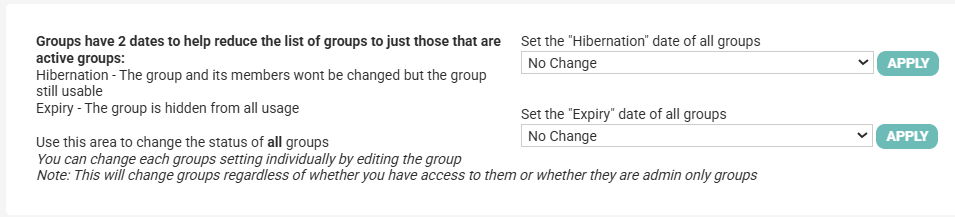
- In the Expiry dropdown, choose your option
- Click Apply
- Confirm in the prompt that appears
- The confirmation tells you how many groups were changed
Audit trail: ✗ No — keep your own record before running
Undo: Choose the opposite option and click Apply again
Before you run any sync or bulk action
- Pick a time when other admins aren't doing group work
- Export first — for Resync, export the review. For the other actions, take a Groups report export or group settings export from Reports
- Test on one group first (using the individual group edit page) if you're unsure of the effect
- Tell your team — a heads-up prevents confused messages later