Testing a role lets you see exactly what a user with that role can and cannot do before you assign it to real people. It’s the safest and most reliable way to confirm that the permissions you’ve chosen match the responsibilities of the role.
Testing allows you to check:
- Accidental over-access, like finance or sensitive data
- Missing access
- Protects disruption
- Validates workflows not just permissions as some tasks require multiple permissions
How to test role permissions
- Create a new contact - use your email address so that the password set up email will be sent to you.
- Assign the role you're testing. How to assign a user a role?.
- Ensure that you check your email inbox for the password setup email, click the setup link and set a password.
- Open an incognito browser window and enter the URL for your infoodle site - for example your-sitecode.infoodle.com. How to open an incognito window?
- Log in to your infoodle through the incognito browser window with the test user name and password
- Keep your original browser window open while logged in as the database administrator.
You'll now be able to test what you can do in the incognito window, and through the administrator window adjust the permissions enabled. Test to see what you do and do not have access to from the incognito window.
Steps for your test user:
- assign different roles
- edit those roles
- review the assigned role and check they can see and do what they need to
- edit and review as required
- assign your actual users to the new role
How to open an incognito window?
There are two ways to open an incognito window which work in most browsers.
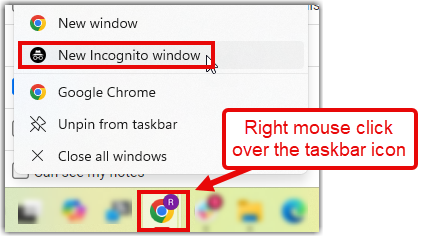
- Right click on the browser icon in the taskbar
- Select new Incognito (or 'InPrivate') window
or
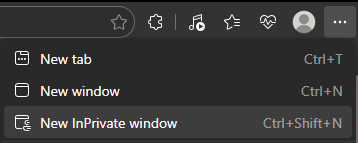
- Click on the three dots menu in the top right corner of your browser
- Click on new Incognito (or 'InPrivate') window