Two-Factor Authentication (2FA, sometimes called two-step verification) adds a second layer of security to your infoodle login. As well as your username and password, you enter a 6 digit code generated by an authenticator app on your phone or computer. The code changes every 30 seconds, so a password on its own is not enough to access your data.
The authentication code comes from an authenticator app such as Google Authenticator or Authy on your phone or computer. infoodle does not send the code by email or text message.
Before you start
Role Permissions
- No role permission is required. Every user with an active infoodle login can set up 2FA on their own account.
For an explanation of the role permissions in infoodle, see People role permissions.
An authenticator app
You will need one of the following:
- A smart phone (Android, Apple or Windows) that can run an authenticator app, for example Google Authenticator or Authy. The setup screen links to the right app store for your phone.
- A computer running the Google Authenticator browser extension (Chrome, Firefox or Edge) or the Authy desktop application.
Note, these authenticator apps are third-party products and are not supported by infoodle.
How To Add 2FA
Open the 2FA setup screen
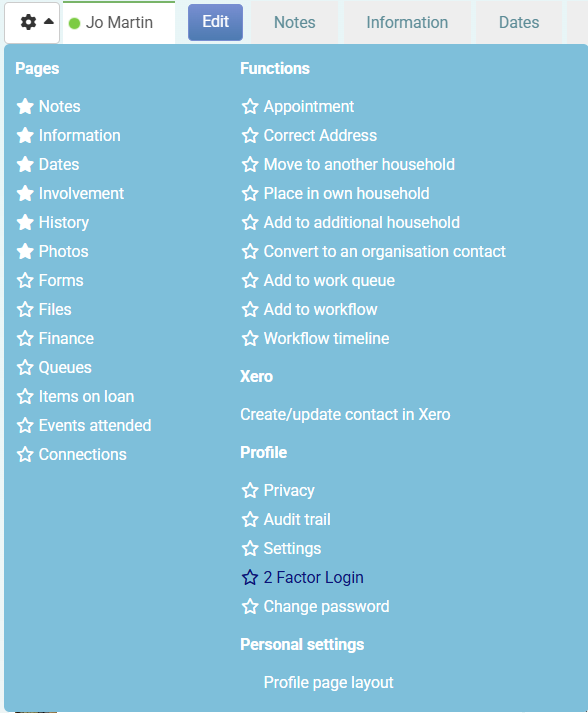
- You can find the setup screen by clicking your avatar in the bottom left hand corner of the screen
- Then clicking Account.
- Under the Login information heading, click Go to 2 factor setup options.
If 2FA is enforced on your site and your login does not have it set up yet, infoodle takes you there itself.
- After entering your username and password you will see the message "Your site has 2 factor authentication enforced".
- Click Click here to setup Authentication to open the same setup screen.
Administrators can require 2FA for every user on the site. See Enforcing 2FA.
Set up Two-Factor Authentication
Step 1: Choose how you will authenticate
The setup screen asks what type of phone you have: Android phone, Apple phone or Windows phone. Select your phone type and infoodle displays suggested authenticator apps, with links to the app store for your device.
If you prefer to use your computer, select I don't have a smart phone - how else can I set this up?. The screen switches to the computer options: the Google Authenticator browser extension for Chrome, Firefox or Edge, or the Authy desktop application, with links to each.
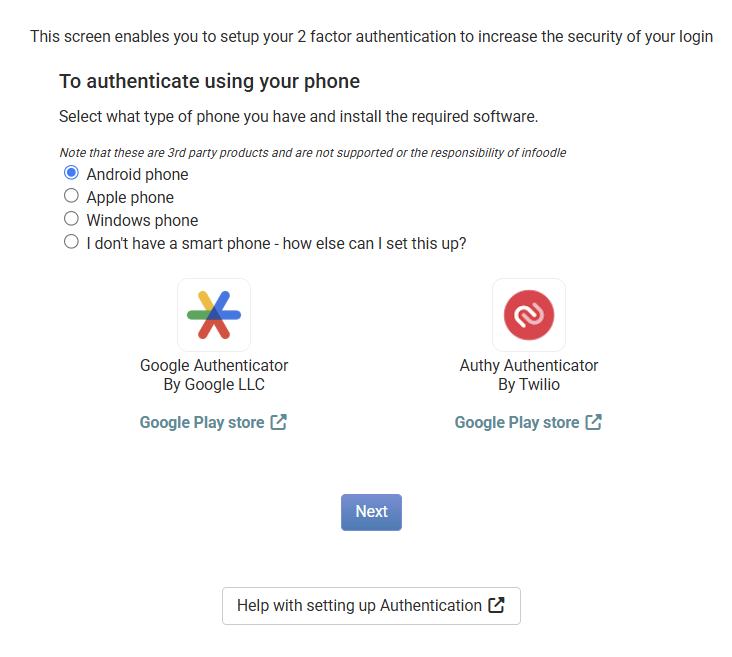
Install the app of your choice, then click Next.
Step 2: Connect your authenticator app
Using a phone: infoodle displays a QR code. In your authenticator app, choose the option to add a new account (usually a + icon), then scan the QR code. The app adds an infoodle entry and starts generating a 6 digit code that changes every 30 seconds.
If your phone cannot scan the code, add the account manually instead using the User name and Secret shown on the screen. These details are case sensitive.
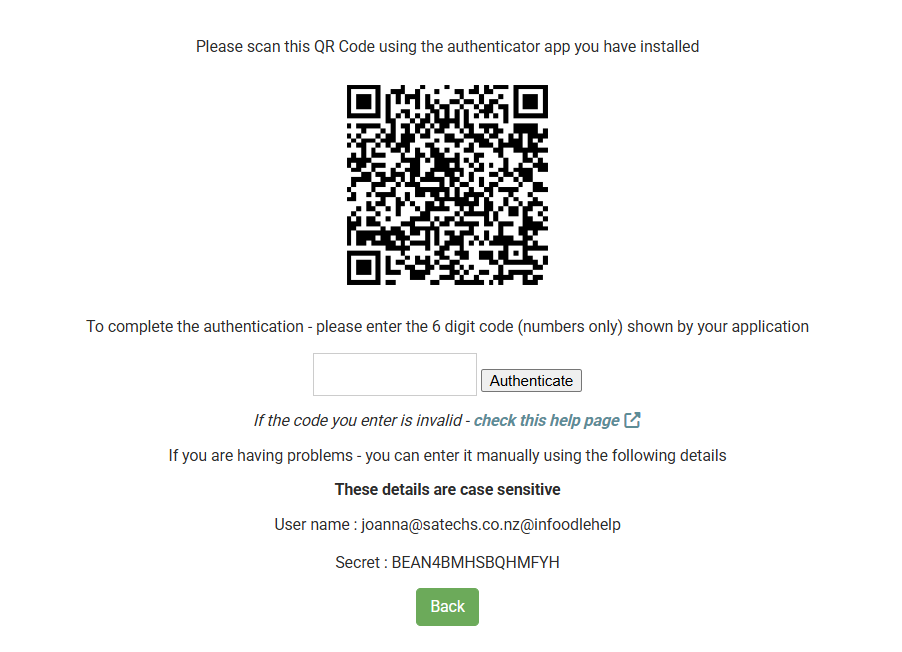
Using a computer: infoodle displays a QR code as well as the Account and Secret details to enter into your browser extension or the Authy desktop application. These details are case sensitive. Once the account is added, the app generates a 6 digit code that changes every 30 seconds.
Step 3: Enter the code to finish
Type the current 6 digit code from your authenticator app into the code field (numbers only), then click Authenticate.
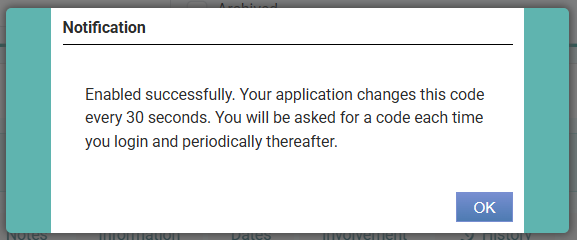
infoodle confirms: "Enabled successfully. Your application changes this code every 30 seconds. You will be asked for a code each time you login and periodically thereafter." The screen then shows a green tick confirming this account has 2 factor authentication enabled.
If infoodle responds with "Invalid code", check you have entered the most recent code shown in your app. See Invalid Code - Two Factor Authentication for how to fix this.
Logging in with Two-Factor Authentication
- Log in to your site with your username and password as usual.
- infoodle displays "This account is locked using two factor authentication" and asks for a pass code.
- Open the authenticator app on your phone or computer to get the current infoodle code.
- Enter the code. infoodle submits it automatically once all 6 digits are typed, or you can click Submit & Login.
You are asked for a code when you log in after logging out, and again periodically, by default once every 24 hours.
If you cannot produce a code, for example your phone is lost or reset, use the Click here if you need to reset your code link on the pass code screen, or ask an administrator to remove 2FA from your login so you can set it up again. See Remove Two Factor Authentication (2FA) from a User.
Removing 2FA from your own account
Open the setup screen again by clicking your avatar in the bottom left hand corner, then Account, then Go to 2 factor setup options. When 2FA is enabled, the screen shows a Remove 2 Factor Authentication button. Click it and infoodle confirms with "Disabled successfully".
.png)
If 2FA is enforced on your site, you will be asked to set it up again straight away, before you can carry on using infoodle.
An administrator can remove 2FA from another user's login, for example when a phone is lost. See Remove Two Factor Authentication (2FA) from a User.
Common questions
The code I enter is not accepted
Codes change every 30 seconds, so enter the most recent code shown in your app, without spaces. For other causes and fixes, see Invalid Code - Two Factor Authentication.
I have a new phone or lost my phone
You can move your authenticator accounts to a new device. See New or Lost Device - Transfer Two Factor Authentication (2FA) Codes. If you no longer have access to your codes, an administrator can remove 2FA from your login so you can set it up again on the new device.
Several people share one infoodle login
An authenticator secret can be added to more than one device. See Two-factor Authentication (2FA) and Shared infoodle Log-in for how to set this up.
Next steps
- If you administer your site, you can require 2FA for every user. See Enforcing 2FA.