A login lets a person sign into infoodle with their own username and password. You enable a login from the Settings page on the person's profile.
Before infoodle will activate a login, the person needs a Password Reset Email Address on file. This is the address password reset links go to. Without it, infoodle has no way to deliver a reset, so the login cannot be made active.
Before you start
Role Permissions
To activate a login for someone other than yourself, your role needs this role permission:
- Create accounts and roles: lets you assign a role on the Settings page, which is the same place you turn Login is active on. See People role permissions for what each role permission covers.
Email address for password resets
You will also need the email address that password reset links should go to. infoodle pre-fills this with the person's first contact email when you set their role, but you can change it to any address you like, for example a shared family inbox.
Activate a login
You can find a person's Settings page two ways:
- To activate your own login: click your avatar at the bottom left of the screen and choose My Account.
- To activate someone else's login: open that person's profile, click the cog icon (titled More profile functions) on the right of the profile, then choose Settings from the Profile section of the menu.
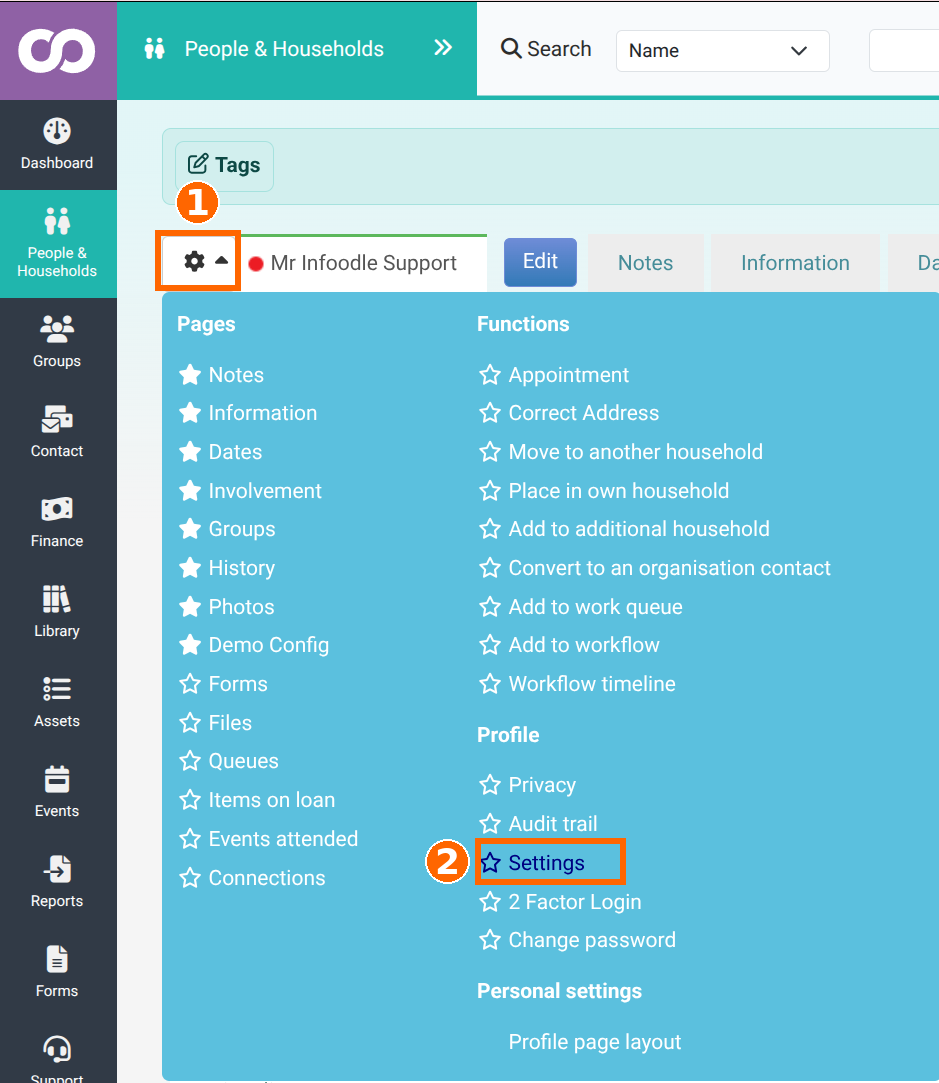
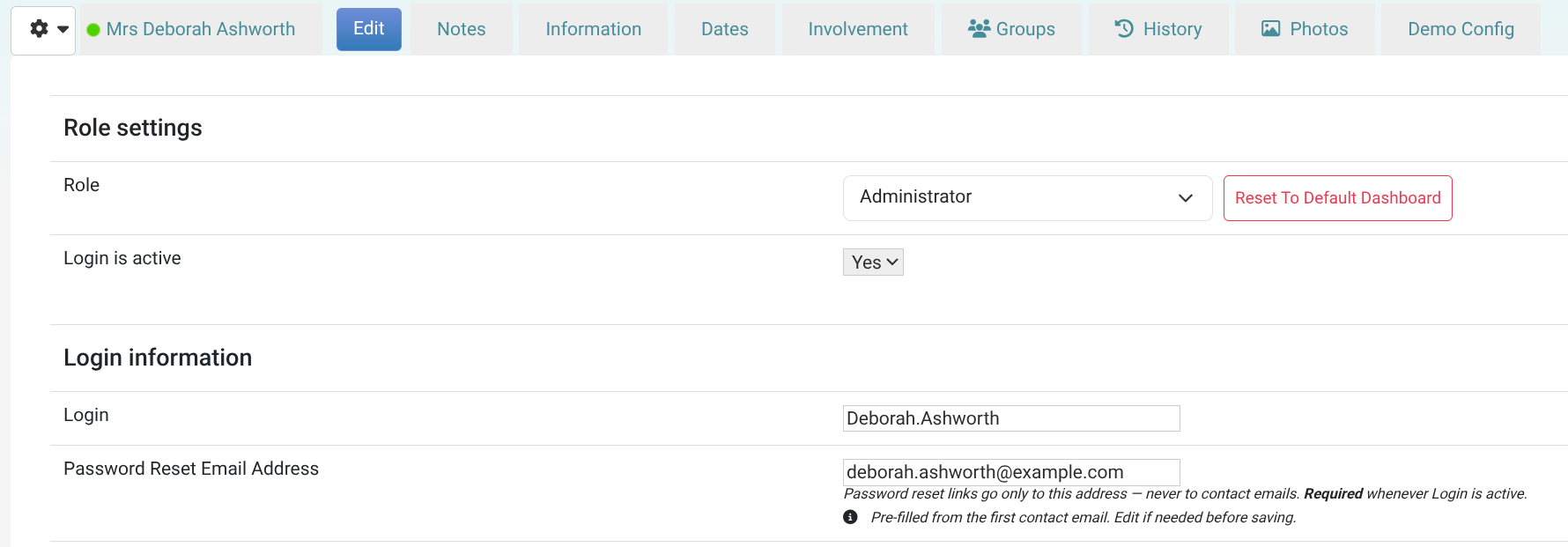
The Settings page lists each section as a heading. Login is active sits inside the Role settings section, so you will set it there even when you are not changing the role itself.
- On the Settings page, find the Role settings section. Change Login is active to Yes.
- Scroll to the Login information section. Check the Login name. infoodle suggests a username based on the person's first and last name; edit it if needed.
- In the same section, check the Password Reset Email Address field. infoodle pre-fills this with the person's first contact email when you are setting their role for the first time. Edit the address if you want resets to go somewhere else; it does not have to match any of the person's contact emails.
- Click Save.
After saving, a Send Password Setup Email button appears next to Login is active. Click it to email the person a link they use to choose their own password.
Why a Password Reset Email Address is required
infoodle stores the Password Reset Email Address separately from the addresses in the person's Contact tab. The two often hold the same value, especially right after you activate a login when the reset address is pre-filled from the first contact email. But once saved, the reset address is its own field. Editing a contact email later does not change the reset address.
This keeps the recovery path stable. The person can update their contact email, or another administrator can correct it, without that change affecting where password resets are delivered. If the reset address itself needs to change, you update it on the Settings page (see Editing the Password Reset Email Address later below).
If you save without a Password Reset Email Address
If Login is active is set to Yes and the Password Reset Email Address is blank, infoodle blocks the save and shows:
Login cannot be active without a Security email. Enter a Security email address before saving.
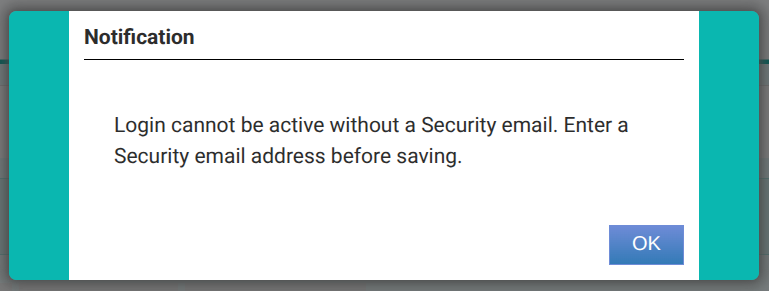
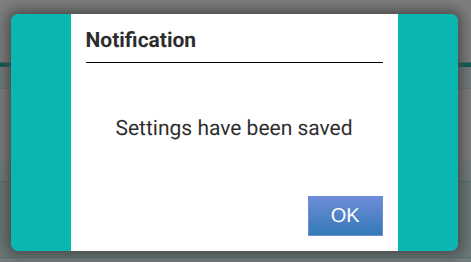
Enter a Password Reset Email Address and click Save again. infoodle will then activate the login and confirm with a Settings have been saved message.
Editing the Password Reset Email Address later
Who can change the address once it is set depends on the role permissions assigned to your role:
- The person themselves can always change it on their own My Account page.
- An administrator whose role includes the Create accounts and roles role permission can set the address while it is blank.
- An administrator whose role includes the Change other users' password reset email role permission can overwrite an address that is already set.
If you open the Settings page without permission to change the address, the field is shown but disabled and the help text reads "Password reset links go only to this address. You don't have permission to change it. Contact an administrator if it needs updating."
Common questions
What if the Password Reset Email Address is different from the contact emails on file?
infoodle saves the address without asking you to confirm. Next to the field, it then shows an inline warning that reads "This address doesn't match any of the contact emails on file. Password reset links will go somewhere other than the addresses listed under Contact." Use this when you deliberately want resets going to a different address, for example a shared family inbox.
Can two people share the same Password Reset Email Address?
Yes. Shared mailboxes are common, for example a household or office address. infoodle saves the address without asking you to confirm. The save confirmation dialog shows a warning that names the other person who uses the same address. Both people can request password resets and both will receive the email at the shared address.
What happens if I deactivate a login?
Setting Login is active to No does not remove the Password Reset Email Address. The address stays on the person's record. You can reactivate the login later without re-entering the address.
I don't see the Password Reset Email Address field on a person's Settings page. Why?
The most common reason is that the person has no role assigned and your role does not include the necessary permission to set one for them. The field appears with the rest of the Login information section once you can set a role for that person.
If that does not match your situation, please reach out to us.
Next steps
After activating a login, click Send Password Setup Email under the Login is active field. infoodle emails the person from your site with a link to choose their own password. Let them know to check their inbox, and to look in their spam folder if it does not arrive.