The infoodle Menu consists of two main parts, the Menu Bar on the left, and the Quick Access Toolbar across the top of the page.
The Menu Bar
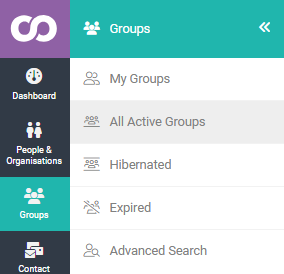
The menu bar is what gives you access to the various areas within infoodle. Only the following areas will open additional menu options when you hover over their icons:
- People & Organisations
- Groups
- Contact
- Finance
- Your profile

Collapsable Menu
For the pages that have sub-menus, you can collapse and open them by clicking the double arrow.
Search Bar
At the top of infoodle there is a search bar

Use the drop-down menu to change what you want to search for: name, household, email, etc. This list can be changed in the custom fields area.
Search results will display while you're typing. Once the required result is displayed you can click on it and you will be sent to your searched result.
By default, only active profiles will be search for. Selecting the Archived checkbox will extend the search to the profiles that have been archived. This is only shown when Can see Archived is enabled in your role.
The Quick Action Toolbar

Capacity Indicator
The Capacity indicator located at the top right of the screen, is a quick way to get an overview of your total Active Contacts and current Database Capacity.
This data is updated overnight, or when you view the Site Statistics.
The indicatations are:
Green - within your current capacity - no action required
Orange - close to capacity - consider increasing capacity, or archiving contacts
Red - over capacity - you will need to increase capacity, or archive contacts
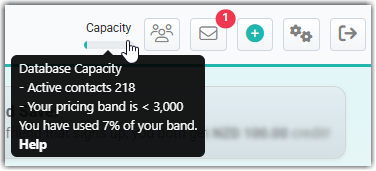
Hover the mouse cursor over the indicator to view more detailed information, including:
- The number of Active Contacts in the database
- Your current Pricing Band
- The percentage in use of the Pricing Band
If you are close to, or have gone over your current database capacity, the number of Active Contacts can be reduced by archiving contact records that are no longer needed. Archived contacts to not count towards your database total but can be accessed if required. Archiving a Person
If you are over capacity and unable to reduce your active contacts by archiving, then it's time to increase your database capacity to the next pricing band.
To archive profiles, see Archiving a Person
Who is online
This is only available to those who have the email package and have the role function. Click this icon to go to your infoodle inbox. The count shown is the number of unread emails you have.

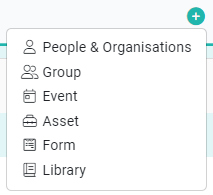
The + (add) icon
This icon provides quick access to adding data. The options available will depend on your role.
Administration Cog
This allows you to access many administration areas of infoodle. Most of these however are only available to the administrator role. 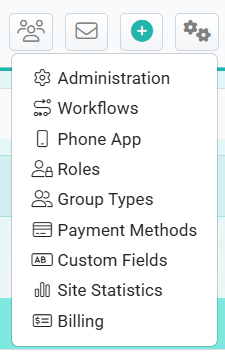
From here you can access:
- Administration settings
- Workflows
- Phone app
- Roles
- Group types
- Payment methods
- Custom fields
- Site statistics
- Billing
Help
The help button allows you to access all of the help information you need.
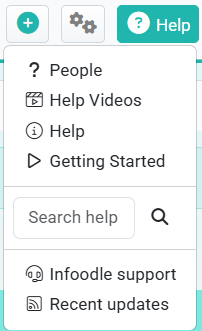
The link at the top is a dynamic link which changes depending on the current page you are on. Clicking this link will take you to the page with the most relevant help documents for your current page.
Help Videos
This link will present the Quick Videos, and Training Videos.
Help
This link takes you to the help documents for all topics.
Getting Started
This is a page contains a list of functions applicable to your role. There are help document links and videos for most functions - and it tracks your state of completion.
Search Help
You can type here to search within the help documents.
infoodle Support
This opens the support button. This provides quick access to popular help pages and the ability to search the help documentation. It also provides a link to register a support request with the team.
Recent updates
We post information on important updates. A count will show if there are any you have not read.