App Notifications are push notifications sent from infoodle to anyone who has your organisation's infoodle App installed. Use them for time-sensitive messages that should land on people's lock screens — service reminders, venue changes, prayer requests, new resources, or any short message you need in front of your community quickly.
This article covers how to compose and send a notification. For everything else about the infoodle App — installing it, setting up the home page, managing navigation — see the infoodle App section.
Before you start
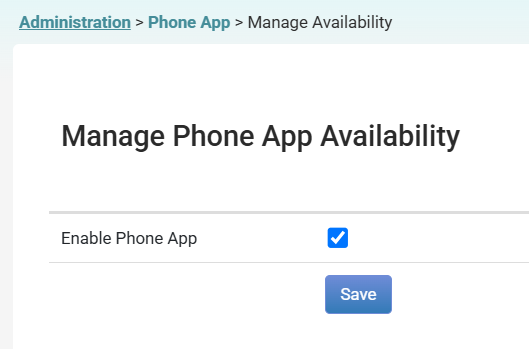
- The infoodle App must be enabled. It's free! Turn it on at Administration → Phone App → Enable the phone app. Until it's enabled, the App Notifications tab is hidden and the related role items don't appear in Roles. See Enabling the infoodle App first.
- You need the Send Notifications to your Infoodle App Users role permission. Find it in the Infoodle App section of the role edit screen.

- The Contact people role permission is required as the parent permission for the Contact menu — if you can already send email or text from infoodle, you already have it.

- Recipients must have the app installed, be signed in to your organisation, and have device notifications turned on for the app.
Step 1 — Open App Notifications
- Click Contact in the main navigation.
- Select the App Notifications tab (to the right of Email, Letter, Text and Labels).
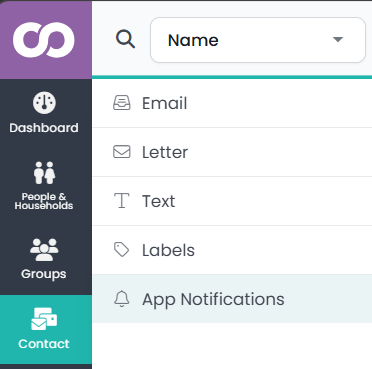
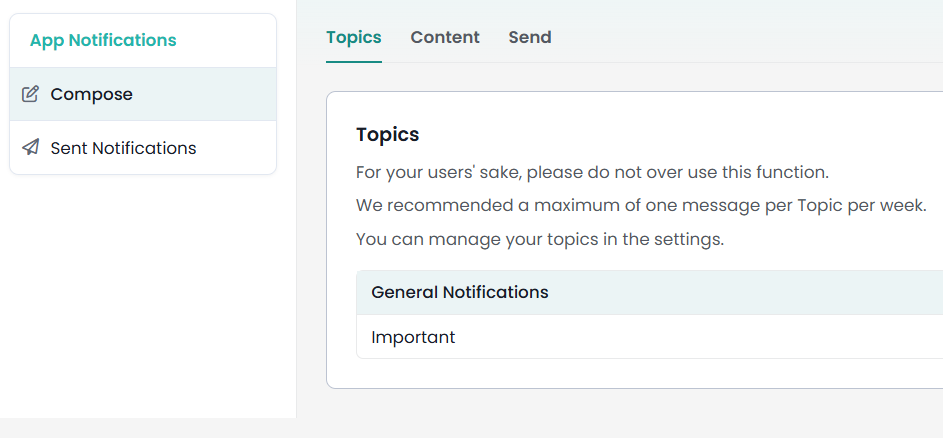
- Then in the left sidebar you'll see two options: Compose and Sent Notifications.
Step 2 — Pick a topic
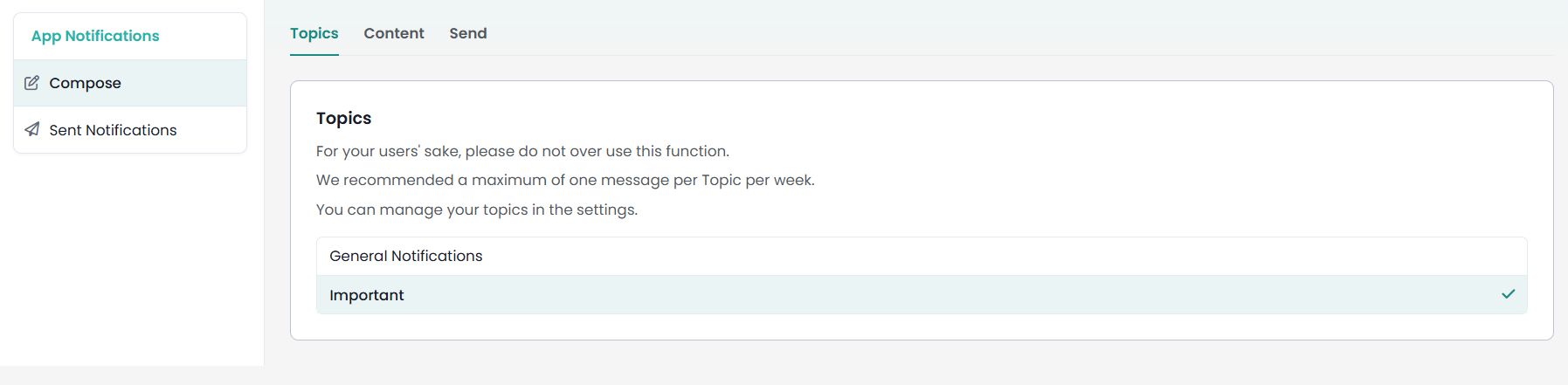
The first screen shows a list of your available topics — click one to select it (a tick appears on the right to confirm your selection). In the example below, Important is selected.
A few things to note:
- infoodle recommends a maximum of one notification per topic per week — don't overuse push notifications or people will mute them.
- To add or rename topics, click on the Administration cog icon → Administration → Phone App → Notification Topics.
Step 3 — Write the notification
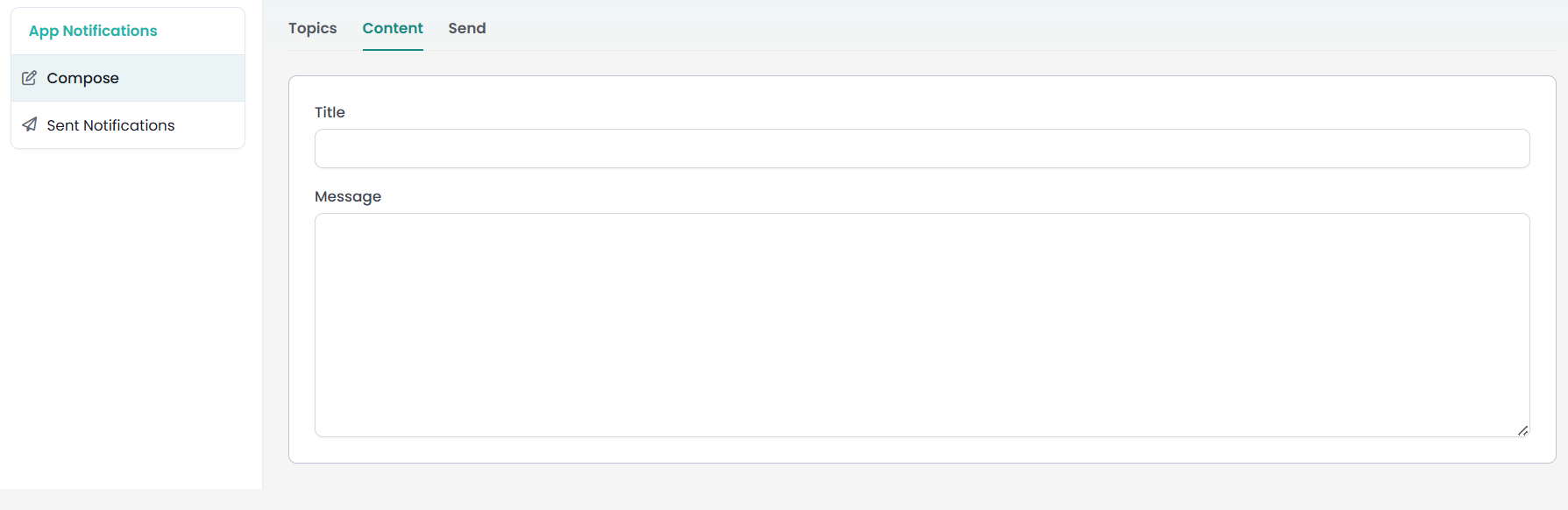
- Click the Content tab and fill in two fields:
Title - the bold first line people see on their lock screen. Keep it short (around 35–40 characters) or it may be cut off.
Message - one or two short sentences with the detail. Put the important information first, as phones truncate long messages on the lock screen.
Push notifications are plain text only — no images, attachments, or formatting. If you need to point people to something longer, write a short notification ("New roster published — tap to open") and let the app content be what they land on after tapping.
Step 4 — Schedule and send
- Click the Send tab.
- Under Schedule, set the date and time you want the notification to go out — enter the date, hour, minutes, and select AM or PM. To send immediately, leave it set to the current time.
- When you're ready, click Send now.
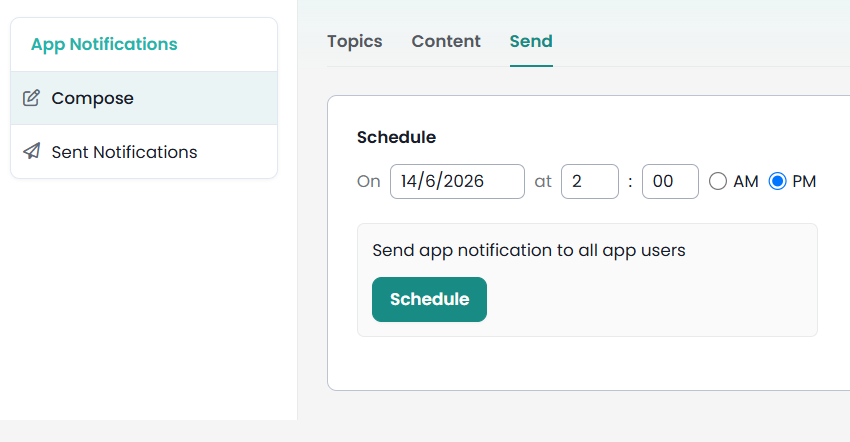
Unlike Email and Text, you don't choose a specific audience — the notification goes to every app user subscribed to the chosen topic.
infoodle hands delivery off to Apple and Google's push services — after that, on-time arrival depends on the device being online and the user's notification settings.
Viewing sent notifications
Click Sent Notifications in the sidebar to see a log of everything you've sent. The table shows:
| Column | What it shows |
|---|---|
| Send Date & Time | When the notification was scheduled to go out |
| Topic | Which topic it was sent to |
| Title | The notification title |
| Message | The message body |
| Sent By | Which admin sent it |
| Status | Delivery status |

What recipients see
- A banner appears at the top of the screen (or on the lock screen if the device is locked), showing the app name, the notification title in bold, and the first line of the message.
- Tapping the banner opens the infoodle App. If the app is already open, the notification appears in the app's notifications list.
- The badge counter on the app icon increases by one for each unread notification.
Users control their own topic subscriptions from the app's settings screen. If someone mutes the app entirely in their phone's system settings, push notifications won't appear — but they'll still land in the app's in-app notifications list the next time they open it.
Common questions
Some users aren't getting the notification.
Notifications only reach people who have the app installed, are signed in, have allowed notifications in their phone settings, and (on Engage) are subscribed to the topic you sent on. Reach anyone outside that group by email or text instead.
I want to send to one group, not everyone.
Notifications target by topic subscription, not by infoodle group. If you need group-level targeting, set up a topic per group and ask members to subscribe — this requires the Engage upgrade.
The notification arrived late.
The scheduled time is when infoodle hands the notification off to Apple or Google. A phone that's off or in airplane mode will receive the push when it next connects, or not at all if the push has expired.
I can't see the App Notifications tab.
The tab only appears when the App is enabled and your role has the Send Notifications to your Infoodle App Users role item ticked. Check Administration → Phone App for the App status and Administration → Roles for the role item.
Can I attach an image or PDF?
No — pushes are plain text only. Host images or documents inside the app (as a library file or linked page) and send a short notification directing people to tap through.