The Public Calendar is a public web page that lists the events from your infoodle site that you have marked as visible on the internet. Anyone can open it without logging in: from the infoodle Tools menu in the app, from a link or QR code you share, or from a copy of the calendar embedded in your own website.
infoodle builds this page from a form called Calendar. Every site has one, and it is created for you the first time someone opens the Forms list on a site that has Events.
Before you start
Role Permissions
- Search Events: open the Events area to find the event you want to publish.
- Add events: create a new event and set it to show on the Public Calendar.
- Edit all events: change the setting on an event someone else created. You can always edit an event you created yourself.
- Create and manage forms and entries (subject to cluster and form restrictions): open the Calendar form and change its settings. This permission also puts Forms on the main menu.
For an explanation of what each role permission does, see People role permissions.
You will also need the following:
- You will need at least one event, because this calendar is built from your events rather than from entries that people fill in.
- You will need the Calendar form to be Active. It starts out as Not active, and until you change that the page reads "This form has not been made active".
What decides whether an event appears
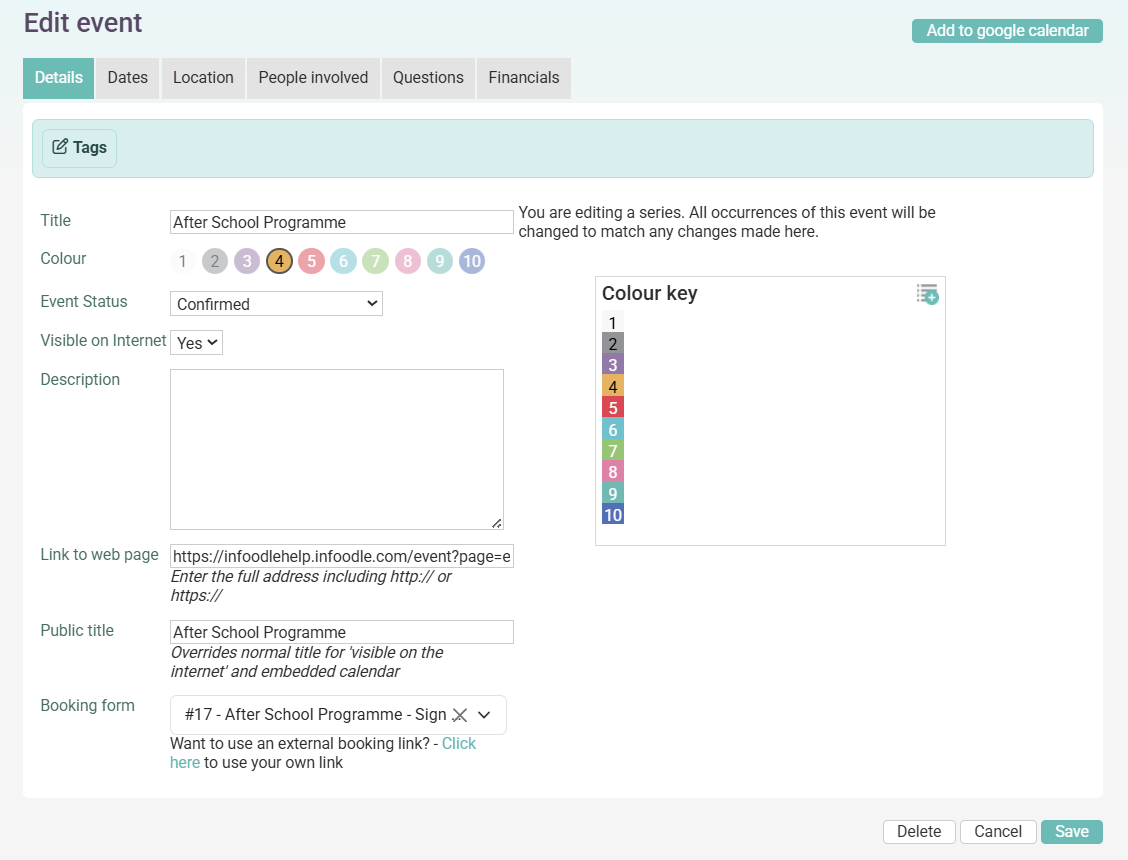
- Visible on Internet: the event appears when this is set to Yes on the event's Details tab. This is the setting that puts an event on the page.
- Event Status: events set to Cancelled are left off the calendar.
- Repeats: a repeating event shows every occurrence that falls inside the month, week or day being viewed.
- Public title: when an event has a Public title, that title replaces the normal title on the Public Calendar.
- Link to web page: when an event has a web link, the title on the calendar becomes a link to that page.
Group membership, invitee lists and rosters make no difference to what a visitor sees. Everyone sees the same set of events, whether they are logged in or not. If you turn on the location picker described in Step 2, a visitor can narrow the calendar to one of your locations, and it still only ever shows events marked Visible on Internet.
The event Description, the name of the event's location and any Tags on the event are all shown on the Public Calendar. Tags appear twice: as a coloured dot beside every event title, and again alongside the description and location when you hover over or tap an event. A Public title replaces the title only, so keep internal notes and internal tags off any event you make visible on the internet. The description and the location name also travel with the calendar subscription address described below.
Step 1: Put an event on the Public Calendar
- Click or hover on Events on the main menu bar on the left, then click All events.
- Open the event you want to publish.
- On the Details tab, set Visible on Internet to Yes.
- Next, fill in Public title if you want visitors to see a different name from the one your team uses internally.
- Fill in Link to web page if you want the entry on the calendar to link to a booking page or a page on your website. Enter the full address including https://.
- Save the event.
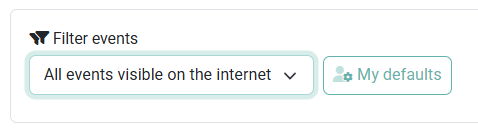
To check your work without leaving infoodle, go to Events and choose All events visible on the internet from the Filter events list above the calendar. That shows you exactly the set of events the public page draws from.
Step 2: Create and publish a form for the calendar event
Each calendar event that allows public registration needs its own form. You build this form in the Forms module, then link it to the event.
- Click Forms on the main menu.
- Click Add to create a new form.
- Give the form a name that identifies the event (for example, Easter Sunday Registration) and click Save.
- On the Build form tab, drag in the fields you want visitors to fill out — at minimum, a name and contact method.
- On the Form Settings tab, set Status to Active.
- Click Publish to make the form live.
- Navigate to the calendar event you want to attach this form to. Click Edit event.
- On the Details tab, scroll down to Booking form and select your newly created form from the dropdown.
- Click Save.
The form is now linked to the event. When visitors view the event, they'll see the booking form and can submit their information.
Step 3: Share the calendar
The share links work as soon as the form's Status is Active. You do not need to use the Publish button.
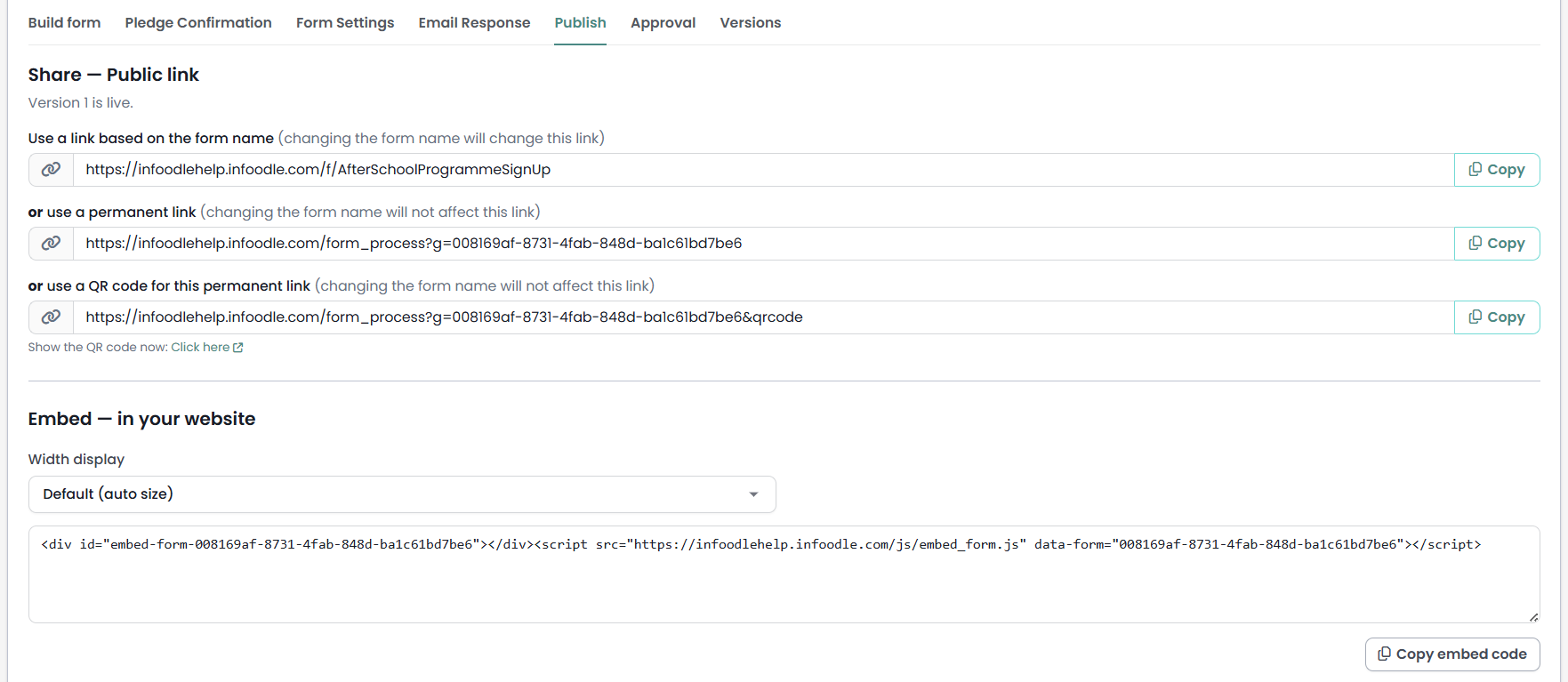
Open the Publish tab of the Calendar form. It gives you four ways to hand the page out:
- A link based on the form name: an address like
https://yoursite.infoodle.com/f/Calendar. Renaming the form changes this link. - A permanent link: a longer address that stays the same even if you rename the form.
- A QR code for the permanent link, which you can print on a noticeboard or a flyer.
- An embed code: pick a Width display, click Copy embed code, then paste the code into a page on your own website.
Where people see the Public Calendar
- infoodle Tools in the app: tap Public Calendar in the tools list. This is the entry most app users take, and it appears on sites that have the Events module.
- A link or QR code you share by email, in a newsletter or on a poster.
- Your own website, using the embed code from the Publish tab.
- The app's own Calendar screen, if your administrator has added a menu item with the page type "Link to Calendar" under Administration > Phone App. That screen is built by the app rather than by the Calendar form, and it lists the same events, driven by the same Visible on Internet setting.
- A calendar subscription. Go to Events, click Export Calendar, and choose All events visible on the internet. Copy the address it gives you and add it to Google Calendar, Outlook or a phone calendar, and your public events keep flowing through.
Common questions
Do visitors need to log in to see the Public Calendar?
No. The page is open to anyone with the link. The one exception is the Login required? setting on the Calendar form: tick that and the page is only available to people logged in to your infoodle.
Why is my event missing from the calendar?
Check three things: Visible on Internet is set to Yes on the event, the event's Event Status is not Cancelled, and the Calendar form's Status is Active. If the form is not active, the page shows "This form has not been made active" instead of a calendar.
Why are public holidays showing on my calendar?
infoodle adds your country's public holidays to the calendar from Google. To leave them off, click the administration cog in the top right hand corner, go to Administration > System, and set Show Google calendar to Do not show google calendar events.
Why does an event show at a different time for a visitor?
The Public Calendar has a Time zone list at the top of the page, and it opens on the time zone of the device viewing it. Someone overseas sees your events in their own time zone until they choose yours from that list.
Can I have more than one Public Calendar?
No. Your site has a single Calendar form. Every other form you create is an ordinary form for collecting entries, so the way to show a different slice of your events is the location picker rather than a second calendar.
Does the calendar show who is attending or rostered on?
No. The Public Calendar sends the event title, its times, its description, its location and any tags on the event. Attendance, rosters, invitees and organiser details stay inside infoodle.
Can someone add these events to their own calendar app?
Yes. Use the subscription address from Events > Export Calendar > All events visible on the internet. It carries your events that are visible on the internet, and it refreshes on its own once someone has subscribed to it. See Connecting Events using iCal for the setup in each calendar app.
Next steps
Publish the link where your community will find it, then keep the calendar useful by setting Visible on Internet to Yes as part of creating each new public event. See Adding an Event.
Related articles: