Form Approval
When approving a Form Entry, for each contact that is going to be created or updated from the form entry, you have the option of choosing How to process this contact.
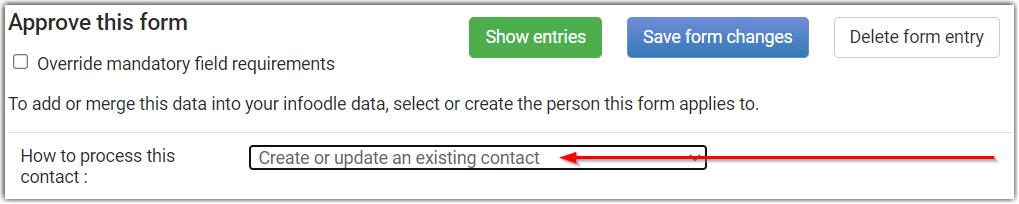
We cover the various different options in detail in a separate help page.
See How to Process Contacts during Form Approval for more information.
For now we will use the Create or update an existing contact option.
Data from the form entry will be either added to or updated for an existing contact, or it will be used to create a new contact record.
There can be a number of options presented for how to Process the form data
-
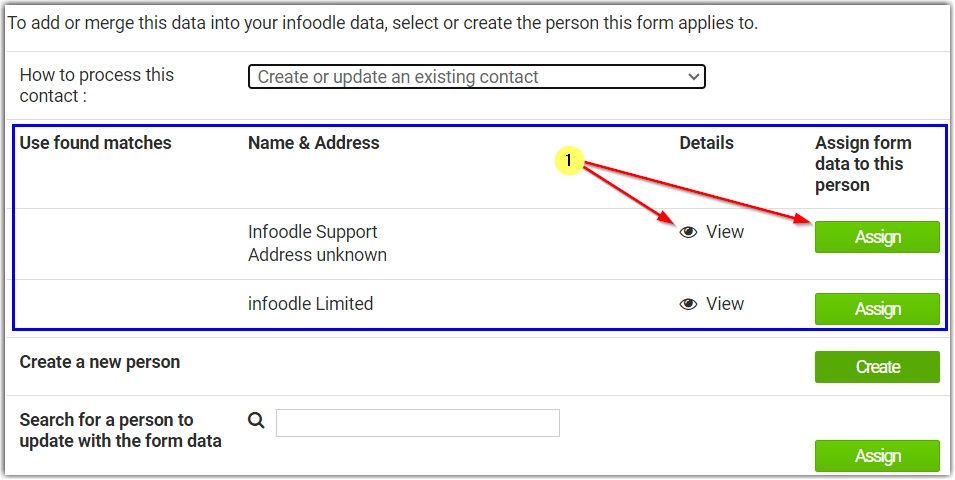
Use Found Matches: - If there is Name or email address data in the form that matches an existing contact in your database, you will be shown a list of possible matches. Click the View icon to preview that contact, or click Assign to allocate the form to this contact. Only one contact can be selected for each form section.
-
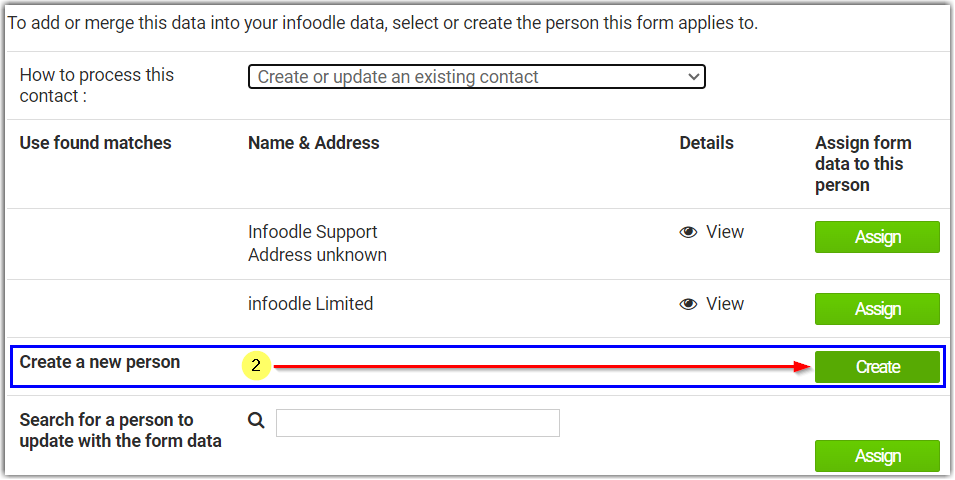
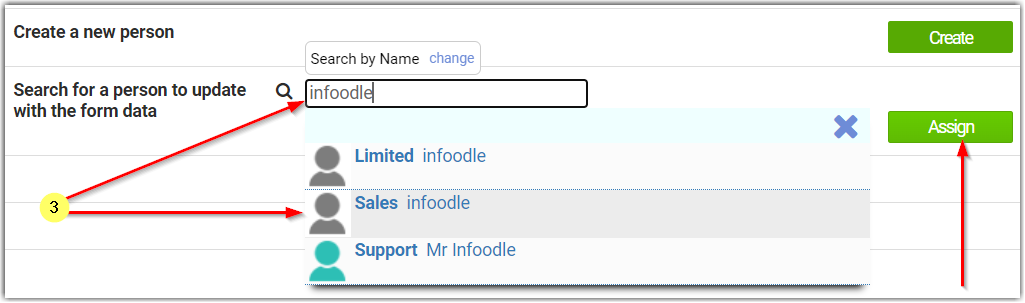
Create a new person - This option is available for any form that uses the Persons Name form field, and is used to create a new Contact Record.
-
Search for person to update with the form data - This option works the same as Assigning to a found match, but allows you to search for the existing record that you wish to assign the form entry to.
-
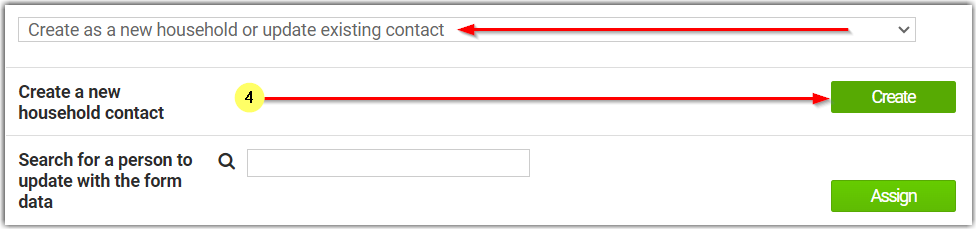
Create a new Organisation/Household Contact - If you have a from that only uses the Organistion/Houshold Name field, and not the Persons Name field, then you are not able to use the Create a new person option. Instead you will see Create as a new household or update existing contact option under "How to process this contact".
You can assign this form to a found, or searched contact as normal, or can use the option to create a new Organisation/Household Contact. This Contact will not have the First name/Last name fields, and the Organisation/Household name will become the name of the contact.
See What is an organisation contact for more information
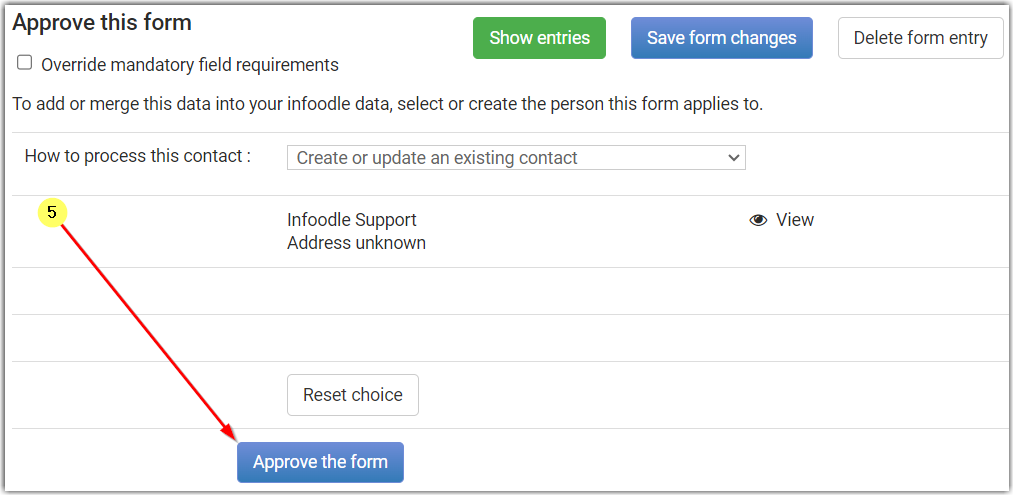
- Approve the form - Once you have made your selection for each contact on the form, click the Approve the Form Button to complete the form approval process.
-
If your site uses workflows, then you may see an additional step for selecting a Workflow when approving Form Entries. This will display after selecting Create/Assign but before Clicking Approve the Form
See Trigger Workflows via Forms for more information. -
If there are Financial elements to your form then there may be some additional things to check and assign during the form approval process.
See Process financial form entries for more information
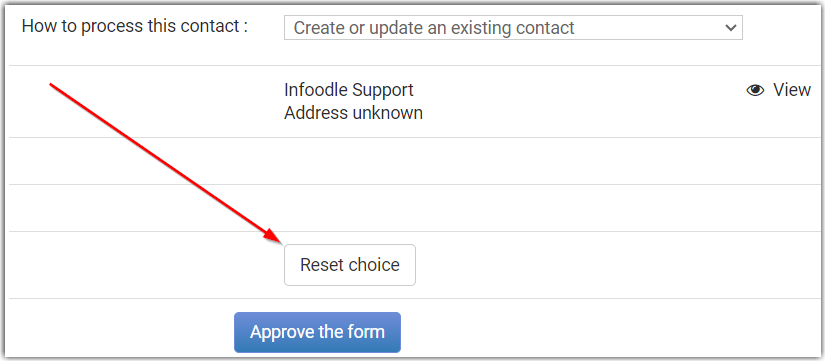
You can use the Reset Choice option, prior to approving a form, if you need to change how the contact is assigned.